1. ຜະລິດຕະພັນເກີນview
The MIDIPLUS STUDIO-M PRO is an advanced USB audio interface designed for high-quality audio recording and playback. It features a 24-bit/192KHz high-precision converter and pure amplifier inputs, ensuring pristine sound reproduction. Its robust aluminum alloy and metal construction make it durable for any personal studio environment. The intuitive panel design and new driver software provide easy control over your audio.

ຮູບ 1: ດ້ານຫນ້າ view of the STUDIO-M PRO, showing input, gain controls, and level meters.
2. ຄຸນນະສົມບັດທີ່ສໍາຄັນ
- High-Precision Conversion: Supports 24-bit/192KHz audio resolution for superior clarity and detail in recordings.
- Upgraded Preamps: ມາພ້ອມກັບຄຸນນະພາບສູງ preamplifier inputs and pure instrument/linear inputs, including 48V phantom power for condenser microphones.
- Intuitive Monitoring: Input gain knobs feature two-color level meter lights for real-time signal monitoring.
- ຜົນຜະລິດທີ່ມີຄວາມຍືດຫຍຸ່ນ: Two 1/4'' TRS balanced outputs for connecting to monitor speakers and an independent headphone output with its own volume control.
- Studio Mix Driver: New driver software with 8 wire connect presets, sample rate selection, and ASIO settings for various audio processing, live broadcast, gaming, or video playback scenarios.
- ການກໍ່ສ້າງທົນທານ: Aluminum alloy panel and metal bottom shell for enhanced durability and stability.
3. ຄູ່ມືການຕິດຕັ້ງ
3.1. ການຫຸ້ມຫໍ່ແລະການກວດກາເບື້ອງຕົ້ນ
ເອົາສ່ວນປະກອບທັງຫມົດອອກຈາກການຫຸ້ມຫໍ່ຢ່າງລະມັດລະວັງ. ກວດສອບວ່າລາຍການທັງຫມົດທີ່ລະບຸໄວ້ຂ້າງລຸ່ມນີ້ແມ່ນມີແລະບໍ່ເສຍຫາຍ:
- MIDIPLUS STUDIO-M PRO Audio Interface
- ສາຍ USB
- ປື້ມຄູ່ມືເລີ່ມຕົ້ນດ່ວນ
- Software License (if applicable)
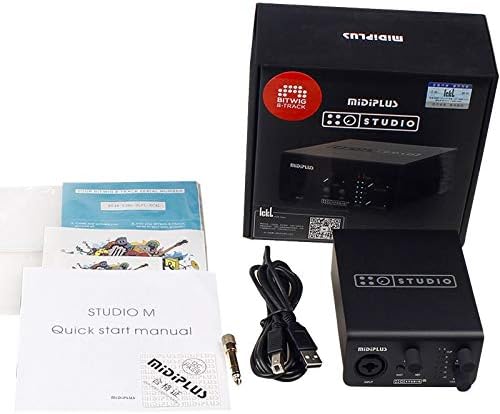
Figure 2: Contents of the STUDIO-M PRO retail package.
3.2. ການເຊື່ອມຕໍ່ຮາດແວ
Follow these steps to connect your STUDIO-M PRO to your computer and audio equipment:
- ເຊື່ອມຕໍ່ກັບຄອມພິວເຕີ: Use the provided USB cable to connect the STUDIO-M PRO's USB port to an available USB port on your computer.
- ເຊື່ອມຕໍ່ໄມໂຄຣໂຟນ/ເຄື່ອງດົນຕີ: Plug your microphone (XLR) or instrument (1/4" TS/TRS) into the INPUT jack on the front panel.
- Connect Monitor Speakers: Connect your active monitor speakers to the LEFT and RIGHT 1/4" TRS balanced outputs on the rear panel.
- ເຊື່ອມຕໍ່ຫູຟັງ: Plug your headphones into the HEADPHONE jack on the rear panel.

Figure 3: Rear panel connections of the STUDIO-M PRO, including USB, headphone, and balanced outputs.
3.3. ການຕິດຕັ້ງຊອບແວ
For optimal performance, it is crucial to install the latest Studio Mix driver software. Visit the official Midiplus website to download the appropriate driver for your operating system (Windows is supported). Follow the on-screen instructions during installation.
4. ຄໍາແນະນໍາການດໍາເນີນງານ
4.1. Input Gain Control
The front panel features controls for managing your input signals:
- ປຸ່ມເພີ່ມ: Adjust this knob to control the input level of your microphone or instrument. The two-color LED meters (CLIP, 0, -3, -6, -12, -24) indicate the signal strength. Aim for the signal to peak around -3dB to avoid clipping (red CLIP LED).
- INST Button: Press this button when connecting a high-impedance instrument, such as an electric guitar or bass, directly into the input.
- ປຸ່ມ 48V: Activate this button to supply 48V phantom power to condenser microphones that require it. Ensure your microphone is connected before engaging 48V.
4.2. Monitoring and Output
Control your output and monitoring levels:
- ປຸ່ມຕິດຕາມ: This knob controls the overall output volume to your main monitor speakers connected to the rear TRS outputs.
- HEADPHONE Knob: This knob independently controls the volume of the headphone output. Adjust to a comfortable listening level.
4.3. Using the Studio Mix Driver Software
The Studio Mix driver software provides advanced control over your audio interface. It allows you to:
- ເລືອກ sample rates (e.g., 44.1kHz, 48kHz, 96kHz, 192kHz).
- Configure ASIO settings for low-latency performance in digital audio workstations (DAWs).
- Utilize 8 wire connect presets for quick configuration for different applications like audio processing, live streaming, gaming, or video playback.
- Monitor input and output levels digitally.
Refer to the Studio Mix software's built-in help or online documentation for detailed instructions on its features.
5. ບໍາລຸງຮັກສາ
To ensure the longevity and optimal performance of your MIDIPLUS STUDIO-M PRO, follow these maintenance guidelines:
- ທໍາຄວາມສະອາດ: Use a soft, dry cloth to wipe the exterior of the unit. Avoid using abrasive cleaners, solvents, or waxes, as they may damage the finish.
- ການເກັບຮັກສາ: ເມື່ອບໍ່ໄດ້ໃຊ້ເປັນເວລາດົນ, ໃຫ້ເກັບຮັກສາສ່ວນຕິດຕໍ່ໄວ້ໃນບ່ອນທີ່ເຢັນ, ແຫ້ງແລ້ງຫ່າງຈາກແສງແດດໂດຍກົງ ແລະອຸນຫະພູມທີ່ຮຸນແຮງ.
- ການຈັດການ: ໃຫ້ຈັດການເຄື່ອງດ້ວຍຄວາມລະມັດລະວັງ. ຫຼີກລ່ຽງການຕົກ ຫຼື ກະທົບທີ່ຮຸນແຮງ.
- ການລະບາຍອາກາດ: ຮັບປະກັນການລະບາຍອາກາດທີ່ເຫມາະສົມຮອບຫນ່ວຍເພື່ອປ້ອງກັນຄວາມຮ້ອນເກີນ. ຫ້າມປິດຊ່ອງລະບາຍອາກາດໃດໆ.
6. ການແກ້ໄຂບັນຫາ
If you encounter issues with your STUDIO-M PRO, refer to the following common problems and solutions:
- ບໍ່ມີໄຟ / ບໍ່ມີໄຟ:
- ກວດໃຫ້ແນ່ໃຈວ່າສາຍ USB ເຊື່ອມຕໍ່ຢ່າງປອດໄພກັບທັງສ່ວນຕິດຕໍ່ ແລະຄອມພິວເຕີຂອງທ່ານ.
- ລອງໃຊ້ພອດ USB ອື່ນໃນຄອມພິວເຕີຂອງທ່ານ.
- Verify your computer is powered on.
- ບໍ່ມີສຽງອອກ:
- Check that the MONITOR and HEADPHONE volume knobs are turned up.
- Verify that your monitor speakers are powered on and connected correctly.
- Ensure the STUDIO-M PRO is selected as the default audio output device in your computer's sound settings or DAW.
- Check cable connections to speakers/headphones.
- ບໍ່ມີສັນຍານເຂົ້າ:
- Ensure your microphone or instrument is properly connected to the INPUT jack.
- Adjust the GAIN knob.
- If using a condenser microphone, ensure the 48V phantom power is engaged.
- If using an instrument, ensure the INST button is pressed.
- Verify the STUDIO-M PRO is selected as the default audio input device in your computer's sound settings or DAW.
- ສຽງບິດເບືອນ:
- Reduce the input GAIN to prevent clipping (red CLIP LED).
- ກວດສອບສໍາລັບສາຍໄຟຜິດພາດ.
- ຮັບປະກັນ sample rate and buffer size settings in your DAW and Studio Mix driver are appropriate for your system.
- ບັນຫາຄົນຂັບ:
- Reinstall the latest Studio Mix driver from the official Midiplus webເວັບໄຊ.
- ປິດການໃຊ້ງານຊອບແວ antivirus ຊົ່ວຄາວໃນລະຫວ່າງການຕິດຕັ້ງໄດເວີ.
If the problem persists, contact Midiplus customer support for further assistance.
7. ຂໍ້ກໍານົດດ້ານວິຊາການ
| ຄຸນສົມບັດ | ຂໍ້ມູນຈໍາເພາະ |
|---|---|
| ນ້ໍາຫນັກລາຍການ | 1 ກິໂລ (2.2 ປອນ) |
| ເຕັກໂນໂລຊີການເຊື່ອມຕໍ່ | USB |
| ຍີ່ຫໍ້ | ກາງ |
| ຄວາມເຂົ້າກັນໄດ້ຂອງລະບົບປະຕິບັດການ | Windows |
| ການໂຕ້ຕອບຮາດແວ | USB |
| ອຸປະກອນທີ່ເຂົ້າກັນໄດ້ | ຫູຟັງ |
| ວັນທີທໍາອິດທີ່ມີ | ວັນທີ 21 ກໍລະກົດ 2020 |
| ຄວາມລະອຽດສຽງ | 24 ບິດ / 192 KHz |
| ວັດສະດຸປ້ອນ | 1x Combo XLR/TRS Input (with 48V phantom power, INST switch) |
| ຜົນໄດ້ຮັບ | 2x 1/4'' TRS Balanced Outputs, 1x Headphone Output |
8. ການຮັບປະກັນແລະການສະຫນັບສະຫນູນ
Information regarding the specific warranty terms and conditions for the MIDIPLUS STUDIO-M PRO is not available in the provided product data. Please refer to the official Midiplus website or contact their customer support directly for detailed warranty information and technical assistance.
ສໍາລັບການສະຫນັບສະຫນູນ, ໄປຢ້ຽມຢາມ: ຮ້ານ Midiplus ໃນ Amazon


