ແນະນຳ
This manual provides instructions for the Mars Gaming MCPTKLES RGB Combo, which includes a gaming keyboard and mouse. This combo is designed for optimal desktop space utilization and is compatible with multiple platforms, including Windows, Mac, PlayStation 4, Xbox One, and Nintendo Switch. The keyboard features RGB Breathing and RGB Flow lighting, H-Mech technology, and anti-ghosting capabilities. The mouse is equipped with a 3200 DPI optical sensor, RGB Flow lighting, and durable HUANO mechanical buttons.
ເນື້ອໃນຊຸດ
- Mars Gaming MCPTKLES TKL RGB Keyboard
- Mars Gaming MCPTKLES RGB Mouse
- ຄູ່ມືຜູ້ໃຊ້ (ເອກະສານນີ້)
ຕັ້ງຄ່າ
Connecting the Combo
The Mars Gaming MCPTKLES combo uses a standard USB connection for both the keyboard and mouse. No additional drivers are typically required for basic functionality on supported operating systems.
- ຊອກຫາພອດ USB ທີ່ມີຢູ່ໃນຄອມພິວເຕີ ຫຼື ເຄື່ອງຫຼິ້ນເກມຂອງທ່ານ.
- Plug the USB connector from the keyboard into the USB port.
- Plug the USB connector from the mouse into another available USB port.
- ລະບົບປະຕິບັດການຂອງທ່ານຄວນກວດພົບແລະຕິດຕັ້ງໄດເວີທີ່ຈໍາເປັນໂດຍອັດຕະໂນມັດ.
- The RGB lighting on both devices should illuminate upon successful connection.
ຄວາມເຂົ້າກັນໄດ້ຫຼາຍເວທີ
This combo is designed to work with:
- ລະບົບປະຕິບັດການ Windows
- Mac operating systems
- PlayStation 4
- Xbox One
- Nintendo Switch
Note: Specific game or console settings may be required for full functionality on gaming consoles. Refer to your console's user manual for peripheral setup.
ຄໍາແນະນໍາການດໍາເນີນງານ
Keyboard Functions (TKL Design)
The TKL (Tenkeyless) design of the keyboard omits the numeric keypad, offering a more compact form factor. It features H-Mech technology for a smooth and precise typing experience.
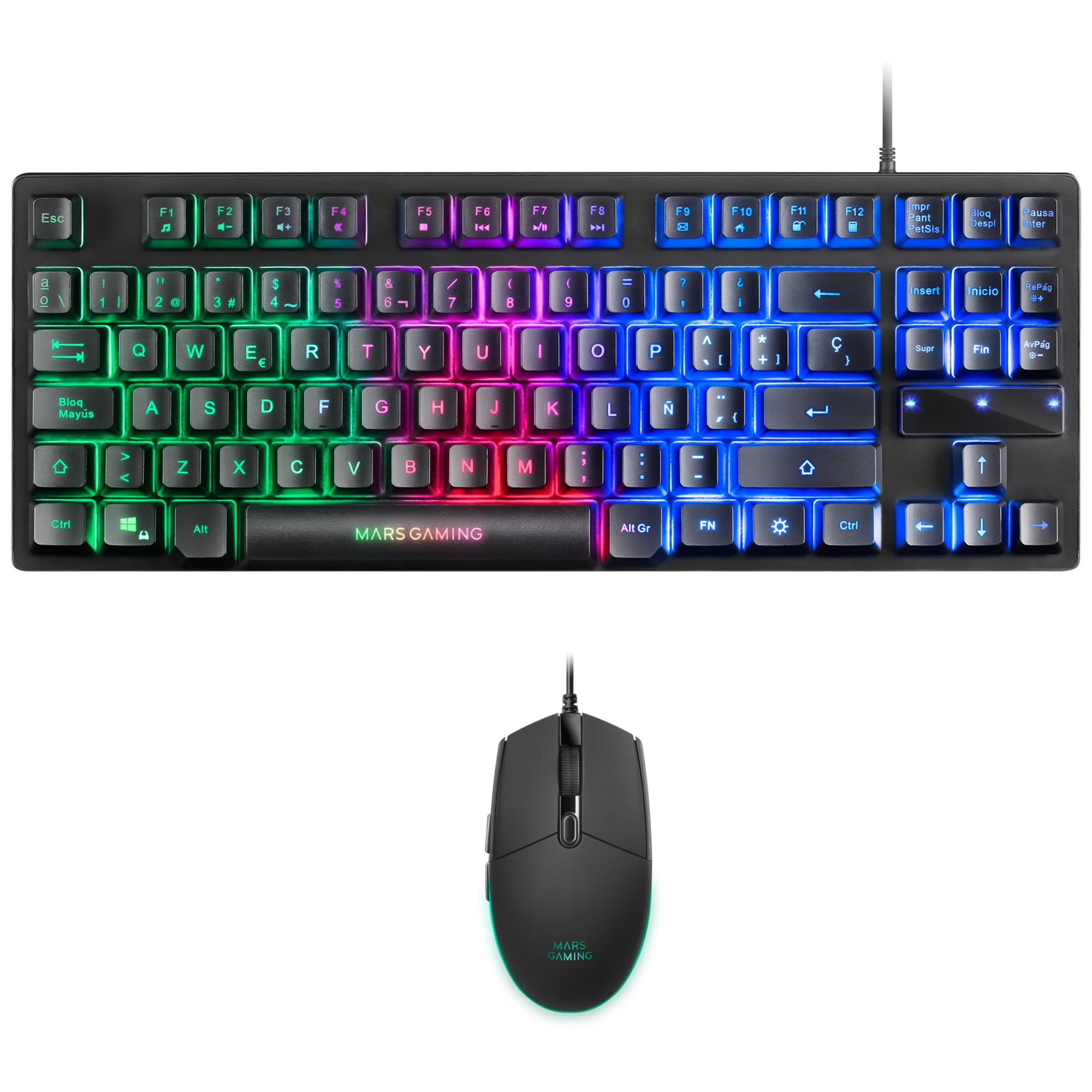
Image: Mars Gaming MCPTKLES TKL RGB Keyboard. This image shows the compact tenkeyless design of the keyboard with its RGB backlighting.
ການຄວບຄຸມແສງໄຟ RGB
The keyboard features RGB Control lighting. Specific key combinations allow you to cycle through different lighting modes and effects. Refer to the keyboard's function keys (Fn) combined with other keys for lighting adjustments. Common controls include:
- Fn + [ຄີ]: To change lighting modes (e.g., static, breathing, wave).
- Fn + [Arrow Keys]: To adjust brightness or speed of effects.

Image: Close-up of Mars Gaming MCPTKLES Keyboard RGB Keys. This image highlights the individual keys and their vibrant RGB backlighting.
ຕ້ານຜີ
The keyboard is equipped with anti-ghosting technology, which ensures that multiple key presses are registered simultaneously without conflict, crucial for fast-paced gaming.
ຟັງຊັນ ໜູ
The lightweight mouse features an optical sensor with adjustable sensitivity up to 3200 DPI, RGB Flow lighting, and 6 programmable buttons with high-quality HUANO mechanical switches.

Image: Mars Gaming MCPTKLES RGB Mouse Top View. This image displays the top of the mouse, showing the scroll wheel and main buttons.
DPI Adjustment (On-the-fly)
Use the dedicated DPI button (often located near the scroll wheel) to cycle through different sensitivity levels (DPI - Dots Per Inch). This allows for quick adjustments to mouse speed without interrupting gameplay.

Image: Mars Gaming MCPTKLES RGB Mouse Side View. This image shows the ergonomic shape and side buttons of the mouse.
ປຸ່ມທີ່ຕັ້ງໂປຣແກຣມໄດ້
The mouse features 6 buttons. While basic functionality is plug-and-play, advanced customization and macro programming may require specific software from Mars Gaming, if available. Visit the official Mars Gaming webເວັບໄຊທ໌ສໍາລັບການດາວໂຫຼດຊອບແວ.

Image: Mars Gaming MCPTKLES RGB Mouse with RGB Flow Lighting. This image illustrates the dynamic RGB lighting effects on the mouse.
ບໍາລຸງຮັກສາ
ທໍາຄວາມສະອາດ
- Disconnect the keyboard and mouse from your computer before cleaning.
- Use a soft, dry, lint-free cloth to wipe down the surfaces.
- ສໍາລັບຝຸ່ນ stubborn, ເລັກນ້ອຍ dampen ຜ້າດ້ວຍນ້ໍາຫຼືການແກ້ໄຂການທໍາຄວາມສະອາດອ່ອນໆ. ຫຼີກເວັ້ນຄວາມຊຸ່ມຊື່ນຫຼາຍເກີນໄປ.
- ຫ້າມໃຊ້ສານເຄມີທີ່ຮຸນແຮງ, ເຄື່ອງຂັດຂັດ, ຫຼືສານລະລາຍ.
- ສໍາລັບແປ້ນພິມ, ໃຊ້ອາກາດບີບອັດເພື່ອເອົາຝຸ່ນແລະສິ່ງເສດເຫຼືອອອກຈາກລະຫວ່າງກະແຈ.
ການເກັບຮັກສາ
ເກັບຮັກສາອຸປະກອນໄວ້ໃນບ່ອນທີ່ເຢັນ, ແຫ້ງ ແລະ ຫ່າງຈາກແສງແດດໂດຍກົງ ແລະ ອຸນຫະພູມສູງສຸດ ເມື່ອບໍ່ໄດ້ໃຊ້ງານເປັນເວລາດົນ.
ການແກ້ໄຂບັນຫາ
Keyboard or Mouse Not Responding
- Ensure both USB cables are securely plugged into the computer or console.
- ລອງສຽບອຸປະກອນໃສ່ພອດ USB ອື່ນ.
- ຣີສະຕາດຄອມພິວເຕີ ຫຼືຄອນໂຊນຂອງທ່ານ.
- Test the devices on another computer to determine if the issue is with the combo or your system.
ແສງ RGB ບໍ່ເຮັດວຽກ
- Verify the devices are properly connected and powered.
- Check if the lighting has been turned off via keyboard shortcuts (Fn + lighting control keys).
- Ensure no software conflicts are present if you are using third-party lighting control applications.
Mouse Cursor Jumps or is Inaccurate
- Clean the mouse sensor area on the underside of the mouse.
- Ensure you are using the mouse on a clean, uniform surface (a mouse pad is recommended).
- Adjust the DPI settings using the mouse's DPI button.
ຂໍ້ມູນຈໍາເພາະ
| ຄຸນສົມບັດ | ລາຍລະອຽດ |
|---|---|
| ຍີ່ຫໍ້ | ເກມດາວອັງຄານ |
| ໝາຍເລກຕົວແບບ | MCPTKLES |
| ເຕັກໂນໂລຊີການເຊື່ອມຕໍ່ | USB (ມີສາຍ) |
| ຮູບແບບແປ້ນພິມ | Spanish (TKL - Tenkeyless) |
| ຄຸນນະສົມບັດແປ້ນພິມ | H-Mech Technology, RGB Control Lighting, Anti-Ghosting |
| ເຊັນເຊີເມົ້າ | Optical |
| DPI ຫນູ | Up to 3200 DPI (On-the-fly adjustable) |
| ປຸ່ມຫນູ | 6 (with HUANO mechanical switches) |
| ແສງຫນູ | ກະແສ RGB |
| ອຸປະກອນທີ່ເຂົ້າກັນໄດ້ | Linux, Mac, PS4, Windows, XBOX ONE |
| ຂະໜາດສິນຄ້າ | 44 x 15.9 x 4.4 ຊມ (ແປ້ນພິມ) |
| ນ້ໍາຫນັກລາຍການ | 400 g |
| ສີ | ດຳ |
ການຮັບປະກັນແລະການສະຫນັບສະຫນູນ
For warranty information and technical support, please refer to the official Mars Gaming webເວັບໄຊ ຫຼືຕິດຕໍ່ບໍລິການລູກຄ້າຂອງເຂົາເຈົ້າ. ຮັກສາຫຼັກຖານການຊື້ຂອງທ່ານສໍາລັບການຮ້ອງຂໍການຮັບປະກັນ.
Mars Gaming ຢ່າງເປັນທາງການ Webເວັບໄຊ: www.marsgaming.eu


