1. ບົດແນະນຳ
Thank you for choosing the ToLuLu 1080P HD Webcam. This manual provides detailed instructions for the proper setup, operation, and maintenance of your webcam. Designed for professional-quality video calls, recording, conferencing, and gaming, this webcam delivers crisp images and clear video at 30 frames per second. It features automatic light correction, HDR technology, and a built-in noise-reduction microphone to ensure optimal performance in various lighting conditions.
2. ສິ່ງທີ່ຢູ່ໃນກ່ອງ
- ToLuLu 1080P HD Webກ້ອງ
- ຄູ່ມືຜູ້ໃຊ້
- ຄວາມເປັນສ່ວນຕົວ
- ຂາຕັ້ງໂຕະ
3. ຜະລິດຕະພັນເກີນview
The ToLuLu 1080P HD Webcam is equipped with a full HD glass lens and an integrated digital stereo microphone. It features a flexible clip for mounting on various displays and a standard tripod thread for the included tripod stand. A privacy cover is also provided for enhanced security.

Image 3.1: ToLuLu 1080P Webcam with included privacy cover and tripod.

ຮູບພາບ 3.2: Webcam with privacy cover and tripod stand. The privacy cover can be closed when the webກ້ອງບໍ່ໄດ້ໃຊ້.
4. ຄໍາແນະນໍາການຕິດຕັ້ງ
- ການຕິດຕັ້ງ Webກ້ອງ:
ໄດ້ webcam features an adjustable universal clip. You can place it securely on top of your laptop screen, desktop monitor, or any flat surface. For alternative placement, attach the webcam to the included tripod stand using the standard tripod thread at the bottom of the clip. - ການເຊື່ອມຕໍ່ກັບຄອມພິວເຕີຂອງທ່ານ:
Connect the USB cable from the webcam to an available USB port on your computer (laptop, desktop, Mac, PC). The webcam is designed for plug-and-play functionality, meaning no additional drivers are typically required for most operating systems. - ການຮັບຮູ້ເບື້ອງຕົ້ນ:
ຄອມພິວເຕີຂອງທ່ານຄວນຈະກວດຫາ ແລະ ຕິດຕັ້ງໂດຍອັດຕະໂນມັດ webcam. A notification may appear indicating that the device is ready for use. - ການຕັ້ງຄ່າຊອບແວຣ:
Open your preferred video conferencing or streaming application (e.g., Zoom, Skype, OBS, YouTube, Facetime). Navigate to the video and audio settings within the application and select the "ToLuLu Webcam" as your video input device and its integrated microphone as your audio input device.

Image 4.1: Connecting the webກ້ອງວົງຈອນປິດຜ່ານ USB ສຳລັບການຕັ້ງຄ່າແບບ plug-and-play.
5. ຄໍາແນະນໍາການດໍາເນີນງານ
- ຄຸນນະພາບວິດີໂອ: The 1080P Full HD glass lens delivers clear video at 30 frames per second. The webcam features automatic light correction and HDR technology, which adjusts color and brightness for natural lighting, even in dim or poorly backlit environments.
- ຄຸນະພາບສຽງ: The built-in digital stereo microphone includes automatic noise reduction, ensuring your voice is captured clearly from up to 10 feet away.
- ຈໍກວ້າງ View: The fixed-focus lens provides a 110-degree wide-angle view, suitable for individual use or group video conferencing.
- ການປົກຫຸ້ມຂອງຄວາມເປັນສ່ວນຕົວ: Use the included privacy cover to physically block the camera lens when not in use. This protects your privacy and prevents unauthorized access to your video feed.

Image 5.1: Comparison illustrating the clarity of the 1080P Full HD webກ້ອງ

ຮູບພາບ 5.2: The webcam's 110-degree wide-angle view, suitable for multiple participants.
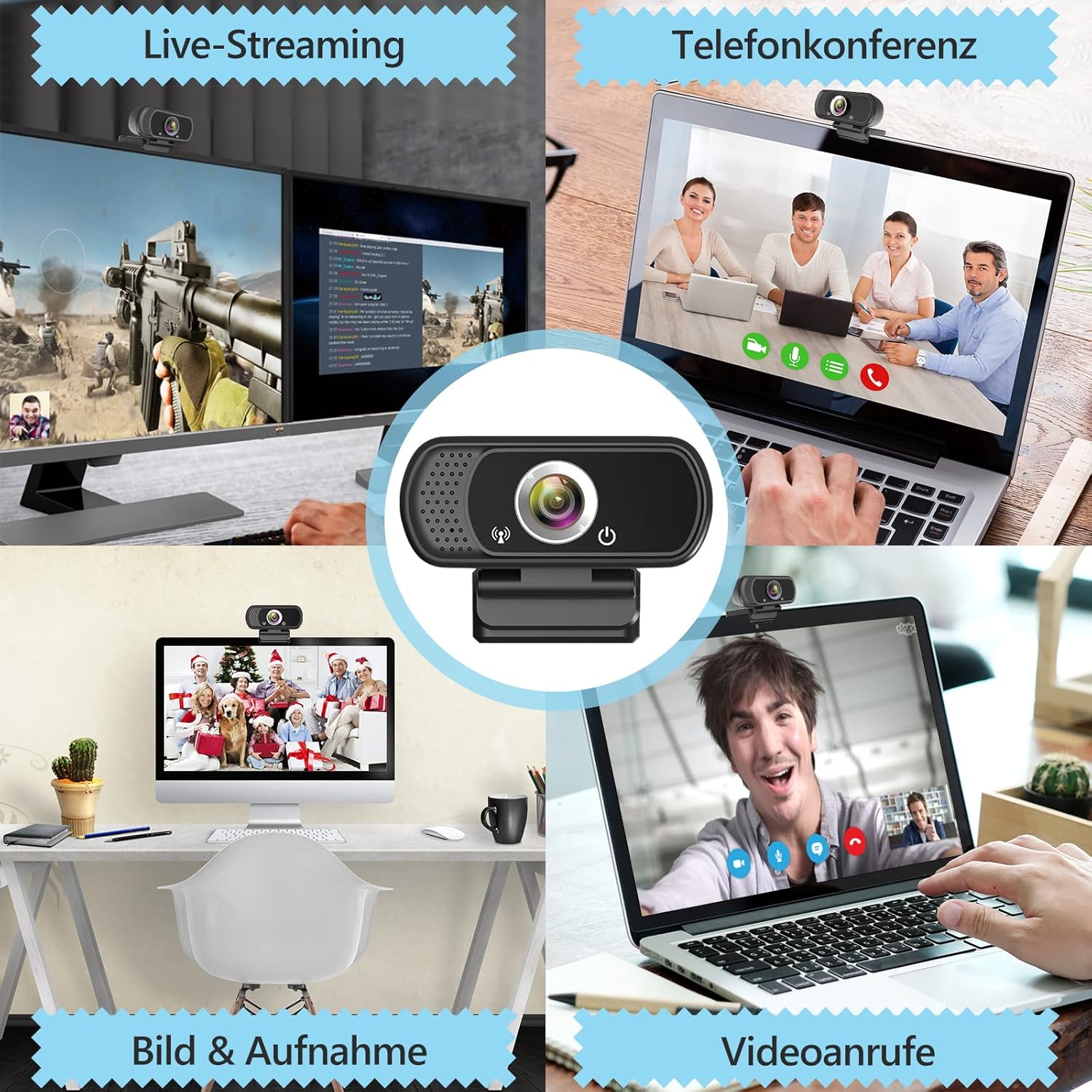
ຮູບພາບ 5.3: ຕົວຢ່າງamples ຂອງ webcam use in live streaming, teleconferencing, and video calls.
6. ຄວາມເຂົ້າກັນໄດ້
The ToLuLu 1080P HD Webcam offers broad compatibility with various operating systems and applications:
- ລະບົບປະຕິບັດການ: Windows 2000, XP, 7, 8, 10 and above; macOS 10.6 and above; Chrome OS 29.0.1547 or above; Android V5.0 or above; Smart TV.
- ແພລດຟອມຮາດແວ: Mac, PC, Laptops, Desktops, Smart TVs.
- ແອັບພລິເຄຊັນທີ່ເຂົ້າກັນໄດ້: Skype, OBS, YouTube, Facebook, Twitch, Facetime, Zoom, Xbox One, Hangouts, and more.

ຮູບພາບ 6.1: The webcam is compatible with multiple operating systems and popular communication platforms.
7. ບໍາລຸງຮັກສາ
- ທໍາຄວາມສະອາດ Lens: ໃຊ້ຜ້າແພທີ່ອ່ອນນຸ່ມ, ບໍ່ມີສານດ່າງທີ່ອອກແບບມາສະເພາະສຳລັບແວ່ນຕາເພື່ອເຊັດອອກຢ່າງຄ່ອຍໆ webcam lens. Avoid abrasive materials or harsh chemicals, which can scratch or damage the lens.
- ທໍາຄວາມສະອາດທົ່ວໄປ: ເຊັດຮ່າງກາຍຂອງ webcam with a soft, damp cloth. Ensure no moisture enters the device.
- ການເກັບຮັກສາ: ເມື່ອບໍ່ໄດ້ໃຊ້, ເກັບມ້ຽນ webກ້ອງຖ່າຍຮູບໄວ້ໃນບ່ອນທີ່ສະອາດ ແລະ ແຫ້ງ. ໃຊ້ຝາປິດຄວາມເປັນສ່ວນຕົວເພື່ອປົກປ້ອງເລນຈາກຝຸ່ນ ແລະ ຮອຍຂີດຂ່ວນ.
- ການດູແລສາຍໄຟ: ຫຼີກເວັ້ນການງໍຫຼືບິດສາຍ USB ຫຼາຍເກີນໄປເພື່ອປ້ອງກັນຄວາມເສຍຫາຍພາຍໃນ.
8. ການແກ້ໄຂບັນຫາ
| ບັນຫາ | ສາເຫດທີ່ເປັນໄປໄດ້ | ການແກ້ໄຂ |
|---|---|---|
| Webcam not detected / No image | USB connection issue, driver conflict, or incorrect software selection. |
|
| Poor image quality (blurry, dark, grainy) | Insufficient lighting, dirty lens, or software settings. |
|
| Microphone not working / Poor audio quality | Microphone not selected, system audio settings, or environmental noise. |
|
| Intermittent connection issues | Loose USB connection, USB port power issues, or system resource conflicts. |
|
9. ຂໍ້ມູນຈໍາເພາະ
| ຄຸນສົມບັດ | ລາຍລະອຽດ |
|---|---|
| ຄວາມລະອຽດການຖ່າຍວິດີໂອ | 1080p Full HD (1920 x 1080) at 30fps |
| ປະເພດເລນ | Full HD Glass Lens, Fixed Focus |
| ພາກສະຫນາມຂອງ View | 110 Degrees Widescreen |
| ໄມໂຄຣໂຟນ | Built-in Digital Stereo Microphone with Automatic Noise Reduction |
| ການແກ້ໄຂແສງສະຫວ່າງ | Automatic Light Correction, HDR Technology |
| ການເຊື່ອມຕໍ່ | USB Plug & Play (1.8m / 6 feet USB cable) |
| ການຕິດຕັ້ງ | Adjustable Universal Clip, Tripod Ready |
| ລະບົບປະຕິບັດການ | Windows 2000/XP/7/8/10+, macOS, Chrome OS, Android, Smart TV |
| ຂະໜາດ (LxWxH) | 3.8 x 3.1 x 2.5 ນິ້ວ |
| ນ້ໍາຫນັກລາຍການ | 6.3 ອອນ |
10. ການຮັບປະກັນແລະການສະຫນັບສະຫນູນ
ToLuLu is committed to providing quality products and customer satisfaction.
- ນະໂຍບາຍການສົ່ງຄືນ: This product is eligible for return within 30 days for an exchange or refund, subject to the retailer's return policy.
- ສະຫນັບສະຫນູນດ້ານວິຊາການ: ToLuLu offers lifetime professional technical team support for this product.
For further assistance or inquiries, please refer to the contact information provided with your purchase or visit the official ToLuLu support channels.


