ແນະນຳ
This manual provides essential information for the proper installation, operation, and maintenance of your Philips 278E1A 27" 4K UHD IPS Monitor. Please read this guide thoroughly before using the product to ensure optimal performance and safety. Keep this manual for future reference.
ຂໍ້ມູນຄວາມປອດໄພ
- ໃຫ້ແນ່ໃຈວ່າຈໍພາບຖືກວາງຢູ່ເທິງພື້ນຜິວທີ່ຫມັ້ນຄົງ, ຮາບພຽງເພື່ອປ້ອງກັນການຕົກຈາກອຸບັດຕິເຫດ.
- Use only the power adapter and cables supplied by Philips.
- ຢ່າໃຫ້ຈໍພາບຖືກຝົນ ຫຼື ຄວາມຊຸ່ມຊື່ນ ເພື່ອຫຼີກລ່ຽງໄຟຟ້າຊັອດ ຫຼື ໄຟໄໝ້.
- ຫຼີກເວັ້ນການປິດຊ່ອງລະບາຍອາກາດເພື່ອປ້ອງກັນຄວາມຮ້ອນເກີນ.
- ຢ່າພະຍາຍາມໃຫ້ບໍລິການຕິດຕາມກວດກາຕົວທ່ານເອງ. ອ້າງອີງການບໍລິການທັງໝົດໃຫ້ກັບບຸກຄະລາກອນທີ່ມີຄຸນວຸດທິ.
ຕັ້ງຄ່າ
1. ການຫຸ້ມຫໍ່ແລະການປະກອບ
Carefully remove the monitor and all components from the packaging. The box should contain the monitor, stand, HDMI cable, power cable, and user documentation.
- ແນບຖານຂາຕັ້ງໃສ່ຄໍຂາຕັ້ງ, ຍຶດມັນດ້ວຍສະກູທີ່ໃຫ້ໄວ້.
- ຈັດຕຳແໜ່ງຂາຕັ້ງທີ່ປະກອບເຂົ້າກັນໃຫ້ກົງກັບຮູຕິດຕັ້ງຢູ່ດ້ານຫຼັງຂອງຈໍພາບ ແລະ ຕິດມັນໃຫ້ແໜ້ນ.
2. ສາຍເຊື່ອມຕໍ່
ເຊື່ອມຕໍ່ສາຍທີ່ຈໍາເປັນກັບຈໍພາບແລະຄອມພິວເຕີຂອງທ່ານ.
- ສາຍໄຟ: ເຊື່ອມຕໍ່ປາຍສາຍໄຟດ້ານໜຶ່ງເຂົ້າກັບຊ່ອງສຽບພະລັງງານຂອງຈໍພາບ ແລະ ປາຍອີກດ້ານໜຶ່ງເຂົ້າກັບປລັກໄຟ.
- Video Input: Connect either an HDMI cable (2 ports available) or a DisplayPort cable (1 port available) from your computer's video output to the corresponding input on the monitor.
- ສຽງເຂົ້າ/ອອກ: If desired, connect an audio cable from your computer's audio output to the monitor's audio input, or connect external speakers/headphones to the monitor's audio output.

ຮູບ 1: ດ້ານຫລັງ view of the Philips 278E1A monitor, highlighting the HDMI, DisplayPort, and audio input/output ports for connectivity.
3. ການເປີດເຄື່ອງເບື້ອງຕົ້ນ
ກົດປຸ່ມເປີດປິດຢູ່ເບື້ອງຂວາລຸ່ມຂອງຈໍສະແດງຜົນເພື່ອເປີດມັນ. ຈໍພາບຈະກວດຫາແຫຼ່ງປ້ອນຂໍ້ມູນທີ່ມີການເຄື່ອນໄຫວໂດຍອັດຕະໂນມັດ.
ຄໍາແນະນໍາການດໍາເນີນງານ
1. ການນຳທາງເມນູ OSD
The On-Screen Display (OSD) menu allows you to adjust various monitor settings. Use the control buttons located on the bottom bezel of the monitor to navigate the menu.
- ກົດປຸ່ມເພື່ອເປີດໃຊ້ເມນູ OSD.
- ໃຊ້ປຸ່ມທິດທາງເພື່ອເລື່ອນຜ່ານຕົວເລືອກເມນູ.
- ກົດປຸ່ມ 'OK' ຫຼື 'Enter' ເພື່ອເລືອກຕົວເລືອກ ຫຼືຢືນຢັນການຕັ້ງຄ່າ.
- ກົດປຸ່ມ 'ອອກ' ຫຼື 'ກັບຄືນ' ເພື່ອກັບຄືນໄປຫາເມນູກ່ອນໜ້າ ຫຼືອອກຈາກ OSD.
2. ການຕັ້ງຄ່າຮູບ
ປັບລັກສະນະການສະແດງຜົນໃຫ້ເໝາະສົມທີ່ສຸດ viewing.
- ຄວາມສະຫວ່າງ & ກົງກັນຂ້າມ: Adjust these settings to control the overall luminance and the difference between light and dark areas.
- ການຕັ້ງຄ່າສີ: Fine-tune color temperature, gamma, and saturation. The monitor supports 109% sRGB color gamut for accurate color reproduction.
- SmartContrast: This feature dynamically analyzes content and automatically adjusts backlight intensity to enhance contrast for optimal digital images and videos.
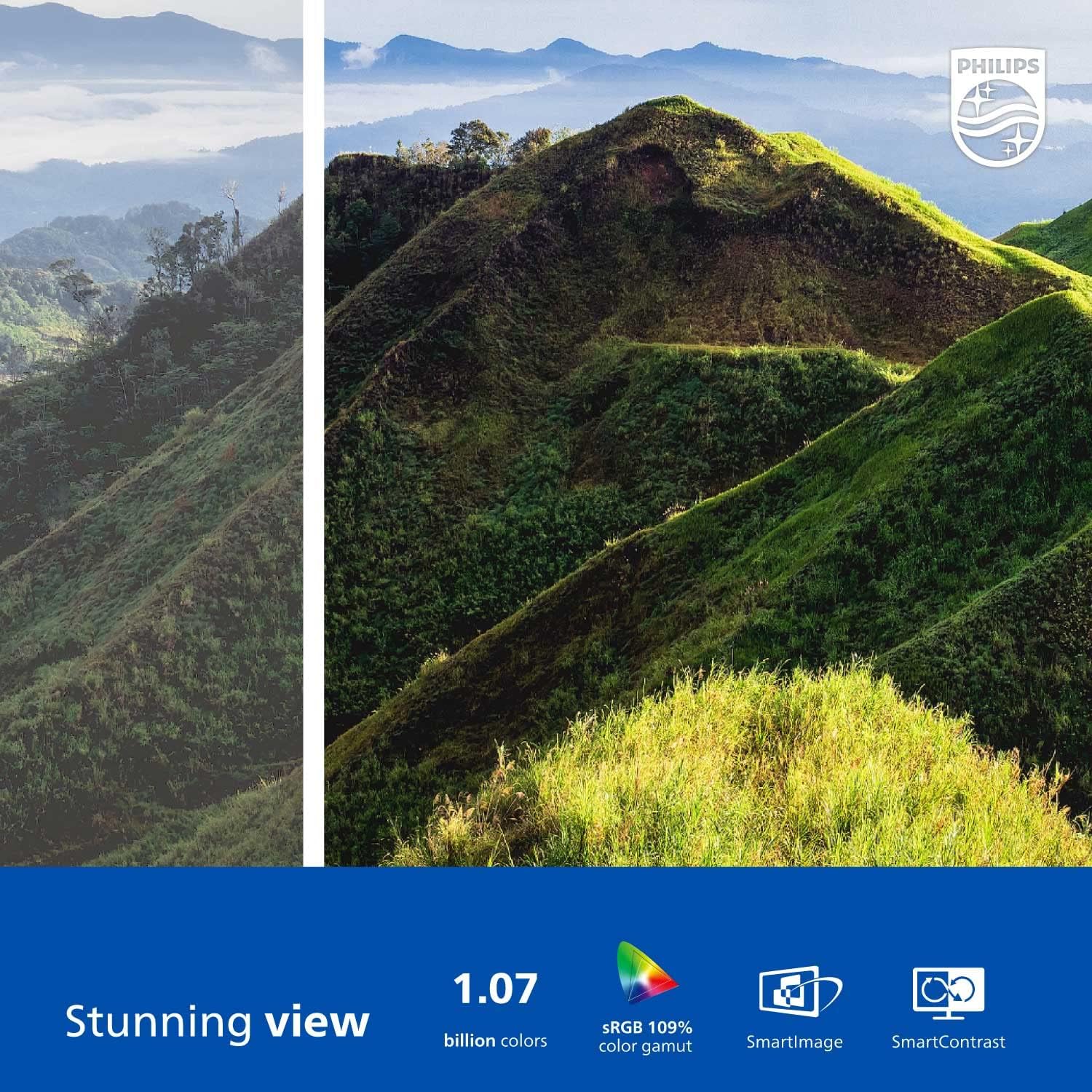
Figure 2: The Philips 278E1A monitor displaying a detailed and colorful mountain scene, illustrating its 4K UHD resolution and wide color gamut.
3. ການເລືອກຂາເຂົ້າ
Manually select the desired video input source if the automatic detection does not work or if you have multiple devices connected.
4. ການຕັ້ງຄ່າສຽງ
Control the volume of the built-in speakers or connected audio devices.
5. ຄຸນນະສົມບັດການດູແລຕາ
The Philips 278E1A includes features designed to reduce eye strain during prolonged use.
- ເທັກໂນໂລຍີ Flicker-Free: Regulates brightness and reduces screen flicker for more comfortable viewing.
- ໂໝດ LowBlue: A software solution that reduces harmful shortwave blue light emissions from the screen.

Figure 3: A split image demonstrating the visual difference when LowBlue Mode and Flicker-free technologies are active, reducing eye strain.
6. Frameless Design and Viewໃນ Angles
The monitor features a 3-sided frameless design, ideal for multi-monitor setups, and an IPS panel providing wide 178/178-degree viewing angles for consistent image quality from various perspectives.

Figure 4: A multi-monitor arrangement of Philips 278E1A displays, showcasing the minimal bezels and wide viewing angles suitable for extended desktop environments.
ບໍາລຸງຮັກສາ
1. ການທໍາຄວາມສະອາດຫນ້າຈໍ
ເພື່ອເຮັດຄວາມສະອາດໜ້າຈໍ, ຄ່ອຍໆເຊັດມັນດ້ວຍຜ້າທີ່ອ່ອນໆ, ບໍ່ມີສານຂັດ. ສໍາລັບຮອຍແຂງ, ງampen the cloth with a mild, non-abrasive screen cleaner. Never spray cleaner directly onto the screen.
2. ການດູແລທົ່ວໄປ
Keep the monitor away from direct sunlight, excessive heat, and humidity. Avoid placing heavy objects on the monitor or its cables.
ການແກ້ໄຂບັນຫາ
ຖ້າທ່ານພົບບັນຫາກັບຈໍພາບຂອງທ່ານ, ໃຫ້ອ້າງອີງເຖິງວິທີແກ້ໄຂທົ່ວໄປຕໍ່ໄປນີ້:
- ບໍ່ມີພະລັງງານ: ກວດໃຫ້ແນ່ໃຈວ່າສາຍໄຟຖືກເຊື່ອມຕໍ່ຢ່າງປອດໄພກັບທັງຈໍພາບ ແລະປລັກສຽບໄຟ. ກວດເບິ່ງວ່າປລັກສຽບໄຟເຮັດວຽກຫຼືບໍ່.
- ບໍ່ມີສັນຍານ: Verify that the video cable (HDMI or DisplayPort) is correctly connected to both the monitor and your computer. Ensure the correct input source is selected via the OSD menu.
- Image Problems (e.g., flickering, distorted colors): Check cable connections. Adjust picture settings in the OSD menu. If using a DisplayPort connection, ensure your graphics card supports 4K resolution at 60Hz.
- ບໍ່ມີສຽງ: Check the monitor's volume settings and your computer's audio output settings. Ensure external speakers or headphones are properly connected if used.
ສໍາລັບການຊ່ວຍເຫຼືອເພີ່ມເຕີມ, ກະລຸນາຕິດຕໍ່ຝ່າຍຊ່ວຍເຫຼືອລູກຄ້າ Philips.
ຂໍ້ມູນຈໍາເພາະ
| ຄຸນສົມບັດ | ລາຍລະອຽດ |
|---|---|
| ຂະໜາດໜ້າຈໍ | 27 ນິ້ວ |
| ຄວາມລະອຽດ | 3840 x 2160 (4K UHD) |
| ປະເພດແຜງ | IPS |
| ສີ Gamut | 109% sRGB |
| ການເຊື່ອມຕໍ່ | 2x HDMI, 1x DisplayPort, Audio In & Out |
| ລໍາໂພງ | Built-in (3W stereo) |
| ຂະໜາດ (ມີຂາຕັ້ງ) | 18.1 x 24.1 x 7.6 ນິ້ວ |
| ນ້ຳໜັກ (ພ້ອມຂາຕັ້ງ) | 13.57 ປອນ |
| ຄຸນນະສົມບັດການດູແລຕາ | Flicker-Free, LowBlue Mode |
ການຮັບປະກັນແລະການສະຫນັບສະຫນູນ
ຂໍ້ມູນການຮັບປະກັນ
Philips monitors sold in the United States come with a 4-Year Advance Replacement Warranty. This warranty minimizes downtime by providing a replacement unit in advance should your monitor require service.

Figure 5: Visual representation of the Philips 4-Year Warranty and Advance Replacement program, ensuring peace of mind for users.
ການຊ່ວຍເຫຼືອລູກຄ້າ
For technical support, warranty claims, or service inquiries, please visit the official Philips support website or contact their customer service hotline. Refer to the documentation included with your product for specific contact details in your region.
ວິດີໂອຜະລິດຕະພັນ
Philips Frameless Monitor Overview
ວິດີໂອນີ້ໃຫ້ຫຼາຍກວ່າview of the Philips 27-inch frameless monitor, highlighting its features and benefits for various work setups.
Why This Monitor is Top Rated
Learn about the key aspects that make this Philips monitor a top-rated choice, including its display quality and user-friendly features.


