Microsoft Surface Pro Keyboard User Manual
Model: QJW-00001
ແນະນຳ
This manual provides essential information for the setup, operation, maintenance, and troubleshooting of your Microsoft Surface Pro Keyboard. Designed for seamless integration with Surface Pro X and Surface Pro 8 devices, this keyboard offers a full mechanical keyset, backlit keys, and a large trackpad for an optimal typing experience.
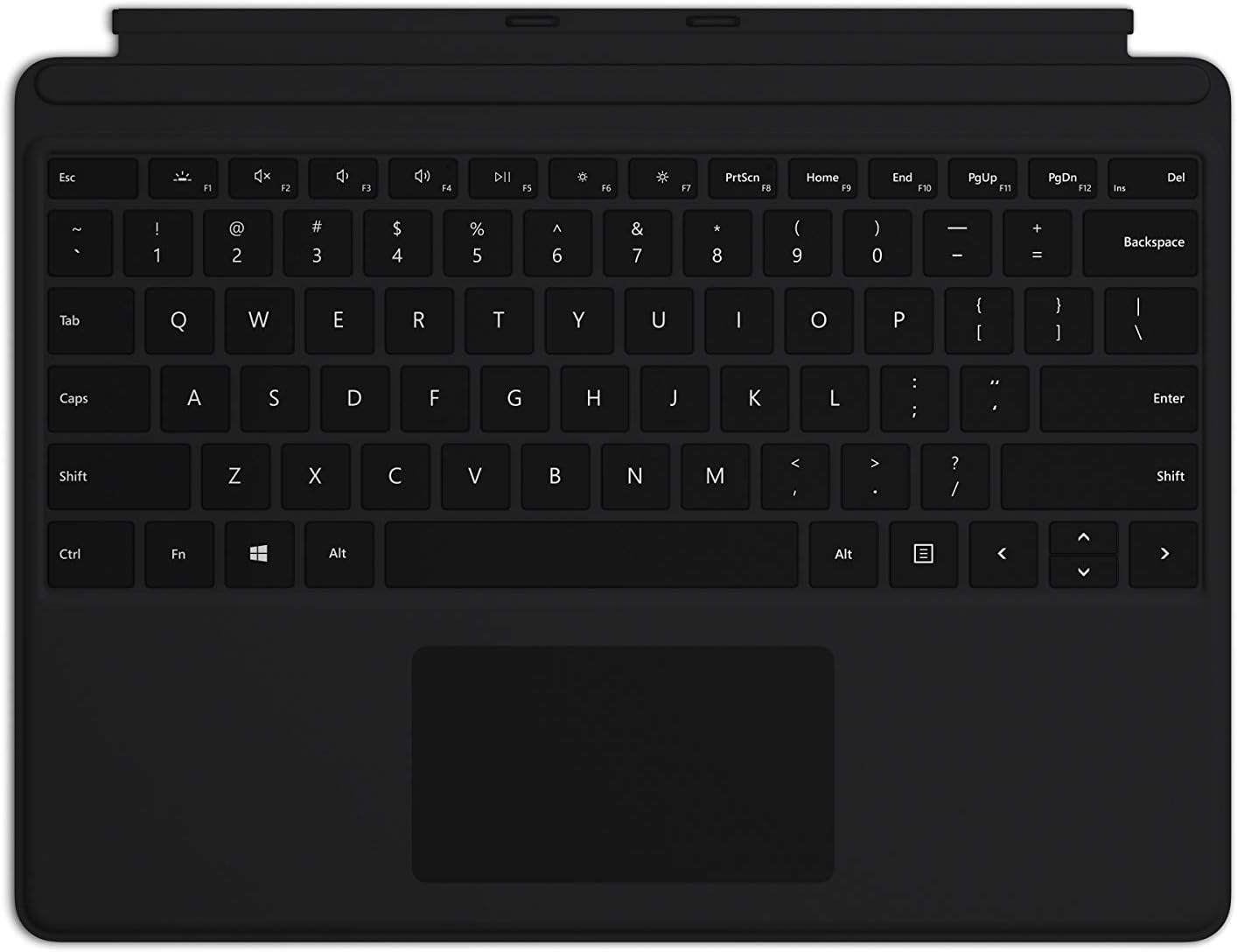
Image: The Microsoft Surface Pro Keyboard in black, showcasing its full QWERTY layout and integrated trackpad.
ຕັ້ງຄ່າ
ເນື້ອໃນຊຸດ
- ແປ້ນພິມ Surface Pro
ການເຊື່ອມຕໍ່ແປ້ນພິມ
The Microsoft Surface Pro Keyboard connects instantly to your compatible Surface device via magnetic stability. Ensure your Surface Pro X or Surface Pro 8 device is powered on.
- Align the magnetic connector edge of the keyboard with the corresponding port at the bottom edge of your Surface Pro X or Surface Pro 8 device.
- Gently push the keyboard towards the device until it clicks securely into place. The magnetic connection will guide it.
- Once connected, the keyboard will be recognized automatically by your Surface device.
The keyboard is designed to adjust to almost any angle, providing a stable typing experience. It also serves as a protective cover for your screen when closed, helping to conserve battery life.

ຮູບພາບ: ເທິງລົງລຸ່ມ view of the Microsoft Surface Pro Keyboard, illustrating its compact design and how it integrates with a Surface device.
ປະຕິບັດການແປ້ນພິມ
Typing and Navigation
The keyboard features a full mechanical keyset with optimal key spacing for fast and fluid typing. The large trackpad provides precise navigation and control, supporting multi-touch gestures as configured in your Surface device's settings.
ກະແຈ Backlit
The keys are backlit, allowing for comfortable use in low-light conditions. The backlight intensity can typically be adjusted through your Surface device's display settings or via dedicated function keys (if present on your specific model).
Protective and Power Saving Features
When not in use, fold the keyboard over the screen of your Surface device. This action protects the screen from scratches and helps conserve battery power by putting the device into a low-power state. To use your Surface as a tablet, fold the keyboard completely back behind the device.
ບໍາລຸງຮັກສາ
ທໍາຄວາມສະອາດ
To maintain the appearance and functionality of your keyboard, clean it regularly:
- ໃຊ້ຜ້າແພທີ່ອ່ອນໆ ທີ່ບໍ່ມີເສັ້ນດ່າງ dampened with water or a mild cleaning solution (e.g., isopropyl alcohol diluted with water) to wipe the surface of the keys and trackpad.
- ຫຼີກເວັ້ນການສີດນ້ໍາໂດຍກົງໃສ່ແປ້ນພິມ.
- ສໍາລັບຂີ້ຝຸ່ນແລະສິ່ງເສດເຫຼືອລະຫວ່າງກະແຈ, ໃຊ້ອາກາດບີບອັດ.
- Ensure the keyboard is completely dry before reattaching it to your Surface device.
ການເກັບຮັກສາ
When storing the keyboard separately from your Surface device, keep it in a clean, dry environment away from extreme temperatures and direct sunlight.
ການແກ້ໄຂບັນຫາ
ແປ້ນພິມບໍ່ຕອບສະໜອງ
- ກວດສອບການເຊື່ອມຕໍ່: Ensure the keyboard is securely attached to your Surface device. Detach and reattach it firmly.
- ຣີສະຕາດອຸປະກອນ: Restart your Surface Pro X or Surface Pro 8. This can often resolve minor software glitches.
- ກວດສອບການປັບປຸງ: Ensure your Surface device's operating system and drivers are up to date. Go to Windows Update settings.
- ທົດສອບໃນອຸປະກອນອື່ນ: If possible, test the keyboard with another compatible Surface device to determine if the issue is with the keyboard or the device.
Backlight ບໍ່ເຮັດວຽກ
- ປັບຄວາມສະຫວ່າງ: Try adjusting the backlight brightness using the function keys or through Windows display settings.
- ໂModeດປະຫຍັດພະລັງງານ: Ensure your device is not in a power-saving mode that might disable the backlight.
Trackpad Issues
- ແຜ່ນແທຣັກສະອາດ: ໃຫ້ແນ່ໃຈວ່າພື້ນຜິວແທຣັກແພັດສະອາດ ແລະບໍ່ມີສິ່ງເສດເຫຼືອ.
- ກວດເບິ່ງການຕັ້ງຄ່າ: Verify trackpad settings in Windows (Settings > Devices > Touchpad).
- ການຕິດຕັ້ງໄດເວີໃຫມ່: In Device Manager, try uninstalling and reinstalling the trackpad driver.
ຂໍ້ມູນຈໍາເພາະ
| ຄຸນສົມບັດ | ລາຍລະອຽດ |
|---|---|
| ຍີ່ຫໍ້ | Microsoft |
| ໝາຍເລກຕົວແບບ | QJW-00001 |
| ອຸປະກອນທີ່ເຂົ້າກັນໄດ້ | Surface Pro X, Surface Pro 8 |
| ເຕັກໂນໂລຊີການເຊື່ອມຕໍ່ | Magnetic (Physical Connection) |
| ຄຳອະທິບາຍແປ້ນພິມ | Full mechanical keyset, backlit keys, large trackpad |
| ສີ | ດຳ |
| ນ້ໍາຫນັກລາຍການ | 11.8 ອອນສ໌ (ປະມານ 334.5 ກຣາມ) |
| ຂະໜາດສິນຄ້າ (LxWxH) | 11.38 x 8.71 x 0.2 ນິ້ວ (ປະມານ 28.9 x 22.1 x 0.5 ຊມ) |
| ຈໍານວນກະແຈ | 79 |
| ແສງຫຼັງແປ້ນພິມ | LED ສີດຽວ |
ການຮັບປະກັນແລະການສະຫນັບສະຫນູນ
For warranty information and technical support, please refer to the documentation included with your Surface Pro X or Surface Pro 8 device, or visit the official Microsoft Support website. You can typically find support resources, FAQs, and contact options at support.microsoft.com.
ກະລຸນາຮັກສາຫຼັກຖານການຊື້ຂອງທ່ານສໍາລັບການຮຽກຮ້ອງການຮັບປະກັນ.


