ແນະນຳ
Welcome to your new TERIOS Mobile Game Controller. This manual provides detailed instructions for setup, operation, and maintenance to ensure optimal performance and an enhanced gaming experience across various platforms including Android smartphones, Windows PCs, and PlayStation 3 consoles. Please read this manual thoroughly before using the device.
ຄຸນນະສົມບັດທີ່ສໍາຄັນ
- Innovative Gaming: Designed to enrich your mobile gaming experience with precision and responsiveness.
- ຄວາມເຂົ້າກັນໄດ້ຢ່າງກວ້າງຂວາງ: Connects via Bluetooth 4.0 to Android smartphones, and is compatible with Windows PC and PlayStation 3. Supports popular games like PUBG, Call of Duty, and Mobile Legends.
- Gaming Joysticks: Features dual analog sticks for comprehensive and precise control.
- ການອອກແບບ Ergonomic: Comfortable grip with an integrated smartphone holder for extended gaming sessions.
- ຟັງຊັນ Turbo: Allows for rapid, continuous input with a single button press.
- Responsive Active Buttons: Includes 2 quick access buttons on the back and numerous action buttons for enhanced accuracy.
- ຊີວິດຫມໍ້ໄຟຍາວ: ຫຼິ້ນໄດ້ຕໍ່ເນື່ອງເຖິງ 12 ຊົ່ວໂມງຕໍ່ການສາກໄຟຄັ້ງດຽວ.
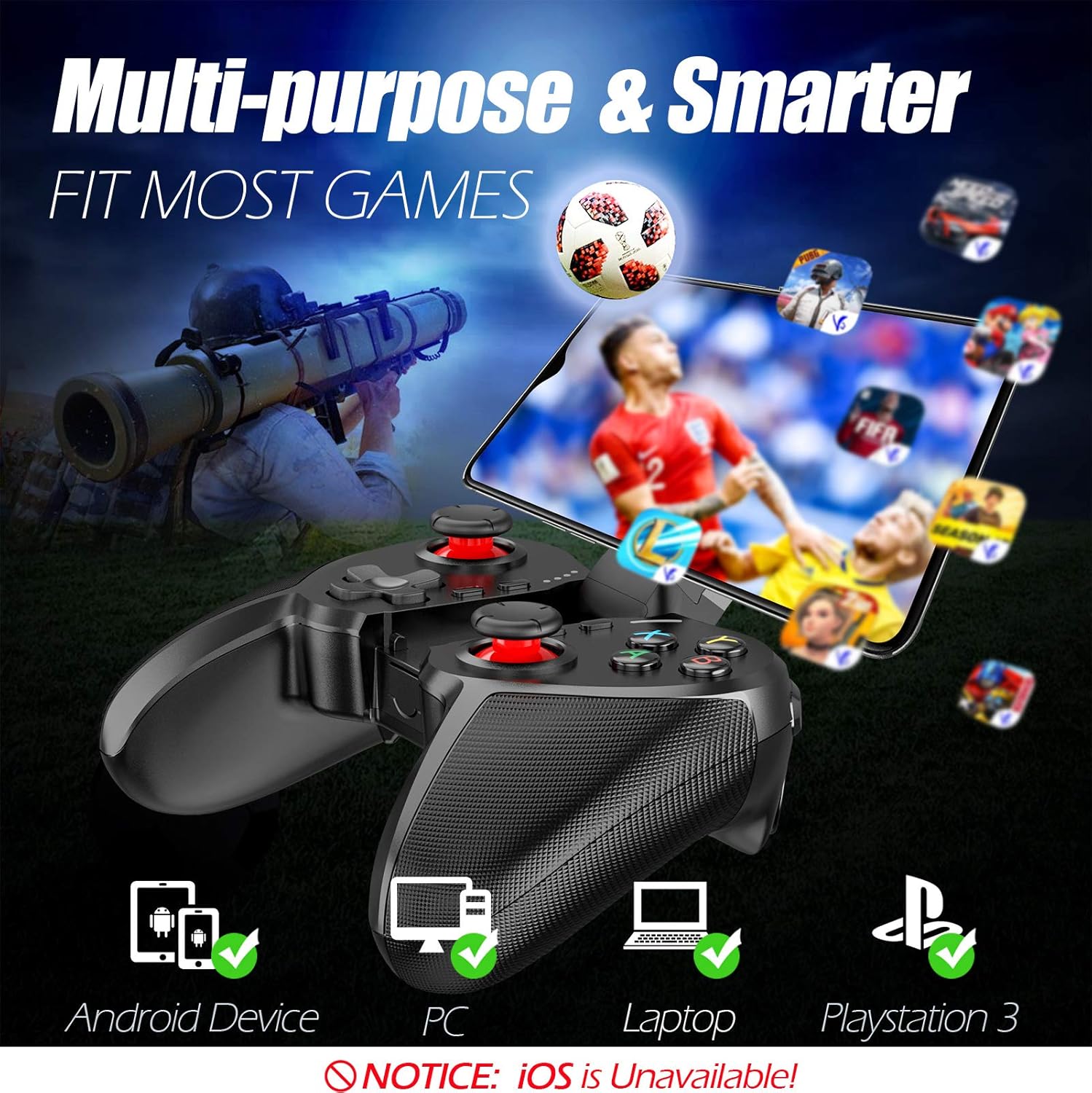
Figure 1: The TERIOS controller is compatible with Android devices, PCs, Laptops, and PlayStation 3.

Figure 2: Detail of the controller's built-in smartphone bracket, accurate buttons, and comfortable soft rubber grips.
ການຕິດຕັ້ງແລະການເຊື່ອມຕໍ່
1. ການສາກໄຟ Controller
Before first use, fully charge the controller. Connect the provided Micro USB cable to the controller's charging port and the other end to a USB power source (e.g., computer USB port, USB wall adapter). The indicator lights will show charging status and turn off when fully charged.

Figure 3: The controller features a 400mAh battery, providing 12-14 hours of playtime with a 2-3 hour charging time.
2. ເປີດ / ປິດພະລັງງານ
- ເພື່ອເປີດເຄື່ອງ: ກົດຄ້າງໄວ້ ຫນ້າທໍາອິດ button for 2 seconds. The indicator lights will flash.
- ປິດເຄື່ອງ: ກົດຄ້າງໄວ້ ຫນ້າທໍາອິດ button for 5 seconds until the indicator lights turn off. The controller will automatically power off after 5 minutes of inactivity.
3. Bluetooth Pairing (Android Smartphones / PS3)
- ກວດໃຫ້ແນ່ໃຈວ່າປິດເຄື່ອງຄວບຄຸມ.
- On your Android smartphone or PS3, enable Bluetooth.
- ກົດຄ້າງໄວ້ ຫນ້າທໍາອິດ button on the controller until the indicator lights flash rapidly, indicating pairing mode.
- On your device, search for new Bluetooth devices. Select "TERIOS Gamepad" or similar from the list.
- ເມື່ອເຊື່ອມຕໍ່ແລ້ວ, ໄຟຕົວຊີ້ວັດຈະກາຍເປັນແຂງ.
4. ການເຊື່ອມຕໍ່ PC
For PC connection, the controller typically uses a USB dongle (often included). Insert the USB dongle into an available USB port on your PC. The controller should automatically connect. If not, press the ຫນ້າທໍາອິດ button to initiate connection.
5. Initial Setup and App (V3 App)
For optimal customization and compatibility with certain mobile games, it is recommended to download the V3 app from the Google Play Store. This app allows you to map virtual keys on your screen to the physical buttons of the controller.
- Download the "V3" app from the Google Play Store.
- Connect the TERIOS gamepad to your smartphone via Bluetooth.
- Open the V3 app and follow the on-screen instructions to customize key mappings for your desired games.

Figure 4: The V3 app allows for easy customization of virtual keys to match controller buttons, creating more combinations.
ຄໍາແນະນໍາການດໍາເນີນງານ
1. ຮູບແບບປຸ່ມ ແລະຟັງຊັນ

Figure 5: The TERIOS Mobile Game Controller with a smartphone securely mounted in its integrated holder.
- ໄມ້ອະນາລັອກຊ້າຍ: ການຄວບຄຸມການເຄື່ອນໄຫວຕົ້ນຕໍ.
- ໄມ້ອະນາລັອກຂວາ: Camera control or secondary movement.
- D-Pad (Directional Pad): Precise directional input.
- ປຸ່ມ ABXY: Standard action buttons (A, B, X, Y).
- L1/L2, R1/R2 Buttons: ປຸ່ມບ່າໄຫລ່ ແລະ ປຸ່ມກະຕຸ້ນ ສຳລັບການກະທຳຕ່າງໆໃນເກມ.
- ປຸ່ມເລືອກ: Typically used for menu navigation or specific game functions.
- ປຸ່ມເລີ່ມຕົ້ນ: ໂດຍປົກກະຕິແລ້ວໃຊ້ສຳລັບການຢຸດເກມຊົ່ວຄາວ ຫຼື ເຂົ້າເຖິງເມນູຕ່າງໆ.
- ປຸ່ມຫນ້າທໍາອິດ: Powers on/off, enters pairing mode, and returns to home screen on some devices.
- ປຸ່ມ TURBO: Activates the turbo function for other buttons.
- ປຸ່ມລຶບ: Deactivates the turbo function.

Figure 6: The dual analog sticks are designed for precise control and execution in games.
2. ຟັງຊັນ Turbo
The Turbo function allows a button to be pressed repeatedly as long as you hold it down, which is useful for rapid-fire actions in games.
- ເພື່ອກະຕຸ້ນ: ກົດຄ້າງໄວ້ TURBO button, then press the desired action button (e.g., A, B, X, Y, L1, R1). Release both buttons. Now, holding down the action button will activate turbo fire.
- ເພື່ອປິດການນຳໃຊ້: ກົດຄ້າງໄວ້ ອະນາໄມ button, then press the action button for which turbo was activated. Release both buttons.

Figure 7: The dedicated Turbo button enables rapid-fire functionality with one click.
3. Smartphone Holder Usage
The integrated smartphone holder can accommodate most smartphone sizes. Gently extend the holder and place your smartphone securely within the clamps. Ensure the phone is centered for balance.
ບໍາລຸງຮັກສາ
- ທໍາຄວາມສະອາດ: ໃຊ້ຜ້າອ່ອນໆແຫ້ງເພື່ອທຳຄວາມສະອາດຕົວຄວບຄຸມ. ຢ່າໃຊ້ນໍ້າຢາທຳຄວາມສະອາດທີ່ມີສີຂັດ ຫຼື ຕົວລະລາຍ.
- ການເກັບຮັກສາ: ເກັບຮັກສາເຄື່ອງຄວບຄຸມໄວ້ໃນບ່ອນທີ່ເຢັນ, ແຫ້ງ, ຫ່າງຈາກແສງແດດໂດຍກົງແລະອຸນຫະພູມທີ່ສຸດ.
- ການດູແລຫມໍ້ໄຟ: ເພື່ອຍືດອາຍຸແບັດເຕີລີ, ຫຼີກເວັ້ນການປ່ອຍຕົວຄວບຄຸມຢ່າງເຕັມທີ່ເລື້ອຍໆ. ສາກໄຟເປັນປະຈໍາ, ເຖິງແມ່ນວ່າບໍ່ໄດ້ໃຊ້ເປັນໄລຍະເວລາ.
ການແກ້ໄຂບັນຫາ
| ສະບັບ | ສາເຫດທີ່ເປັນໄປໄດ້ | ການແກ້ໄຂ |
|---|---|---|
| ຕົວຄວບຄຸມບໍ່ໄດ້ເຊື່ອມຕໍ່ຜ່ານ Bluetooth. | Controller not in pairing mode; device Bluetooth off; interference. | Ensure controller is in pairing mode (rapid flashing lights). Check device Bluetooth settings. Move closer to the device. Try restarting both controller and device. |
| ປຸ່ມບໍ່ຕອບສະໜອງ ຫຼືຊັກຊ້າ. | ແບັດເຕີຣີຕໍ່າ; ຊອບແວມີບັນຫາ; ການລົບກວນ. | Charge the controller fully. Restart the controller. Ensure no other strong wireless signals are nearby. For mobile games, check V3 app settings. |
| ການຄວບຄຸມຕັດການເຊື່ອມຕໍ່ເລື້ອຍໆ. | ແບັດເຕີຣີຕໍ່າ; ຢູ່ໄກຈາກອຸປະກອນເກີນໄປ; ມີການລົບກວນ. | Charge the controller. Stay within the recommended Bluetooth range. Minimize wireless interference. |
| Turbo function not working. | Incorrect activation sequence; button not supported. | Ensure you press and hold TURBO, then press the desired action button, then release both. Some games or buttons may not fully support turbo. |
ຂໍ້ມູນຈໍາເພາະຂອງຜະລິດຕະພັນ
| ຄຸນສົມບັດ | ລາຍລະອຽດ |
|---|---|
| ຍີ່ຫໍ້ | TERIOS |
| ຕົວແບບ | T-12 |
| ເຕັກໂນໂລຊີການເຊື່ອມຕໍ່ | Bluetooth 4.0 |
| ອຸປະກອນທີ່ເຂົ້າກັນໄດ້ | Android Smartphones, Windows PC, PlayStation 3 |
| ແຫຼ່ງພະລັງງານ | ໃຊ້ພະລັງງານແບັດເຕີຣີ (ລິທຽມໂພລີເມີ) |
| ຄວາມອາດສາມາດຫມໍ້ໄຟ | 400mAh (approx. 1.48 Watt Hours) |
| ເວລາຫຼິ້ນ | ເຖິງ 12-14 ຊົ່ວໂມງ |
| ເວລາສາກໄຟ | 2-3 ຊົ່ວໂມງ |
| ຈໍານວນປຸ່ມ | 16 (including ABXY, D-pad, analog sticks, L/R triggers/bumpers, Select, Start, Home, Turbo, Clear) |
| ຄຸນນະສົມບັດພິເສດ | Turbo Function, Dual Analog Sticks, In-built Smartphone Holder, Responsive Action Buttons |
| ຂະໜາດ (ຊຸດ) | 17 x 12.4 x 7.7 cm |
| ນ້ຳໜັກ (ຊຸດ) | 310 g |
ຂໍ້ມູນການຮັບປະກັນ ແລະການຊ່ວຍເຫຼືອ
The TERIOS Mobile Game Controller is designed for durability and performance. For any product-related inquiries, technical support, or warranty claims, please refer to the contact information provided with your purchase or visit the official TERIOS support webເວັບໄຊ. ກະລຸນາຮັກສາຫຼັກຖານການຊື້ຂອງທ່ານໄວ້ເພື່ອຈຸດປະສົງການຮັບປະກັນ.


