1. ບົດແນະນຳ
This user manual provides comprehensive instructions for the operation, setup, maintenance, and troubleshooting of your TOPVISION Portable Projector, model TP-98. Please read this manual thoroughly before using the projector to ensure proper functionality and to maximize your viewປະສົບການ. ຮັກສາຄູ່ມືນີ້ໄວ້ສໍາລັບການອ້າງອີງໃນອະນາຄົດ.
2. ຜະລິດຕະພັນເກີນview
The TOPVISION TP-98 projector is designed to deliver a high-quality visual experience with its advanced features and versatile connectivity. It is suitable for both home entertainment and professional presentations.
2.1 ລັກສະນະທີ່ສໍາຄັນ
- Native 1080P Full HD Resolution: Provides clear and detailed images, supporting 4K video input.
- ຄວາມສະຫວ່າງສູງ: 9500 Lumens for vibrant and bright projections.
- ຂະໜາດຈໍສະແດງຜົນໃຫຍ່: Capable of projecting images up to 350 inches for an immersive viewປະສົບການ.
- Built-in Hi-Fi Stereo Speakers: Dual integrated speakers with SRS sound for enhanced audio.
- ຂະຫຍາຍ Lamp ຊີວິດ: ໄຟ LED lamp designed for up to 150,000 hours of use.
- ຕົວເລືອກການເຊື່ອມຕໍ່ຫຼາຍອັນ: Includes HDMI, USB, AV, and 3.5mm audio output ports.
- ລະບົບເຮັດຄວາມເຢັນທີ່ມີປະສິດທິພາບ: Designed for low power consumption and reduced fan noise.
2.2 ສ່ວນປະກອບຂອງຜະລິດຕະພັນ

ຮູບພາບ 2.1: The TOPVISION TP-98 Portable Projector shown with its included carrying case. The projector is white with a black control panel on top and a prominent lens on the front. The carrying case is black with the TOPVISION logo.

ຮູບພາບ 2.2: ໃກ້ຊິດ view of the TOPVISION projector's control panel located on the top surface. It features buttons for power, menu navigation, source selection, and volume control, designed for intuitive operation.
3. ຕັ້ງຄ່າ
3.1 ການຈັດວາງ
For optimal projection, place the projector on a stable, flat surface. Ensure there is adequate ventilation around the unit. The distance from the screen will determine the image size. Refer to the "Display Adjustment" section for recommended projection distances.

ຮູບພາບ 3.1: Diagram illustrating the relationship between projection distance and screen size. It shows that a 45-inch display requires approximately 2 meters, a 120-inch display requires 3.5 meters, a 240-inch display requires 5 meters, and a 350-inch display requires 8 meters.
3.2 ການເຊື່ອມຕໍ່ພະລັງງານ
- ເຊື່ອມຕໍ່ສາຍໄຟເຂົ້າກັບພອດປ້ອນຂໍ້ມູນພະລັງງານຂອງໂປເຈັກເຕີ.
- ສຽບປາຍອີກດ້ານໜຶ່ງຂອງສາຍໄຟເຂົ້າກັບປລັກໄຟຟ້າມາດຕະຖານ.
- The power indicator light on the projector will illuminate, indicating it is ready for use.
4. ຄໍາແນະນໍາການດໍາເນີນງານ
4.1 ເປີດ/ປິດ
- To power on the projector, press the power button on the control panel or the remote control.
- ເພື່ອປິດເຄື່ອງ, ໃຫ້ກົດປຸ່ມເປີດປິດອີກຄັ້ງ. ຢືນຢັນການປິດເຄື່ອງຖ້າຖືກຖາມ.
4.2 ການເລືອກແຫຼ່ງ
After powering on, select your desired input source (HDMI, USB, AV) using the 'Source' button on the control panel or remote. Navigate through the options using the arrow keys and confirm with 'OK'.
4.3 ການ ນຳ ທາງເມນູ
Use the 'Menu' button to access settings such as picture mode, sound settings, and system preferences. Use the arrow keys to navigate and 'OK' to select. 'Exit' or 'Return' button to go back.
5. ການເຊື່ອມຕໍ່
The TOPVISION projector offers a variety of ports for connecting different devices:
- HDMI (x2): For connecting laptops, game consoles (PS4, Xbox), TV boxes, and other HDMI-enabled devices.
- USB (x2): ສໍາລັບການເຊື່ອມຕໍ່ USB flash drive ເພື່ອຫຼິ້ນສື່ files ໂດຍກົງ.
- ຂອງ: ສໍາລັບການເຊື່ອມຕໍ່ອຸປະກອນເກົ່າໂດຍໃຊ້ສາຍ AV.
- 3.5mm ສຽງອອກ: ສໍາລັບການເຊື່ອມຕໍ່ລໍາໂພງພາຍນອກຫຼືຫູຟັງ.

ຮູບພາບ 5.1: An illustration demonstrating the various connectivity options of the TOPVISION projector. It highlights HDMI, USB, and AV inputs, along with a line out. Below, icons show compatibility with mobile phones/tablets, USB disks, laptops, Chromecast, audio devices, Fire TV Stick, Xbox/PS4, and DVD players.

ຮູບພາບ 5.2: A visual guide detailing how to connect various devices to the projector. It shows: (a) iOS devices requiring a Lightning to HDMI adapter, (b) iOS devices using an Airplay/Miracast dongle for wireless connection, (c) Android phones using a Miracast dongle for wireless connection, and (d) PCs/laptops/PS4/TV Boxes connecting directly via an HDMI cable.
Note on Streaming Services: Due to copyright restrictions, direct streaming of content from apps like Netflix, Prime Video, or Hulu is not supported via direct phone connection. To view these services, connect a laptop, Chromecast, wireless dongle, TV Stick, or Roku device to the projector's HDMI port.
6. ການປັບການສະແດງຜົນ
6.1 ການປັບໂຟກັດ
Rotate the focus ring located near the projector lens until the projected image appears sharp and clear. This adjustment compensates for different projection distances.
6.2 Keystone ການແກ້ໄຂ
If the projected image appears trapezoidal (wider at the top or bottom), use the keystone correction dial (usually located near the focus ring) to adjust the image geometry. This corrects the distortion when the projector is not perfectly perpendicular to the screen. The projector supports ±30 degrees keystone correction.
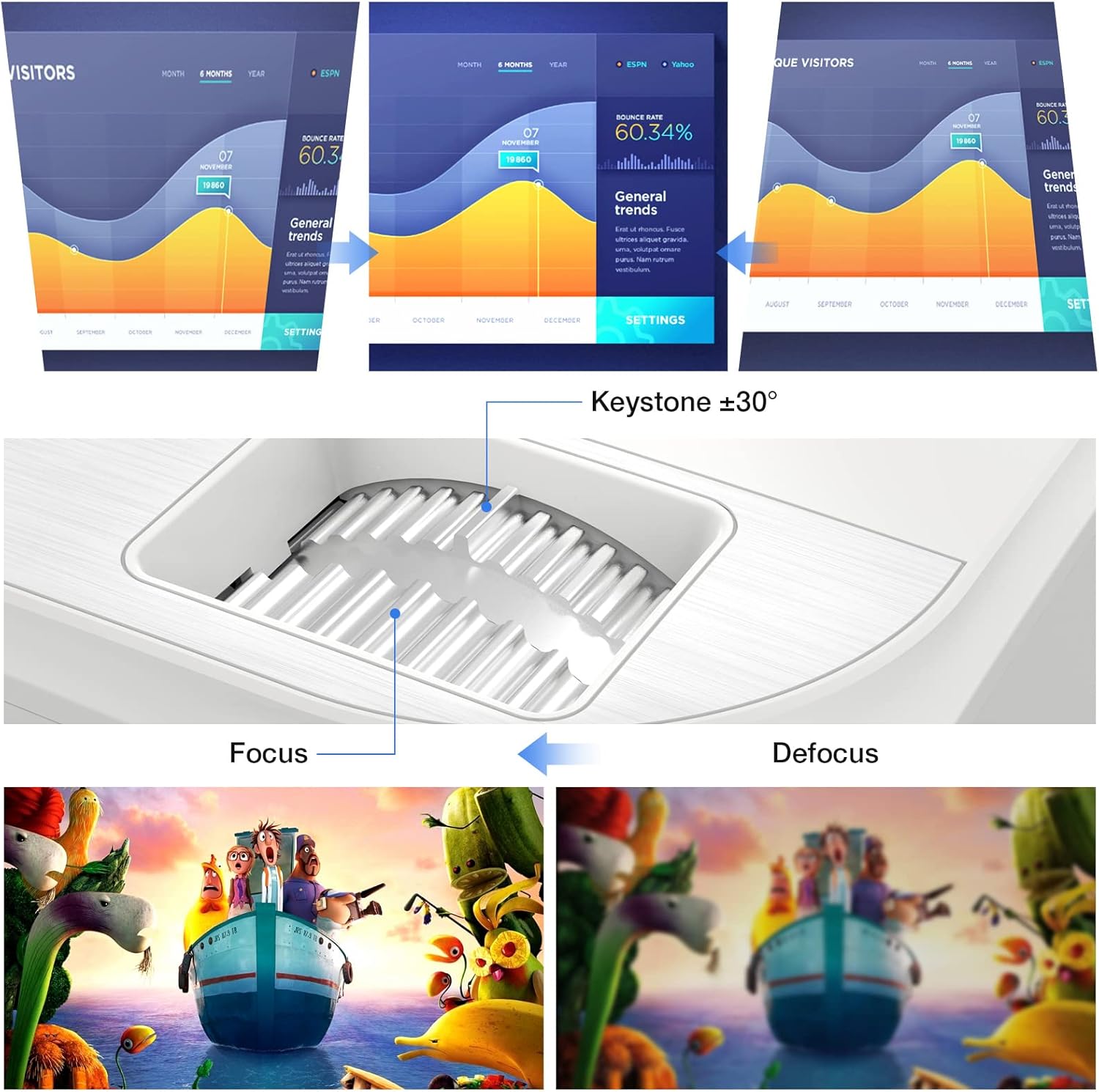
ຮູບພາບ 6.1: A diagram illustrating the focus and keystone adjustment mechanisms on the projector. It shows the keystone dial for correcting trapezoidal distortion (up to ±30 degrees) and the focus ring for sharpening the image, with visual examples of focused versus defocused projections.
7. ບໍາລຸງຮັກສາ
7.1 ການທໍາຄວາມສະອາດ
- ເລນ: ໃຊ້ຜ້າທີ່ອ່ອນນຸ່ມ, ບໍ່ມີເສັ້ນດ່າງທີ່ອອກແບບມາໂດຍສະເພາະສໍາລັບເລນ optical. ຢ່າໃຊ້ເຄື່ອງເຮັດຄວາມສະອາດຂັດ.
- ຕົວໂປຣເຈັກເຕີ: Wipe the surface with a soft, dry cloth. For stubborn marks, a slightly damp ຜ້າສາມາດນໍາໃຊ້ໄດ້, ແຕ່ໃຫ້ແນ່ໃຈວ່າບໍ່ມີຂອງແຫຼວເຂົ້າໄປໃນອຸປະກອນ.
- ຜອດລະບາຍອາກາດ: Regularly check and clean the ventilation ports to prevent dust buildup, which can affect cooling performance. Use a soft brush or compressed air.
7.2 ລamp ຊີວິດ
ໄຟ LED ຂອງໂປເຈັກເຕີ lamp has an estimated lifespan of 150,000 hours, providing long-term, consistent performance without frequent lamp ການທົດແທນ.
7.3 ລະບົບເຮັດຄວາມເຢັນ
The projector features an optimized cooling system to maintain stable operating temperatures and minimize fan noise. Ensure proper airflow around the projector by not blocking the ventilation openings.
8. ການແກ້ໄຂບັນຫາ
| ບັນຫາ | ສາເຫດທີ່ເປັນໄປໄດ້ | ການແກ້ໄຂ |
|---|---|---|
| ບໍ່ມີຮູບທີ່ຄາດໄວ້ | Power cable loose; Incorrect input source; Device not connected properly. | Check power connection; Select correct input source (HDMI, USB, AV); Ensure source device is powered on and connected securely. |
| ຮູບພາບມົວ | ຈຸດສຸມບໍ່ໄດ້ປັບ; ໂປເຈັກເຕີໃກ້/ໄກຈາກໜ້າຈໍເກີນໄປ. | Adjust the focus ring; Adjust projection distance. |
| ຮູບພາບແມ່ນ trapezoidal | ໂປເຈັກເຕີບໍ່ຕັ້ງສາກກັບໜ້າຈໍ. | Use keystone correction dial to adjust. |
| ບໍ່ມີສຽງ | Volume too low; Muted; External speakers not connected; Source device audio settings. | Increase volume; Unmute projector; Connect external speakers if desired; Check audio output settings on source device. |
| ການຄວບຄຸມໄລຍະໄກບໍ່ເຮັດວຽກ | ໝໍ້ໄຟຕາຍ/ໃສ່ບໍ່ຖືກຕ້ອງ; ການຂັດຂວາງລະຫວ່າງຫ່າງໄກສອກຫຼີກແລະໂປເຈັກເຕີ. | ປ່ຽນແບັດ; ຮັບປະກັນສາຍສາຍຕາທີ່ຊັດເຈນຕໍ່ກັບເຄື່ອງຮັບ IR ໃນໂປເຈັກເຕີ. |
9. ຂໍ້ມູນຈໍາເພາະ
| ຄຸນສົມບັດ | ລາຍລະອຽດ |
|---|---|
| ຍີ່ຫໍ້ | TOPVISION |
| ໝາຍເລກຕົວແບບ | TP-98 |
| ຄວາມລະອຽດເດີມ | 1920 x 1080P ເຕັມ HD |
| Max Display Resolution | Supports 4K UHD |
| ຄວາມສະຫວ່າງ | 9500 Lumens |
| ອັດຕາສ່ວນກົງກັນຂ້າມ | 12000:1 |
| Lamp ຊີວິດ | 150,000 ຊົ່ວໂມງ |
| ຂະໜາດການຄາດຄະເນ | 45 - 350 ນິ້ວ |
| ການແກ້ໄຂ Keystone | ± 30 ອົງສາ |
| ການເຊື່ອມຕໍ່ | 2x HDMI, 2x USB, 1x AV, 1x 3.5mm Audio Out |
| ຂະໜາດສິນຄ້າ | 30L x 25W x 11ຊມ |
| ນ້ຳໜັກ | 4.3 ກິໂລ |
| ປະເພດການສະແດງ | ຈໍ LCD |
| ຄຸນນະສົມບັດພິເສດ | Built-in Stereo Speakers, Touch Sensitive Panel |
10. ການຮັບປະກັນແລະການສະຫນັບສະຫນູນ
TOPVISION provides a 3-year free repair service for this product. Additionally, lifetime professional technical support is available. If you encounter any issues or require assistance, please do not hesitate to contact TOPVISION customer service.
For support, please refer to the contact information provided on the TOPVISION official webເວັບໄຊ ຫຼືເອກະສານການຊື້ຂອງທ່ານ.