1. ບົດແນະນຳ
This manual provides essential information for the installation, operation, and maintenance of the HP 5412-92G-PoE+-2XG v2 zl Switch. Please read this manual thoroughly before using the device to ensure proper functionality and safety. This product is a high-performance, modular network switch designed for enterprise-level networking environments, offering extensive Power over Ethernet (PoE+) capabilities and high-speed uplink options.
2. ຜະລິດຕະພັນເກີນview
The HP 5412-92G-PoE+-2XG v2 zl Switch is a robust, manageable network switch chassis featuring 92 PoE+ ports and 10 expansion slots. It supports 10/100/1000BASE-T connectivity and is designed for demanding network infrastructures.
ຄຸນນະສົມບັດທີ່ສໍາຄັນ:
- 92 Gigabit Ethernet ports with Power over Ethernet Plus (PoE+) support.
- 10 expansion slots for flexible network configuration.
- Manageable switch chassis for advanced network control.
- Supports 10/100/1000BASE-T connectivity.
- RoHS Compliance for environmental standards.
ຜະລິດຕະພັນ Views:
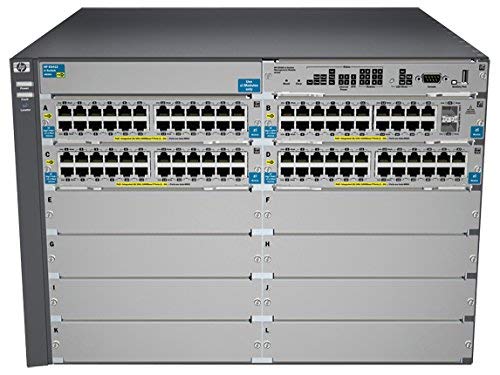
ຮູບທີ 2.1: ດ້ານໜ້າ view of the HP 5412-92G-PoE+-2XG v2 zl Switch, showing the modular chassis with multiple port modules installed.

ຮູບທີ 2.2: ດ້ານໜ້າມຸມ view of the switch, highlighting the port density and modular design.

ຮູບທີ 2.3: A slightly different angled front view, providing another perspective of the switch's physical layout.

ຮູບທີ 2.4: ຫລັງ view of the switch, illustrating the dual power supply bays and ventilation.
3. ການຕິດຕັ້ງແລະການຕິດຕັ້ງ
Proper installation is crucial for the optimal performance and longevity of your HP switch. Follow these steps carefully:
- ການຫຸ້ມຫໍ່ແລະການກວດກາ: Carefully remove the switch from its packaging. Inspect for any signs of damage during transit. Report any damage to your supplier immediately.
- ການຕິດຕັ້ງ Rack: The switch is designed for standard 19-inch rack mounting. Secure the switch using appropriate rack-mount kits (sold separately or included). Ensure adequate space for airflow around the unit.
- ການເຊື່ອມຕໍ່ພະລັງງານ: Connect the power cords to the power supply units at the rear of the switch and then to a grounded AC power source. The switch supports redundant power supplies for enhanced reliability.
- Module Installation (if applicable): If your switch requires additional modules (e.g., SFP+ uplinks, additional PoE+ ports), refer to the specific module installation guide. Ensure modules are seated firmly in their respective slots.
- ການເຊື່ອມຕໍ່ເຄືອຂ່າຍ: Connect your network devices (servers, workstations, access points) to the appropriate Ethernet ports on the switch using standard RJ-45 cables. For PoE-powered devices, ensure they are compatible with PoE+ standards.
- ການຕັ້ງຄ່າເບື້ອງຕົ້ນ: Connect a console cable to the switch's console port and a terminal emulator on a computer for initial configuration. Refer to the HP ProVision ASIC-based Switch Management and Configuration Guide for detailed software setup.
ໝາຍເຫດ: Always ensure proper grounding and ventilation to prevent electrical hazards and overheating.
4. ຄໍາແນະນໍາການດໍາເນີນງານ
Once the switch is physically installed and powered on, it will begin its boot sequence. The following outlines basic operational aspects:
- ເປີດ: After connecting power, the switch will automatically power on. Observe the system status LEDs for boot progress.
- ຕົວຊີ້ວັດ LED:
- ລະບົບ LED: ຊີ້ບອກສະຖານະຂອງລະບົບໂດຍລວມ (ຕົວຢ່າງ, ສີຂຽວສໍາລັບການເຮັດວຽກປົກກະຕິ, amber ສໍາລັບຄວາມຜິດ).
- Port LEDs: Indicate link status, activity, and PoE status for each port. Consult the switch's LED guide for specific patterns.
- ການຄຸ້ມຄອງເຄືອຂ່າຍ: The switch can be managed via a command-line interface (CLI) through the console port, Telnet, or SSH. It also supports web-based management (GUI) and SNMP for network monitoring and control.
- PoE+ Functionality: The 92 PoE+ ports automatically detect and provide power to connected PoE-compatible devices, such as IP phones, wireless access points, and IP cameras. Ensure the total power budget is not exceeded.
- ການອັບເດດເຟີມແວ: ກວດເບິ່ງການສະຫນັບສະຫນູນ HP ເປັນປະຈໍາ webເວັບໄຊທ໌ສຳລັບການອັບເດດເຟີມແວລ່າສຸດເພື່ອຮັບປະກັນປະສິດທິພາບທີ່ດີທີ່ສຸດ, ຄວາມປອດໄພ ແລະ ການເຂົ້າເຖິງຄຸນສົມບັດໃໝ່ໆ.
5. ບໍາລຸງຮັກສາ
Regular maintenance helps ensure the reliability and longevity of your HP switch.
- ທໍາຄວາມສະອາດ: Keep the switch and its ventilation openings clean and free of dust. Use a soft, dry cloth for external cleaning. Do not use liquid or aerosol cleaners directly on the unit.
- ການຄວບຄຸມສິ່ງແວດລ້ອມ: Ensure the operating environment maintains appropriate temperature and humidity levels as specified in the technical specifications. Avoid placing the switch in direct sunlight or near heat sources.
- ການຄຸ້ມຄອງສາຍໄຟ: Organize network and power cables to prevent strain, accidental disconnections, and to maintain proper airflow.
- ການອັບເດດເຟີມແວ ແລະຊອບແວ: Periodically check for and apply the latest firmware and software updates from the official HP support portal. This ensures security patches, bug fixes, and performance enhancements are implemented.
- ການຕັ້ງຄ່າສໍາຮອງຂໍ້ມູນ: Regularly back up your switch configuration files to an external storage device. This allows for quick restoration in case of a system reset or failure.
6. ການແກ້ໄຂບັນຫາ
ພາກນີ້ສະຫນອງການແກ້ໄຂບັນຫາທົ່ວໄປທີ່ທ່ານອາດຈະພົບ.
| ບັນຫາ | ສາເຫດທີ່ເປັນໄປໄດ້ | ການແກ້ໄຂ |
|---|---|---|
| ສະວິດເປີດບໍ່ໄດ້. | No power to the unit; faulty power supply; power cord not securely connected. | Verify power cord connection. Check power outlet. Ensure power supplies are correctly seated. Test with a known good power cord/outlet. |
| ບໍ່ມີການເຊື່ອມຕໍ່ເຄືອຂ່າຍໃນພອດ. | Incorrect cable; faulty cable; port disabled; incorrect VLAN configuration; device not powered (for PoE). | Check cable type and integrity. Verify port status via CLI/GUI. Ensure correct VLAN assignment. For PoE, check device power requirements and switch PoE budget. |
| ອຸປະກອນ PoE ບໍ່ໄດ້ຮັບພະລັງງານ. | Device not PoE compatible; cable issue; switch PoE budget exceeded; port disabled for PoE. | Confirm device PoE compatibility. Check cable. Monitor switch PoE budget. Enable PoE on the port if disabled. |
| ປະສິດທິພາບເຄືອຂ່າຍຊ້າ. | Network congestion; duplex mismatch; faulty cable; outdated firmware. | Monitor network traffic. Verify duplex settings on switch and connected device. Replace suspected cables. Update switch firmware. |
For more advanced troubleshooting, consult the comprehensive HP switch documentation available on the official HP support webສະຖານທີ່ຫຼືຕິດຕໍ່ສະຫນັບສະຫນູນດ້ານວິຊາການ.
7. ຂໍ້ມູນຈໍາເພາະ
Technical specifications for the HP 5412-92G-PoE+-2XG v2 zl Switch (Model J9532A):
- ໝາຍເລກຕົວແບບ: J9532A
- ຍີ່ຫໍ້: HP
- ຈຳນວນພອດ: 92 (PoE+)
- ປະເພດການໂຕ້ຕອບ: PoE+ (Power over Ethernet Plus)
- ອັດຕາການໂອນຂໍ້ມູນ: 1 Gigabits Per Second (10/100/1000BASE-T)
- ຂະໜາດຜະລິດຕະພັນ: 17.5 x 17.75 x 12.1 ນິ້ວ (44.45 x 45.09 x 30.73 cm)
- ນ້ໍາຫນັກລາຍການ: 75.4 ປອນ (34.2 ກິໂລ)
- UPC: 751889108768
- ທໍາອິດທີ່ມີຢູ່: ວັນທີ 20 ມິຖຸນາ 2019
- ຜູ້ຜະລິດ: hp
8. ການຮັບປະກັນແລະການສະຫນັບສະຫນູນ
ຜະລິດຕະພັນນີ້ແມ່ນສະຫນອງໃຫ້ເປັນລາຍການ Amazon Renewed. ດັ່ງນັ້ນ, ມັນໄດ້ຮັບການສະຫນັບສະຫນູນໂດຍ Amazon ຮັບປະກັນການຕໍ່ອາຍຸ, which ensures eligibility for replacement or refund if you are not satisfied with your purchase.
- ນະໂຍບາຍການສົ່ງຄືນ: Eligible for 90-day easy returns.
- ການຊ່ວຍເຫຼືອລູກຄ້າ: For assistance, please refer to the customer support options provided by the seller, Network Hardware Depot, or Amazon Renewed.
- ຜູ້ຜະລິດສະຫນັບສະຫນູນ: For original manufacturer documentation and support resources, visit the official HP support webເວັບໄຊ.