ແນະນຳ
The GameSir M2 MFi Wireless Gamepad is an Apple MFi certified gaming controller designed for an enhanced gaming experience across various Apple devices. This controller is compatible with Apple TV, iPhone, iPad, iPod touch, and Mac, requiring iOS 7 or later, or Mac OS 10.6 or later. It offers a professional gaming experience for various game genres including shooting, fighting, action, and sports. The M2 controller features Bluetooth 4.0 connectivity for lag-free performance and pressure-sensitive buttons for precise control.
This manual provides detailed instructions for setting up, operating, maintaining, and troubleshooting your GameSir M2 gamepad.

ຕັ້ງຄ່າ
ແມ່ນຫຍັງຢູ່ໃນກ່ອງ
- GameSir M2 MFi Wireless Gamepad
Please note that a charging cable is not included in the box. The controller uses a Lightning cable for charging.
ກຳລັງສາກເຄື່ອງຄວບຄຸມ
Before initial use, ensure the GameSir M2 controller is fully charged. The controller is powered by a Lithium Polymer battery (included).
- Locate the Apple Lightning charging port on the controller.
- Connect a standard Apple Lightning cable (not included) to the controller's charging port and a power source.
- The LED indicator on the controller will show charging status. Refer to the LED indicator section for details.

ຈັບຄູ່ກັບອຸປະກອນຂອງທ່ານ
The GameSir M2 uses Bluetooth 4.0 for wireless connectivity. Follow these steps to pair it with your Apple device:
- Ensure your Apple device (iPhone, iPad, Apple TV, Mac) has Bluetooth enabled.
- Turn on the GameSir M2 controller.
- On your Apple device, navigate to the Bluetooth settings.
- Select the GameSir M2 from the list of available devices to pair.
- ເມື່ອຈັບຄູ່ແລ້ວ, ໄຟສັນຍານຂອງຕົວຄວບຄຸມຈະຢືນຢັນການເຊື່ອມຕໍ່.

ປະຕິບັດການຄວບຄຸມ
ຮູບແບບ ແລະ ໜ້າທີ່ຂອງຕົວຄວບຄຸມ
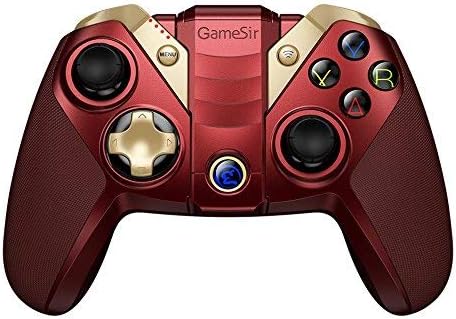
The GameSir M2 features a standard gamepad layout with dual analog sticks, a D-pad, action buttons (A, B, X, Y), and shoulder buttons (L1, L2, R1, R2). The controller also includes an overmolding LED crystal logo button.

Using the Built-in Smartphone Holder
The GameSir M2 includes a built-in adjustable bracket to securely hold your smartphone, allowing for portable gaming.
- Gently extend the adjustable bracket located on the top of the controller.
- Carefully place your smartphone into the bracket, ensuring it is securely held without obstructing the screen or buttons.
- ປັບມຸມໃຫ້ເໝາະສົມທີ່ສຸດ viewໃນລະຫວ່າງການຫຼິ້ນເກມ.

ຄວາມເຂົ້າກັນໄດ້ເກມ
The GameSir M2 is compatible with games that are MFi (Made for iPhone/iPad/iPod) gamepad-supported and certified by Apple. It fully supports games like Fortnite. However, it does not support games such as PUBG.
The controller also supports Tello Drones, enhancing the control experience for drone operation.

ວິດີໂອຜະລິດຕະພັນຢ່າງເປັນທາງການ
Watch the official product video for a visual guide on the GameSir M2 controller's features and usage.
ບໍາລຸງຮັກສາ
To ensure the longevity and optimal performance of your GameSir M2 controller, follow these maintenance guidelines:
- ທໍາຄວາມສະອາດ: Use a soft, dry cloth to clean the controller. Avoid using harsh chemicals or abrasive materials that could damage the surface.
- ການເກັບຮັກສາ: ເກັບຮັກສາເຄື່ອງຄວບຄຸມໄວ້ໃນບ່ອນທີ່ເຢັນ, ແຫ້ງ, ຫ່າງຈາກແສງແດດໂດຍກົງແລະອຸນຫະພູມທີ່ສຸດ.
- ການດູແລຫມໍ້ໄຟ: For extended storage, charge the battery to approximately 50% to prevent deep discharge. Avoid fully discharging the battery frequently.
- ການຈັດການ: ຫຼີກເວັ້ນການລຸດລົງຕົວຄວບຄຸມຫຼືສົ່ງຜົນກະທົບທີ່ເຂັ້ມແຂງ, ເພາະວ່ານີ້ສາມາດທໍາລາຍອົງປະກອບພາຍໃນ.
ການແກ້ໄຂບັນຫາ
If you encounter issues with your GameSir M2 controller, refer to the following common troubleshooting steps:
- ຕົວຄວບຄຸມບໍ່ໄດ້ເຊື່ອມຕໍ່:
- ກວດໃຫ້ແນ່ໃຈວ່າໄດ້ສາກໄຟແລ້ວ.
- Verify Bluetooth is enabled on your Apple device.
- Try unpairing and re-pairing the controller in your device's Bluetooth settings.
- Restart both the controller and your Apple device.
- Buttons Unresponsive or Laggy:
- Ensure the controller is within range of your device and there are no significant obstructions.
- Check for any firmware updates for the controller (refer to GameSir's official website for information).
- Confirm the game you are playing supports MFi controllers.
- Shoulder Buttons (L1/R1, L2/R2) Issues:
- Some users report that shoulder buttons may require pressing closer to the bottom edge to register input. Adjust your grip if necessary.
- Analog Stick Drift/Incorrect Input:
- If an analog stick consistently registers input in one direction (e.g., down-left), this may indicate stick drift. Try recalibrating the controller if an option is available through GameSir software, or contact support if the issue persists.
- ບໍ່ມີການສັ່ນສະເທືອນ:
- The GameSir M2 controller does not feature vibration feedback. This is a design characteristic, not a malfunction.
ຂໍ້ມູນຈໍາເພາະ
| ຍີ່ຫໍ້ | ເກມທ່ານ |
| ຊຸດ | M2-RD |
| ໝາຍເລກຕົວແບບ | M2-RD |
| ເວທີຮາດແວ | Mac |
| ຄວາມເຂົ້າກັນໄດ້ຂອງລະບົບປະຕິບັດການ | iOS 7 or later, Mac OS 10.6 or later |
| ນ້ໍາຫນັກລາຍການ | 0.528 ອອນ |
| ຂະໜາດສິນຄ້າ (LxWxH) | 0.31 x 0.2 x 0.51 ນິ້ວ |
| ສີ | M2 controller (Red) |
| ແຫຼ່ງພະລັງງານ | ພະລັງງານຫມໍ້ໄຟ |
| ໝໍ້ໄຟ | ແບັດເຕີຣີ Lithium Polymer 1 ອັນ (ລວມ) |
| ເຕັກໂນໂລຊີການເຊື່ອມຕໍ່ | Bluetooth |
| ອຸປະກອນທີ່ເຂົ້າກັນໄດ້ | Smartphone, TV, Tablet (Apple devices) |
ການຮັບປະກັນແລະການສະຫນັບສະຫນູນ
For warranty information, product registration, or technical support, please visit the official GameSir webເວັບໄຊ ຫຼືຕິດຕໍ່ບໍລິການລູກຄ້າຂອງເຂົາເຈົ້າ. ຮັກສາໃບຮັບເງິນການຊື້ຂອງທ່ານໄວ້ເປັນຫຼັກຖານການຊື້ສໍາລັບການຮຽກຮ້ອງການຮັບປະກັນໃດໆ.
GameSir ຢ່າງເປັນທາງການ Webເວັບໄຊ: www.gamesir.hk