1. ຜະລິດຕະພັນເກີນview
The ZEBRONICS Zeb-Dash is a 4-button USB wireless optical mouse designed for comfortable and efficient use. It features a high-precision optical sensor and 2.4GHz wireless technology for stable connectivity. This mouse is engineered for ease of use with a plug-and-play mechanism and smart energy-saving capabilities.

ຮູບພາບ 1.1: ເທິງລົງລຸ່ມ view of the ZEBRONICS Zeb-Dash Wireless Optical Mouse, showcasing its ergonomic design and the Zebronics logo.
2. ຄໍາແນະນໍາການຕິດຕັ້ງ
Follow these steps to set up your Zeb-Dash wireless mouse:
- ໃສ່ແບັດເຕີລີ: Open the battery compartment located on the underside of the mouse. Insert one AAA battery, ensuring correct polarity.
- ຊອກຫາຕົວຮັບ USB: The nano USB receiver is typically stored inside the battery compartment or alongside the mouse in the packaging. Carefully remove it.
- ເຊື່ອມຕໍ່ຜູ້ຮັບ: Plug the nano USB receiver into an available USB port on your laptop or desktop computer.
- System Sync: Allow approximately 6 to 7 seconds for the mouse to automatically sync with your system. No additional drivers are usually required for basic functionality.

Image 2.1: The underside of the Zeb-Dash mouse, showing the battery compartment and the nano USB receiver being inserted or removed. This illustrates the battery and receiver placement for setup.
3. ຄໍາແນະນໍາການດໍາເນີນງານ
The Zeb-Dash mouse features four buttons for various functions:
- ປຸ່ມກົດຊ້າຍ: ການເລືອກມາດຕະຖານ ແລະ ການເປີດໃຊ້ງານ.
- ປຸ່ມກົດຂວາ: ເຂົ້າເຖິງເມນູບໍລິບົດ.
- ລໍ້ເລື່ອນ: ນຳທາງໃນແນວຕັ້ງຜ່ານເອກະສານ ແລະ web ໜ້າຕ່າງໆ. ຍັງເຮັດໜ້າທີ່ເປັນປຸ່ມຄລິກກາງອີກດ້ວຍ.
- ປຸ່ມສະຫຼັບ DPI: Adjusts the mouse sensitivity (DPI) between 800, 1200, and 1600 DPI. Press to cycle through settings.
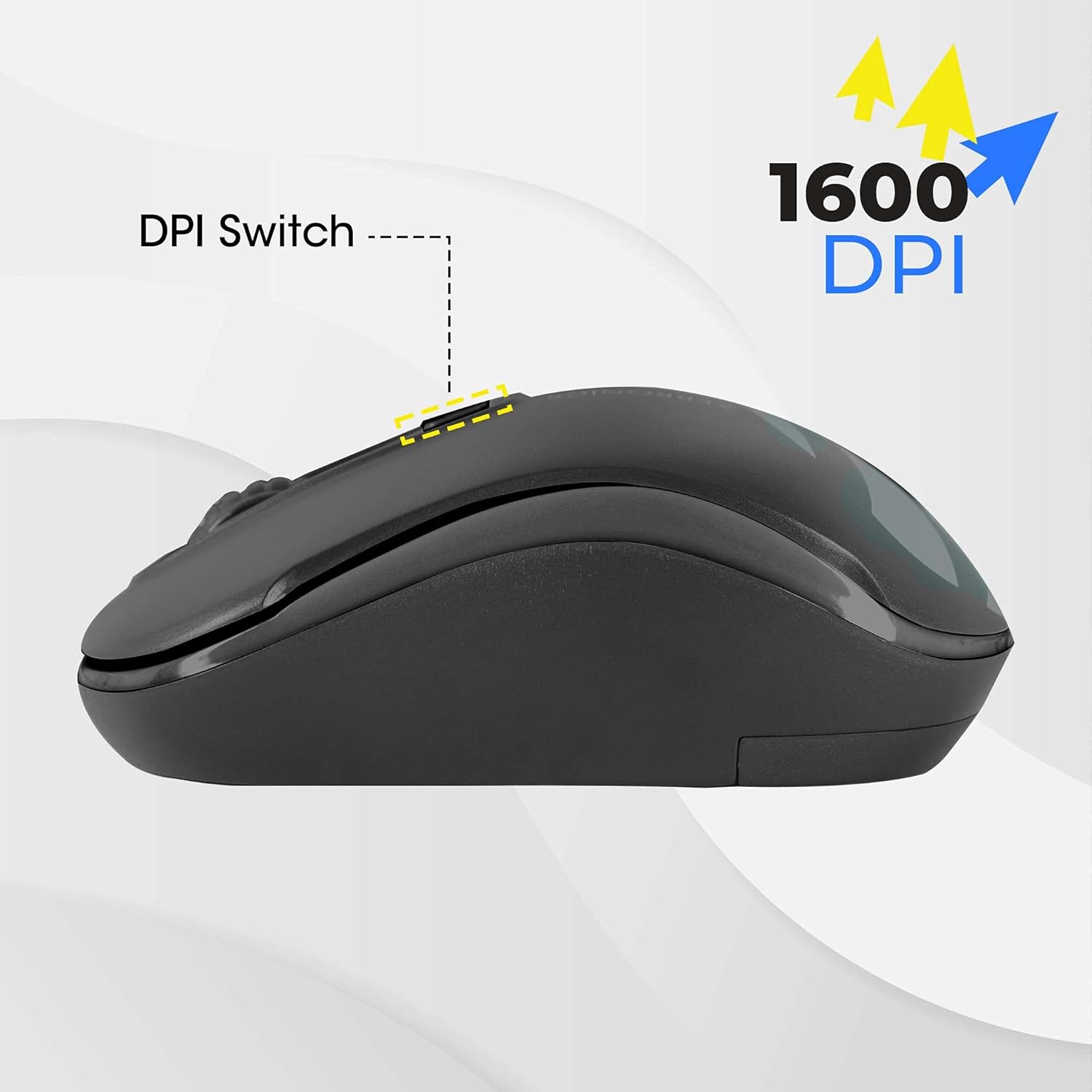
Image 3.1: A diagram highlighting the four buttons on the Zeb-Dash mouse: Left Click (1), Scroll Wheel (2), Right Click (3), and DPI Switch (4).
ຄຸນນະສົມບັດການປະຫຍັດພະລັງງານ
The Zeb-Dash mouse incorporates a smart energy-saving feature. It automatically enters a sleep mode when not in use, conserving battery power. There is no manual on/off switch; the mouse manages power consumption automatically.

ຮູບພາບ 3.2: ດ້ານຂ້າງ view of the Zeb-Dash mouse, emphasizing its ergonomic shape and the smart energy-saving capability.
4. ຂໍ້ມູນຈໍາເພາະຂອງຜະລິດຕະພັນ
| ຄຸນສົມບັດ | ລາຍລະອຽດ |
|---|---|
| ຍີ່ຫໍ້ | ZEBRONICS |
| ຕົວແບບ | ZEB-DASH |
| ເຕັກໂນໂລຊີການເຊື່ອມຕໍ່ | USB Wireless (2.4GHz) |
| ເຕັກໂນໂລຍີກວດຈັບການເຄື່ອນໄຫວ | Optical |
| ຄວາມລະອຽດ DPI | 800 / 1200 / 1600 DPI |
| ຈໍານວນປຸ່ມ | 4 |
| Button Strokes Life | 3 ລ້ານຮອບ |
| ຂອບເຂດປະສິດທິພາບ | 20 ແມັດ |
| ແຫຼ່ງພະລັງງານ | Battery Powered (AAA battery, not included) |
| ຂະໜາດ (LxWxH) | 10 x 4 x 6 cm |
| ນ້ໍາຫນັກລາຍການ | 110 g |
| ຄວາມຕ້ອງການລະບົບ | IBM PC compatible system, Windows XP/Vista/7/8/10, Mac OS, or Android OS |
| ອົງປະກອບລວມ | 1 mouse, 1 nano receiver (inside the mouse) |
5. ການແກ້ໄຂບັນຫາ
- ເມົາສ໌ບໍ່ຕອບສະໜອງ:
- Ensure the AAA battery is correctly inserted and has sufficient charge. Replace if necessary.
- Verify that the nano USB receiver is securely plugged into a functional USB port on your computer. Try a different USB port.
- Restart your computer to re-establish the connection.
- ການເຊື່ອມຕໍ່ເປັນລະຫວ່າງ / ຊ້າ:
- Move the mouse closer to the USB receiver to minimize interference.
- Ensure no other 2.4GHz wireless devices are causing interference in close proximity.
- Check the surface you are using the mouse on. Optical mice perform best on non-reflective, uniform surfaces.
- ການປັບ DPI ບໍ່ເຮັດວຽກ:
- Press the DPI switch button firmly. Each press should cycle through the available DPI settings (800/1200/1600).
6. ການຮັບປະກັນແລະການສະຫນັບສະຫນູນ
The ZEBRONICS Zeb-Dash USB Wireless Optical Mouse comes with a ຮັບປະກັນ 1 ປີ from the date of purchase. For warranty claims or technical support, please contact ZEBRONICS customer service. Keep your purchase receipt as proof of purchase.
For further assistance, you may visit the official ZEBRONICS webເວັບໄຊ ຫຼືອ້າງອີງເຖິງຂໍ້ມູນການຕິດຕໍ່ທີ່ສະໜອງໃຫ້ຢູ່ໃນການຫຸ້ມຫໍ່ຜະລິດຕະພັນຂອງທ່ານ.