1. ຜະລິດຕະພັນເກີນview
The Lexmark MS521dn is a high-performance monochrome laser printer designed for office environments. It offers fast printing speeds, two-sided duplex printing, and robust security features to meet the demands of large workgroups. With a 2.4-inch LCD display, managing print jobs and system information is intuitive and straightforward.
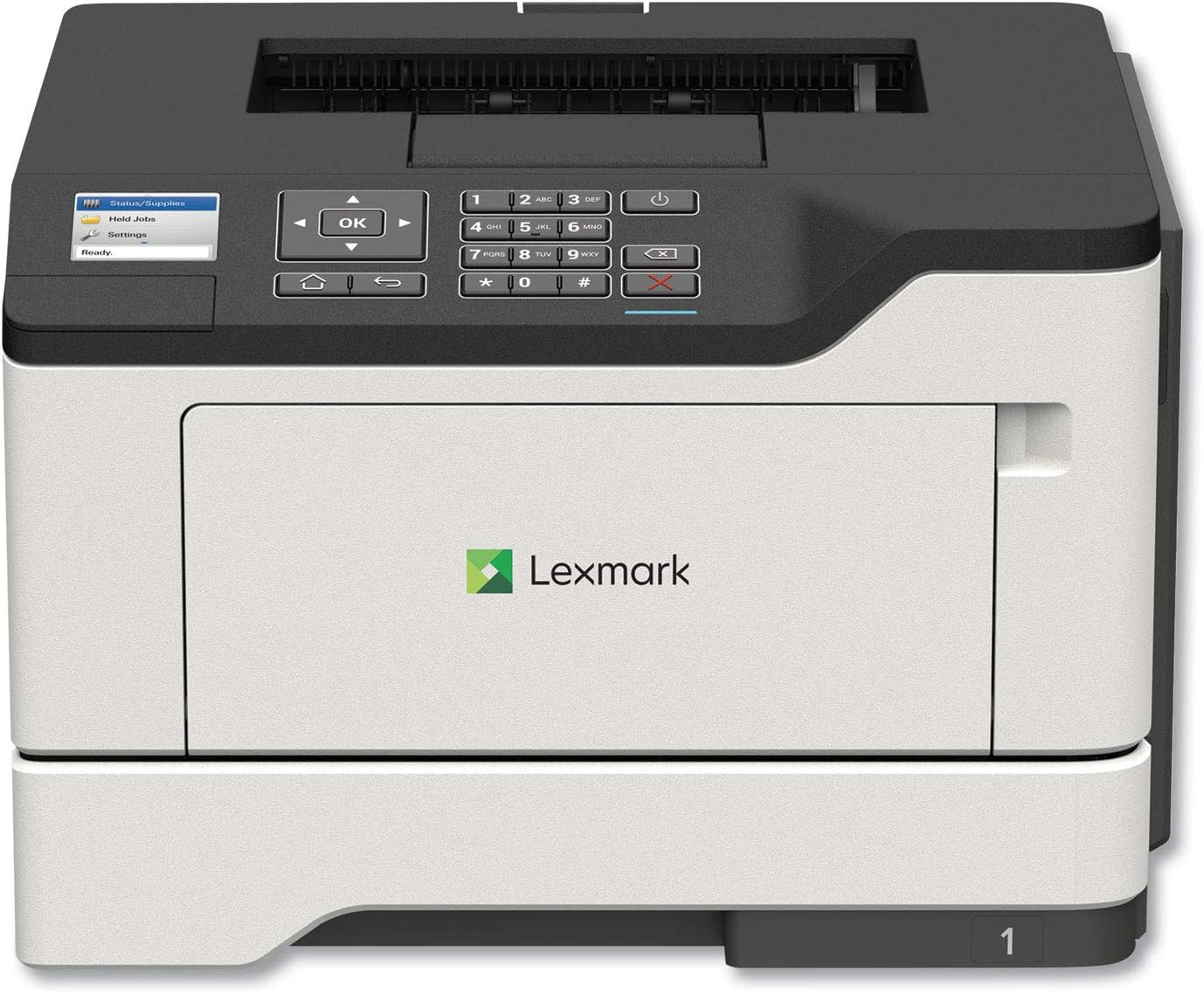
ຮູບພາບ: ທາງຫນ້າ view of the Lexmark MS521dn Monochrome Laser Printer, showcasing ການອອກແບບກະທັດລັດແລະແຜງຄວບຄຸມຂອງມັນ.
ຄຸນນະສົມບັດທີ່ສໍາຄັນປະກອບມີ:
- ປະສິດທິພາບສູງ: Print speeds up to 46 pages per minute with a 1-GHz dual-core processor and 512 MB of memory.
- ການພິມສອງຊັ້ນ: Standard two-sided printing for paper saving.
- ຄວາມປອດໄພທີ່ເຂັ້ມແຂງ: Comprehensive security architecture to protect information on the device and network.
- ການໂຕ້ຕອບຜູ້ເປັນມິດ: 2.4-inch color LCD for easy configuration and monitoring.
- ການຈັດການສື່ອະເນກປະສົງ: Supports various media types and sizes, from A6 to legal, with a 100-sheet multipurpose feeder.
- ປະສິດທິພາບພະລັງງານ: Designed to reduce power consumption in active and sleep modes, meeting ENERGY STAR 2.0 requirements.
2. ຕັ້ງຄ່າ
Follow these steps to set up your Lexmark MS521dn printer and install the toner cartridge:
- ຖອດເຄື່ອງພິມອອກ: Carefully remove the printer from its packaging. Remove all packing materials, tapes, and protective films.
- ເຊື່ອມຕໍ່ພະລັງງານ: ສຽບສາຍໄຟໃສ່ເຄື່ອງພິມ ແລະຈາກນັ້ນເຂົ້າກັບປສຽບໄຟຟ້າທີ່ມີດິນ.
- ຕິດຕັ້ງ Toner Cartridge:
- ເປີດປະຕູທາງເຂົ້າຂອງເຄື່ອງພິມ.
- If replacing an old cartridge, gently pull it out.
- Unpack the new toner cartridge from its box and protective bag.
- Gently shake the new cartridge from side to side to distribute the toner evenly.
- Align the cartridge with the guides inside the printer and push it in until it clicks into place.
- ປິດປະຕູທາງເຂົ້າ.
- ເຊື່ອມຕໍ່ກັບເຄືອຂ່າຍ / ຄອມພິວເຕີ:
- ສຳລັບການເຊື່ອມຕໍ່ເຄືອຂ່າຍ, ໃຫ້ເຊື່ອມຕໍ່ສາຍ Ethernet ຈາກເຣົາເຕີ ຫຼື ສະວິດເຄືອຂ່າຍຂອງທ່ານເຂົ້າກັບພອດ Ethernet ຂອງເຄື່ອງພິມ.
- For direct connection, use a USB cable to connect the printer to your computer.
- ຕິດຕັ້ງຊອບແວ: Insert the provided Software and documentation CD into your computer's CD/DVD drive and follow the on-screen instructions to install the printer drivers and software. Alternatively, download the latest drivers from the official Lexmark support webເວັບໄຊ.
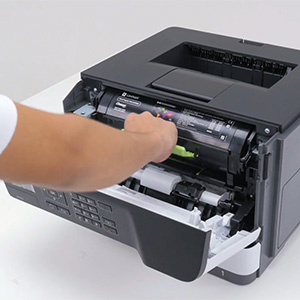
Image: A hand demonstrating the installation of a toner cartridge into the printer's front compartment.
Video: Official Lexmark guide on replacing the toner cartridge for the MS521dn printer. This video demonstrates the step-by-step process of opening the printer, removing the old cartridge, unpacking and preparing the new cartridge, and inserting it correctly.
3. ຄໍາແນະນໍາການດໍາເນີນງານ
The Lexmark MS521dn is designed for straightforward operation. Here are basic instructions for common tasks:
3.1. ການພິມພື້ນຖານ
- ກວດໃຫ້ແນ່ໃຈວ່າເຄື່ອງພິມເປີດຢູ່ ແລະເຊື່ອມຕໍ່ກັບຄອມພິວເຕີ ຫຼືເຄືອຂ່າຍຂອງທ່ານ.
- Load paper into the main paper tray or the multipurpose feeder. Adjust the paper guides to fit the paper size.
- ຈາກຄອມພິວເຕີຂອງທ່ານ, ເປີດເອກະສານ ຫຼືຮູບພາບທີ່ທ່ານຕ້ອງການພິມ.
- ເລືອກ File > ພິມ (ຫຼືຄໍາສັ່ງທຽບເທົ່າໃນຄໍາຮ້ອງສະຫມັກຂອງທ່ານ).
- Choose the Lexmark MS521dn from the list of available printers.
- Adjust print settings as needed (e.g., number of copies, paper size, print quality, duplex printing).
- ກົດ ພິມ.
3.2. ການນໍາໃຊ້ກະດານຄວບຄຸມ
The 2.4-inch color LCD display and control panel allow you to manage printer settings and monitor status:
- ປຸ່ມນຳທາງ: Use the arrow keys and OK button to navigate through menus.
- Status/Supplies: Check toner levels, paper tray status, and printer errors.
- ການຕັ້ງຄ່າ: Configure network settings, paper handling options, print quality, and security features.
- Held Jobs: Access and manage print jobs held in the printer's memory.
4. ບໍາລຸງຮັກສາ
Regular maintenance ensures optimal performance and longevity of your Lexmark MS521dn printer.
4.1. Replacing Toner Cartridge
When the printer indicates low toner or print quality degrades, it's time to replace the toner cartridge. Refer to the "Setup" section (Step 3) for detailed instructions and the embedded video on how to replace the toner cartridge.
4.2. ການເຮັດຄວາມສະອາດເຄື່ອງພິມ
- ພາຍນອກ: ໃຊ້ອ່ອນ, ງamp, lint-free cloth to wipe the exterior of the printer. Avoid abrasive cleaners.
- ພາຍໃນ: Periodically open the front cover and gently remove any paper dust or debris from the interior using a dry, lint-free cloth. Do not touch the imaging unit's drum.
4.3. Fuser and Imaging Components
The Lexmark MS521dn features long-life fuser and imaging components designed to extend uptime and reduce the frequency of replacements. Consult the printer's display or the Lexmark support website for indicators on when these components may require attention.
5. ການແກ້ໄຂບັນຫາ
This section addresses common issues you might encounter with your Lexmark MS521dn printer.
5.1. ເຄື່ອງພິມບໍ່ຕອບສະໜອງ
- ກວດສອບພະລັງງານ: ກວດໃຫ້ແນ່ໃຈວ່າໄດ້ສຽບປລັກເຄື່ອງພິມ ແລະເປີດເຄື່ອງ.
- ກວດສອບການເຊື່ອມຕໍ່: Verify that the USB or Ethernet cable is securely connected to both the printer and the computer/network.
- ຣີສະຕາດອຸປະກອນ: Turn off the printer, computer, and router (if applicable). Wait a few minutes, then turn them back on in the following order: router, printer, computer.
- Printer Status: Check the printer's LCD display for any error messages or status indicators.
5.2. ຄຸນນະພາບການພິມບໍ່ດີ
- ລະດັບນ້ຳສີ: Check the toner cartridge level via the printer's display or software. Replace if low.
- ປະເພດເຈ້ຍ: Ensure you are using the correct paper type and quality for your print job.
- ການຕັ້ງຄ່າເຄື່ອງພິມ: Adjust print quality settings in your printer driver.
- ທໍາຄວາມສະອາດພາຍໃນ: Perform an internal cleaning cycle if available through the printer's menu.
5.3. ເຈ້ຍຕິດ
- ຊອກຫາ Jam: The printer's display will usually indicate the location of the paper jam.
- Open Access Areas: Open all accessible covers and trays.
- ເອົາເຈ້ຍອອກ: Carefully pull out any jammed paper in the direction of the paper path. Avoid tearing the paper.
- ປິດຝາປິດ: ປິດຝາປິດ ແລະ ຖາດທັງໝົດໃຫ້ແໜ້ນ.
5.4. Connectivity Issues (e.g., Not Wireless)
The Lexmark MS521dn model (36S0300) connects via Ethernet or USB. It does not have built-in wireless connectivity. If you require wireless printing, you may need an external wireless print server or a network setup that allows for wireless access to a wired printer. Please verify your network configuration and ensure the printer is connected via a supported method.
6. ຂໍ້ມູນຈໍາເພາະ
| ຄຸນສົມບັດ | ລາຍລະອຽດ |
|---|---|
| ຍີ່ຫໍ້ | Lexmark |
| ຊື່ຕົວແບບ | MS521dn (36S0300) |
| ເຕັກໂນໂລຊີການພິມ | ເລເຊີ |
| ຜົນຜະລິດເຄື່ອງພິມ | ໂມໂນໂຄມ |
| ຄວາມໄວການພິມສູງສຸດ (ໂມໂນໂຄມ) | 46 ppm |
| ຄວາມລະອຽດການພິມສູງສຸດ | 1200 x 1200 dpi |
| ການພິມສອງຊັ້ນ | ອັດຕະໂນມັດ (ສອງດ້ານ) |
| ເຕັກໂນໂລຊີການເຊື່ອມຕໍ່ | ອີເທີເນັດ, USB |
| ຈຳນວນເຄື່ອງປະມວນຜົນ | 2 (Dual-core) |
| ຄວາມອາດສາມາດເກັບຮັກສາຫນ່ວຍຄວາມຈໍາ | 512 MB |
| ປະເພດການສະແດງ | ຈໍ LCD ສີ 2.4 ນິ້ວ |
| ຄວາມອາດສາມາດຂອງແຜ່ນປ້ອນຂໍ້ມູນສູງສຸດ | 350 sheets (expandable to 2000 sheets) |
| ຂະໜາດຜະລິດຕະພັນ (DxWxH) | 16.93"D x 18.5"W x 14.8"H |
| ນ້ໍາຫນັກລາຍການ | 31.1 ປອນ |
| ການບໍລິໂພກພະລັງງານ | 620 ວັດ (On-mode) |
7. ການຮັບປະກັນແລະການສະຫນັບສະຫນູນ
Your Lexmark MS521dn printer comes with a limited warranty. For specific details regarding the warranty period and coverage, please refer to the "Statement of limited warranty/guarantee" included in your product packaging.
Lexmark is committed to providing comprehensive product security and support. If you encounter issues that cannot be resolved using the troubleshooting guide, or for further assistance, please contact Lexmark customer support. You can find contact information and additional resources on the official Lexmark webເວັບໄຊ.
For information on the Lexmark Cartridge Collection Program (LCCP) for recycling used cartridges, please refer to the included documentation or the Lexmark webເວັບໄຊ.


