1. ບົດແນະນຳ
The HP Ultra-Slim Z4000 Wireless Optical Mouse is designed for portability and comfort, offering reliable 2.4 GHz wireless connectivity. Its sleek, low-profile design and ergonomic shape provide a natural fit for your hand, making it an ideal accessory for notebooks and tablets. This manual provides detailed instructions for the setup, operation, and maintenance of your mouse.

Figure 1: HP Z4000 Wireless Mouse, demonstrating its slim and stylish design alongside a keyboard.
2. ຕັ້ງຄ່າ
2.1 ເນື້ອໃນຊຸດ
ກ່ອນທີ່ທ່ານຈະເລີ່ມຕົ້ນ, ໃຫ້ແນ່ໃຈວ່າລາຍການທັງຫມົດມີຢູ່ໃນຊຸດ:
- HP Z4000 Wireless Mouse
- 2.4GHz Micro Receiver (USB dongle)
- ໝໍ້ໄຟ AA 1 ອັນ
- ໂປສເຕີເລີ່ມຕົ້ນດ່ວນ
- ປະກາດຜະລິດຕະພັນ
- ບັດຮັບປະກັນ
2.2 ການຕິດຕັ້ງຫມໍ້ໄຟ
- ຊອກຫາຊ່ອງໃສ່ຫມໍ້ໄຟຢູ່ດ້ານລຸ່ມຂອງຫນູ.
- ເລື່ອນຝາປິດຫມໍ້ໄຟເປີດ.
- ໃສ່ແບັດເຕີຣີ AA ທີ່ໃຫ້ມາ, ຮັບປະກັນວ່າຂົ້ວທີ່ຖືກຕ້ອງ (+/-).
- ປິດຝາປິດຫມໍ້ໄຟຢ່າງປອດໄພ.

Figure 2: Underside of the mouse, showing the battery compartment (under the main cover), CONNECT button, and ON/OFF switch.
2.3 ການເຊື່ອມຕໍ່ຕົວຮັບ
- Locate the 2.4GHz Micro Receiver (USB dongle). This may be stored inside the mouse's battery compartment or included separately.
- Insert the USB receiver into an available USB port on your computer or tablet.
- Turn on the mouse using the ON/OFF switch located on the underside.
- ຄອມພິວເຕີຂອງທ່ານຄວນຈະກວດພົບແລະຕິດຕັ້ງໄດເວີທີ່ຈໍາເປັນໂດຍອັດຕະໂນມັດ. ຫນູແມ່ນກຽມພ້ອມສໍາລັບການນໍາໃຊ້.
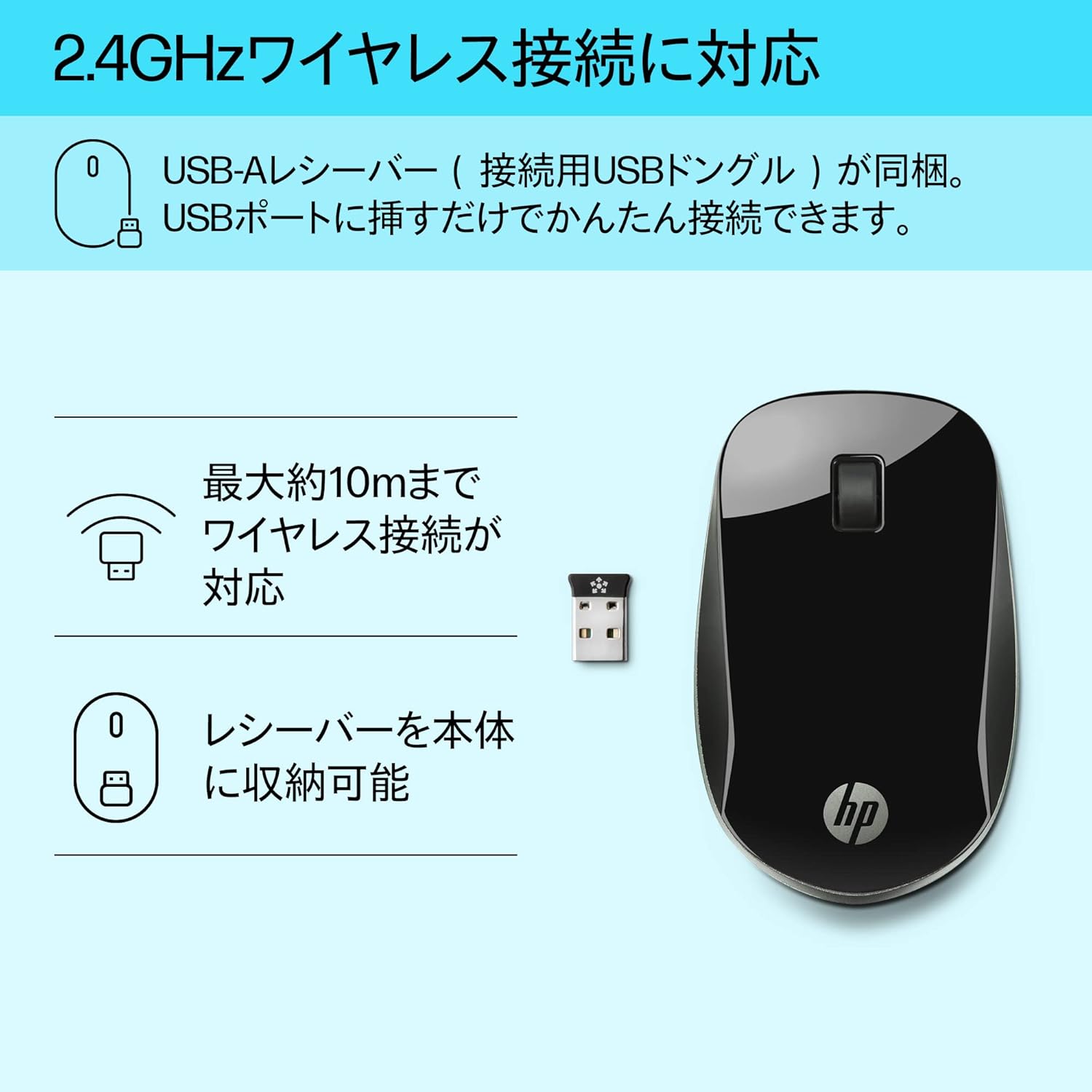
Figure 3: The HP Z4000 mouse and its 2.4GHz USB receiver, demonstrating the simple plug-and-play connection.
3. ການດໍາເນີນງານຂອງຫນູ
The HP Z4000 mouse features a standard three-button layout and a scroll wheel for intuitive navigation.
3.1 ຫນ້າທີ່ພື້ນຖານ
- ຄລິກຊ້າຍ: ປຸ່ມຫຼັກສຳລັບການເລືອກລາຍການ, ກຳລັງເປີດ files, ແລະປະຕິບັດຄໍາສັ່ງ.
- ກົດຂວາ: ປຸ່ມສຳຮອງສຳລັບເຂົ້າເຖິງເມນູບໍລິບົດ ແລະ ຕົວເລືອກເພີ່ມເຕີມ.
- ລໍ້ເລື່ອນ: ມ້ວນຂຶ້ນ ຫຼື ລົງເພື່ອນຳທາງຜ່ານເອກະສານ ແລະ web pages. The scroll wheel is also clickable for middle-click functionality (if supported by your operating system/application).

ຮູບທີ 4: ທາງເທິງ view of the mouse, indicating the left click, right click, and rubber scroll wheel for easy operation.
3.2 Ergonomics and Design
The mouse features an arch-shaped, symmetrical design that comfortably fits both left and right hands. Its ultra-slim profile (less than 2.6 cm in height) promotes a natural hand and wrist position, reducing strain during extended use.
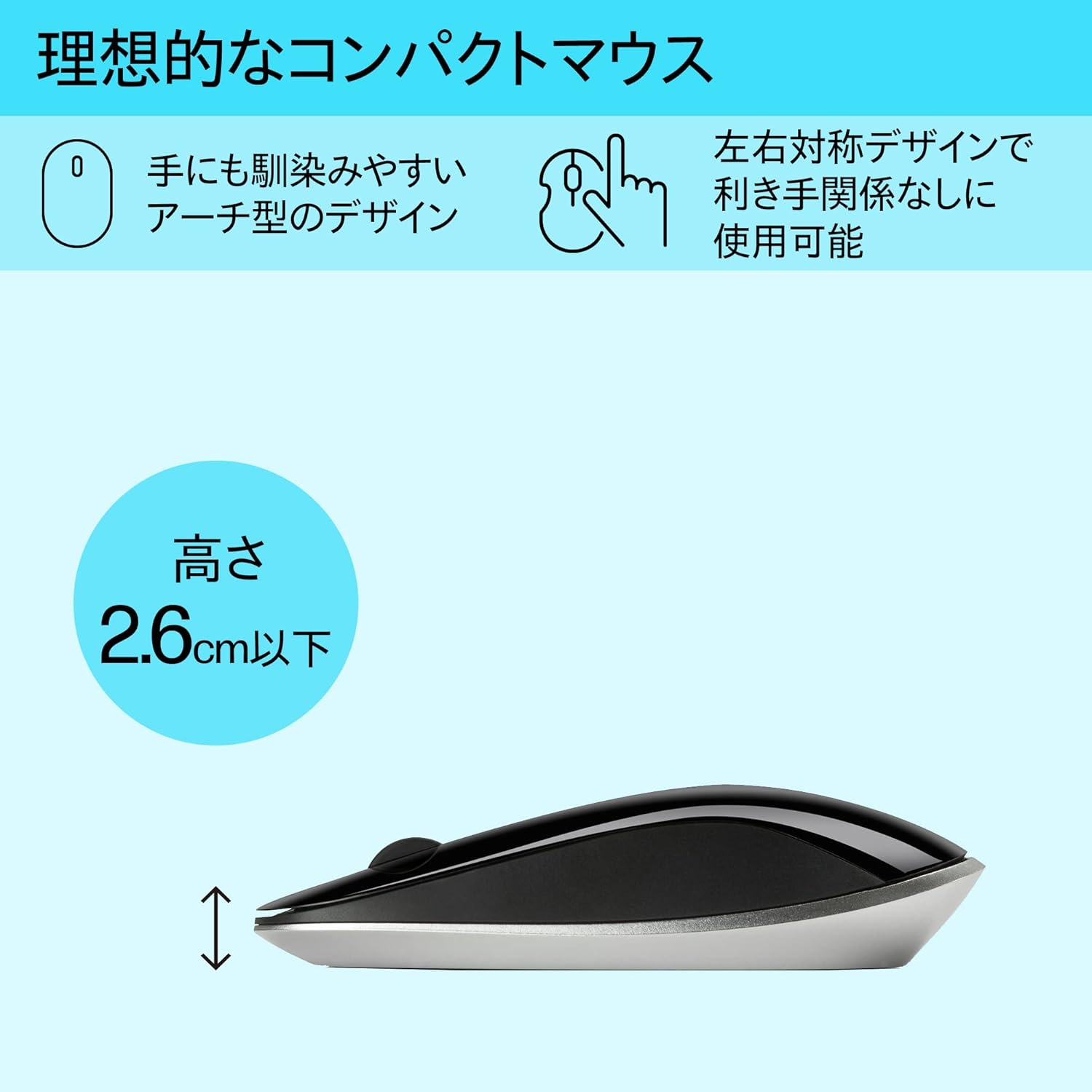
Figure 5: The ergonomic arch design and slim profile (under 2.6cm) of the HP Z4000 mouse, designed for comfortable use.
4. ບໍາລຸງຮັກສາ
4.1 ການທຳຄວາມສະອາດເມົາສ໌
- Ensure the mouse is turned off before cleaning.
- ໃຊ້ຜ້າແພອ່ອນໆ ທີ່ບໍ່ມີເສັ້ນດ່າງ ງampຜະສົມດ້ວຍນ້ໍາຫຼືການແກ້ໄຂການທໍາຄວາມສະອາດອ່ອນໆ.
- ເຊັດໜ້າຜິວຂອງໜູຢ່າງອ່ອນໂຍນ. ຫຼີກລ່ຽງຄວາມຊຸ່ມຊື່ນຫຼາຍເກີນໄປ.
- ຢ່າໃຊ້ເຄື່ອງເຮັດຄວາມສະອາດຂັດຫຼືສານລະລາຍ.
4.2 ການທົດແທນຫມໍ້ໄຟ
The mouse uses one AA battery, with an average battery life of 12 months. When the mouse performance degrades or it stops responding, it's time to replace the battery.
- ປິດເມົາສ໌ໂດຍໃຊ້ສະວິດເປີດ/ປິດ.
- ເປີດຝາປິດຊ່ອງໃສ່ແບັດເຕີຣີທີ່ຢູ່ດ້ານລຸ່ມຂອງເມົ້າ.
- ເອົາແບັດ AA ເກົ່າອອກ.
- ໃສ່ຫມໍ້ໄຟ AA ໃໝ່, ສັງເກດການຂົ້ວທີ່ຖືກຕ້ອງ.
- ປິດຝາປິດຫມໍ້ໄຟ.
- Turn the mouse back on.
5. ການແກ້ໄຂບັນຫາ
5.1 ເມົາສ໌ບໍ່ຕອບສະໜອງ
- ກວດສອບພະລັງງານ: ກວດໃຫ້ແນ່ໃຈວ່າເມົາສ໌ເປີດຢູ່.
- ກວດສອບຫມໍ້ໄຟ: ໃຫ້ປ່ຽນແບັດເຕີຣີ AA ຖ້າມັນຕໍ່າ ຫຼື ໝົດ.
- Check Receiver: ກວດໃຫ້ແນ່ໃຈວ່າໄດ້ສຽບຕົວຮັບ USB ຢ່າງປອດໄພກັບພອດ USB ທີ່ເຮັດວຽກຢູ່ໃນຄອມພິວເຕີຂອງທ່ານ. ລອງໃຊ້ພອດ USB ອື່ນ.
- ເຊື່ອມຕໍ່ຄືນໃໝ່: If your mouse has a "CONNECT" button (refer to Figure 2), press it and then press the connect button on the receiver (if applicable, or simply re-insert the receiver).
- ໄລຍະທາງ: Ensure the mouse is within the 10-meter (30ft) operating range of the receiver.
5.2 ການເຄື່ອນໄຫວຂອງເຄີເຊີທີ່ບໍ່ສະໝໍ່າສະເໝີ
- ພື້ນຜິວ: ໃຊ້ຫນູໃສ່ພື້ນຜິວທີ່ສະອາດ, ບໍ່ສະທ້ອນ, ແລະເປັນເອກະພາບ. ຫຼີກເວັ້ນການແກ້ວຫຼືຫນ້າດິນສະທ້ອນສູງ.
- ຄວາມສະອາດຂອງເຊັນເຊີ: Check the optical sensor on the underside of the mouse for any dust or debris and clean it gently with a soft cloth.
- ແຊກແຊງ: Move the mouse away from other wireless devices that might cause interference.
6. ຂໍ້ມູນຈໍາເພາະ
| ຄຸນສົມບັດ | ລາຍລະອຽດ |
|---|---|
| ຍີ່ຫໍ້ | HP |
| ໝາຍເລກຕົວແບບ | H5N61AA |
| ການເຊື່ອມຕໍ່ | 2.4 GHz Wireless (ຕົວຮັບ USB) |
| ການກວດຈັບການເຄື່ອນໄຫວ | Optical |
| ຈໍານວນປຸ່ມ | 3 (ຊ້າຍ, ຂວາ, ຄລິກລໍ້ເລື່ອນ) |
| ຂະໜາດ (LxWxH) | 10.1 x 2.5 x 6.4 cm (ປະມານ 4 x 1 x 2.5 ນິ້ວ) |
| ນ້ຳໜັກ | 231 g (ປະມານ 8.1 oz) |
| ສີ | ດຳ |
| ປະເພດຫມໍ້ໄຟ | ແບັດເຕີຣີ 1 x AA (ລວມ) |
| ອາຍຸຫມໍ້ໄຟສະເລ່ຍ | 12 ເດືອນ |
| ລະບົບປະຕິບັດການທີ່ເຂົ້າກັນໄດ້ | Linux, Windows 7, Windows XP (ແລະລຸ້ນໃໝ່ກວ່າ) |
7. ການຮັບປະກັນແລະການສະຫນັບສະຫນູນ
The HP Ultra-Slim Z4000 Wireless Optical Mouse comes with a 1-year Manufacturer's Warranty ຈາກວັນທີ່ຊື້.
For warranty claims, technical support, or further assistance, please refer to the contact information provided in your product's warranty card or visit the official HP support webເວັບໄຊ:
ກະລຸນາເກັບຫຼັກຖານການຊື້ຂອງທ່ານໄວ້ເພື່ອກວດສອບການຮັບປະກັນ.