1. ບົດແນະນຳ
The ANNKE 1080P Indoor Wireless Security Camera (Model 41CJ) provides high-definition video surveillance for your home or business. Featuring pan and tilt capabilities, two-way audio, motion detection, and night vision, this camera offers comprehensive monitoring. It is designed for easy setup and remote access via mobile and desktop applications.

Image 1.1: The ANNKE 1080P Indoor Wireless Security Camera, a compact device for indoor surveillance.
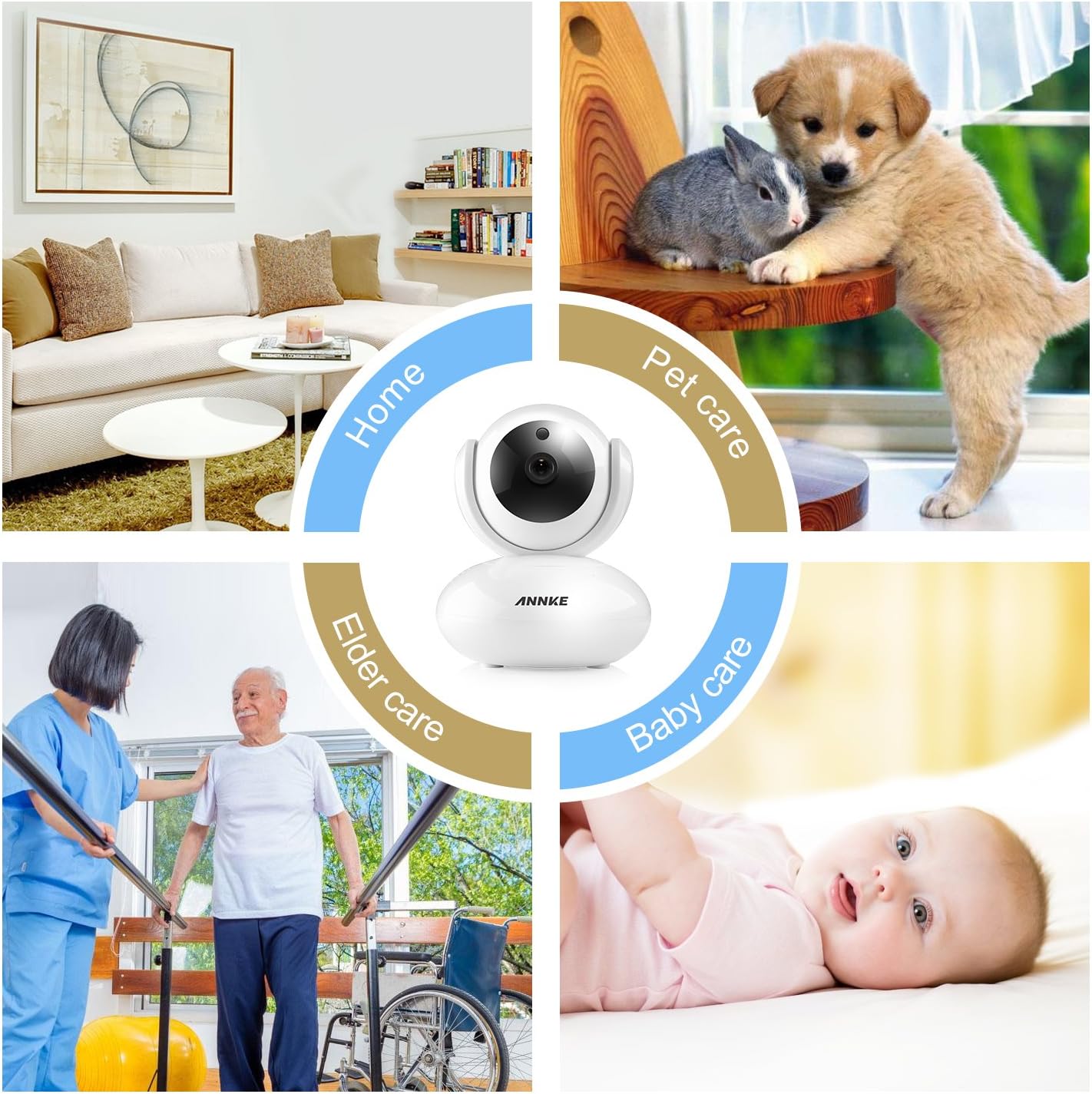
Image 1.2: The camera is suitable for various indoor applications including home security, pet monitoring, elder care, and baby monitoring.
2. ເນື້ອໃນຊຸດ
ກວດສອບວ່າລາຍການທັງຫມົດທີ່ລະບຸໄວ້ຂ້າງລຸ່ມນີ້ແມ່ນລວມຢູ່ໃນຊຸດຂອງທ່ານ. ຖ້າລາຍການໃດຂາດຫາຍໄປຫຼືເສຍຫາຍ, ກະລຸນາຕິດຕໍ່ຝ່າຍຊ່ວຍເຫຼືອລູກຄ້າ.
- 1x Wireless Security Camera
- 1x ຄູ່ມືຜູ້ໃຊ້
- 1x ຕົວແປງໄຟ
- 1x CD Software
- ສະກູຕິດ 1x
- 1x Drill Template Sticker
- ສາຍໄຟ Ethernet 1x
- ວົງເລັບ 1x
3. ຄຸນລັກສະນະຂອງຜະລິດຕະພັນ
- ວິດີໂອ 1080P HD: Experience clear video quality with smooth on-screen movements.
- ຟັງຊັນເລື່ອນ ແລະ ອຽງ: The camera offers 350° horizontal pan and 100° vertical tilt for a wide monitoring area, eliminating blind spots.
- ສຽງສອງທາງ: Built-in microphone and speaker with noise reduction allow for clear communication.
- ວິໄສທັດກາງຄືນ: Automatic night vision with IR LEDs provides clear visibility up to 33ft (10m) in low-light conditions.
- Motion Detection & Push Alerts: Receive instant alarm push notifications with snapshots and email alerts when unexpected movements are detected.
- ການເຂົ້າເຖິງໄລຍະໄກ: Access and control the camera remotely using free desktop and mobile applications for smartphones, tablets, and PCs.
- ການບີບອັດ H.264: Efficient video compression reduces storage space requirements without significant loss of quality.
- ຮອງຮັບ Micro SD Card: Supports up to 64GB Micro SD card for local video storage, useful during network interruptions.
- ອັບເກຣດເຟີມແວອອນໄລນ໌: The camera automatically detects and allows for firmware upgrades via your smartphone.

Image 3.1: The camera features 350° horizontal rotation and 100° vertical rotation for comprehensive coverage.

Image 3.2: The camera provides clear 1080P video quality during both day and night conditions.

Image 3.3: Smart motion-triggered push notifications keep you informed of detected activity.
4. ຄູ່ມືການຕິດຕັ້ງ
Follow these steps to set up your ANNKE 1080P Indoor Wireless Security Camera.
4.1 ການຕິດຕັ້ງເບື້ອງຕົ້ນ
- ເປີດ: Plug in the power adapter to the camera and a power outlet.
- ດາວໂຫລດແອັບ:: Download and install the free 'My ANNKE' app from your device's app store (iOS or Android).
- Account Registration/Login: ລົງທະບຽນບັນຊີໃຫມ່ຫຼືເຂົ້າສູ່ລະບົບຖ້າຫາກວ່າທ່ານມີຢູ່ແລ້ວ.
- ເພີ່ມກ້ອງຖ່າຍຮູບ: In the app, tap the '+' icon to add a new camera. Select 'PTC cameras'.
- ສະແກນລະຫັດ QR: Scan the QR code located on the label at the bottom of the camera to obtain its ID and password.

Image 4.1: The camera is designed for quick and straightforward setup without complicated configurations.
4.2 Network Connection (Wireless or Wired)
The camera supports both wireless (Wi-Fi) and wired (Ethernet) connections. Choose the method that best suits your needs.
Video 4.2: This video demonstrates the process of connecting your ANNKE camera to a Wi-Fi network and via an Ethernet cable.
4.2.1 ເຊື່ອມຕໍ່ໄຮ້ສາຍ
- Ensure your smartphone is connected to a 2.4GHz Wi-Fi network (5GHz Wi-Fi is not supported by the camera).
- In the app, select 'Wireless Connection'.
- Check the camera's indicator lights and confirm they are blinking as instructed by the app.
- Press the reset button on the camera for 1-2 seconds to enter Wi-Fi connection mode. You will hear a voice prompt.
- Input your Wi-Fi password into the app.
- Move your phone close to the camera, ensuring your phone's speaker is turned on. The app will transmit a sound to pair the camera.
- Wait for the camera to connect to the network.
- Once connected, change the default password (admin) for security purposes.
- Edit the device name as desired.
4.2.2 ສາຍເຊື່ອມຕໍ່
- Connect one end of the provided Ethernet cable to the camera and the other end to your router.
- In the app, after scanning the QR code, select 'Ethernet Connection'.
- Check the camera's indicator lights as prompted by the app.
- Change the default password (admin) for security.
- Choose an available Wi-Fi network for the camera and configure it if you wish to use Wi-Fi after initial wired setup.
- ແກ້ໄຂຊື່ອຸປະກອນ.
- You can now unplug the Ethernet cable if Wi-Fi was configured, or keep it connected for a more stable network connection.

Image 4.3: The camera can be accessed and controlled remotely via free desktop and mobile applications.
5. ຄໍາແນະນໍາການດໍາເນີນງານ
5.1 ດໍາລົງຊີວິດ View ແລະການຄວບຄຸມໄລຍະໄກ
Once connected, open the 'My ANNKE' app to view ດໍາລົງຊີວິດ footage from your camera. You can control various functions directly from the app.
- Pan ແລະ Tilt: Use the directional controls within the app to remotely adjust the camera's horizontal (pan) and vertical (tilt) viewມຸມ.
- ສຽງສອງທາງ: Tap the microphone icon in the app to speak through the camera's speaker, and listen to audio from the camera's environment.
- Snapshots and Video Recording: ຖ່າຍຮູບນິ້ງ ຫຼື ບັນທຶກຄລິບວິດີໂອໂດຍກົງຈາກລາຍການສົດ view ການໂຕ້ຕອບ.
- HD/SD Quality: Switch between High Definition (HD) and Standard Definition (SD) video quality based on your network conditions.
5.2 ການຕັ້ງຄ່າການກວດຈັບການເຄື່ອນໄຫວ
Configure motion detection to receive alerts for activity in the camera's view.
- Navigate to the camera settings within the 'My ANNKE' app.
- Locate the 'Motion Detection' or 'Alarm Settings' section.
- Enable motion detection and adjust sensitivity levels as needed.
- Set up notification preferences, such as push alerts to your phone or email alerts.
5.3 ການບັນທຶກບັດ Micro SD
ເພື່ອບັນທຶກວິດີໂອ footage locally, insert a Micro SD card (up to 64GB, not included) into the camera's designated slot. The camera will automatically begin recording based on your settings (e.g., continuous recording, motion-triggered recording).
6. ບໍາລຸງຮັກສາ
- ການອັບເດດເຟີມແວ: The camera app will notify you of available firmware updates. It is recommended to keep your camera's firmware updated for optimal performance and security. Follow the in-app instructions to perform updates.
- ທໍາຄວາມສະອາດ: ເຊັດເລນກ້ອງຖ່າຍຮູບ ແລະ ຮ່າງກາຍດ້ວຍຜ້າອ່ອນ ແລະ ແຫ້ງ. ຫຼີກເວັ້ນການນໍາໃຊ້ສານເຄມີທີ່ຮຸນແຮງຫຼືວັດສະດຸຂັດ.
- ການຈັດວາງ: ໃຫ້ແນ່ໃຈວ່າກ້ອງຖ່າຍຮູບຖືກວາງໄວ້ໃນສະພາບແວດລ້ອມພາຍໃນທີ່ໝັ້ນຄົງ, ແຫ້ງ, ຫ່າງຈາກແສງແດດໂດຍກົງ, ແຫຼ່ງຄວາມຮ້ອນ ແລະ ຄວາມຊຸ່ມຫຼາຍເກີນໄປ.
7. ການແກ້ໄຂບັນຫາ
ຖ້າທ່ານພົບບັນຫາກັບກ້ອງຖ່າຍຮູບຂອງທ່ານ, ອ້າງອີງເຖິງວິທີແກ້ໄຂທົ່ວໄປຕໍ່ໄປນີ້:
- ກ້ອງຖ່າຍຮູບບໍ່ໄດ້ເຊື່ອມຕໍ່ກັບ Wi-Fi:
- Ensure your Wi-Fi network is 2.4GHz. The camera is not compatible with 5GHz Wi-Fi connections.
- ກວດສອບລະຫັດຜ່ານ Wi-Fi ຂອງທ່ານແມ່ນຖືກຕ້ອງ.
- Try pairing the camera via a wired Ethernet connection first, then configure Wi-Fi through the app.
- ໃຫ້ແນ່ໃຈວ່າໂທລະສັບຂອງທ່ານເຊື່ອມຕໍ່ກັບເຄືອຂ່າຍ Wi-Fi 2.4GHz ດຽວກັນໃນລະຫວ່າງການຕັ້ງ.
- Reset the camera by pressing the reset button for 1-2 seconds and try the setup process again.
- Intermittent Signal or Connection Breaks:
- Inspect your router status and ensure it is functioning correctly.
- Check the network range and signal strength where the camera is placed. Move the camera closer to the router or consider a Wi-Fi extender.
- If possible, use an Ethernet cable for a more stable connection.
- ບໍ່ມີການບັນທຶກວິດີໂອ:
- Ensure a Micro SD card (max 64GB) is properly inserted into the camera.
- Check the recording settings in the app to confirm continuous or motion-triggered recording is enabled.
- Format the SD card through the app if it's a new card or if you're experiencing issues.
- ຄຸນນະພາບຮູບພາບທີ່ບໍ່ດີ:
- ກວດໃຫ້ແນ່ໃຈວ່າເລນກ້ອງຖ່າຍຮູບສະອາດ ແລະບໍ່ມີຝຸ່ນ ຫຼືຮອຍເປື້ອນ.
- Check your network bandwidth. A stable and sufficient internet connection is required for optimal 1080P streaming.
- Switch to HD quality in the app if it's currently set to SD.
8. ຂໍ້ກໍານົດດ້ານວິຊາການ
| ຂໍ້ມູນຈໍາເພາະ | ລາຍລະອຽດ |
|---|---|
| ຊື່ຕົວແບບ | I41CJ-OP |
| ໝາຍເລກຕົວແບບ | 41CJ |
| ການນຳໃຊ້ພາຍໃນ/ນອກ | ພາຍໃນ |
| ຄວາມລະອຽດການຖ່າຍວິດີໂອ | 1080p |
| ຄວາມລະອຽດວິດີໂອທີ່ມີປະສິດທິພາບ | 1080 ພິກເຊລ |
| ເຕັກໂນໂລຊີການເຊື່ອມຕໍ່ | ໄຮ້ສາຍ (Wi-Fi), ມີສາຍ (ອີເທີເນັດ) |
| ເຕັກໂນໂລຊີການສື່ສານໄຮ້ສາຍ | Wi-Fi (2.4GHz ເທົ່ານັ້ນ) |
| ຊ່ວງເລື່ອນ/ອຽງ | ປັນແນວນອນ 350°, ອຽງແນວຕັ້ງ 100° |
| ຂອບເຂດວິໄສທັດກາງຄືນ | 33 ຟຸດ (10 ແມັດ) |
| ຮອງຮັບການເກັບຮັກສາ | Micro SD Card (ສູງສຸດ 64GB) |
| ວິທີການຄວບຄຸມ | ແອັບ |
| ອຸປະກອນທີ່ເຂົ້າກັນໄດ້ | ເດັສທັອບ, ໂທລະສັບສະຫຼາດ, ແທັບເລັດ |
| ຂະໜາດສິນຄ້າ | 4.7 x 3.6 x 4 ນິ້ວ (119.4 x 91.4 x 101.6 ມມ) |
| ນ້ໍາຫນັກລາຍການ | 1.21 ປອນ (0.55 ກິໂລ) |
| ປະເພດການຕິດຕັ້ງ | ຕິດຝາ |
| ສີ | ສີຂາວ |
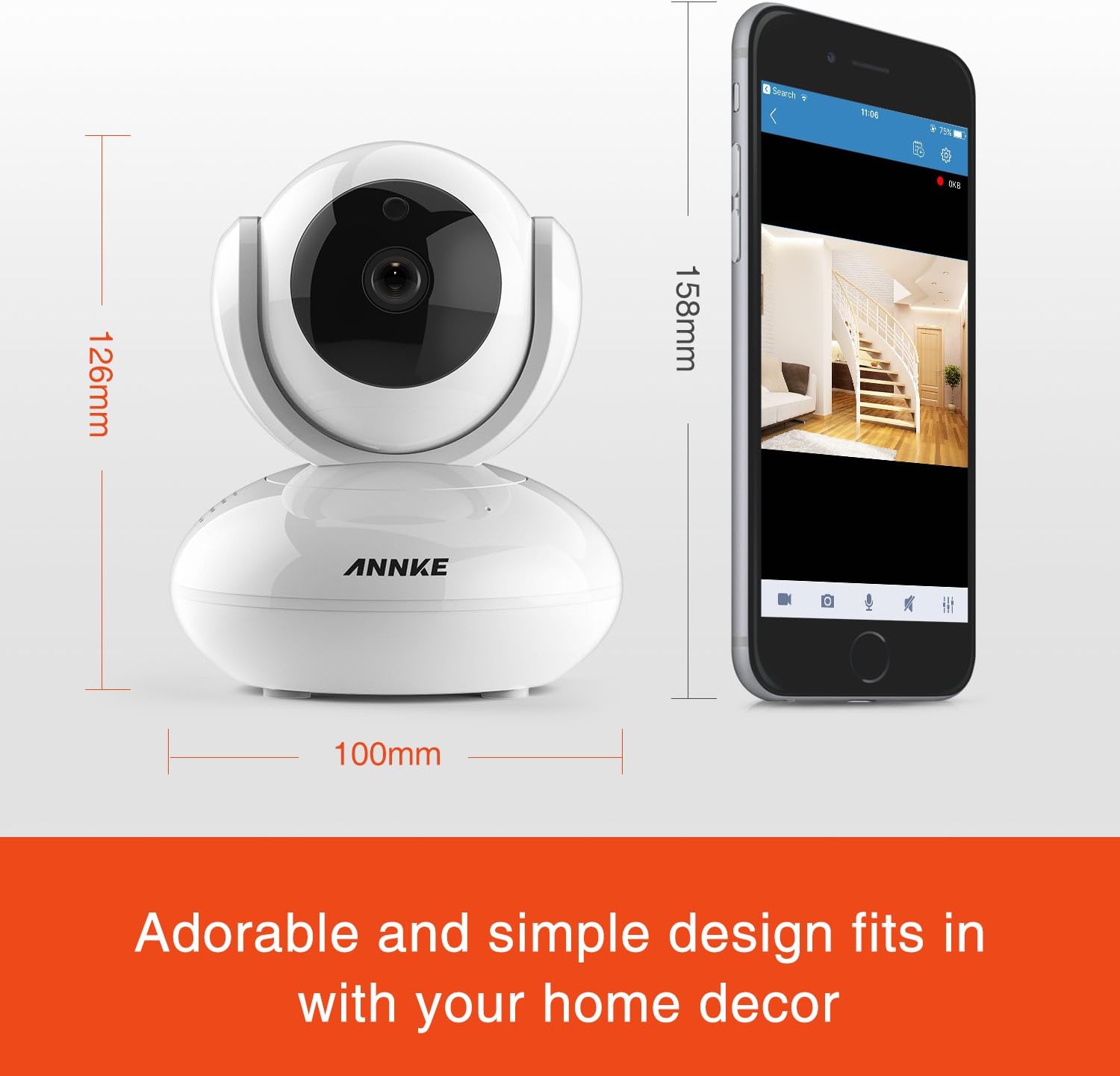
Image 8.1: Detailed dimensions of the ANNKE 1080P Indoor Wireless Security Camera.
9. ການຊ່ວຍເຫຼືອລູກຄ້າ
For technical assistance, warranty information, or any other inquiries, please contact ANNKE customer service:

Image 9.1: ANNKE Customer Service contact details.
- ອີເມລ: support@annke.com
- ເຟສບຸກ: @annke.system
- US Number: 404-620-4370 (EST 07:00-11:00 and 20:00-24:00)


