ແນະນຳ
This manual provides detailed instructions for the setup, operation, and maintenance of your Hyperkin Knight Premium Controller. Designed for use with PlayStation 3 (PS3), PC, and Mac systems, this controller offers a versatile gaming experience with its ergonomic design and responsive controls. Please read this manual thoroughly before using the product to ensure optimal performance and longevity.
ຄຸນສົມບັດຜະລິດຕະພັນ
- ຈອຍສະຕິກອະນາລັອກຄູ່: Two wide-spectrum analog joysticks for precise control.
- Pressure-Sensitive D-Pad: An eight-way directional pad with pressure sensitivity.
- Pressure-Sensitive Buttons: Four shoulder buttons and four face buttons with pressure sensitivity for nuanced input.
- ບັງຄັບໃຫ້ຄໍາຄິດເຫັນ: Integrated force feedback for immersive gaming experiences.
- ປຸ່ມຫນ້າທໍາອິດ: Dedicated button for system menu access.
- ສາຍຍາວ: A 6-foot (1.8 meter) cable for flexible positioning.
- ຄວາມເຂົ້າກັນໄດ້ຫຼາຍເວທີ: Compatible with all PS3 models, as well as PC and Mac via USB.
ເນື້ອໃນຊຸດ
- Hyperkin Knight Premium Controller (White)
- Integrated USB Cable (6 ft.)
ຄໍາແນະນໍາການຕິດຕັ້ງ
ການເຊື່ອມຕໍ່ກັບ PlayStation 3 (PS3)
- Ensure your PS3 console is powered off or in standby mode.
- Locate an available USB port on your PS3 console.
- Plug the USB connector of the Hyperkin Knight Controller into the USB port on your PS3.
- Power on your PS3 console. The controller should be automatically recognized and assigned a player number.
- If the controller does not respond, try a different USB port or restart the console.
ກຳລັງເຊື່ອມຕໍ່ກັບ PC/Mac
- Locate an available USB port on your PC or Mac computer.
- Plug the USB connector of the Hyperkin Knight Controller into the USB port.
- Your operating system (Windows, macOS) should automatically detect and install the necessary drivers. This process may take a few moments.
- Once installed, the controller will be ready for use with compatible games and applications. You may need to configure controller settings within individual games or system preferences.
- ໝາຍເຫດ: Functionality may vary depending on the operating system and specific game titles.
ຄໍາແນະນໍາການດໍາເນີນງານ
The Hyperkin Knight Premium Controller features a standard layout for intuitive gameplay.
ຮູບແບບຕົວຄວບຄຸມ

ຮູບພາບ: ເທິງ view of the Hyperkin Knight Premium Controller, showing the D-pad, analog sticks, face buttons, and central buttons.
- D-Pad (Directional Pad): Located on the left, used for directional input.
- ໄມ້ອະນາລັອກຊ້າຍ: Below the D-Pad, for precise movement and camera control.
- ໄມ້ອະນາລັອກຂວາ: On the right side, typically for camera control or aiming.
- Face Buttons (Triangle, Circle, Cross, Square): On the right, used for actions within games.
- ປຸ່ມບ່າ (L1, L2, R1, R2): Located on the top edge of the controller, used for various in-game functions.
- ປຸ່ມເລືອກ: Typically used for menu access or specific game functions.
- ປຸ່ມເລີ່ມຕົ້ນ: Typically used for pausing games or confirming selections.
- ປຸ່ມຫນ້າທໍາອິດ: Central button to access the PS3 XMB (CrossMediaBar) or system menus on PC/Mac.
ບັງຄັບໃຫ້ຄໍາຄິດເຫັນ
The controller features force feedback (rumble) functionality, which provides tactile sensations during gameplay, enhancing immersion. This feature is automatically enabled when supported by the game and system. If you wish to disable it, check your game's or system's controller settings.
ບໍາລຸງຮັກສາ
- ທໍາຄວາມສະອາດ: ໃຊ້ຜ້າແຫ້ງອ່ອນໆເຊັດຕົວຄວບຄຸມ. ສໍາລັບຝຸ່ນ stubborn, ເລັກນ້ອຍ dampen ຜ້າທີ່ມີນ້ໍາ. ຫຼີກເວັ້ນການນໍາໃຊ້ສານເຄມີທີ່ຮຸນແຮງຫຼືເຄື່ອງເຮັດຄວາມສະອາດຂັດ.
- ການເກັບຮັກສາ: Store the controller in a cool, dry place away from direct sunlight and extreme temperatures. Avoid wrapping the cable too tightly to prevent damage.
- ການດູແລສາຍໄຟ: Do not pull the controller by its cable. Always grasp the USB connector when plugging or unplugging.
ການແກ້ໄຂບັນຫາ
ຜູ້ຄວບຄຸມບໍ່ຕອບສະໜອງ
- ກວດສອບການເຊື່ອມຕໍ່: Ensure the USB cable is securely plugged into both the controller and the console/computer.
- ລອງໃຊ້ພອດ USB ທີ່ແຕກຕ່າງກັນ: Connect the controller to another USB port on your system.
- ຣີສະຕາດລະບົບ: Power cycle your PS3, PC, or Mac.
- Driver Check (PC/Mac): On PC, check Device Manager to see if the controller is recognized and if there are any driver issues. On Mac, check System Information > USB.
Incorrect Button Mapping or Limited Functionality
- ການຕັ້ງຄ່າເກມ: Many games allow for custom controller mapping. Check the in-game settings for controller configuration.
- System Settings (PC/Mac): For PC, some games or emulators may require specific controller configurations or third-party software. For Mac, check System Preferences > Game Controllers (if available) or specific application settings.
- ຄວາມເຂົ້າກັນໄດ້ PS3: While compatible with all PS3 models, some older games or specific PS3 system software versions might have unique controller handling. Ensure your PS3 system software is up to date.
Force Feedback Not Working
- ສະຫນັບສະຫນູນເກມ: Verify that the game you are playing supports force feedback.
- ການຕັ້ງຄ່າໃນເກມ: Check the game's options menu to ensure force feedback (rumble) is enabled.
- ການຕັ້ງຄ່າລະບົບ: On PC, ensure rumble is enabled in your controller settings.
ຂໍ້ມູນຈໍາເພາະ
| ໝາຍເລກຕົວແບບ | M07213-WH |
| ຄວາມເຂົ້າກັນໄດ້ | PlayStation 3, PC, Mac (via USB) |
| ຄວາມຍາວສາຍ | 6 ຟຸດ (ປະມານ 1.8 ແມັດ) |
| ປະເພດປ້ອນຂໍ້ມູນ | Pressure-sensitive buttons and D-pad, dual analog joysticks |
| ຄໍາຕິຊົມ | Force Feedback (Rumble) |
| ຂະໜາດ | 2.99 x 7.99 x 7.01 ນິ້ວ (ປະມານ 7.6 x 20.3 x 17.8 ຊມ) |
| ນ້ຳໜັກ | 12.5 ອອນສ໌ (ປະມານ 354 ກຣາມ) |
| ຜູ້ຜະລິດ | Hyperkin Inc |
ການຮັບປະກັນແລະການສະຫນັບສະຫນູນ
For warranty information and technical support, please refer to the official Hyperkin webເວັບໄຊ ຫຼືຕິດຕໍ່ບໍລິການລູກຄ້າຂອງເຂົາເຈົ້າໂດຍກົງ. ຮັກສາໃບຮັບເງິນການຊື້ຂອງທ່ານໄວ້ເປັນຫຼັກຖານການຊື້ສໍາລັບການຮຽກຮ້ອງການຮັບປະກັນໃດໆ.
ຜູ້ຜະລິດ: Hyperkin Inc
Webເວັບໄຊ: www.hyperkin.com (ກະລຸນາຢ້ຽມຊົມເຈົ້າໜ້າທີ່ webເວັບໄຊທ໌ສຳລັບຂໍ້ມູນສະໜັບສະໜູນລ່າສຸດ.)
ສິນຄ້າເກີນview ຮູບພາບ
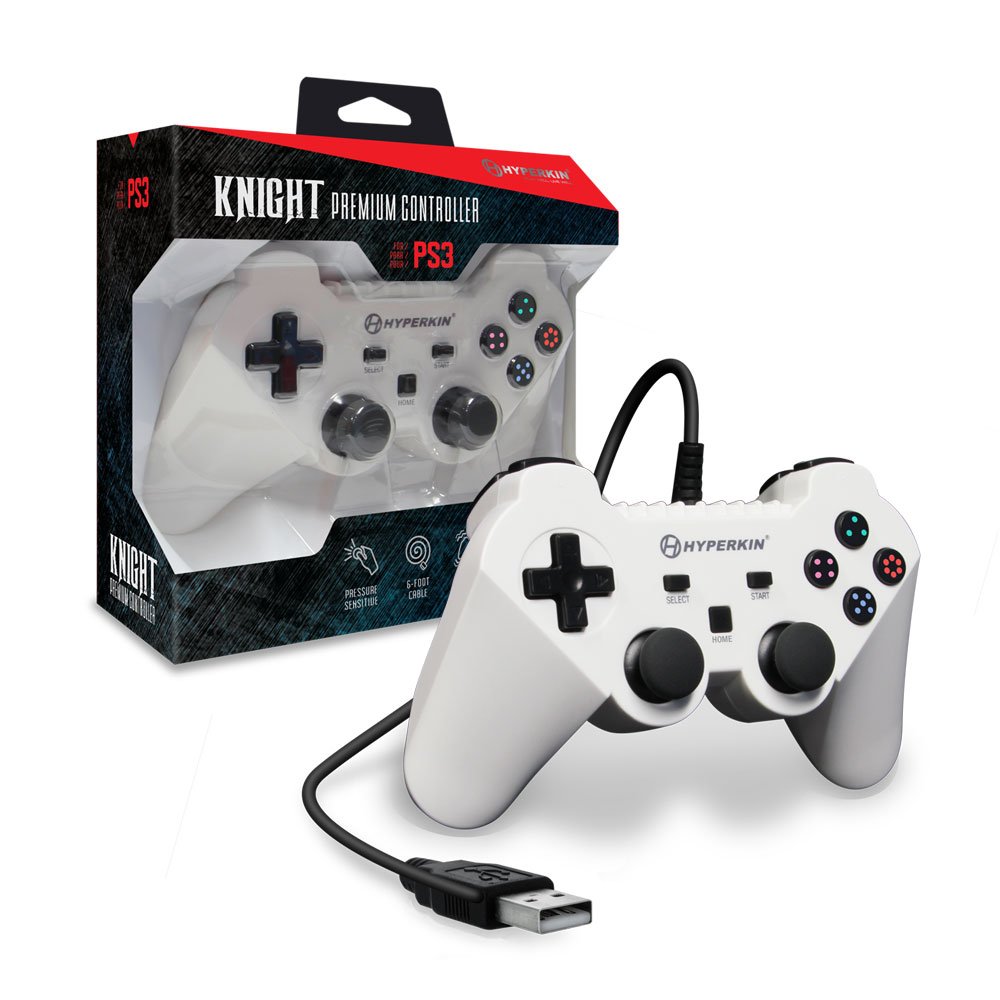
Image: The Hyperkin Knight Premium Controller displayed alongside its retail packaging, highlighting the product's design and branding.

ຮູບພາບ: A close-up view of the Hyperkin Knight Premium Controller's retail box, showcasing key features and design elements.

ຮູບພາບ: ເປັນມຸມ view of the Hyperkin Knight Premium Controller, emphasizing its ergonomic shape and button placement.


