1. ບົດແນະນຳ
This manual provides detailed instructions for the installation, operation, and maintenance of your StarTech.com Wireless USB WiFi Adapter. This adapter is designed to add external dual-band wireless connectivity to your laptop, tablet, or desktop computer, allowing access to both 2.4GHz and 5GHz Wi-Fi networks.
The compact form factor ensures minimal obstruction when plugged into your device, making it an ideal solution for upgrading or replacing existing wireless capabilities.
2. ຄຸນລັກສະນະຂອງຜະລິດຕະພັນ
- Dual-Band Wireless Connectivity: Provides reliable access to both 2.4GHz and 5GHz Wi-Fi networks.
- ອັດຕາຂໍ້ມູນສູງ: Supports up to 433 Mbps on the 5GHz band (802.11ac) and up to 150Mbps on the 2.4GHz band.
- Compact Nano Design: Small form factor for minimal obstruction, ideal for portability.
- ຄວາມເຂົ້າກັນໄດ້ຢ່າງກວ້າງຂວາງ: Backward compatible with 802.11a/b/g/n networks and supports USB 2.0 for wide device compatibility.
- ການເຊື່ອມຕໍ່ທີ່ປອດໄພ: IEEE 802.11a/b/g/n/ac compliant, supporting WEP, WPA, and WPA2 wireless security protocols.

Figure 2.1: The StarTech.com Wireless USB WiFi Adapter showcasing its key features including USB 2.0, Dual Band, AC600, 150Mbps (2.4GHz) / 433Mbps (5GHz), and Nano Design.
3. ເນື້ອໃນຊຸດ
- 1x StarTech.com Wireless USB WiFi Adapter (USB433ACD1X1)
- 1x CD Driver
- 1x ຄູ່ມືເລີ່ມດ່ວນ
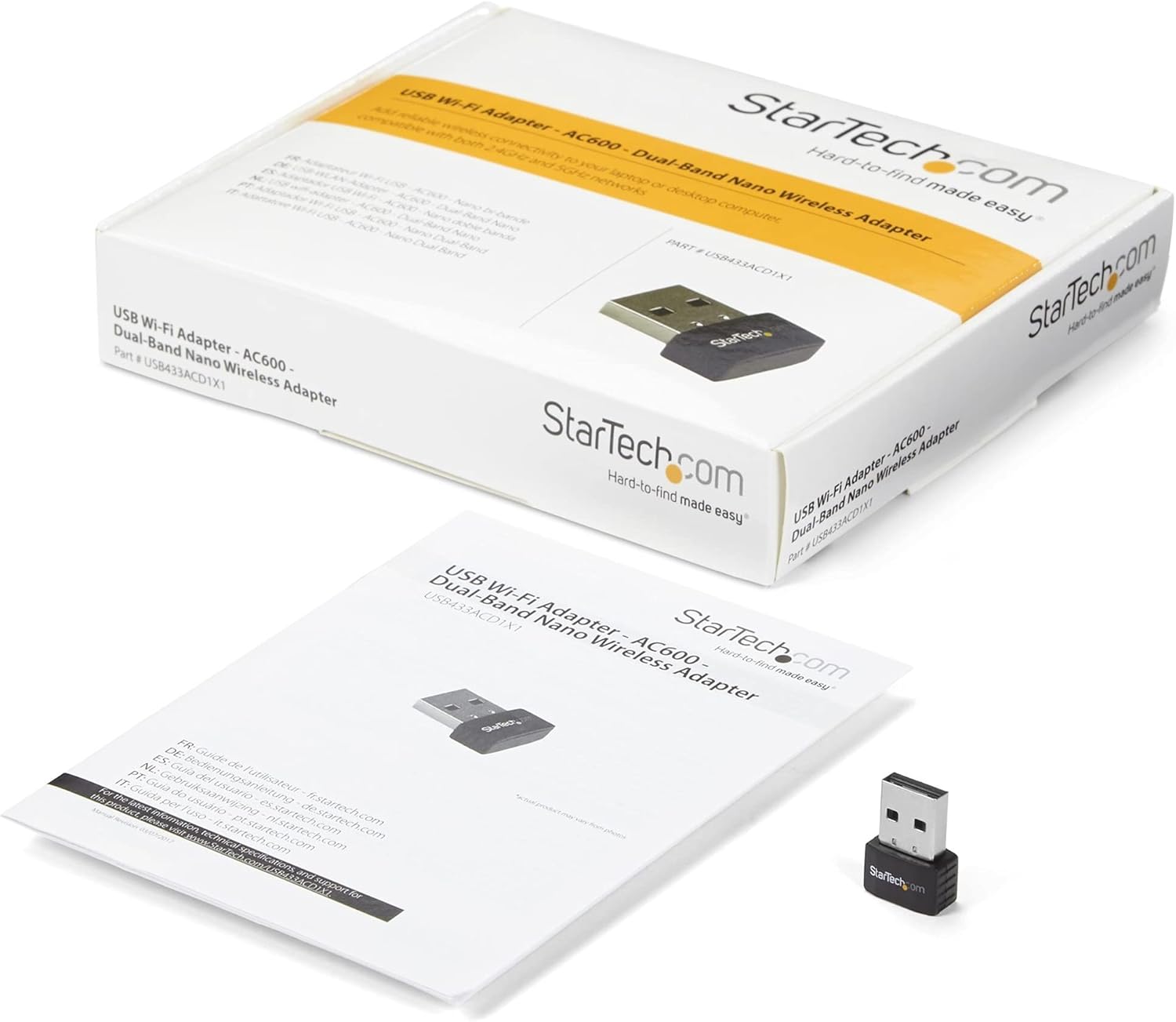
Figure 3.1: The StarTech.com Wireless USB WiFi Adapter, its driver CD, and quick-start guide as included in the package.
4. ຕັ້ງຄ່າ
- ການຕິດຕັ້ງໄດເວີ:
Before connecting the adapter, it is recommended to install the necessary drivers. Insert the provided Driver CD into your computer's optical drive. Follow the on-screen instructions to complete the driver installation. If your computer does not have an optical drive, or for the latest drivers, visit the official StarTech.com support website and search for model USB433ACD1X1.
- ເຊື່ອມຕໍ່ອະແດບເຕີ:
Carefully insert the StarTech.com Wireless USB WiFi Adapter into an available USB 2.0 port on your laptop, tablet, or desktop computer. Ensure it is fully seated in the port.

Figure 4.1: The compact StarTech.com Wireless USB WiFi Adapter, ready for connection to a USB port.
- ການຮັບຮູ້ລະບົບ:
Your operating system (Windows, macOS, Chrome OS) should automatically detect the adapter and complete the installation process. A notification may appear indicating that the device is ready for use.

Figure 4.2: The adapter is compatible with Apple macOS, Microsoft Windows, and Google Chrome OS.
5. ຄໍາແນະນໍາການດໍາເນີນງານ
- Accessing Wi-Fi Networks:
Once the adapter is installed, navigate to your computer's network settings or Wi-Fi icon in the system tray/menu bar. The adapter will display available wireless networks.
- ການເຊື່ອມຕໍ່ກັບເຄືອຂ່າຍ:
Select your desired Wi-Fi network from the list. If prompted, enter the network's security key (password). The adapter will then establish a connection.
- Dual-Band Selection:
If your router supports both 2.4GHz and 5GHz bands, you may see two network names (SSIDs) – one for each band. For optimal performance and less interference, connect to the 5GHz network if available and within range. The 2.4GHz band offers wider coverage, while the 5GHz band provides faster speeds over shorter distances.

Figure 5.1: The adapter supports both 5GHz (433 Mbps) and 2.4GHz (150 Mbps) bands, offering secure dual-band technology with various network compliance and security features.
- ອະນຸສັນຍາຄວາມປອດໄພ:
The adapter supports WEP, WPA, and WPA2 wireless security. Always connect to networks using WPA2 for the strongest encryption and security.
6. ບໍາລຸງຮັກສາ
- Keep Drivers Updated: Periodically check the StarTech.com webເວັບໄຊທ໌ສໍາລັບການອັບເດດໄດເວີຫຼ້າສຸດເພື່ອຮັບປະກັນການປະຕິບັດທີ່ດີທີ່ສຸດແລະຄວາມເຂົ້າກັນໄດ້.
- ຄວາມສະອາດ: Keep the adapter's USB connector clean and free from dust or debris. Use a soft, dry cloth for cleaning.
- ການປົກປ້ອງທາງດ້ານຮ່າງກາຍ: When not in use, store the adapter in a safe place to prevent physical damage. The compact size makes it easy to misplace or damage if not handled carefully.
- ຫຼີກລ້ຽງສະພາບທີ່ຮ້າຍແຮງ: ຢ່າປ່ອຍໃຫ້ອະແດັບເຕີກັບອຸນຫະພູມທີ່ຮຸນແຮງ, ຄວາມຊຸ່ມຊື່ນ, ຫຼືແສງແດດໂດຍກົງ.
7. ການແກ້ໄຂບັນຫາ
- Problem: Adapter not detected or not working.
- ການແກ້ໄຂ:
-
- ກວດໃຫ້ແນ່ໃຈວ່າໄດ້ສຽບອະແດັບເຕີເຂົ້າໄປໃນຜອດ USB ຢ່າງສົມບູນ.
- ລອງໃຊ້ພອດ USB ອື່ນໃນຄອມພິວເຕີຂອງທ່ານ.
- Verify that the drivers are correctly installed. Reinstall them if necessary.
- ປິດເປີດຄອມພິວເຕີຂອງທ່ານຄືນໃໝ່.
- Check your computer's Device Manager (Windows) or System Information (macOS) to see if the adapter is listed without errors.
- Problem: Slow Wi-Fi speeds or frequent disconnections.
- ການແກ້ໄຂ:
-
- Ensure you are connected to the 5GHz band if your router supports it and you are in close proximity.
- ຫຼຸດໄລຍະຫ່າງລະຫວ່າງຄອມພິວເຕີຂອງທ່ານ ແລະ ເຣົາເຕີໄຮ້ສາຍ.
- ຫຼຸດຜ່ອນການລົບກວນຈາກອຸປະກອນເອເລັກໂຕຣນິກອື່ນໆ (ເຊັ່ນ: ໂທລະສັບໄຮ້ສາຍ, ໄມໂຄເວຟ).
- ອັບເດດເຟີມແວຂອງເຣົາເຕີຂອງທ່ານ.
- Check for driver updates for the USB WiFi adapter.
- Problem: Cannot connect to a specific Wi-Fi network.
- ການແກ້ໄຂ:
-
- Double-check the Wi-Fi password (security key).
- Ensure the network is within range and has a strong signal.
- Verify that the network's security type (WEP, WPA, WPA2) is supported by the adapter.
- ປິດເປີດເຣົາເຕີ້ໄຮ້ສາຍຂອງທ່ານຄືນໃໝ່.
8. ຂໍ້ມູນຈໍາເພາະ
| ຄຸນລັກສະນະ | ມູນຄ່າ |
|---|---|
| ໝາຍເລກຕົວແບບ | USB433ACD1X1 |
| ປະເພດໄຮ້ສາຍ | 802.11ac, 802.11n, 802.11g, 802.11a, 802.11b |
| ອັດຕາການໂອນຂໍ້ມູນ | 433 Mbps (5GHz), 150 Mbps (2.4GHz) |
| ການໂຕ້ຕອບຮາດແວ | USB 2.0 |
| ຄວາມເຂົ້າກັນໄດ້ຂອງລະບົບປະຕິບັດການ | Windows 10, Windows 8, Windows 7, Mac OS X El Capitan (10.11), macOS Mojave (10.14), macOS Sierra (10.12), Windows Server 2019, macOS High Sierra (10.13) |
| ຂະໜາດ (LxWxH) | 0.7 x 0.9 x 0.3 ນິ້ວ (17.8 x 22.9 x 7.6 ມມ) |
| ນ້ໍາຫນັກລາຍການ | 0.07 ອອນສ໌ (2g) |
| ສີ | ດຳ |
| ອະນຸສັນຍາຄວາມປອດໄພ | WEP, WPA, WPA2 |
9. ການຮັບປະກັນແລະການສະຫນັບສະຫນູນ
The StarTech.com Wireless USB WiFi Adapter (USB433ACD1X1) is backed by a StarTech.com warranty and free lifetime technical support. For detailed warranty information or to access technical support, please visit the official StarTech.com webເວັບໄຊທ໌ຫຼືອ້າງອີງໃສ່ເອກະສານທີ່ລວມຢູ່ໃນຜະລິດຕະພັນຂອງທ່ານ.
ສໍາລັບການຊ່ວຍເຫຼືອເພີ່ມເຕີມ, ທ່ານຍັງສາມາດອ້າງອີງເຖິງ StarTech.com Store on Amazon.

Figure 9.1: StarTech.com's commitment to solving IT professionals' hardware connectivity challenges.


