1. ການແນະນໍາ ແລະຫຼາຍກວ່າview
This manual provides detailed instructions for the setup, operation, and maintenance of your Xprinter XP-Q200 80mm Thermal Printer. The XP-Q200 is a high-speed thermal receipt printer designed for various operating systems including Windows, Android, and iOS. It offers versatile connectivity options such as USB, Bluetooth, and Ethernet, making it suitable for a wide range of business environments.

ຮູບ 1.1: ດ້ານຫນ້າ view of the Xprinter XP-Q200 Thermal Printer.
2. ຂໍ້ມູນຄວາມປອດໄພ
Please read the following safety precautions carefully before using the printer to ensure safe and proper operation:
- Do not touch the thermal print head immediately after printing, as it may be hot.
- Use only the power adapter supplied with the printer. Using an incorrect adapter may damage the printer or cause fire.
- Do not disassemble or modify the printer. Refer all servicing to qualified personnel.
- ຮັກສາເຄື່ອງພິມໃຫ້ຫ່າງຈາກນໍ້າ, ຄວາມຊຸ່ມ ແລະ ແສງແດດໂດຍກົງ.
- ໃຫ້ແນ່ໃຈວ່າເຄື່ອງພິມຖືກວາງຢູ່ເທິງພື້ນຜິວທີ່ມີລະດັບຄວາມຫມັ້ນຄົງ.
3. ເນື້ອໃນຊຸດ
ກວດສອບວ່າລາຍການທັງຫມົດທີ່ລະບຸໄວ້ຂ້າງລຸ່ມນີ້ແມ່ນລວມຢູ່ໃນຊຸດເຄື່ອງພິມຂອງທ່ານ:
- Xprinter XP-Q200 Thermal Printer Unit
- Power Adapter
- ສາຍ USB
- Thermal Paper Roll (initial)
- ຄູ່ມືຜູ້ໃຊ້
4. ຄຸນລັກສະນະຂອງຜະລິດຕະພັນ
The Xprinter XP-Q200 offers a range of features designed for efficient and reliable thermal printing:
- ການພິມຄວາມໄວສູງ: Achieves print speeds of up to 260mm/sec with an integrated auto cutter.
- ຫຼາຍການໂຕ້ຕອບ: Equipped with USB, Bluetooth, and Ethernet connectivity for flexible integration.
- ຄວາມເຂົ້າກັນໄດ້ຢ່າງກວ້າງຂວາງ: Supports Windows, Linux, and Android operating systems.
- Logo and Barcode Support: Allows for downloading and printing of store logos (BMP file format) and various barcode types on thermal paper.
- ການຈັດການເຈ້ຍ: Designed to handle thermal paper rolls up to 80x80mm.
- International Language Support: Supports a variety of international languages and scripts.
- ສັນຍານເຕືອນຄວາມຜິດພາດ: Features print job tips and error alarm functions for operational awareness.
- Black Mark Detection: Includes a black mark detection function for specific printing applications.
- Missing Orders Function: Incorporates a feature to help avoid "missing orders."
- ຄວາມສາມາດໃນການຕິດຕາມກວດກາ: Supports Ethernet and Serial port monitoring functions.
- NV Logo Storage: Provides 256K Bytes of NV Logo download storage.
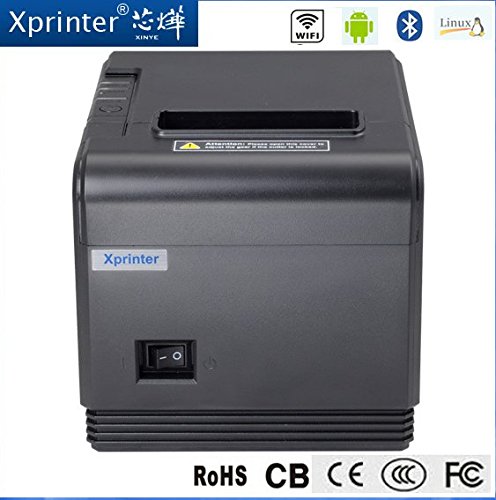
ຮູບ 4.1: ດ້ານຫນ້າ view highlighting connectivity options.
5. ຕັ້ງຄ່າ
5.1 ການຕັ້ງຄ່າທາງດ້ານຮ່າງກາຍ
- Unpack the printer and remove all protective packaging materials.
- Place the printer on a stable, flat surface near a power outlet and your host device.
- Connect the power adapter to the printer's power port and then plug it into a wall outlet.
5.2 ການໂຫຼດເຈ້ຍຄວາມຮ້ອນ
- Press the cover open button (usually located on the side or front) to open the printer's top cover.
- Insert the thermal paper roll into the paper compartment with the printing side facing the thermal print head. Ensure the roll unwinds from the bottom.
- ດຶງເຈ້ຍຈຳນວນໜ້ອຍໜຶ່ງອອກມາຜ່ານເຄື່ອງຕັດ.
- Close the top cover firmly until it clicks into place. The printer will automatically feed the paper to the correct position.
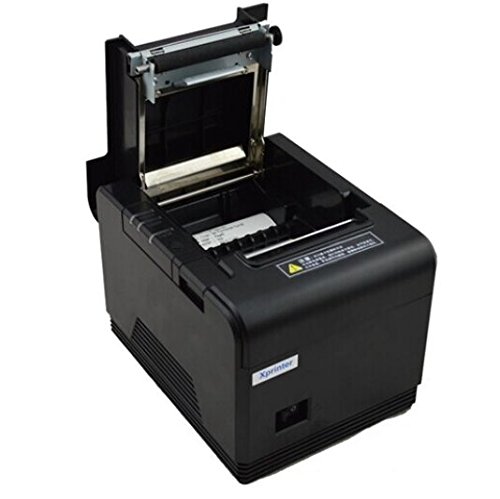
Figure 5.1: Loading thermal paper into the printer.
5.3 ການເຊື່ອມຕໍ່ກັບອຸປະກອນ
The XP-Q200 supports USB, Bluetooth, and Ethernet connections.

ຮູບ 5.2: ດ້ານຫລັງ view ຂອງເຄື່ອງພິມທີ່ມີພອດເຊື່ອມຕໍ່.
5.3.1 ການເຊື່ອມຕໍ່ USB
- ເຊື່ອມຕໍ່ປາຍສາຍ USB ດ້ານໜຶ່ງເຂົ້າກັບພອດ USB ຂອງເຄື່ອງພິມ ແລະ ປາຍອີກດ້ານໜຶ່ງເຂົ້າກັບພອດ USB ຂອງຄອມພິວເຕີຂອງທ່ານ.
- The computer should detect the printer automatically.
5.3.2 Bluetooth Connection (for Android/iOS)
- ກວດໃຫ້ແນ່ໃຈວ່າເຄື່ອງພິມເປີດຢູ່.
- On your Android or iOS device, go to Bluetooth settings and enable Bluetooth.
- ຊອກຫາ available devices. The printer should appear as "XP-Q200" or similar.
- Select the printer to pair. The default PIN is usually "0000" or "1234".
- Once paired, you can select the printer from your application's print settings.
5.3.3 ການເຊື່ອມຕໍ່ Ethernet
- ເຊື່ອມຕໍ່ສາຍອີເທີເນັດຈາກພອດອີເທີເນັດຂອງເຄື່ອງພິມໄປຫາເຣົາເຕີເຄືອຂ່າຍ ຫຼືສະວິດຂອງທ່ານ.
- The printer will obtain an IP address automatically via DHCP. For static IP configuration, refer to the advanced settings utility provided with the printer drivers.
5.4 ການຕິດຕັ້ງໄດເວີ
For Windows and Linux systems, you will need to install the appropriate printer drivers. Drivers are typically available on the Xprinter official website or on a CD included with the printer. Follow the on-screen instructions during installation.
6. ຄໍາແນະນໍາການດໍາເນີນງານ
6.1 ການພິມພື້ນຖານ
Once the printer is connected and drivers are installed (if applicable), you can send print jobs from your application. Ensure the printer is powered on and has paper loaded.
- From your application (e.g., POS software, web browser), select the print option.
- Choose "Xprinter XP-Q200" from the list of available printers.
- Adjust any print settings as needed (e.g., paper size, copies).
- ຄລິກ "ພິມ" ເພື່ອສົ່ງວຽກໄປຫາເຄື່ອງພິມ.
6.2 Logo and Barcode Printing
The XP-Q200 supports custom logo and barcode printing. Refer to the printer's utility software (usually provided with drivers) for instructions on how to upload logos (BMP format) to the printer's NV memory and configure barcode printing settings.
7. ບໍາລຸງຮັກສາ
7.1 ການທໍາຄວາມສະອາດເຄື່ອງພິມ
ການທໍາຄວາມສະອາດເປັນປົກກະຕິຊ່ວຍຮັກສາຄຸນນະພາບການພິມແລະຍືດອາຍຸຂອງເຄື່ອງພິມ.
- ຫົວພິມ: ໃຊ້ຜ້າຝ້າຍເບົາໆ ງampened with isopropyl alcohol to gently wipe the thermal print head. Allow it to dry completely before closing the cover. Clean the print head regularly, especially if print quality degrades.
- ລູກກິ້ງແຜ່ນ: Clean the rubber platen roller with a soft cloth dampປະກອບດ້ວຍເຫຼົ້າ isopropyl.
- ພາຍນອກ: ເຊັດດ້ານນອກຂອງເຄື່ອງພິມດ້ວຍຜ້າອ່ອນ, ແຫ້ງ. ຢ່າໃຊ້ເຄື່ອງເຮັດຄວາມສະອາດຂັດຫຼືສານລະລາຍ.
7.2 ລ້າງເຈ້ຍຕິດ
ຖ້າເຈ້ຍຕິດ:
- ປິດເຄື່ອງພິມ.
- ເປີດຝາເທິງ.
- Carefully remove any jammed paper. Ensure no small pieces of paper remain inside.
- Close the top cover firmly.
- Turn the printer back on.
8. ການແກ້ໄຂບັນຫາ
This section addresses common issues you might encounter with your XP-Q200 printer.
| ບັນຫາ | ສາເຫດທີ່ເປັນໄປໄດ້ | ການແກ້ໄຂ |
|---|---|---|
| ເຄື່ອງພິມບໍ່ເປີດ | Power cable loose; Power outlet faulty; Power adapter faulty | Check power connections; Try a different outlet; Contact support if adapter is faulty. |
| ບໍ່ມີຜົນຜະລິດພິມອອກ | No paper; Paper loaded incorrectly; Printer offline; Driver issue | Load paper correctly; Check printer status; Reinstall drivers. |
| ຄຸນນະພາບການພິມບໍ່ດີ | Print head dirty; Low quality paper; Print head worn out | Clean print head; Use recommended thermal paper; Contact support for service. |
| ເຈ້ຍຕິດ | ໃສ່ເຈ້ຍບໍ່ຖືກຕ້ອງ; ມີວັດຖຸແປກປອມຢູ່ພາຍໃນ | ອ້າງອີງເຖິງພາກທີ 7.2 ສຳລັບການລ້າງສິ່ງກີດຂວາງ. |
| Bluetooth/Ethernet connection fails | Incorrect pairing; Network issue; IP address conflict | Re-pair device; Check network cables/settings; Verify IP address. |
9. ຂໍ້ມູນຈໍາເພາະ
| ຄຸນສົມບັດ | ຂໍ້ມູນຈໍາເພາະ |
|---|---|
| ຊື່ຕົວແບບ | XP-Q200 |
| ເຕັກໂນໂລຊີການພິມ | ຄວາມຮ້ອນ |
| ຄວາມໄວພິມ | 260 ມມ/ວິນາທີ |
| ຜົນຜະລິດເຄື່ອງພິມ | ໂມໂນໂຄມ |
| ເຕັກໂນໂລຊີການເຊື່ອມຕໍ່ | Bluetooth, USB, ອີເທີເນັດ |
| ຂະໜາດແຜ່ນ | Thermal (80mm) |
| ການພິມສອງດ້ານ | ແມ່ນແລ້ວ |
| ສີ | ດຳ |
| ປະເພດການຄວບຄຸມ | iOS, Android |
| ອົງປະກອບລວມ | ເຈ້ຍ |
| ຄຸນນະສົມບັດພິເສດ | USB |
| ປະເພດເຄື່ອງສະແກນ | ແບບພົກພາ |


