1. ບົດແນະນຳ
This manual provides detailed instructions for the setup, operation, maintenance, and troubleshooting of your EXCELVAN E300 Portable Thermal Printer. Please read this manual carefully before using the printer to ensure proper function and longevity of the device.
The EXCELVAN E300 is a compact and efficient thermal printer designed for printing receipts and tickets. It features high-speed printing, a durable print head, and versatile connectivity options including Bluetooth and USB, making it suitable for various point-of-sale (POS) environments.
2. ຜະລິດຕະພັນເກີນview
2.1 ເນື້ອໃນຊຸດ
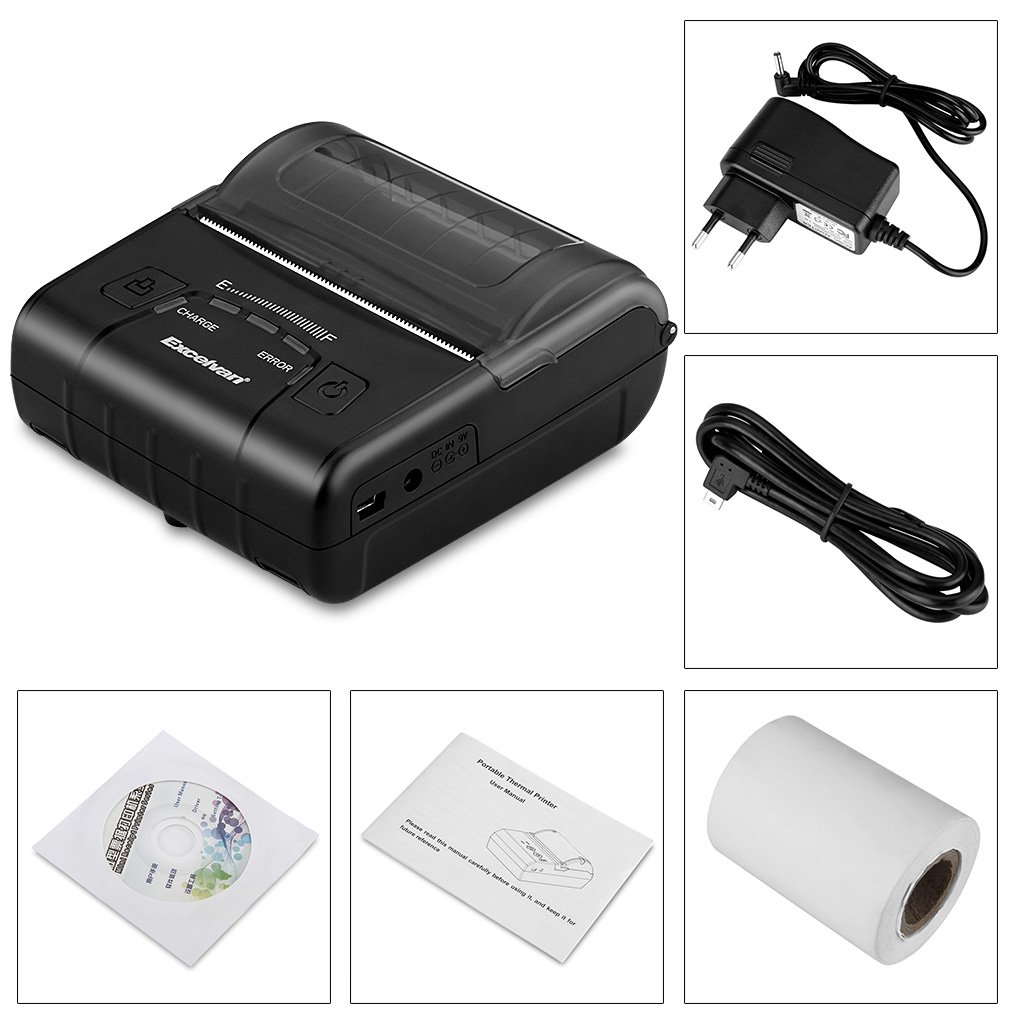
ຫຼັງຈາກການຍົກເລີກການຫຸ້ມຫໍ່, ກະລຸນາກວດສອບວ່າລາຍການທັງຫມົດທີ່ລະບຸໄວ້ຂ້າງລຸ່ມນີ້ແມ່ນລວມ:
- ເຄື່ອງພິມຄວາມຮ້ອນ 1 x 80 ມມ
- 1 x Power Adapter
- ແບັດເຕີຣີ Lithium 1 x
- 1 x ສາຍ USB (110 cm)
- 1 x ມ້ວນເຈ້ຍຄວາມຮ້ອນ
- 1 x ຄູ່ມືຜູ້ໃຊ້ (ເອກະສານນີ້)
- 1 x CD (containing drivers and software)
2.2 ອົງປະກອບເຄື່ອງພິມ
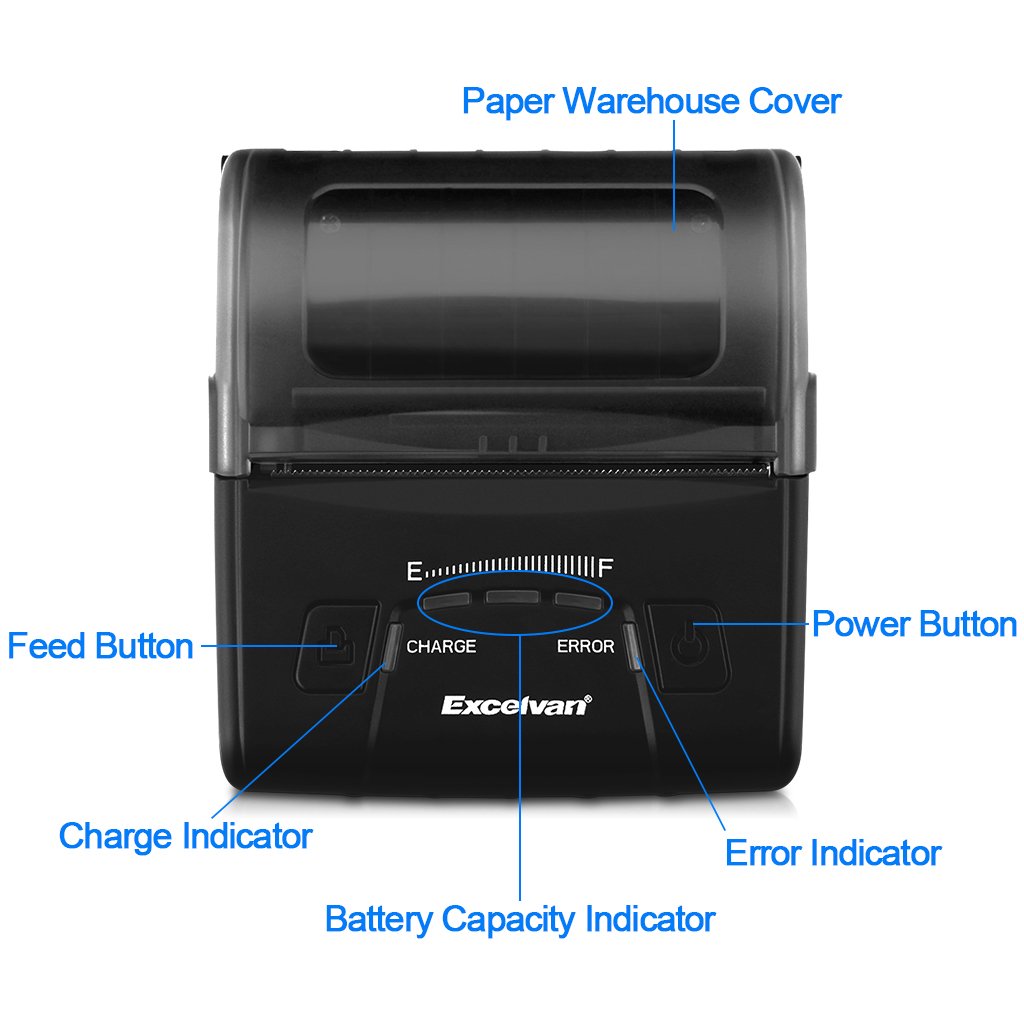
Familiarize yourself with the main components of your EXCELVAN E300 printer:

ຮູບທີ 1: ດ້ານໜ້າ view of the EXCELVAN E300 printer with key components labeled.
- Paper Warehouse Cover: Protects the paper roll compartment.
- ປຸ່ມ Feed: ກ້າວໜ້າເອກະສານ.
- ຕົວຊີ້ວັດການສາກ: Lights up when the battery is charging.
- ຕົວຊີ້ວັດຄວາມອາດສາມາດຫມໍ້ໄຟ: ສະແດງລະດັບແບັດເຕີຣີໃນປະຈຸບັນ.
- ຕົວຊີ້ບອກຄວາມຜິດພາດ: Lights up to indicate an error (e.g., paper out, cover open).
- ປຸ່ມເປີດປິດ: ເປີດ/ປິດເຄື່ອງພິມ.
3. ຕັ້ງຄ່າ
3.1 ການຕິດຕັ້ງຫມໍ້ໄຟ
- Open the battery compartment cover located on the bottom of the printer.
- ໃສ່ແບັດເຕີຣີລິທຽມທີ່ໃຫ້ມາ, ຮັບປະກັນວ່າຈຸດຕິດຕໍ່ສອດຄ່ອງກັນຢ່າງຖືກຕ້ອງ.
- ສຳຄັນ: Remove any insulating tape from the battery contacts before installation or charging.
ຮູບທີ 2: Battery installation and warning to remove insulating tape.
- ປິດຝາປິດຊ່ອງໃສ່ຫມໍ້ໄຟຢ່າງປອດໄພ.
3.2 ການສາກແບັດເຕີຣີ
Before first use, fully charge the printer battery.
- Connect the power adapter to the printer's DC IN 9V port.
- ສຽບອະແດບເຕີໄຟໃສ່ກັບປລັກສຽບໃສ່ຝາ.
- The Charge Indicator light will illuminate during charging. It will turn off or change color (depending on model) when fully charged.
- ໝາຍເຫດ: The USB cable is for data connection to a computer only and does not charge the device.
ຮູບທີ 3: Charging port and USB port. Use the power adapter for charging.
3.3 ການໂຫຼດເຈ້ຍຄວາມຮ້ອນ
The printer uses 80mm wide thermal paper rolls.
- Open the Paper Warehouse Cover by gently lifting it.
- Insert the thermal paper roll into the compartment, ensuring the paper feeds from the bottom and the leading edge comes out towards the front of the printer.
- Pull a small amount of paper out past the cutting edge.
- Close the Paper Warehouse Cover firmly until it clicks into place.
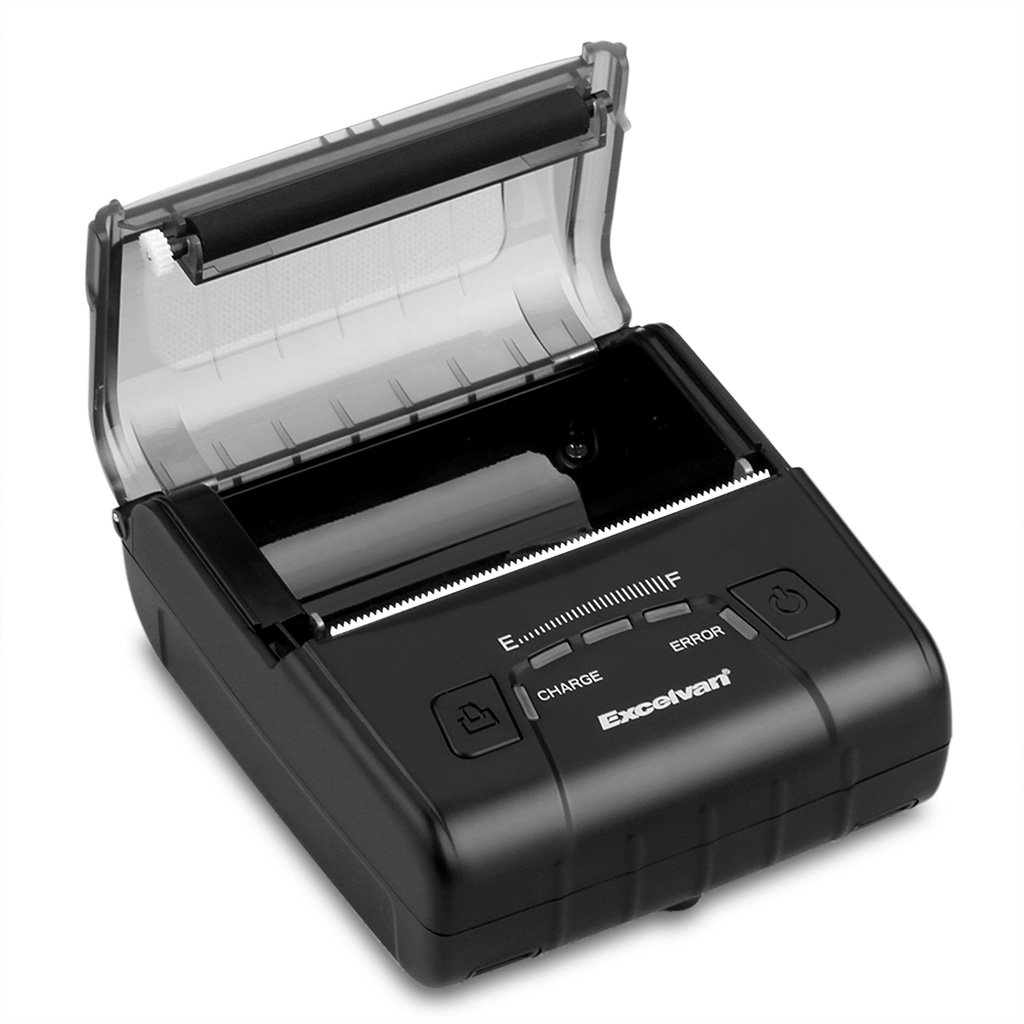
ຮູບທີ 4: Loading thermal paper into the printer.
4. ຄໍາແນະນໍາການດໍາເນີນງານ
4.1 ເປີດ/ປິດ
- ເພື່ອເປີດເຄື່ອງ: Press and hold the Power Button until the indicator lights illuminate.
- ປິດເຄື່ອງ: Press and hold the Power Button until the indicator lights turn off.
4.2 ການຕິດຕັ້ງໄດເວີ
Install the appropriate drivers for your operating system from the provided CD or download them from the official EXCELVAN website (ຖ້າມີ).
- Supported Operating Systems: Android, iOS, Linux, Windows (2000, 2003, XP, 7, 8, 8.1, 10).
4.3 ການເຊື່ອມຕໍ່ເຄື່ອງພິມ
The EXCELVAN E300 supports both Bluetooth and USB connectivity.
4.3.1 ການເຊື່ອມຕໍ່ Bluetooth
- ກວດໃຫ້ແນ່ໃຈວ່າເຄື່ອງພິມເປີດຢູ່.
- ໃນອຸປະກອນຂອງທ່ານ (ໂທລະສັບສະຫຼາດ, ແທັບເລັດ, ຄອມພິວເຕີ), ເປີດ Bluetooth ແລະຊອກຫາອຸປະກອນທີ່ມີຢູ່.
- Select "EXCELVAN E300" or a similar name from the list.
- Enter the pairing PIN (usually "0000" or "1234") if prompted.
- Once paired, you can select the printer from your application's print settings.
4.3.2 ການເຊື່ອມຕໍ່ USB
- ເຊື່ອມຕໍ່ປາຍໜຶ່ງຂອງສາຍ USB ກັບພອດ USB ຂອງເຄື່ອງພິມ.
- ເຊື່ອມຕໍ່ສົ້ນອື່ນກັບພອດ USB ທີ່ມີຢູ່ໃນຄອມພິວເຕີຂອງທ່ານ.
- Ensure the necessary drivers are installed. The printer should appear as an available printing device in your system settings.
4.4 ການພິມ
Once connected and drivers are installed, you can initiate printing from your application.

ຮູບທີ 5: The printer in operation, producing a receipt.
- Use the Feed Button to advance paper manually if needed.
- The printer supports ESC/POS commands for advanced control.
- Graphic printing, including bitmaps and QR codes, is supported.
5. ບໍາລຸງຮັກສາ
5.1 ການເຮັດຄວາມສະອາດຫົວພິມ
ການເຮັດຄວາມສະອາດຫົວພິມເປັນປະຈຳຮັບປະກັນຄຸນນະພາບການພິມທີ່ດີທີ່ສຸດ ແລະ ຍືດອາຍຸການໃຊ້ງານຂອງເຄື່ອງພິມ.
- Turn off the printer and disconnect the power adapter.
- Open the Paper Warehouse Cover.
- ໃຊ້ຜ້າຝ້າຍເບົາໆ ງampened with isopropyl alcohol to gently wipe the thermal print head (the dark strip inside the cover).
- ປະໄວ້ໃຫ້ຫົວພິມແຫ້ງສະນິດກ່ອນທີ່ຈະປິດຝາປິດ ແລະ ເປີດເຄື່ອງພິມ.
5.2 ການດູແລຫມໍ້ໄຟ
- ຫຼີກລ້ຽງການປະຈຸຫມໍ້ໄຟຢ່າງເຕັມທີ່ເລື້ອຍໆ.
- Charge the battery regularly, even if the printer is not in use for extended periods.
- ເກັບຮັກສາເຄື່ອງພິມໄວ້ໃນບ່ອນທີ່ເຢັນ, ແຫ້ງເມື່ອບໍ່ໄດ້ໃຊ້.
6. ການແກ້ໄຂບັນຫາ
This section addresses common issues you might encounter with your EXCELVAN E300 printer.
| ບັນຫາ | ສາເຫດທີ່ເປັນໄປໄດ້ | ການແກ້ໄຂ |
|---|---|---|
| ເຄື່ອງພິມບໍ່ເປີດ. | ແບັດເຕີຣີຕໍ່າ ຫຼື ບໍ່ມີພະລັງງານ. | Charge the battery using the power adapter. Ensure the power adapter is correctly connected. |
| No paper output. | Paper out, paper jam, or cover not closed. | Check if the paper roll is empty and replace if necessary. Clear any paper jams. Ensure the Paper Warehouse Cover is securely closed. |
| Error Indicator is lit. | ເຈ້ຍໝົດ, ຝາປິດເປີດ, ຫຼື ຫົວພິມຮ້ອນເກີນໄປ. | Check paper status and cover. If the printer has been printing continuously, allow it to cool down. |
| ຄຸນນະພາບການພິມບໍ່ດີ. | Dirty print head, low battery, or incorrect paper. | Clean the print head (see Section 5.1). Ensure the battery is sufficiently charged. Use high-quality thermal paper. |
| ບໍ່ສາມາດເຊື່ອມຕໍ່ຜ່ານ Bluetooth ໄດ້. | Bluetooth not enabled, incorrect pairing, or interference. | Ensure Bluetooth is enabled on both devices. Re-attempt pairing. Move closer to the printer and away from other wireless devices. |
7. ຂໍ້ມູນຈໍາເພາະ
Detailed technical specifications for the EXCELVAN E300 Thermal Printer:
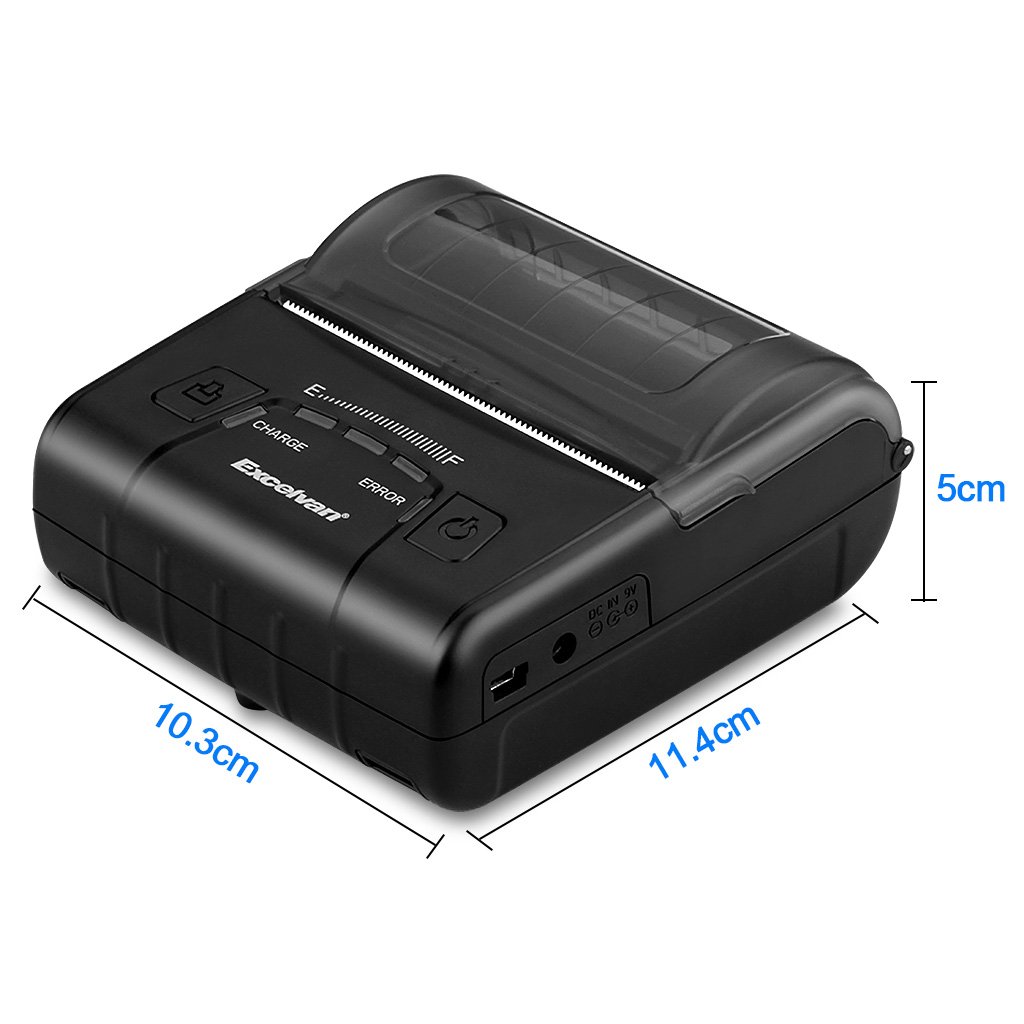
ຮູບທີ 6: EXCELVAN E300 Printer Dimensions.
| ຄຸນສົມບັດ | ຂໍ້ມູນຈໍາເພາະ |
|---|---|
| ວິທີການພິມ | ການພິມສາຍຄວາມຮ້ອນ |
| ຄວາມກວ້າງການພິມທີ່ມີປະສິດທິພາບ | 72 ມມ |
| ຄວາມລະອຽດ | 384 ຈຸດ / ເສັ້ນ |
| ຄວາມໄວການພິມ | 90 ມມ/ວິນາທີ |
| ການໂຕ້ຕອບ | USB, Bluetooth |
| ປະເພດເຈ້ຍ | ເຈ້ຍຄວາມຮ້ອນ |
| ຄວາມກວ້າງຂອງເຈ້ຍ | 79.5 .0.5 XNUMX ມມ |
| ເສັ້ນຜ່າສູນກາງຂອງເຈ້ຍ | ≤ 43 mm (40 mm recommended) |
| ຄໍາສັ່ງ | ESC/POS compatible |
| ການສະຫນອງພະລັງງານ | ແບັດເຕີຣີ Polymer Lithium ທີ່ສາມາດສາກໄດ້ |
| ຄວາມອາດສາມາດຫມໍ້ໄຟ | 2500 mAh / 7.4 V |
| Power Adapter Output | 9.0 V / 2 A |
| ຊອບແວໄດເວີ | Android, iOS, Linux, Win2000/2003/XP/7/8/8.1/10 |
| ຊີວິດຫົວພິມ | 50 km (Print Density ≤ 12.5) |
| ອຸນຫະພູມປະຕິບັດການ | 5 °C ~ 45 °C |
| ຄວາມຊຸ່ມຊື່ນປະຕິບັດການ | 10% ~ 80% |
| ຂະໜາດ (L x W x H) | 11 x 5 x 10 cm (ໂດຍປະມານ) |
| ນ້ຳໜັກ | 285 ກຣາມ |
8. ການຮັບປະກັນແລະການສະຫນັບສະຫນູນ
8.1 ຂໍ້ມູນການຮັບປະກັນ
The EXCELVAN E300 printer comes with a standard manufacturer's warranty. Please refer to the warranty card included in your package or contact your retailer for specific terms and conditions regarding warranty coverage and duration.
8.2 ສະຫນັບສະຫນູນລູກຄ້າ
For technical assistance, troubleshooting not covered in this manual, or inquiries about your product, please contact EXCELVAN customer support or your authorized dealer. Contact information can typically be found on the product packaging or the official EXCELVAN webເວັບໄຊ.


