1. ບົດແນະນຳ
This manual provides detailed instructions for the installation, operation, maintenance, and troubleshooting of your Gateway SX2865 SFF Desktop Motherboard H61 (Model DB.U7411.001). This motherboard is designed for Small Form Factor (SFF) desktop systems, featuring the Intel H61 Express chipset and supporting LGA 1155/1156 CPUs and DDR3 RAM. Please read this manual thoroughly before proceeding with any installation or configuration to ensure proper functionality and safety.
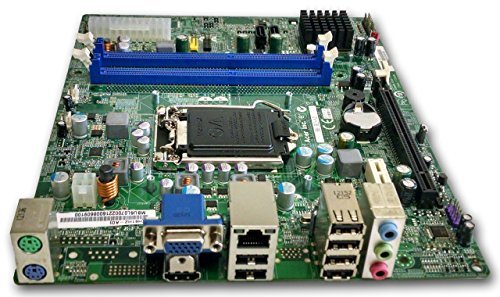
ຮູບທີ 1: ເກີນview of the Gateway SX2865 SFF Desktop Motherboard H61. This image displays the main components and layout of the motherboard, including the CPU socket, RAM slots, and various connectors.
2. ຂໍ້ມູນຄວາມປອດໄພ
Always observe the following safety precautions when handling and installing computer components:
- ຖອດສາຍໄຟອອກຈາກປລັກສຽບໄຟກ່ອນທີ່ຈະຕິດຕັ້ງຫຼືຖອດອົງປະກອບໃດໆ.
- ໃສ່ສາຍຮັດຂໍ້ມືປ້ອງກັນໄຟຟ້າສະຖິດເພື່ອປ້ອງກັນຄວາມເສຍຫາຍຈາກການປ່ອຍໄຟຟ້າສະຖິດ (ESD) ຕໍ່ອົງປະກອບທີ່ລະອຽດອ່ອນ.
- ຈັບເມນບອດໂດຍຂອບຂອງມັນເພື່ອຫຼີກເວັ້ນການສໍາຜັດກັບອົງປະກອບຫຼືວົງຈອນທີ່ລະອຽດອ່ອນ.
- ຮັບປະກັນການລະບາຍອາກາດທີ່ເຫມາະສົມພາຍໃນກໍລະນີຄອມພິວເຕີເພື່ອປ້ອງກັນຄວາມຮ້ອນເກີນ.
- ຢ່າປ່ອຍໃຫ້ເມນບອດມີຄວາມຊຸ່ມຊື່ນ ຫຼືອຸນຫະພູມສູງສຸດ.
- ຖ້າທ່ານບໍ່ແນ່ໃຈກ່ຽວກັບຂັ້ນຕອນການຕິດຕັ້ງໃດໆ, ໃຫ້ປຶກສາຊ່າງເຕັກນິກທີ່ມີຄຸນວຸດທິ.
3. ການຕິດຕັ້ງແລະການຕິດຕັ້ງ
Follow these steps to properly install the Gateway SX2865 SFF Desktop Motherboard into your system:
3.1. ການກະກຽມໂຄງລົດ
- Open your computer chassis and ensure it is clean and free of dust.
- Install the I/O shield provided with your chassis or motherboard into the rear panel opening.
- Verify that the standoffs in the chassis align with the mounting holes on the motherboard. Adjust if necessary.
3.2. ການຕິດຕັ້ງ CPU
- Locate the CPU socket (LGA 1155/1156) on the motherboard.
- ຄ່ອຍໆຍົກຄັນຍົກຂຶ້ນ ແລະ ເປີດຝາປິດຊ່ອງສຽບ CPU.
- Carefully align the CPU with the socket, matching the golden triangle on the CPU with the triangle mark on the socket. Do not force the CPU into the socket.
- ປິດຝາປິດເຕົ້າຮັບ ແລະ ກົດຄັນຍົກລົງຈົນກວ່າມັນຈະລັອກເຂົ້າທີ່.
- Apply a thin layer of thermal paste to the CPU surface (if not pre-applied on the cooler).
- Install the CPU cooler according to its manufacturer's instructions, ensuring it is securely fastened.
3.3. ການຕິດຕັ້ງ RAM
- ຊອກຫາຊ່ອງສຽບ DDR3 DIMM ໃນເມນບອດ.
- ເປີດຄລິບຢູ່ທັງສອງສົ້ນຂອງຊ່ອງສຽບ DIMM.
- ວາງຈຸດຕັດຢູ່ໃນໂມດູນ RAM ດ້ວຍກະແຈໃນຊ່ອງ DIMM.
- ກົດລົງໃຫ້ແໜ້ນທັງສອງສົ້ນຂອງໂມດູນ RAM ຈົນກ່ວາ clips ເຂົ້າໄປໃນສະຖານທີ່.
3.4. ການຕິດຕັ້ງເມນບອດ
- Carefully place the motherboard into the chassis, aligning the mounting holes with the standoffs.
- ຮັບປະກັນແຜ່ນເມນບອດດ້ວຍສະກູ, ຮັບປະກັນບໍ່ໃຫ້ແຫນ້ນ.
3.5. ການເຊື່ອມຕໍ່ອຸປະກອນເສີມ ແລະພະລັງງານ
- ເຊື່ອມຕໍ່ຕົວເຊື່ອມຕໍ່ພະລັງງານ ATX 24-pin ແລະຕົວເຊື່ອມຕໍ່ພະລັງງານ CPU 4-pin ຈາກການສະຫນອງພະລັງງານຂອງທ່ານໄປຫາເມນບອດ.
- ເຊື່ອມຕໍ່ສາຍຂໍ້ມູນ SATA ຈາກອຸປະກອນເກັບຂໍ້ມູນຂອງທ່ານ (HDD/SSD) ກັບພອດ SATA ເທິງເມນບອດ.
- Connect front panel connectors (power button, reset button, USB, audio) to their respective headers on the motherboard. Refer to the motherboard's silkscreen labels for correct orientation.
- Install any expansion cards (e.g., graphics card) into the appropriate PCIe slots and secure them.
- Connect all necessary cables to your power supply.
4. ການດໍາເນີນງານ ແລະ ການຕັ້ງຄ່າ
4.1. Boot-Up ເບື້ອງຕົ້ນ
- After all components are installed and connected, close the chassis.
- ເຊື່ອມຕໍ່ຈໍພາບ, ແປ້ນພິມ, ແລະເມົ້າຂອງທ່ານ.
- ເຊື່ອມຕໍ່ສາຍໄຟກັບບ່ອນຈ່າຍໄຟ ແລະປລັກສຽບໃສ່ຝາ.
- ກົດປຸ່ມເປີດປິດໃນຄອມພິວເຕີຂອງທ່ານ.
4.2. ຕັ້ງຄ່າ BIOS/UEFI
The BIOS (Basic Input/Output System) or UEFI (Unified Extensible Firmware Interface) is firmware that initializes hardware during the booting process. To enter the BIOS/UEFI setup utility:
- During the initial boot-up sequence, repeatedly press the designated key (commonly Del, F2, ຫຼື F10). The exact key may vary; check the on-screen prompts.
- Within the BIOS/UEFI, you can configure settings such as:
- ວັນທີ ແລະເວລາຂອງລະບົບ
- Boot Order (to install an operating system from a USB drive or DVD)
- SATA Mode (AHCI, IDE)
- CPU and Memory settings (advanced users)
- Save changes and exit the BIOS/UEFI to continue booting.
4.3. ລະບົບປະຕິບັດການ ແລະ ການຕິດຕັ້ງໄດເວີ
After configuring the BIOS/UEFI, proceed with installing your preferred operating system (e.g., Windows, Linux). Once the OS is installed, install the necessary drivers for the motherboard's components (chipset, audio, LAN, etc.). These drivers are typically available on the manufacturer's website (Acer/Gateway) or can be found through the operating system's update features.
5. ບໍາລຸງຮັກສາ
Regular maintenance helps ensure the longevity and stable performance of your motherboard:
- ການກຳຈັດຂີ້ຝຸ່ນ: Periodically clean the inside of your computer case, including the motherboard, CPU cooler, and fan vents, using compressed air. Ensure the system is powered off and unplugged before cleaning.
- ອັບເດດ BIOS: ກວດເບິ່ງຜູ້ຜະລິດ website (Acer/Gateway) for BIOS/UEFI updates. Updates can improve stability, add support for new hardware, or fix bugs. Follow the update instructions carefully to avoid damaging the motherboard.
- ອັບເດດໄດເວີ: ຮັກສາການອັບເດດໄດເວີລະບົບຂອງທ່ານເພື່ອຮັບປະກັນການປະຕິບັດທີ່ດີທີ່ສຸດແລະຄວາມເຂົ້າກັນໄດ້.
- ການກວດຮ່າງກາຍ: ບາງຄັ້ງກວດເບິ່ງ motherboard ເພື່ອເບິ່ງອາການຂອງຄວາມເສຍຫາຍ, ການເຊື່ອມຕໍ່ວ່າງ, ຫຼື capacitors bulging.
6. ການແກ້ໄຂບັນຫາ
ຖ້າທ່ານພົບບັນຫາກັບເມນບອດຂອງທ່ານ, ໃຫ້ອ້າງອີງເຖິງຂັ້ນຕອນການແກ້ໄຂບັນຫາທົ່ວໄປຕໍ່ໄປນີ້:
- ບໍ່ມີພະລັງງານ:
- Ensure the power supply is connected correctly to the motherboard (24-pin ATX and 4-pin CPU).
- ກວດສອບວ່າສະວິດແຫຼ່ງຈ່າຍໄຟຢູ່ໃນຕຳແໜ່ງ 'ເປີດ'.
- Verify the power cord is securely plugged into both the power supply and the wall outlet.
- Confirm the front panel power button connector is correctly attached to the motherboard.
- ບໍ່ມີການສະແດງຜົນ:
- Ensure the monitor is powered on and connected to the correct video output (either integrated graphics or a dedicated graphics card).
- ໃສ່ໂມດູນ RAM ຄືນໃໝ່. ລອງບູດເຄື່ອງໂດຍຕິດຕັ້ງໂມດູນ RAM ພຽງອັນດຽວເທົ່ານັ້ນ.
- ຣີເຊັດບັດກາຟິກ (ຖ້າມີ).
- Check if the CPU cooler is properly installed and the CPU power connector is secure.
- System Fails to Boot / POST Errors:
- Listen for beep codes from the motherboard's speaker (if installed). Consult the motherboard's documentation for beep code meanings.
- Clear the CMOS (Complementary Metal-Oxide-Semiconductor) by removing the CMOS battery for a few minutes or using the clear CMOS jumper (refer to motherboard layout).
- Ensure all essential components (CPU, RAM, GPU) are correctly installed.
- ບັນຫາລະບົບປະຕິບັດການ:
- Verify that all necessary drivers are installed and up to date.
- Check SATA cable connections for storage devices.
- Run diagnostic tools for hard drives/SSDs and RAM.
7. ຂໍ້ມູນຈໍາເພາະ
Key technical specifications for the Gateway SX2865 SFF Desktop Motherboard H61 (Model DB.U7411.001):
| ຄຸນສົມບັດ | ລາຍລະອຽດ |
|---|---|
| ຍີ່ຫໍ້ | ປະຕູ |
| ຊື່ຕົວແບບ | SX2865 |
| ໝາຍເລກຕົວແບບ | DB.U7411.001 |
| ຜູ້ຜະລິດ | ເອເຊີ |
| ປະເພດຊິບເຊັດ | Intel H61 Express |
| ເຕົ້າສຽບ CPU | LGA 1155 or LGA 1156 |
| ໂປເຊດເຊີທີ່ເຂົ້າກັນໄດ້ | Intel Xeon (and other compatible LGA 1155/1156 CPUs) |
| ເທກໂນໂລຍີຫນ່ວຍຄວາມຈໍາ RAM | DDR3 |
| ຄວາມໄວໂມງຄວາມຈຳ | 2133 MHz (Max supported, actual speed depends on CPU and RAM) |
| ຄວາມອາດສາມາດເກັບຮັກສາຫນ່ວຍຄວາມຈໍາ | 16 GB (Maximum supported) |
| ອຸປະກອນທີ່ເຂົ້າກັນໄດ້ | ຄອມພິວເຕີສ່ວນບຸກຄົນ |
| ເວທີ | Linux (and other compatible operating systems) |
| ປັດໄຈແບບຟອມ | uATX (Micro-ATX) |
8. ການຮັບປະກັນແລະການສະຫນັບສະຫນູນ
For warranty information and technical support regarding your Gateway SX2865 SFF Desktop Motherboard H61 (Model DB.U7411.001), please refer to the documentation provided with your original system or contact the manufacturer directly.
- ຜູ້ຜະລິດ: Acer (as per product specifications)
- ຍີ່ຫໍ້: ປະຕູ
- ຢ້ຽມຢາມຢ່າງເປັນທາງການ ສະຫນັບສະຫນູນປະຕູ webເວັບໄຊ or ສະຫນັບສະຫນູນ Acer webເວັບໄຊ for drivers, FAQs, and contact information.
- ຮັກສາຫຼັກຖານການຊື້ຂອງທ່ານສໍາລັບການຮ້ອງຂໍການຮັບປະກັນ.


