1. ບົດແນະນຳ
This manual provides essential information for the safe and efficient use of your InFocus IF195a Touch Pad. Please read this manual thoroughly before operating the device and retain it for future reference.
2. ຂໍ້ມູນຄວາມປອດໄພ
- ຢ່າເຮັດໃຫ້ອຸປະກອນຢູ່ໃນອຸນຫະພູມທີ່ຮຸນແຮງ, ແສງແດດໂດຍກົງ, ຫຼືຄວາມຊຸ່ມຊື່ນສູງ.
- ຫຼີກລ້ຽງການຫຼຸດລົງຫຼືການອຸປະກອນທີ່ມີຜົນກະທົບທີ່ເຂັ້ມແຂງ.
- Use only the charger provided or approved by InFocus.
- ຢ່າພະຍາຍາມຖອດປະກອບ ຫຼືສ້ອມແປງອຸປະກອນດ້ວຍຕົນເອງ. ອ້າງອີງການບໍລິການທັງໝົດໃຫ້ກັບບຸກຄະລາກອນທີ່ມີຄຸນວຸດທິ.
- ຮັກສາອຸປະກອນໃຫ້ຫ່າງຈາກນ້ໍາແລະຂອງແຫຼວອື່ນໆ.
- ຖິ້ມອຸປະກອນ ແລະ ແບັດເຕີຣີຂອງຕົນຢ່າງມີຄວາມຮັບຜິດຊອບຕາມລະບຽບການທ້ອງຖິ່ນ.
3. ຜະລິດຕະພັນເກີນview
The InFocus IF195a is a 20-inch Android-powered touch pad designed for interactive use. Familiarize yourself with its components.
3.1 ແນວ ໜ້າ View

ຮູບທີ 1: ດ້ານໜ້າ view of the InFocus IF195a Touch Pad. This image shows the large 20-inch display with the Android operating system interface, including various app icons and the Google search bar. The device features a sleek bezel around the screen.
- ຈໍສະແດງຜົນ: 20-inch multi-touch screen.
- ກ້ອງໜ້າ: Located at the top center bezel.
- ໄມໂຄຣໂຟນ: ປະສົມປະສານສຳລັບການປ້ອນຂໍ້ມູນດ້ວຍສຽງ.
3.2 ຂ້າງ View ແລະພອດ
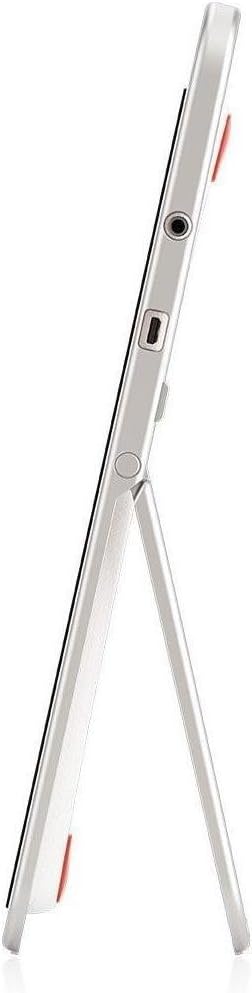
ຮູບທີ 2: ຂ້າງ view of the InFocus IF195a Touch Pad. This image highlights the device's slim profile and the integrated kickstand, which allows for upright positioning. Visible ports include a headphone jack and a USB port.
- ປຸ່ມເປີດປິດ: Used to turn the device on/off or put it to sleep.
- ປຸ່ມລະດັບສຽງ: Adjust the device's audio output.
- Jack ຫູຟັງ (3.5mm): ສໍາລັບການເຊື່ອມຕໍ່ອຸປະກອນສຽງພາຍນອກ.
- ພອດ Micro-USB: ສໍາລັບການສາກໄຟແລະການໂອນຂໍ້ມູນ.
- ຂາຕັ້ງແບບປະສົມປະສານ: Allows the device to stand upright.
4. ຕັ້ງຄ່າ
4.1 Unboxing ແລະຄ່າເລີ່ມຕົ້ນ
- Carefully remove the InFocus IF195a Touch Pad and all accessories from the packaging.
- Connect the provided power adapter to the Micro-USB port on the device and plug it into a power outlet. Allow the device to charge fully before first use. The charging indicator will typically show a full battery when complete.
4.2 ການເປີດ/ປິດ
- ເພື່ອເປີດເຄື່ອງ: Press and hold the Power button until the InFocus logo appears on the screen.
- ປິດເຄື່ອງ: ກົດປຸ່ມເປີດ/ປິດຄ້າງໄວ້ຈົນກວ່າເມນູປິດເຄື່ອງຈະປາກົດຂຶ້ນ. ເລືອກ "ປິດເຄື່ອງ" ແລະຢືນຢັນ.
- ນອນ/ຕື່ນ: Briefly press the Power button to put the device into sleep mode or wake it up.
4.3 ຕົວຊ່ວຍສ້າງການຕິດຕັ້ງເບື້ອງຕົ້ນ
ເມື່ອເປີດເຄື່ອງທຳອິດ, ອຸປະກອນຈະແນະນຳທ່ານຜ່ານຂັ້ນຕອນການຕັ້ງຄ່າເບື້ອງຕົ້ນ:
- ການເລືອກພາສາ: ເລືອກພາສາທີ່ເຈົ້າມັກ.
- ການເຊື່ອມຕໍ່ Wi-Fi: Select your Wi-Fi network from the list and enter the password. A stable internet connection is required for many features.
- ບັນຊີ Google: Sign in with an existing Google account or create a new one. This is necessary to download apps from the Google Play Store and access Google services.
- ວັນທີ ແລະເວລາ: Set the correct date and time or allow the device to set it automatically via the network.
- ການຕັ້ງຄ່າຄວາມເປັນສ່ວນຕົວ: Review ແລະປັບການຕັ້ງຄ່າຄວາມເປັນສ່ວນຕົວຕາມທີ່ຕ້ອງການ.
5. ປະຕິບັດການອຸປະກອນ
5.1 ແຕະທ່າທາງ
- ແຕະ: ແຕະໜ້າຈໍໜຶ່ງຄັ້ງເພື່ອເລືອກລາຍການ ຫຼືເປີດແອັບພລິເຄຊັນ.
- ແຕະຄ້າງໄວ້: ກົດຄ້າງລາຍການໃດໜຶ່ງເພື່ອເຂົ້າເຖິງເມນູສະພາບການ ຫຼື ລາກລາຍການຕ່າງໆ.
- ປັດ: ລາກນິ້ວມືຂອງທ່ານໄປທົ່ວໜ້າຈໍເພື່ອເລື່ອນຜ່ານລາຍການຕ່າງໆ ຫຼືສະຫຼັບລະຫວ່າງໜ້າຈໍຫຼັກ.
- Pinch-to-Zoom: ໃຊ້ສອງນິ້ວເພື່ອຊູມເຂົ້າ ຫຼືອອກໃນຮູບພາບ, ແຜນທີ່, ຫຼື web ໜ້າ.
5.2 ໜ້າຈໍຫຼັກ ແລະ ການນຳທາງ
- ປຸ່ມຫນ້າທໍາອິດ: ສົ່ງຄືນໃຫ້ທ່ານໄປທີ່ໜ້າຈໍຫຼັກ.
- ປຸ່ມກັບຄືນ: Returns to the previous screen or closes the current application.
- ປຸ່ມແອັບຫຼ້າສຸດ: Displays a list of recently used applications for quick switching.
- ກະດານແຈ້ງການ: ປັດລົງຈາກເທິງສຸດຂອງໜ້າຈໍເພື່ອເຂົ້າເຖິງການແຈ້ງເຕືອນ ແລະການຕັ້ງຄ່າດ່ວນ.
5.3 Installing and Managing Applications
- Google Play Store: Open the "Play Store" app to browse and download applications. A Google account is required.
- ການຕິດຕັ້ງແອັບ: Select an app and tap "Install." Follow on-screen prompts for permissions.
- ຖອນການຕິດຕັ້ງແອັບ: ໄປທີ່ ການຕັ້ງຄ່າ > ແອັບ, select the desired app, and tap "Uninstall." Alternatively, touch and hold an app icon on the home screen and drag it to the "Uninstall" option (if available).
5.4 ການເຊື່ອມຕໍ່ກັບອຸປະກອນພາຍນອກ
- ຫູຟັງ: ສຽບຫູຟັງ 3.5 ມມ ເຂົ້າໄປໃນຊ່ອງສຽບຫູຟັງ.
- ອຸປະກອນ USB: Connect compatible USB devices (e.g., flash drives, keyboards) to the Micro-USB port using an appropriate adapter if necessary. The device supports USB On-The-Go (OTG).
6. ບໍາລຸງຮັກສາ
6.1 ການທໍາຄວາມສະອາດອຸປະກອນ
- ໃຊ້ຜ້າແພທີ່ອ່ອນນຸ້ມ, ບໍ່ມີສານດ່າງເພື່ອເຮັດຄວາມສະອາດໜ້າຈໍ ແລະຕົວເຄື່ອງຂອງອຸປະກອນ.
- ສໍາລັບຮອຍແຂງ, ເລັກນ້ອຍ dampen ຜ້າທີ່ມີນ້ໍາຫຼືເຄື່ອງເຮັດຄວາມສະອາດຫນ້າຈໍທີ່ອອກແບບໂດຍສະເພາະສໍາລັບເອເລັກໂຕຣນິກ.
- ຫຼີກລ່ຽງການໃຊ້ສານເຄມີທີ່ຮຸນແຮງ, ເຄື່ອງຂັດຂັດ, ຫຼືສີດ aerosol.
6.2 ການດູແລຫມໍ້ໄຟ
- ເພື່ອຍືດອາຍຸແບັດເຕີລີ, ຫຼີກເວັ້ນການຖອດແບດເຕີລີ່ເຕັມເລື້ອຍໆ.
- ຢ່າປ່ອຍໃຫ້ອຸປະກອນເຊື່ອມຕໍ່ກັບສາຍສາກເປັນໄລຍະເວລາທີ່ຍາວນານ ຫຼັງຈາກທີ່ມັນສາກເຕັມແລ້ວ.
- Store the device in a cool, dry place if not used for a long time, with the battery charged to about 50%.
6.3 ການປັບປຸງຊອບແວ
ກວດສອບການອັບເດດຊອບແວເປັນໄລຍະເພື່ອຮັບປະກັນປະສິດທິພາບ ແລະ ຄວາມປອດໄພທີ່ດີທີ່ສຸດ. ໄປທີ່ Settings > About tablet > System updates to check for and install available updates. Ensure your device is connected to Wi-Fi and has sufficient battery charge before starting an update.
7. ການແກ້ໄຂບັນຫາ
| ບັນຫາ | ການແກ້ໄຂທີ່ເປັນໄປໄດ້ |
|---|---|
| ອຸປະກອນຈະບໍ່ເປີດ. | Ensure the device is charged. Connect the charger and wait a few minutes before attempting to power on again. If unresponsive, perform a hard reset by holding the power button for 10-15 seconds. |
| ບັນຫາການເຊື່ອມຕໍ່ Wi-Fi. | ກວດສອບວ່າ Wi-Fi ຖືກເປີດໃຊ້ງານຢູ່ໃນການຕັ້ງຄ່າແລ້ວຫຼືບໍ່. ປິດເປີດເຣົາເຕີ Wi-Fi ຂອງທ່ານຄືນໃໝ່. ລືມເຄືອຂ່າຍ ແລະ ເຊື່ອມຕໍ່ຄືນໃໝ່. ໃຫ້ແນ່ໃຈວ່າທ່ານຢູ່ພາຍໃນຂອບເຂດຂອງສັນຍານ Wi-Fi. |
| Applications are crashing or freezing. | Close and restart the application. Clear the app's cache (ການຕັ້ງຄ່າ > Apps > [App Name] > Storage > Clear cache). If the problem persists, uninstall and reinstall the app. |
| ໜ້າຈໍບໍ່ຕອບສະໜອງ. | Restart the device. Ensure the screen is clean and free of debris. If the issue continues, contact support. |
| ການປະຕິບັດຊ້າ. | Close unnecessary background applications. Clear cache for frequently used apps. Check available storage (ການຕັ້ງຄ່າ > ບ່ອນເກັບຂໍ້ມູນ) and free up space if needed. Consider a factory reset as a last resort. |
7.1 ຣີເຊັດເປັນຄ່າໂຮງງານ
ການຣີເຊັດເປັນຄ່າໂຮງງານຈະລຶບຂໍ້ມູນທັງໝົດອອກຈາກອຸປະກອນຂອງທ່ານ ແລະ ກູ້ຄືນມັນໄປສູ່ການຕັ້ງຄ່າໂຮງງານເດີມ. ໃຫ້ສຳຮອງຂໍ້ມູນທີ່ສຳຄັນທັງໝົດກ່ອນດຳເນີນການຕໍ່ໄປ.
- ໄປທີ່ Settings > Backup & reset > Factory data reset.
- Read the warning message carefully.
- Tap "Reset tablet" and then "Erase everything" to confirm.
- ອຸປະກອນຈະຣີສະຕາດ ແລະເລີ່ມຂະບວນການຣີເຊັດ.
8. ຂໍ້ກໍານົດດ້ານວິຊາການ
| ຄຸນສົມບັດ | ຂໍ້ມູນຈໍາເພາະ |
|---|---|
| ຕົວແບບ | IF195a |
| ຍີ່ຫໍ້ | ໂຟກັສ |
| ຂະຫນາດຈໍສະແດງຜົນ | 20 ນິ້ວ |
| ຄວາມລະອຽດສູງສຸດ | 1600 x 900 |
| ໂຮງງານຜະລິດ | ARM Cortex-A15 Quad-Core 1.8 GHz |
| ຄວາມອາດສາມາດ RAM | 2 GB |
| ຄວາມອາດສາມາດເກັບຮັກສາ | 16 GB |
| ລະບົບປະຕິບັດການ | ແອນດຣອຍ 4.4 KitKat |
| ຄວາມລະອຽດກ້ອງຫຼັງ | 5 MP |
| ຂະໜາດ (L x W x H) | 61.6 x 47 x 8.6 cm |
| ນ້ຳໜັກ | 3.7 ກິໂລ |
| ສີ | ສີເທົາ |
9. ການຮັບປະກັນແລະການສະຫນັບສະຫນູນ
For warranty information, please refer to the warranty card included with your product or visit the official InFocus website. For technical support, product registration, or service inquiries, please contact InFocus customer service through their official channels.
Please note that warranty terms may vary by region and retailer. Keep your proof of purchase for warranty claims.