ແນະນຳ
This manual provides instructions for setting up, operating, and maintaining your Mercury MW3030R Dual Band Wireless Router. Please read this manual carefully before use to ensure proper installation and optimal performance.
ຂໍ້ມູນຄວາມປອດໄພ
- ຢ່າປ່ອຍໃຫ້ອຸປະກອນຖືກນ້ໍາຫຼືຄວາມຊຸ່ມຊື່ນຫຼາຍເກີນໄປ.
- ຢ່າພະຍາຍາມຖອດປະກອບ ຫຼືສ້ອມແປງອຸປະກອນດ້ວຍຕົນເອງ.
- ໃຊ້ພຽງແຕ່ອະແດັບເຕີໄຟທີ່ໃຫ້ມາກັບອຸປະກອນ.
- ຮັບປະກັນການລະບາຍອາກາດທີ່ເຫມາະສົມຢູ່ອ້ອມ router ເພື່ອປ້ອງກັນຄວາມຮ້ອນເກີນໄປ.
ເນື້ອໃນຊຸດ
ກວດສອບວ່າຊຸດຂອງທ່ານມີລາຍການດັ່ງຕໍ່ໄປນີ້:
- Mercury MW3030R Wireless Router
- Power Adapter
- ສາຍອີເທີເນັດ
- ຄູ່ມືການຕິດຕັ້ງແບບໄວ (ຄູ່ມືນີ້ເຮັດໜ້າທີ່ເປັນຄູ່ມືລະອຽດ)
ສິນຄ້າເກີນview
ຄຸ້ນເຄີຍກັບອົງປະກອບ ແລະ ຕົວຊີ້ບອກຂອງເຣົາເຕີ.
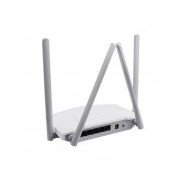
ຮູບທີ 1: ຫລັງ view of the Mercury MW3030R router. This image displays the four external antennas, the WAN port (typically blue), multiple LAN ports (typically yellow), and the power input jack. The reset button and WPS button are also usually located on the rear panel.
ຮູບທີ 2: ລົງລຸ່ມ view of the Mercury MW3030R router with its antennas folded. This perspective highlights the router's sleek, white casing and its overall compact form factor, suitable for various placements.
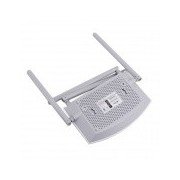
ຮູບທີ 3: ລຸ່ມ view of the Mercury MW3030R router. This image shows the ventilation holes designed for heat dissipation and the product label, which typically contains important information such as the default Wi-Fi name (SSID), password, and web management address.
ຕົວຊີ້ວັດ LED:
- ໄຟ LED: ສະແດງສະຖານະພະລັງງານຂອງເຣົາເຕີ.
- ອິນເຕີເນັດ LED: ສະແດງສະຖານະຂອງການເຊື່ອມຕໍ່ອິນເຕີເນັດ.
- WLAN LED: ຊີ້ບອກເຖິງກິດຈະກຳໄຮ້ສາຍ.
- LAN LEDs: Indicate connection status for each LAN port.
ຕັ້ງຄ່າ
1. ການເຊື່ອມຕໍ່ຮາດແວ
- ເປີດ: Connect the power adapter to the router's power port and plug it into a wall outlet. Wait for the Power LED to become stable.
- ເຊື່ອມຕໍ່ອິນເຕີເນັດ (WAN): Connect one end of an Ethernet cable to your modem's LAN port and the other end to the router's WAN port (usually distinctively colored, e.g., blue).
- ເຊື່ອມຕໍ່ອຸປະກອນ (LAN): For wired connections, connect your computer or other devices to the router's LAN ports (usually yellow) using Ethernet cables.
- ເສົາອາກາດ: Adjust the four antennas for optimal signal coverage.
2. ການຕັ້ງຄ່າເບື້ອງຕົ້ນ (Web ອິນເຕີເຟດ)
- ເຊື່ອມຕໍ່ກັບ Router: Connect your computer to the router either via an Ethernet cable to a LAN port or wirelessly using the default Wi-Fi SSID and password printed on the router's label (refer to Figure 3).
- ການເຂົ້າເຖິງ Web ຕົວທ່ອງເວັບ: ເປີດ ກ web browser (e.g., Chrome, Firefox) and type the default access address (e.g., http://192.168.1.1 or http://tplinkwifi.net) ເຂົ້າໄປໃນແຖບທີ່ຢູ່ແລະກົດ Enter.
- ເຂົ້າສູ່ລະບົບ: ໃສ່ຊື່ຜູ້ໃຊ້ເລີ່ມຕົ້ນ ແລະລະຫັດຜ່ານ (ໂດຍປົກກະຕິ admin for both, or as specified on the router's label).
- ດໍາເນີນການຕັ້ງຄ່າດ່ວນ: Follow the on-screen instructions of the Quick Setup Wizard to configure your internet connection type (e.g., PPPoE, Dynamic IP, Static IP) and wireless settings (SSID, password).
- ປ່ຽນລະຫັດຜ່ານເລີ່ມຕົ້ນ: ເພື່ອຄວາມປອດໄພ, ແນະນຳໃຫ້ປ່ຽນລະຫັດຜ່ານເຂົ້າສູ່ລະບົບເລີ່ມຕົ້ນສຳລັບເຣົາເຕີ. web ການໂຕ້ຕອບການຄຸ້ມຄອງ.
ຄໍາແນະນໍາການດໍາເນີນງານ
ກຳລັງເຊື່ອມຕໍ່ກັບ Wi-Fi
- On your wireless device (smartphone, laptop), search for available Wi-Fi networks.
- Select your router's Wi-Fi network name (SSID) that you configured during setup.
- Enter the Wi-Fi password you set.
- ດຽວນີ້ອຸປະກອນຂອງທ່ານຄວນຈະເຊື່ອມຕໍ່ກັບອິນເຕີເນັດ.
ປະຕິບັດການແຖບຄູ່
The MW3030R supports both 2.4GHz and 5.0GHz wireless bands. The 2.4GHz band offers wider coverage, while the 5.0GHz band provides faster speeds with less interference over shorter distances. You can connect your devices to either band based on your needs.
ເຄືອຂ່າຍແຂກ
ເຂົ້າເຖິງ router ຂອງ web interface to enable and configure a separate guest network. This allows guests to access the internet without accessing your main network resources.
ບໍາລຸງຮັກສາ
- ການອັບເດດເຟີມແວ: ກວດສອບຜູ້ຜະລິດເປັນປະຈຳ website for firmware updates. Updating firmware can improve performance, add new features, and fix security vulnerabilities.
- Restarting Router: ຖ້າທ່ານປະສົບບັນຫາເຄືອຂ່າຍ, ລອງເປີດເຣົາເຕີ້ຄືນໃໝ່ໂດຍການຖອດອະແດບເຕີໄຟອອກ, ລໍຖ້າ 10 ວິນາທີ, ແລະຈາກນັ້ນສຽບປລັກຄືນໃໝ່.
- ທໍາຄວາມສະອາດ: Keep the router clean and free from dust. Use a soft, dry cloth. Do not use liquid cleaners.
- ການຈັດວາງ: ວາງເຣົາເຕີໄວ້ທີ່ຈຸດໃຈກາງ, ຫ່າງຈາກສິ່ງກີດຂວາງ ແລະ ອຸປະກອນຕ່າງໆທີ່ອາດຈະເຮັດໃຫ້ເກີດການລົບກວນ (ເຊັ່ນ: ໄມໂຄເວຟ, ໂທລະສັບໄຮ້ສາຍ).
ການແກ້ໄຂບັນຫາ
ບໍ່ມີການເຂົ້າເຖິງອິນເຕີເນັດ
- Check if the Internet LED on the router is lit or blinking correctly.
- ໃຫ້ແນ່ໃຈວ່າສາຍ Ethernet ຈາກໂມເດັມຂອງທ່ານເຊື່ອມຕໍ່ກັບພອດ WAN ຂອງເຣົາເຕີຢ່າງປອດໄພແລ້ວ.
- ຣີສະຕາດໂມເດັມ ແລະເຣົາເຕີຂອງທ່ານ.
- ກວດສອບການຕັ້ງຄ່າການເຊື່ອມຕໍ່ອິນເຕີເນັດຂອງທ່ານໃນເຣົາເຕີ web ການໂຕ້ຕອບ.
ຄວາມໄວໄຮ້ສາຍຊ້າ
- Ensure your device is connected to the 5.0GHz band if it supports it, for faster speeds.
- Move closer to the router or adjust antenna positions.
- ກວດເບິ່ງການລົບກວນຈາກອຸປະກອນເອເລັກໂຕຣນິກອື່ນໆ.
- Reduce the number of devices connected to the network or bandwidth-intensive activities.
ບໍ່ສາມາດເຂົ້າເຖິງ Router ໄດ້ Web ການໂຕ້ຕອບ
- ໃຫ້ແນ່ໃຈວ່າອຸປະກອນຂອງທ່ານເຊື່ອມຕໍ່ກັບເຣົາເຕີ (ມີສາຍ ຫຼື ໄຮ້ສາຍ).
- ກວດສອບວ່າທີ່ຢູ່ IP ທີ່ທ່ານກຳລັງພິມໃນໂປຣແກຣມທ່ອງເວັບນັ້ນຖືກຕ້ອງ (ຕົວຢ່າງ, http://192.168.1.1).
- ລອງລຶບ cache ຂອງຕົວທ່ອງເວັບຂອງທ່ານ ຫຼືໃຊ້ຕົວທ່ອງເວັບອື່ນ.
- If you forgot the login password, you may need to perform a factory reset (Warning: This will erase all your settings).
ຂໍ້ມູນຈໍາເພາະ
| ຄຸນສົມບັດ | ລາຍລະອຽດ |
|---|---|
| ຕົວແບບ | MW3030R |
| ມາດຕະຖານໄຮ້ສາຍ | IEEE 802.11ac/n/g/b/a |
| ຄວາມຖີ່ | 2.4GHz ແລະ 5.0GHz (ແຖບຄວາມຖີ່ຄູ່) |
| ຄວາມໄວໄຮ້ສາຍ | Up to 600Mbps (combined) |
| ເສົາອາກາດ | 4 ເສົາອາກາດພາຍນອກ |
| ການໂຕ້ຕອບ | 1x WAN Port, Multiple LAN Ports (typically 3 or 4) |
| ການສະຫນອງພະລັງງານ | External Power Adapter (provided) |
ການຮັບປະກັນແລະການສະຫນັບສະຫນູນ
The Mercury MW3030R router comes with a standard manufacturer's warranty. For detailed warranty information, technical support, or service inquiries, please refer to the official Mercury webເວັບໄຊທ໌ຫຼືຕິດຕໍ່ສະຫນັບສະຫນູນລູກຄ້າຂອງພວກເຂົາ. ຮັກສາໃບຮັບເງິນການຊື້ຂອງທ່ານສໍາລັບການຮ້ອງຂໍການຮັບປະກັນ.