ແນະນຳ
This manual provides detailed instructions for the installation, operation, and maintenance of your COMFAST CF-WP500M 500Mbps HomePlug AV Powerline Network Adapters. Please read this manual thoroughly before using the product to ensure proper setup and optimal performance. These adapters allow you to extend your internet connection using your home's existing electrical wiring, providing a stable and high-speed network connection without new cables.
ເນື້ອໃນຊຸດ
ກວດສອບວ່າລາຍການທັງຫມົດແມ່ນມີຢູ່ໃນຊຸດຂອງທ່ານ:
- 2 x COMFAST CF-WP500M Powerline Adapters
- ສາຍອີເທີເນັດ 2 ເສັ້ນ
- 1 x Quick Installation Guide (This document serves as a comprehensive guide)
ສິນຄ້າເກີນview
The COMFAST CF-WP500M is a compact HomePlug AV powerline adapter designed for easy network extension. Each adapter features LED indicators for status monitoring and an RJ45 Ethernet port for device connectivity.
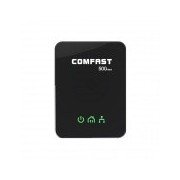
ຮູບພາບ: ທາງຫນ້າ view of the COMFAST CF-WP500M Powerline Adapter, showing the COMFAST logo and three LED indicators for Power, Powerline, and Ethernet status.
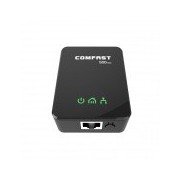
ຮູບພາບ: ດ້ານເທິງ view of the COMFAST CF-WP500M Powerline Adapter, highlighting the RJ45 Ethernet port at the bottom and the three LED indicators on the front panel.
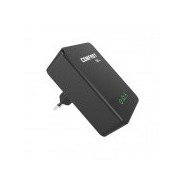
ຮູບພາບ: ຂ້າງ view of the COMFAST CF-WP500M Powerline Adapter, clearly showing the integrated EU type electrical plug for direct wall socket connection.
ຕົວຊີ້ວັດ LED:
- Power LED (⚡):
- ເປີດ: ອຸປະກອນເປີດຢູ່.
- ປິດ: ອຸປະກອນຖືກປິດ.
- Powerline LED (🏠):
- On: Connected to a powerline network.
- Flashing: Data transmission over the powerline network.
- Off: Not connected to a powerline network.
- Ethernet LED (💻):
- On: Ethernet port is connected to a device.
- Flashing: Data transmission over the Ethernet port.
- ປິດ: ບໍ່ມີການເຊື່ອມຕໍ່ອີເທີເນັດ.
ຕັ້ງຄ່າ
Follow these steps to set up your COMFAST CF-WP500M Powerline Network Adapters:
- ເຊື່ອມຕໍ່ອະແດບເຕີທຳອິດ: Plug one powerline adapter directly into a wall electrical outlet near your internet router. Avoid power strips or surge protectors as they can interfere with performance.
- ເຊື່ອມຕໍ່ກັບ Router: Use one of the provided Ethernet cables to connect the powerline adapter's RJ45 port to an available LAN port on your internet router.
- ເຊື່ອມຕໍ່ອະແດບເຕີທີສອງ: Plug the second powerline adapter directly into a wall electrical outlet in the room where you need network access.
- ເຊື່ອມຕໍ່ຫາອຸປະກອນ: Use the second Ethernet cable to connect the second powerline adapter's RJ45 port to your computer, smart TV, game console, or other network-enabled device.
- ຢືນຢັນການເຊື່ອມຕໍ່: Wait for the Powerline LED on both adapters to turn solid green. This indicates a successful powerline connection. The Ethernet LED should also be on or flashing if a device is connected and active.
- Pairing (Optional, for Security or New Devices): If the adapters do not connect automatically or if you wish to secure your network, press the 'Pair' button (if available, typically a small button on the side or bottom) on one adapter for 1-2 seconds, then within two minutes, press the 'Pair' button on the second adapter for 1-2 seconds. The Powerline LED will flash during pairing and become solid when successful.
ຄໍາແນະນໍາການດໍາເນີນງານ
Once set up, your powerline network operates automatically. The adapters will establish a connection through your home's electrical wiring, extending your network.
- ການເຂົ້າເຖິງເຄືອຂ່າຍ: Any device connected via Ethernet to the second powerline adapter will have direct access to your internet and local network.
- ປະສິດທິພາບ: For optimal performance, ensure adapters are plugged directly into wall outlets. Avoid outlets controlled by a wall switch if continuous operation is desired.
- ການເພີ່ມອະແດບເຕີເພີ່ມເຕີມ: To expand your powerline network, purchase additional COMFAST HomePlug AV compatible adapters and follow the pairing instructions.
ບໍາລຸງຮັກສາ
Proper maintenance ensures the longevity and performance of your powerline adapters:
- ທໍາຄວາມສະອາດ: Gently wipe the adapters with a dry, soft cloth. Do not use liquid cleaners or aerosols.
- ການຈັດວາງ: Keep adapters in well-ventilated areas. Avoid covering them or placing them near heat sources.
- ເງື່ອນໄຂສິ່ງແວດລ້ອມ: Operate the adapters within their specified temperature and humidity ranges.
- ການອັບເດດເຟີມແວ: Check the COMFAST official webເວັບໄຊທ໌ເປັນໄລຍະໆສໍາລັບການອັບເດດເຟີມແວທີ່ມີຢູ່ສໍາລັບຮູບແບບຂອງທ່ານ.
ການແກ້ໄຂບັນຫາ
ຖ້າຫາກທ່ານພົບບັນຫາ, ເບິ່ງບັນຫາທົ່ວໄປດັ່ງຕໍ່ໄປນີ້ແລະການແກ້ໄຂ:
- ບໍ່ມີໄຟ LED:
- Ensure the adapter is securely plugged into a working electrical outlet.
- ທົດສອບຮູສຽບກັບອຸປະກອນອື່ນ.
- Powerline LED is Off:
- Ensure both adapters are plugged into wall outlets on the same electrical circuit.
- Avoid power strips, surge protectors, or extension cords.
- Try plugging the adapters into different outlets.
- Perform the pairing process as described in the Setup section.
- Ethernet LED is Off:
- Check the Ethernet cable connection between the adapter and your device/router.
- ໃຫ້ແນ່ໃຈວ່າອຸປະກອນທີ່ເຊື່ອມຕໍ່ນັ້ນເປີດຢູ່ ແລະ ເຮັດວຽກຢ່າງຖືກຕ້ອງ.
- ລອງສາຍອີເທີເນັດອື່ນ.
- ຄວາມໄວເຄືອຂ່າຍຊ້າ:
- Ensure adapters are plugged directly into wall outlets, not power strips.
- Large electrical appliances (e.g., washing machines, refrigerators) on the same circuit can cause interference. Try moving adapters to different outlets.
- Check the quality of your home's electrical wiring. Older or faulty wiring can impact performance.
ຂໍ້ມູນຈໍາເພາະ
| ຕົວແບບ | CF-WP500M |
| ມາດຕະຖານ | HomePlug AV |
| ອັດຕາຂໍ້ມູນ | ສູງເຖິງ 500Mbps |
| ການໂຕ້ຕອບ | 1 x 10/100Mbps RJ45 Ethernet Port |
| ປະເພດສຽບ | ສຽບ EU |
| ຕົວຊີ້ວັດ LED | Power, Powerline, Ethernet |
| ການບໍລິໂພກພະລັງງານ | Typically < 2W |
| ອຸນຫະພູມປະຕິບັດການ | 0℃ to 40℃ (32℉ ຫາ 104℉) |
| ຄວາມຊຸ່ມຊື່ນປະຕິບັດການ | 10% ຫາ 90% ບໍ່ condensing |
ການຮັບປະກັນແລະການສະຫນັບສະຫນູນ
COMFAST products are designed for reliability and performance. For specific warranty information, please refer to the warranty card included with your product or visit the official COMFAST website. For technical support, troubleshooting assistance, or further inquiries, please contact COMFAST customer service through the channels provided on their official webເວັບໄຊ.


