1. ບົດແນະນຳ
This manual provides essential information for the safe and efficient use of your Acer B326HK 32-inch UHD 4K monitor. Please read this manual thoroughly before operating the device and retain it for future reference.
The Acer B326HK monitor features a 32-inch Ultra HD (4K2K) display with a resolution of 3840 x 2160 pixels, offering detailed imagery. It includes an ergonomic stand and supports VESA mounting for flexible placement. Connectivity options include DVI, MHL, DisplayPort, Mini DisplayPort, and a 5-port USB 3.0 hub.
2. ຂໍ້ມູນຄວາມປອດໄພ
- ວາງຈໍພາບຢູ່ເທິງພື້ນຜິວທີ່ມີລະດັບຄວາມໝັ້ນຄົງສະເໝີເພື່ອປ້ອງກັນບໍ່ໃຫ້ມັນຕົກ.
- ຮັບປະກັນການລະບາຍອາກາດທີ່ເຫມາະສົມຮອບຈໍ. ຫ້າມປິດຊ່ອງລະບາຍອາກາດ.
- ໃຊ້ພຽງແຕ່ອະແດັບເຕີໄຟ ແລະສາຍທີ່ສະໜອງໃຫ້ໂດຍຜູ້ຜະລິດ.
- ຫຼີກລ່ຽງການໃຫ້ຈໍພາບຖືກຄວາມຊຸ່ມຊື່ນ, ຝົນ ຫຼື ອຸນຫະພູມທີ່ຮຸນແຮງ.
- ຢ່າພະຍາຍາມໃຫ້ບໍລິການຕິດຕາມກວດກາຕົວທ່ານເອງ. ອ້າງອີງການບໍລິການທັງໝົດໃຫ້ກັບບຸກຄະລາກອນທີ່ມີຄຸນວຸດທິ.
- ຖອດສາຍຈໍອອກຈາກປລັກສຽບໄຟກ່ອນທຳຄວາມສະອາດ.
- ຮັກສາຈໍພາບຢູ່ຫ່າງຈາກສະຫນາມແມ່ເຫຼັກທີ່ເຂັ້ມແຂງ.
3. ເນື້ອໃນຊຸດ
ກວດສອບວ່າລາຍການທັງຫມົດແມ່ນມີຢູ່ໃນຊຸດ:
- Acer B326HK LED-backlit LCD monitor - 32"
- ສາຍ DisplayPort
- ສາຍ DVI
- ສາຍ USB SuperSpeed
- ສາຍໄຟ
- ຄູ່ມືຜູ້ໃຊ້ (ເອກະສານນີ້)
4. ຕັ້ງຄ່າ
4.1 ການປະກອບ Monitor Stand
Carefully remove the monitor and stand components from the packaging. Follow the instructions below to attach the stand to the monitor panel.

ຮູບ 4.1: ດ້ານຫນ້າ view of the Acer B326HK monitor with its ergonomic stand.
- ວາງແຜງຈໍສະແດງຜົນໃຫ້ໜ້າລົງເທິງຜ້າທີ່ສະອາດ, ອ່ອນໆເພື່ອປ້ອງກັນຮອຍຂີດຂ່ວນ.
- ຈັດຕຳແໜ່ງແຂນຕັ້ງໃຫ້ກົງກັບຊ່ອງຕິດຕັ້ງຢູ່ດ້ານຫຼັງຂອງຈໍພາບ.
- Secure the stand arm to the monitor using the provided screws.
- Attach the base to the stand arm and tighten the thumb screw or screws from the bottom.
- Carefully lift the assembled monitor and place it on your desired surface.
The monitor also supports VESA compatible mounting (100x100mm) for wall mounts or alternative stands. Refer to your VESA mount's instructions for installation.
4.2 ສາຍເຊື່ອມຕໍ່
ເຊື່ອມຕໍ່ສາຍເຄເບີ້ນທີ່ຈໍາເປັນກັບພອດທີ່ສອດຄ້ອງກັນຢູ່ດ້ານຫຼັງຂອງຈໍພາບແລະຄອມພິວເຕີຂອງທ່ານ.
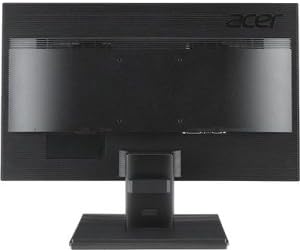
ຮູບ 4.2: ດ້ານຫລັງ view of the Acer B326HK monitor, highlighting the various input ports.
- Video Input: Connect one of the following video cables from your computer's graphics card to the monitor:
- DisplayPort cable (recommended for 4K resolution at 60Hz)
- Mini DisplayPort cable
- DVI cable (supports HDCP)
- MHL cable (for compatible mobile devices)
- USB Upstream: Connect the SuperSpeed USB cable from your computer to the monitor's USB upstream port to enable the monitor's USB 3.0 hub.
- USB ລົງລຸ່ມ: Use the 5 high-speed USB 3.0 ports on the monitor to connect peripherals like a mouse, keyboard, or for charging mobile devices.
- ພະລັງງານ: ເຊື່ອມຕໍ່ສາຍໄຟກັບອິນພຸດໄຟຂອງຈໍສະແດງຜົນ, ຈາກນັ້ນສຽບສົ້ນອີກເບື້ອງໜຶ່ງໃສ່ປ້ຳໄຟຟ້າທີ່ມີສາຍດິນ.
5. ການດໍາເນີນງານຂອງ Monitor
5.1 ເປີດ/ປິດ
Press the power button, usually located on the bottom right bezel, to turn the monitor on or off. The power indicator light will illuminate when the monitor is on.
5.2 Adjusting the Display (OSD Menu)
The On-Screen Display (OSD) menu allows you to adjust various monitor settings such as brightness, contrast, color, input source, and more. Use the control buttons located on the monitor's bezel to navigate the OSD menu.
- ກົດປຸ່ມ OSD ໃດກໍໄດ້ເພື່ອເປີດໃຊ້ເມນູ OSD.
- ໃຊ້ປຸ່ມນຳທາງ (ໂດຍປົກກະຕິແມ່ນລູກສອນ) ເພື່ອເລື່ອນຜ່ານຕົວເລືອກເມນູ.
- ກົດປຸ່ມເລືອກເພື່ອເຂົ້າສູ່ເມນູຍ່ອຍ ຫຼື ຢືນຢັນການຕັ້ງຄ່າ.
- ໃຊ້ປຸ່ມນຳທາງເພື່ອປັບຄ່າ ຫຼືເລືອກຕົວເລືອກ.
- ກົດປຸ່ມອອກເພື່ອອອກຈາກເມນູ OSD.
5.3 ການເລືອກແຫຼ່ງປ້ອນຂໍ້ມູນ
The monitor can automatically detect an active input source. If multiple sources are connected, you may need to manually select the desired input via the OSD menu. Navigate to the "Input" or "Source" section in the OSD and select your preferred input (e.g., DisplayPort, DVI, MHL).
5.4 ການປັບຕົວ Ergonomic
ຂາຕັ້ງທີ່ອອກແບບມາເພື່ອຄວາມສະດວກໃນການປັບຕົວຕ່າງໆເພື່ອໃຫ້ເໝາະສົມກັບທ່ານ viewຄວາມສະດວກສະບາຍ:
- ການປັບຄວາມສູງ: Gently push or pull the monitor panel up or down.
- ການປັບຕົວອຽງ: Tilt the monitor panel forward or backward to find the optimal viewມຸມ ing.
- ການປັບການຫມຸນ: ໝຸນຈໍພາບໄປທາງຊ້າຍ ຫຼືຂວາເທິງຖານຂອງມັນ.
- ການປັບຕົວ Pivot: Rotate the monitor 90 degrees for portrait mode (ensure sufficient clearance).
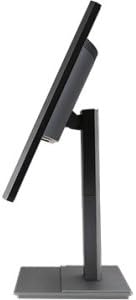
ຮູບ 5.1: ຂ້າງ view of the Acer B326HK monitor, demonstrating its tilt capability.
6. ບໍາລຸງຮັກສາ
ການດູແລທີ່ເຫມາະສົມຮັບປະກັນຄວາມທົນທານຂອງຈໍສະແດງຜົນຂອງທ່ານ.
- ທໍາຄວາມສະອາດຫນ້າຈໍ:
- ປິດໜ້າຈໍ ແລະຖອດສາຍໄຟອອກ.
- ໃຊ້ຜ້າອ່ອນໆທີ່ບໍ່ມີຂົນ (ເຊັ່ນ: ຜ້າໄມໂຄຣໄຟເບີ) ເຊັດອອກເລັກນ້ອຍampຜະສົມດ້ວຍນ້ໍາຫຼືເຄື່ອງເຮັດຄວາມສະອາດຫນ້າຈໍທີ່ບໍ່ມີແອມໂມເນຍ, ບໍ່ມີເຫຼົ້າ.
- Wipe the screen gently. Do not spray cleaner directly onto the screen.
- ທໍາຄວາມສະອາດ Casing:
- ໃຊ້ຜ້າອ່ອນໆເຊັດຈໍສະແດງຜົນ casing.
- ຫຼີກເວັ້ນການນໍາໃຊ້ເຄື່ອງເຮັດຄວາມສະອາດຂັດຫຼືສານລະລາຍ.
- ການລະບາຍອາກາດ: Ensure the ventilation openings on the monitor are clear of dust and debris.
7. ການແກ້ໄຂບັນຫາ
ຖ້າທ່ານພົບບັນຫາກັບຈໍພາບຂອງທ່ານ, ໃຫ້ອ້າງອີງເຖິງວິທີແກ້ໄຂທົ່ວໄປຕໍ່ໄປນີ້:
| ບັນຫາ | ການແກ້ໄຂທີ່ເປັນໄປໄດ້ |
|---|---|
| ບໍ່ມີພະລັງງານ |
|
| ບໍ່ມີຮູບພາບ / ຂໍ້ຄວາມ "ບໍ່ມີສັນຍານ" |
|
| ຮູບພາບມົວຫຼືບິດເບືອນ |
|
| Color issues or incorrect display |
|
| ບໍ່ມີສຽງຈາກ ລຳ ໂພງ |
|
8. ຂໍ້ມູນຈໍາເພາະ
Key technical specifications for the Acer B326HK monitor:
| ຄຸນສົມບັດ | ລາຍລະອຽດ |
|---|---|
| ໝາຍເລກຕົວແບບ | B326HK ymjdpphz |
| ຂະໜາດໜ້າຈໍ | 32 ນິ້ວ |
| ຄວາມລະອຽດໜ້າຈໍສູງສຸດ | 3840 x 2160 ພິກເຊລ (4K UHD 2160p) |
| ອັດຕາສ່ວນ | 16:9 |
| ເວລາຕອບສະຫນອງ | 6ms |
| ອັດຕາສ່ວນກົງກັນຂ້າມ | 100,000,000:1 (ໄດນາມິກ) |
| ສັນຍານເຂົ້າ | 1 x DVI (w/HDCP), 1 x MHL, 1 x Display Port, 1 x Mini Display Port |
| ພອດ USB | 5 x USB 3.0 (1 upstream, 4 downstream) |
| VESA Mount ເຂົ້າກັນໄດ້ | ແມ່ນແລ້ວ |
| ນ້ໍາຫນັກລາຍການ | 26.4 ປອນ |
| ຂະໜາດສິນຄ້າ (LxWxH) | 10.49 x 29.05 x 18.63 ນິ້ວ |
| ຜູ້ຜະລິດ | Acer Computer |
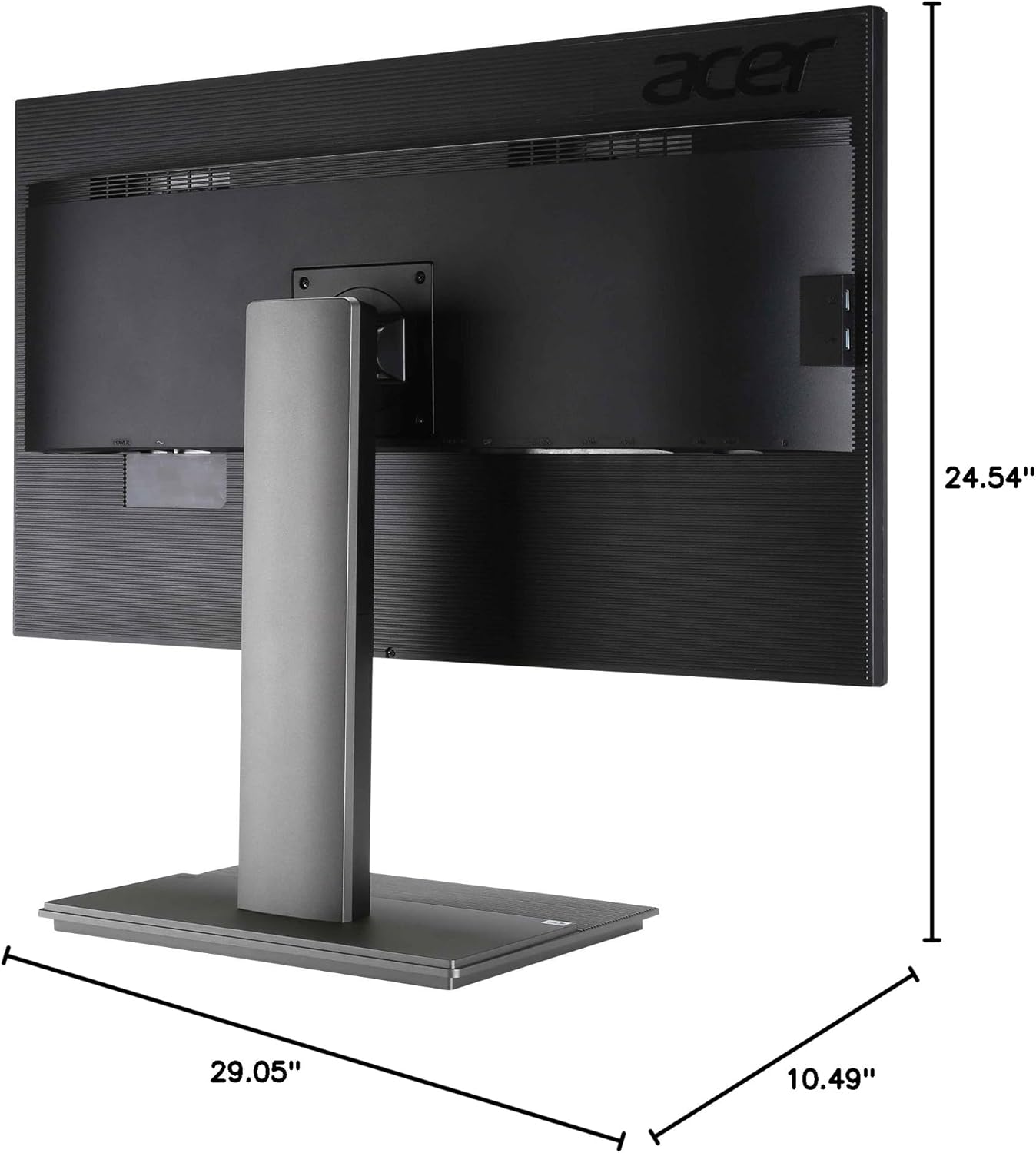
ຮູບທີ 8.1: ມິຕິ view of the Acer B326HK monitor.
9. ການຮັບປະກັນແລະການສະຫນັບສະຫນູນ
ສໍາລັບຂໍ້ມູນການຮັບປະກັນ ແລະການຊ່ວຍເຫຼືອດ້ານວິຊາການ, ກະລຸນາເບິ່ງບັດຮັບປະກັນທີ່ລວມຢູ່ໃນຜະລິດຕະພັນຂອງທ່ານ ຫຼືເຂົ້າໄປທີ່ສູນຊ່ວຍເຫຼືອ Acer ຢ່າງເປັນທາງການ website. You may need your monitor's serial number, which is typically located on a label on the back of the monitor.
Acer Official Webເວັບໄຊ: https://www.acer.com/support


