1. ບົດແນະນຳ
This manual provides detailed instructions for the setup, operation, and maintenance of your Sungale PF1501 14-Inch Digital Photo Frame. This device is designed to display digital photos, play videos, and play music, offering a versatile way to enjoy your media.
Please read this manual thoroughly before using the product to ensure proper functionality and to maximize your user experience.
2. ເນື້ອໃນຊຸດ
ກວດສອບວ່າລາຍການທັງຫມົດທີ່ລະບຸໄວ້ຂ້າງລຸ່ມນີ້ແມ່ນລວມຢູ່ໃນຊຸດຂອງທ່ານ:
- Sungale PF1501 14-Inch Digital Photo Frame
- ເຄື່ອງປັບໄຟຟ້າ AC
- ການຄວບຄຸມໄລຍະໄກ
- ຄູ່ມືເລີ່ມຕົ້ນດ່ວນ
- Limited Warranty Card
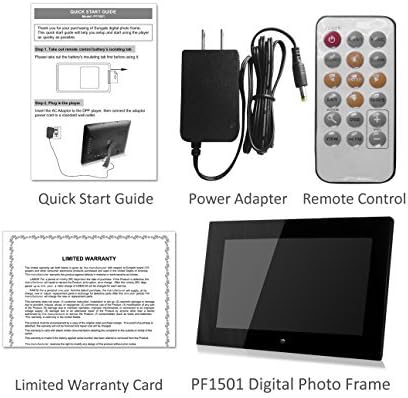
Image 2.1: Included accessories and the digital photo frame.
3. ຜະລິດຕະພັນເກີນview
3.1 ແນວ ໜ້າ View

ຮູບພາບ 3.1: ດ້ານຫນ້າ view of the digital photo frame.
3.2 ດ້ານຫຼັງ View ແລະພອດ

ຮູບພາບ 3.2: ດ້ານຫລັງ view with labeled ports and controls.
The rear of the frame features various ports and controls for connectivity and operation:
- ປຸ່ມຟັງຊັນ: Buttons for navigation and control (Enter, Left, Right, Up, Down, Exit).
- ຕິດຝາໄດ້: Mounting points for wall installation.
- ລຳໂພງໃນຕົວ: ສໍາລັບການຫຼິ້ນສຽງ.
- ພອດໄຟ DC 12V: ເຊື່ອມຕໍ່ຕົວເຊື່ອມຕໍ່ໄຟຟ້າ AC ຢູ່ທີ່ນີ້.
- Removable Bracket: Stand for desktop placement.
- ປຸ່ມເປີດປິດ: To turn the frame on or off.
- ພອດ USB Host: ສໍາລັບການເຊື່ອມຕໍ່ USB flash drive.
- ຊ່ອງສຽບກາດ SD/SDHC: For inserting SD or SDHC memory cards.
- ພອດອຸປະກອນ USB: ສໍາລັບການເຊື່ອມຕໍ່ກັບຄອມພິວເຕີ.
4. ຕັ້ງຄ່າ
4.1 ການເປີດພະລັງງານເບື້ອງຕົ້ນ
- ເຊື່ອມຕໍ່ພະລັງງານ: Insert the AC power adapter into the DC 12V Power Port on the back of the frame. Plug the other end into a standard electrical outlet.
- ເປີດ: Press the Power button located on the back of the frame. The frame will power on and display the initial setup screen or default content.
4.2 Inserting Memory Cards or USB Drives
The frame supports SD/SDHC cards and USB flash drives (up to 32GB). It also has 4GB of internal memory.
- For SD/SDHC Card: Gently insert an SD or SDHC card into the SD/SDHC Card Slot until it clicks into place. Ensure the card is inserted in the correct orientation.
- For USB Flash Drive: Insert a USB flash drive into the USB Host Port.
The frame should automatically detect the inserted media and begin displaying content or prompt you to select a source.
4.3 ການຕິດຝາ (ທາງເລືອກ)
The frame can be wall-mounted using the designated mounting points on the rear. Ensure appropriate wall anchors and screws are used for secure installation.
5. ຄໍາແນະນໍາການດໍາເນີນງານ
The digital photo frame can be operated using the function keys on the back or the included remote control.
5.1 ຫນ້າທີ່ຄວບຄຸມໄລຍະໄກ
The remote control provides convenient access to all features. Point the remote control directly at the frame's sensor.
5.2 ການນໍາທາງເມນູ
Use the directional buttons (Up, Down, Left, Right) to navigate through menu options. Press the "Enter" button to confirm a selection. The "Exit" button typically returns to the previous screen or the main menu.
5.3 ການສະແດງຮູບພາບ
The frame supports JPG and BMP photo file ຮູບແບບ.
- ເລືອກແຫຼ່ງທີ່ມາ: From the main menu, select the desired media source (Internal Memory, SD Card, or USB Drive).
- Choose Photo Mode: Select "Photo" to enter photo display mode.
- ສະໄລ້ໂຊ: The frame can automatically start a slideshow of all photos on the selected source. You can adjust transition effects and interval times in the settings.
- Single Photo Display: Navigate to a specific photo and press "Enter" to display it individually.
- Zoom and Rotate: Use the remote control or function keys to zoom in/out or rotate displayed photos.
5.4 ການຫຼິ້ນວິດີໂອ
The frame supports video playback. Note that some users have reported compatibility primarily with .AVI video files.
- ເລືອກແຫຼ່ງທີ່ມາ: From the main menu, select the desired media source.
- Choose Video Mode: Select "Video" to enter video playback mode.
- Select Video: ທ່ອງໄປຫາວິດີໂອທີ່ຕ້ອງການ file and press "Enter" to begin playback.
5.5 ຫຼີ້ນດົນຕີ
The frame can play background music during photo slideshows or as standalone audio.
- ເລືອກແຫຼ່ງທີ່ມາ: From the main menu, select the desired media source.
- Choose Music Mode: Select "Music" to enter music playback mode.
- ເລືອກສຽງ File: Navigate to the desired audio file and press "Enter" to begin playback.
- ດົນຕີພື້ນຫຼັງ: In photo settings, you can enable background music to play during slideshows.
5.6 Calendar and Alarm Clock
Access the calendar and alarm clock functions through the main menu. Follow on-screen prompts to set the date, time, and alarm preferences.
6. ບໍາລຸງຮັກສາ
6.1 ການທໍາຄວາມສະອາດຫນ້າຈໍ
- Turn off and unplug the frame before cleaning.
- Use a soft, lint-free cloth, such as a microfiber cloth, to gently wipe the screen.
- ສໍາລັບຮອຍເປື້ອນທີ່ແຂງ, ເບົາບາງ dampen ຜ້າດ້ວຍນ້ໍາຫຼືການແກ້ໄຂການທໍາຄວາມສະອາດຫນ້າຈໍທີ່ອອກແບບໂດຍສະເພາະສໍາລັບເອເລັກໂຕຣນິກ. ຢ່າສີດຂອງແຫຼວໂດຍກົງໃສ່ຫນ້າຈໍ.
- Avoid using abrasive cleaners, solvents, or alcohol-based solutions, as these can damage the screen surface.
6.2 ການເບິ່ງແຍງທົ່ວໄປ
- Keep the frame away from direct sunlight, heat sources, and excessive moisture.
- Avoid dropping or subjecting the frame to strong impacts.
- Do not block the ventilation openings on the back of the frame.
- Unplug the frame during lightning storms or when unused for extended periods.
7. ການແກ້ໄຂບັນຫາ
ຖ້າທ່ານພົບບັນຫາກັບກອບຮູບດິຈິຕອນຂອງທ່ານ, ໃຫ້ອ້າງອີງເຖິງບັນຫາ ແລະ ວິທີແກ້ໄຂທົ່ວໄປຕໍ່ໄປນີ້:
| ບັນຫາ | ສາເຫດ / ການແກ້ໄຂທີ່ເປັນໄປໄດ້ |
|---|---|
| ເຟຣມບໍ່ເປີດ. |
|
| "File not supported" error or media not displaying. |
|
| ການຄວບຄຸມໄລຍະໄກບໍ່ເຮັດວຽກ. |
|
| Photos are stretched or distorted. |
|
| Slideshow not playing randomly. |
|
8. ຂໍ້ມູນຈໍາເພາະ
| ຄຸນສົມບັດ | ລາຍລະອຽດ |
|---|---|
| ໝາຍເລກຕົວແບບ | PF1501 |
| ຂະໜາດໜ້າຈໍ | 14 ນິ້ວ |
| ຄວາມລະອຽດ | 1366x768 ພິກເຊລ |
| ຫນ່ວຍຄວາມຈໍາພາຍໃນ | 4GB |
| ຮອງຮັບໜ່ວຍຄວາມຈຳພາຍນອກ | SD/SDHC Card (up to 32GB), USB Flash Drive (up to 32GB) |
| ຮູບແບບຮູບພາບທີ່ຮອງຮັບ | JPG, BMP |
| ຮູບແບບວິດີໂອສະຫນັບສະຫນູນ | Primarily AVI (as reported by users) |
| ສຽງອອກ | 2 Channel Stereo Speakers |
| ຂະໜາດສິນຄ້າ | 13.8 x 1 x 9.5 ນິ້ວ |
| ນ້ໍາຫນັກລາຍການ | 2 ປອນ |
| ສີ | ດຳ |
| ຜູ້ຜະລິດ | ຊູນກາເລ |
9. ການຮັບປະກັນແລະການສະຫນັບສະຫນູນ
9.1 ການຮັບປະກັນຈໍາກັດ
This product comes with a Limited Warranty. Please refer to the "Limited Warranty Card" included in your package for detailed terms and conditions, including coverage period and claim procedures. Keep your proof of purchase for warranty claims.
9.2 ສະຫນັບສະຫນູນລູກຄ້າ
For technical assistance, troubleshooting beyond this manual, or warranty inquiries, please contact Sungale customer support.
- ຜູ້ຜະລິດ: ຊູນກາເລ
- Webເວັບໄຊ: Visit the Sungale Store on Amazon (ສຳລັບຂໍ້ມູນຍີ່ຫໍ້ທົ່ວໄປ)
- Specific contact information (phone, email) may be found on the warranty card or the official Sungale webເວັບໄຊ.


