1. ບົດແນະນຳ
Thank you for choosing the Thrustmaster F1 Dual Analog Gamepad Ferrari 150th Italia Exclusive Edition. This manual provides essential information for setting up, operating, and maintaining your new PC game controller. Please read these instructions carefully before use and retain them for future reference.
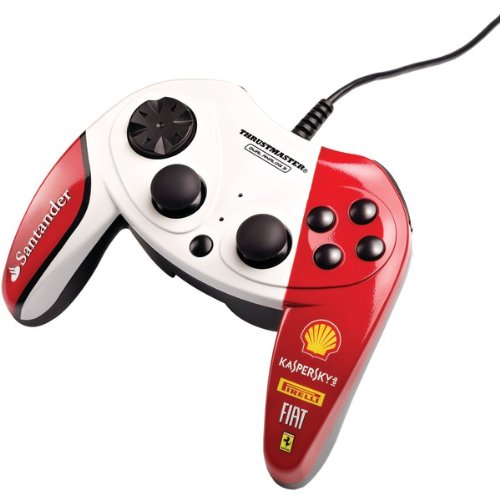
Image 1.1: The Thrustmaster F1 Dual Analog Gamepad Ferrari 150th Italia Exclusive Edition.
2. ເນື້ອໃນຊຸດ
ໃຫ້ແນ່ໃຈວ່າທຸກລາຍການທີ່ມີລາຍຊື່ຂ້າງລຸ່ມນີ້ມີຢູ່ໃນຊຸດຂອງທ່ານ:
- Thrustmaster F1 Dual Analog Gamepad Ferrari 150th Italia Exclusive Edition
- ຄູ່ມືແນະ ນຳ (ເອກະສານນີ້)
3. ຄຸນສົມບັດ
The Thrustmaster F1 Dual Analog Gamepad offers a range of features designed for an immersive gaming experience:
- Dual Analog Control: Equipped with two mini-sticks featuring a rubber texture for precise control.
- Comprehensive Button Layout: Features 10 action buttons and an 8-way D-pad for versatile gameplay.
- ພລັກແອນພຼີ USB: Simple connectivity for quick setup.
- ຄວາມເຂົ້າກັນໄດ້ຢ່າງກວ້າງຂວາງ: Compatible with Windows 7, Windows Vista, and Windows XP operating systems.
4. ຕັ້ງຄ່າ
4.1 Connecting the Gamepad
- ກວດໃຫ້ແນ່ໃຈວ່າຄອມພິວເຕີຂອງເຈົ້າເປີດເຄື່ອງຢູ່.
- ຊອກຫາຊ່ອງສຽບ USB ທີ່ມີຢູ່ໃນຄອມພິວເຕີຂອງທ່ານ.
- Plug the USB connector of the gamepad into the USB port.
- ລະບົບປະຕິບັດການຈະກວດພົບແລະຕິດຕັ້ງໄດເວີທີ່ຈໍາເປັນໂດຍອັດຕະໂນມັດ. ຂະບວນການນີ້ອາດຈະໃຊ້ເວລາເລັກນ້ອຍ.
4.2 ການຕິດຕັ້ງໄດເວີ
The Thrustmaster F1 Dual Analog Gamepad is designed for Plug & Play functionality. For Windows 7, Vista, and XP, drivers should install automatically upon connection. No manual driver installation is typically required.
If the gamepad is not recognized, try connecting it to a different USB port or restarting your computer.
5. ຄໍາແນະນໍາການດໍາເນີນງານ
5.1 Gamepad Layout
The gamepad features a standard layout for PC gaming:
- 2 Mini-Sticks: Located on the left and right, these provide analog control for movement and camera. They have a rubber texture for enhanced grip.
- ແຜ່ນຄວບຄຸມທິດທາງ 8 ທິດທາງ: Positioned on the left, offering digital directional input.
- ປຸ່ມການກະທຳ 10 ອັນ: These buttons are typically used for in-game actions, menu navigation, and other commands. Their specific functions will vary depending on the game.
5.2 Using the Gamepad in Games
Once connected and recognized by your computer, the gamepad should be ready for use. Most modern PC games automatically detect and configure gamepads. If a game does not automatically recognize the gamepad, check the game's control settings menu to configure the buttons and axes manually.
For optimal performance, ensure your game is updated to the latest version.
6. ບໍາລຸງຮັກສາ
6.1 ການທໍາຄວາມສະອາດ
To clean your gamepad, use a soft, dry cloth. For stubborn dirt, slightly dampen the cloth with water. Do not use abrasive cleaners, solvents, or harsh chemicals, as these can damage the surface and internal components.
6.2 ການເກັບຮັກສາ
When not in use, store the gamepad in a clean, dry place away from direct sunlight, extreme temperatures, and excessive dust. Avoid placing heavy objects on the gamepad.
7. ການແກ້ໄຂບັນຫາ
- Gamepad not recognized by the computer:
- ກວດໃຫ້ແນ່ໃຈວ່າໄດ້ສຽບສາຍ USB ເຂົ້າໃສ່ພອດ USB ທີ່ເຮັດວຽກໄດ້ຢ່າງປອດໄພ.
- Try connecting the gamepad to a different USB port.
- ປິດເປີດຄອມພິວເຕີຂອງທ່ານຄືນໃໝ່.
- ກວດເບິ່ງຕົວຈັດການອຸປະກອນຂອງຄອມພິວເຕີຂອງທ່ານເພື່ອເບິ່ງວ່າເກມແປດຢູ່ໃນລາຍການ ແລະມີບັນຫາໄດເວີຫຼືບໍ່.
- Buttons or sticks not responding correctly in a game:
- Verify that the gamepad is properly connected.
- Check the in-game control settings and ensure the gamepad is selected and configured correctly.
- Some games may require specific gamepad profiles or configurations. Refer to the game's documentation.
- Gamepad disconnects intermittently:
- Ensure the USB connection is stable and not loose.
- Avoid using unpowered USB hubs; connect directly to the computer if possible.
- Check for any physical damage to the USB cable or connector.
8. ຂໍ້ມູນຈໍາເພາະ
| ໝາຍເລກຕົວແບບ | F1DualAnalogF150 |
| ASIN | B009WEL9S2 |
| ຜູ້ຜະລິດ | ThrustMaster |
| ການເຊື່ອມຕໍ່ | ສຽບ USB ແລະຫຼິ້ນ |
| ການຄວບຄຸມ | 2 Mini-Sticks (rubber texture), 10 Buttons, 8-Way D-Pad |
| ຄວາມເຂົ້າກັນໄດ້ | Windows 7, Windows Vista, Windows XP |
9. ການຮັບປະກັນແລະການສະຫນັບສະຫນູນ
Thrustmaster products are designed for reliability and performance. For information regarding warranty coverage, terms, and conditions, please refer to the warranty card included with your product or visit the official Thrustmaster webເວັບໄຊ.
For technical support, driver updates, or frequently asked questions, please visit the official Thrustmaster support website. You can typically find contact information and support resources there.
ໝາຍເຫດ: ຂໍ້ມູນສະເພາະ ແລະ ຄຸນສົມບັດຂອງຜະລິດຕະພັນແມ່ນມີການປ່ຽນແປງໂດຍບໍ່ຕ້ອງແຈ້ງໃຫ້ຮູ້ລ່ວງໜ້າ.


