1. ຄໍາແນະນໍາຄວາມປອດໄພທີ່ສໍາຄັນ
Please read these safety instructions carefully before operating your monitor. Keep this manual for future reference.
- ຫ້າມວາງຈໍພາບໃສ່ລົດເຂັນ, ຂາຕັ້ງ, ຫຼືໂຕະທີ່ບໍ່ໝັ້ນຄົງ.
- ຫ້າມກີດຂວາງການເປີດລະບາຍອາກາດ.
- ຢ່າໃຊ້ນ້ໍາໃກ້.
- ເຮັດຄວາມສະອາດດ້ວຍຜ້າແຫ້ງເທົ່ານັ້ນ.
- ຖອດສາຍຈໍສະແດງຜົນໃນເວລາມີພາຍຸຟ້າຜ່າ ຫຼືເມື່ອບໍ່ໄດ້ໃຊ້ເປັນເວລາດົນນານ.
- ອ້າງອີງການບໍລິການທັງໝົດໃຫ້ກັບພະນັກງານບໍລິການທີ່ມີຄຸນວຸດທິ.
2. ເນື້ອໃນຊຸດ
ກວດສອບວ່າລາຍການທັງຫມົດແມ່ນມີຢູ່ໃນຊຸດຂອງທ່ານ:
- AOC E2060 Monitor
- ສາຍໄຟ
- ສາຍ VGA
- ຄູ່ມືຜູ້ໃຊ້ (ເອກະສານນີ້)
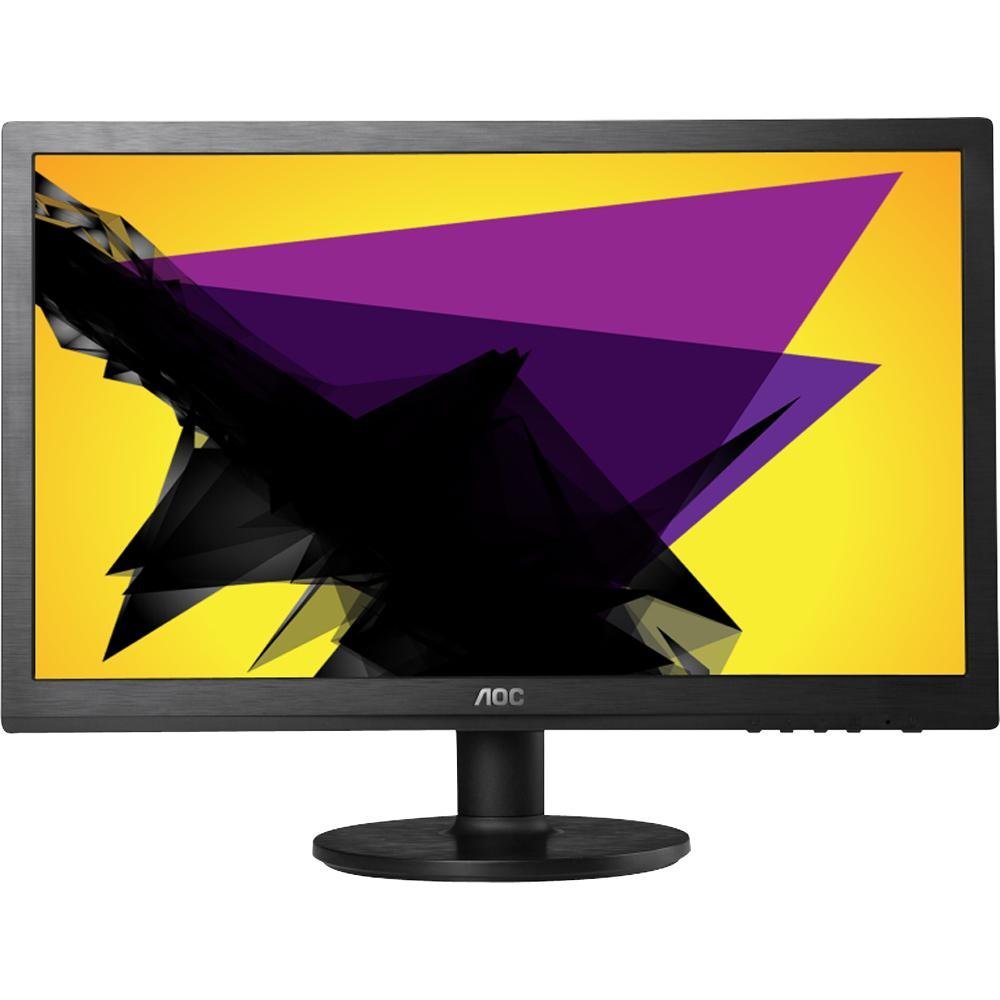
Image: The AOC E2060 20-inch LED Backlit Computer Monitor, showcasing bezel ກະທັດຮັດແລະຢືນ.
3. ຕັ້ງຄ່າ
3.1 ການປະກອບຂາຕັ້ງ
- ເອົາຈໍພາບອອກຈາກເຄື່ອງຫຸ້ມຫໍ່ຂອງມັນຢ່າງລະມັດລະວັງ, ວາງມັນລົງເທິງພື້ນຜິວທີ່ສະອາດ, ອ່ອນໆເພື່ອປ້ອງກັນຮອຍຂີດຂ່ວນ.
- ຕິດຖານຂາຕັ້ງເຂົ້າກັບຄໍຂາຕັ້ງ, ຮັບປະກັນວ່າມັນຄລິກເຂົ້າທີ່ຢ່າງແໜ້ນໜາ ຫຼື ຖືກຍຶດດ້ວຍສະກູທີ່ໃຫ້ມາ.
- Connect the assembled stand to the back of the monitor until it locks securely.
3.2 ສາຍເຊື່ອມຕໍ່
ໃຫ້ແນ່ໃຈວ່າຄອມພິວເຕີ ແລະ ຈໍພາບຂອງທ່ານຖືກປິດແລ້ວກ່ອນທີ່ຈະເຮັດການເຊື່ອມຕໍ່ໃດໆ.
- ການເຊື່ອມຕໍ່ພະລັງງານ: ເຊື່ອມຕໍ່ປາຍສາຍໄຟດ້ານໜຶ່ງເຂົ້າກັບຊ່ອງສຽບໄຟຟ້າຂອງຈໍພາບ ແລະ ປາຍອີກດ້ານໜຶ່ງເຂົ້າກັບປລັກໄຟຟ້າທີ່ມີສາຍດິນ.
- ການເຊື່ອມຕໍ່ວິດີໂອ (VGA): Connect the VGA cable from your computer's VGA output port to the VGA input port on the monitor. Tighten the screws on the VGA connector to secure the connection.
4. ການດໍາເນີນງານຂອງ Monitor
4.1 ເປີດ/ປິດ
ກົດປຸ່ມເປີດປິດທີ່ຕັ້ງຢູ່ດ້ານໜ້າ ຫຼືລຸ່ມຂອງຈໍພາບເພື່ອເປີດ ຫຼືປິດມັນ. ໄຟຕົວຊີ້ວັດພະລັງງານຈະສະຫວ່າງເມື່ອຈໍພາບເປີດຢູ່.
4.2 ເມນູການສະແດງເທິງໜ້າຈໍ (OSD).
The OSD menu allows you to adjust various monitor settings. Use the buttons on the monitor's bezel to navigate and select options.
- ປຸ່ມເມນູ: ກົດເພື່ອເປີດເມນູ OSD.
- ປຸ່ມຂຶ້ນ/ລົງ ຫຼືຊ້າຍ/ຂວາ: ໃຊ້ເພື່ອນຳທາງຜ່ານຕົວເລືອກເມນູ.
- ເລືອກ/ໃສ່ປຸ່ມ: ກົດເພື່ອຢືນຢັນການເລືອກ ຫຼືໃສ່ເມນູຍ່ອຍ.
- ປຸ່ມອອກ: Press to exit the current menu or the OSD entirely.
4.3 ການປັບການຕັ້ງຄ່າຮູບພາບ
ພາຍໃນເມນູ OSD, ທ່ານສາມາດປັບການຕັ້ງຄ່າເຊັ່ນ:
- ຄວາມສະຫວ່າງ: ປັບຄວາມສະຫວ່າງໂດຍລວມຂອງໜ້າຈໍ.
- ກົງກັນຂ້າມ: ປັບຄວາມແຕກຕ່າງກັນລະຫວ່າງພື້ນທີ່ແສງສະຫວ່າງ ແລະບ່ອນມືດ.
- ອຸນຫະພູມສີ: Changes the color balance (e.g., Warm, Cool, sRGB).
- ປັບອັດຕະໂນມັດ: Optimizes the image automatically for analog (VGA) input.
5. ບໍາລຸງຮັກສາ
5.1 ການທໍາຄວາມສະອາດ Monitor
To ensure a long lifespan and optimal performance, clean your monitor regularly.
- ຖອດສາຍຈໍຈາກປລັກສຽບໄຟອອກກ່ອນທຳຄວາມສະອາດທຸກຄັ້ງ.
- ໃຊ້ຜ້າແພອ່ອນໆ ທີ່ບໍ່ມີເສັ້ນດ່າງ ງampຜະສົມດ້ວຍນ້ໍາຫຼືເຄື່ອງເຮັດຄວາມສະອາດຫນ້າຈໍອ່ອນໆທີ່ບໍ່ມີການຂັດ.
- ຢ່າສີດນໍ້າສະອາດໃສ່ໜ້າຈໍໂດຍກົງ.
- ຫຼີກເວັ້ນການໃຊ້ benzene, thinner, ເຄື່ອງເຮັດຄວາມສະອາດທີ່ມີອາໂມເນຍ, ຫຼືວັດສະດຸຂັດ.
5.2 ການເກັບຮັກສາ
If storing the monitor for an extended period, ensure it is powered off, unplugged, and stored in a cool, dry place away from direct sunlight and extreme temperatures. Use original packaging if available.
6. ການແກ້ໄຂບັນຫາ
ຖ້າເຈົ້າພົບບັນຫາກັບຈໍພາບຂອງເຈົ້າ, ໃຫ້ອ້າງອີງເຖິງບັນຫາ ແລະວິທີແກ້ໄຂບັນຫາທົ່ວໄປຕໍ່ໄປນີ້:
- ບໍ່ມີພະລັງງານ: Ensure the power cable is securely connected to both the monitor and the electrical outlet. Check if the power outlet is functional.
- ບໍ່ມີສັນຍານ/ໜ້າຈໍເປົ່າ: Verify that the video cable (VGA) is correctly connected to both the monitor and the computer. Ensure the computer is powered on and not in sleep mode. Try restarting the computer.
- Image is Fuzzy/Distorted: For VGA connections, use the 'Auto Adjust' function in the OSD menu. Ensure the display resolution on your computer is set to the monitor's native resolution (1600x900).
- ສີບໍ່ຖືກຕ້ອງ: Adjust color settings in the OSD menu, or reset to factory defaults. Check your computer's display settings.
- ປຸ່ມບໍ່ຕອບສະໜອງ: Unplug the monitor's power cable, wait 30 seconds, then plug it back in and try again.
If the problem persists after trying these steps, please contact AOC customer support.
7. ຂໍ້ມູນຈໍາເພາະ
| ຄຸນສົມບັດ | ຂໍ້ມູນຈໍາເພາະ |
|---|---|
| ຍີ່ຫໍ້ | AOC |
| ຊື່ຕົວແບບ | E2060 |
| ຂະໜາດໜ້າຈໍ | 20 ນິ້ວ |
| ຄວາມລະອຽດໜ້າຈໍ | 1600 x 900 ພິກເຊລ |
| ເຕັກໂນໂລຊີການສະແດງ | ໄຟ LED Backlit |
| ເຕັກໂນໂລຊີການເຊື່ອມຕໍ່ | VGA |
| ສີ | ດຳ |
| ນ້ໍາຫນັກລາຍການ | 0.28 ກຣາມ (ປະມານ 0.01 ອອນສ໌) |
| ໝາຍເລກຕົວແບບ | e2060Sn |
| UPC | 685417047789 |
8. ການຮັບປະກັນແລະການສະຫນັບສະຫນູນ
ສໍາລັບຂໍ້ມູນການຮັບປະກັນ ແລະການຊ່ວຍເຫຼືອດ້ານວິຊາການ, ກະລຸນາເບິ່ງບັດຮັບປະກັນທີ່ລວມຢູ່ໃນຜະລິດຕະພັນຂອງທ່ານ ຫຼືເຂົ້າໄປທີ່ AOC ຢ່າງເປັນທາງການ website. You can typically find support resources, FAQs, and contact information for your region there.
Please have your monitor's model number (E2060) and serial number ready when contacting support.


