1. ບົດແນະນຳ
The Wacom Graphire4 4x5 USB Tablet is a versatile input device designed for creative and business applications. It features a pressure-sensitive wireless pen and tablet, enabling precise control for digital art, photo editing, document annotation, and more. This manual provides instructions for setting up, operating, maintaining, and troubleshooting your Graphire4 tablet.
2. ເນື້ອໃນຊຸດ
Verify that all items are present in your Graphire4 4x5 USB Tablet package:
- Graphire4 4x5 Pen Tablet
- ປາກກາດິຈິຕອລ
- ປາກກາ
- Cordless, Battery-Free Mouse
- 2 CD-ROMs (Wacom tablet driver software, user manual, bundled software)
- ຄູ່ມືຜູ້ໃຊ້ (ພິມ)
- Bundled Software: Adobe Photoshop Elements 3, Corel Painter Essentials 2, nik Color Efex Pro 2 GE
3. ຜະລິດຕະພັນເກີນview
The Wacom Graphire4 tablet provides an intuitive interface for digital input. Below is an image of the tablet with its primary components.
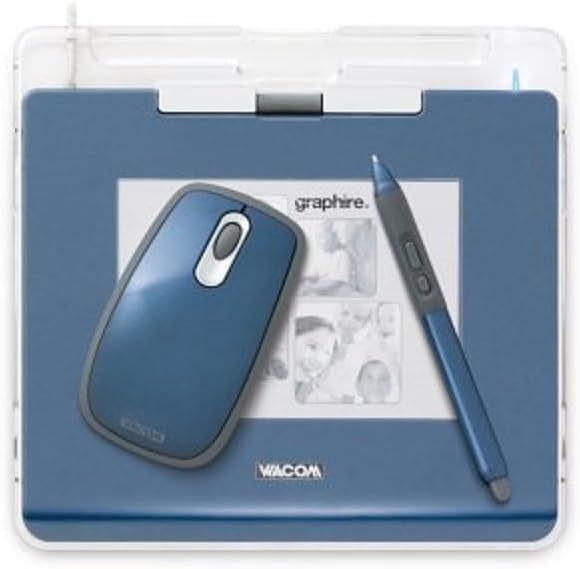
Image: The Wacom Graphire4 4x5 USB Tablet in blue, shown with its accompanying digital pen and cordless mouse. The tablet features a transparent photo frame area and the Wacom logo.
ຄຸນນະສົມບັດທີ່ສໍາຄັນ:
- Pressure-sensitive pen and tablet for creative and business applications.
- Battery-free digital pen with 512 levels of pressure sensitivity, two programmable side-buttons, and a pressure-sensitive eraser.
- USB connectivity for easy installation on both PCs and Macs.
- Integrated scroll wheel and two programmable ExpressKeys on the tablet.
- Transparent photo frame for personalization or tracing.
4. ການຕິດຕັ້ງແລະການຕິດຕັ້ງ
4.1. ການເຊື່ອມຕໍ່ແທັບເລັດ
- Unpack the Wacom Graphire4 tablet and its components.
- Connect the USB cable from the tablet to an available USB port on your computer (PC or Mac).
- The computer should detect the new hardware.
4.2. Installing Driver Software
For full functionality and customization, install the Wacom tablet driver software from the included CD-ROMs.
- Insert the Wacom driver CD-ROM into your computer's optical drive.
- Follow the on-screen instructions to install the driver software. Restart your computer if prompted.
- After installation, you can access the Wacom Tablet Properties panel from your system settings to customize pen and tablet functions.
5. Operating the Graphire4 Tablet
5.1. Using the Digital Pen
The digital pen is your primary input tool. It is cordless and battery-free.
- ຄວາມອ່ອນໄຫວຄວາມກົດດັນ: The pen offers 512 levels of pressure sensitivity. Pressing harder on the tablet will result in a stronger effect in compatible software (e.g., thicker lines, more opaque colors).
- ປຸ່ມຂ້າງ: The pen features two programmable side buttons. These can be customized in the Wacom Tablet Properties to perform various functions, such as right-click, double-click, or modifier keys.
- ຢາງລຶບ: The opposite end of the pen functions as a pressure-sensitive eraser in many applications.
- Absolute Positioning: Every point on the tablet corresponds to a specific point on your screen. Moving the pen over the tablet moves the cursor precisely on the screen.
5.2. Tablet Features
- ປຸ່ມດ່ວນ: The tablet includes two programmable ExpressKeys. These can be assigned to frequently used functions, keyboard shortcuts, or mouse clicks.
- ລໍ້ເລື່ອນ: A scroll wheel on the tablet allows for easy navigation and zooming in applications.
- Transparent Photo Frame: The clear cover over the active area allows you to place photos or artwork underneath for tracing or personalization.
5.3. Using the Cordless Mouse
The included cordless, battery-free mouse provides an alternative input method. It offers smooth and accurate tracking and features a rubberized grip for comfort. The scrolling finger wheel also functions as a third programmable button.
5.4. ການເຊື່ອມໂຍງຊອບແວ
The Graphire4 tablet enhances functionality with various software applications:
- ຊອບແວສ້າງສັນ: Fully utilize pressure sensitivity in applications like Adobe Photoshop Elements 3 and Corel Painter Essentials 2 (included).
- Document Annotation: Mark up Microsoft Word and Adobe PDF documents with handwritten comments and digital signatures.
- ການຈົດບັນທຶກ: Integrate with Microsoft Office OneNote for handwritten notes and diagrams.
- ການນຳສະເໜີ: Use the pen tool in PowerPoint to add handwritten marks directly onto slides during presentations.
- ການຮັບຮູ້ການຂຽນດ້ວຍມື: With the English language version of Microsoft XP, handwriting can be converted to text in various applications.
6. ບໍາລຸງຮັກສາ
6.1. ການດູແລທົ່ວໄປ
- Keep the tablet and pen clean by wiping them with a soft, dry cloth. Avoid abrasive cleaners or solvents.
- Protect the tablet surface from scratches and excessive force.
- Store the pen in its stand or the tablet's pen compartment when not in use.
6.2. Pen Grip Maintenance
Over time, the rubber grip on the digital pen may loosen or expand, potentially affecting the functionality of the side buttons. If this occurs, ensure the grip is properly seated. Avoid repeatedly removing and reinserting the pen into tight holders, which can exacerbate this issue.
7. ການແກ້ໄຂບັນຫາ
7.1. Driver Issues
- If the tablet is not responding, ensure the Wacom driver software is correctly installed and up to date.
- Try reinstalling the driver if you experience erratic behavior.
- Check the Wacom support webເວັບໄຊສໍາລັບໄດເວີຫຼ້າສຸດທີ່ເຂົ້າກັນໄດ້ກັບລະບົບປະຕິບັດການຂອງທ່ານ.
7.2. ຄວາມເຂົ້າກັນໄດ້ຂອງລະບົບປະຕິບັດການ
The Graphire4 tablet was released in 2005. While it functions well with older operating systems, compatibility with newer versions of Windows (e.g., Windows 10) or macOS may be limited or require specific legacy drivers. Consult Wacom's support resources for information on compatibility with modern operating systems.
7.3. Pen Malfunctions
- If the pen is not registering input or its buttons are not working, check for physical damage.
- Ensure the pen tip is not worn down. Replacement nibs may be available from Wacom.
- Verify that the pen grip is not interfering with the side buttons (refer to Section 6.2).
8. ຂໍ້ມູນຈໍາເພາະ
| ຄຸນສົມບັດ | ລາຍລະອຽດ |
|---|---|
| ຂະໜາດສິນຄ້າ | 8.03 x 8.2 x 0.7 ນິ້ວ |
| ນ້ໍາຫນັກລາຍການ | 1.1 ປອນ |
| ໝາຍເລກຕົວແບບ | CTE440B |
| ເຕັກໂນໂລຊີການເຊື່ອມຕໍ່ | USB |
| ຂະໜາດໜ້າຈໍ (ພື້ນທີ່ໃຊ້ງານ) | 4 x 5 ນິ້ວ |
| ລະດັບຄວາມກົດດັນ | 512 |
| ຜູ້ຜະລິດ | WACOM |
9. ການຮັບປະກັນແລະການສະຫນັບສະຫນູນ
9.1. ຂໍ້ມູນການຮັບປະກັນ
Wacom products typically come with a limited warranty. Please refer to the warranty card included with your product or visit the official Wacom website for specific warranty terms and conditions applicable to the Graphire4 tablet. Keep your proof of purchase for warranty claims.
9.2. ການຊ່ວຍເຫຼືອລູກຄ້າ
For further assistance, technical support, or driver downloads, please visit the official Wacom support website. You can often find FAQs, troubleshooting guides, and contact information for customer service there.


