
1. ບົດແນະນຳ
This manual provides essential information for setting up, operating, maintaining, and troubleshooting your Lenovo IdeaCentre AIO 27 All-in-One Desktop PC. Please read this manual thoroughly before using your device to ensure proper functionality and to maximize its lifespan.

Figure 1: Lenovo IdeaCentre AIO 27 All-in-One Desktop PC
2. ເນື້ອໃນຊຸດ
ກວດສອບວ່າລາຍການທັງຫມົດແມ່ນມີຢູ່ໃນການຫຸ້ມຫໍ່ຜະລິດຕະພັນຂອງທ່ານ:
- Lenovo IdeaCentre AIO 27 Desktop PC
- ອະແດັບເຕີພະລັງງານ (90W)
- Keyboard (may be wired or wireless, depending on configuration)
- Mouse (may be wired or wireless, depending on configuration)
- ເອກະສານ (ຄູ່ມືເລີ່ມຕົ້ນດ່ວນ, ຂໍ້ມູນການຮັບປະກັນ)
3. ຜະລິດຕະພັນເກີນview
3.1 ອົງປະກອບຫຼັກ
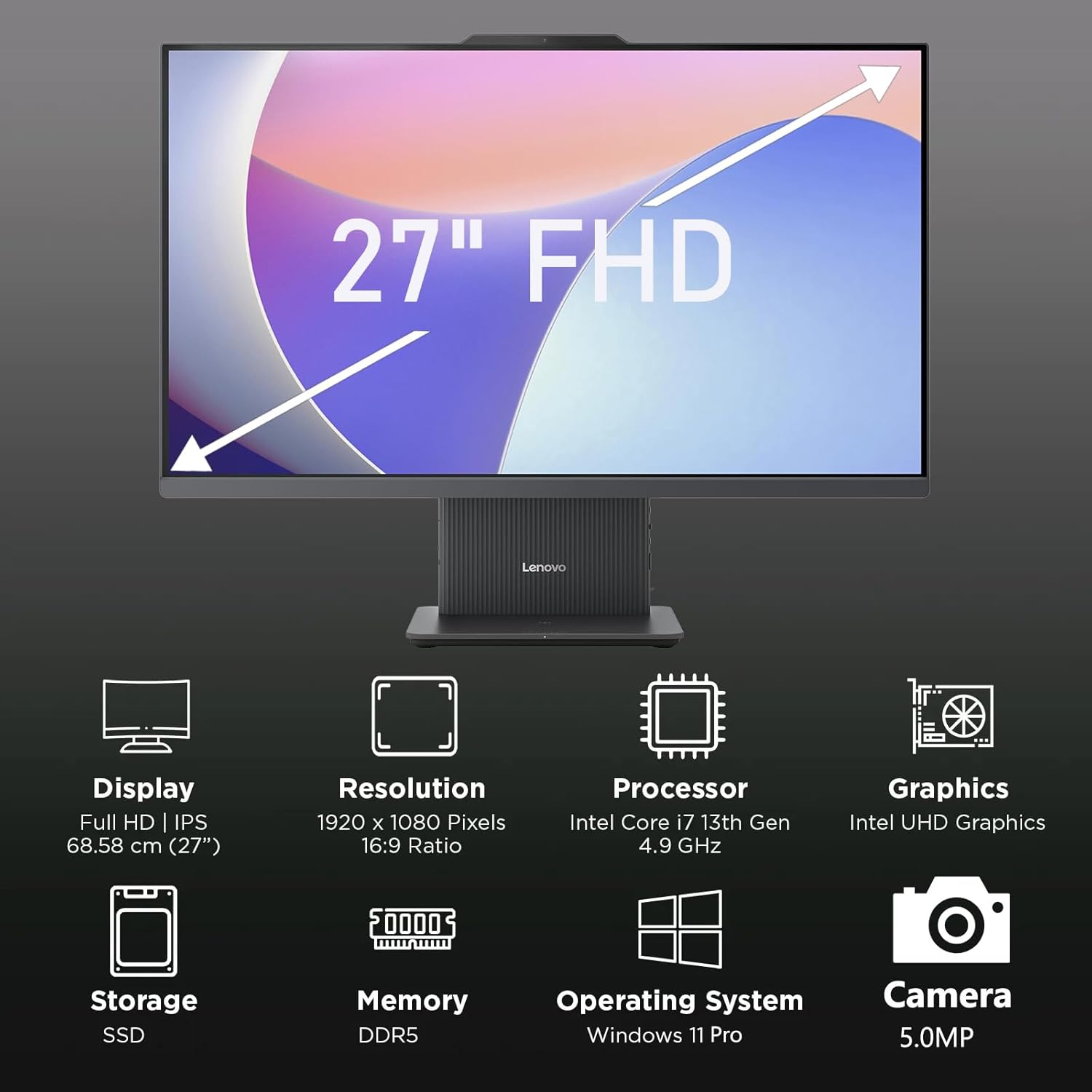
ຮູບ 2: ເກີນview of key features including Display, Resolution, Processor, Graphics, Storage, Memory, Operating System, and Camera.
- ຈໍສະແດງຜົນ: 27-inch Full HD (1920x1080) IPS, 300 nits, anti-glare.
- Webກ້ອງ: Integrated 5.0MP webcam with dual microphones.
- ລໍາໂພງ: Integrated 3W x2 HARMAN speakers.
- ໜ່ວຍປະມວນຜົນ: Intel Core i7-13620H.
- ໜ່ວຍຄວາມຈຳ: DDR5 RAM.
- ການເກັບຮັກສາ: PCIe NVMe SSD.
3.2 ພອດແລະຕົວເຊື່ອມຕໍ່

Figure 3: Detailed diagram of ports and connectors on the Lenovo IdeaCentre AIO 27.
- E-shutter (for webcam privacy)
- ປຸ່ມເປີດປິດ
- HDMI-in 1.4
- ໄຟ DC-in
- USB-A 480Mbps (USB 2.0)
- Ethernet (RJ-45)
- USB-A 480Mbps (USB 2.0)
- USB-A 10Gbps (USB 3.2 Gen 2)
- HDMI-out 2.1 TMDS
- USB-C 10Gbps (data transfer only)
- Headphone / microphone combo jack
4. ຕັ້ງຄ່າ
4.1 Unboxing ແລະການຈັດວາງ
- Carefully remove the AIO PC and all accessories from the packaging.
- Place the AIO PC on a stable, flat surface with adequate ventilation around the device.
4.2 ການເຊື່ອມຕໍ່ພະລັງງານ
- Connect the power adapter cable to the DC-in port (4) on the rear of the AIO PC.
- ສຽບອະແດບເຕີໄຟເຂົ້າໄປໃນປລັກສຽບໄຟຟ້າທີ່ມີສາຍດິນ.
4.3 ການເຊື່ອມຕໍ່ອຸປະກອນຕໍ່
- Connect your keyboard and mouse to the available USB-A ports (5, 7, 8) on the rear of the AIO PC.
- If using wired Ethernet, connect the cable to the RJ-45 port (6).
- For external displays, use the HDMI-out port (9). To use the AIO as a display for another device, use the HDMI-in port (3).
4.4 ການ Boot ເລີ່ມຕົ້ນ ແລະການຕິດຕັ້ງ Windows
- Press the power button (2) to turn on the PC.
- ປະຕິບັດຕາມຄໍາແນະນໍາໃນຫນ້າຈໍເພື່ອເຮັດສໍາເລັດການຕິດຕັ້ງເບື້ອງຕົ້ນ Windows 11 Pro, ລວມທັງພາສາ, ພາກພື້ນ, ການເຊື່ອມຕໍ່ເຄືອຂ່າຍ, ແລະການສ້າງບັນຊີຜູ້ໃຊ້.
4.5 ການປັບຕົວຢືນ

Figure 4: The AIO stand allows for ergonomic tilt adjustment.
The integrated stand allows for tilt adjustment from -5° to 15° to optimize your viewing angle and posture. Gently adjust the display to your preferred position.
5. ການປະຕິບັດ PC ຂອງທ່ານ
5.1 ການດໍາເນີນງານພື້ນຖານ
- ເປີດ/ປິດ: Press the power button (2) to turn on. To shut down, click Start > Power > Shut down in Windows.
- ຮູບແບບການນອນ: Press the power button briefly or select Sleep from the Start menu.
5.2 ການນໍາໃຊ້ Webກ້ອງ ແລະ ສຽງ

Figure 5: The 5MP webcam and Harman audio enhance video conferencing.
- Webກ້ອງ: 5.0MP ປະສົມປະສານ webcam is ideal for video conferencing and online communication. Use the E-shutter (1) to physically block the camera for privacy.
- ໄມໂຄຣໂຟນ: Dual microphones provide clear audio input.
- ລໍາໂພງ: HARMAN speakers deliver high-quality audio output.
5.3 ການເຊື່ອມຕໍ່
- Wi-Fi 6: ເຊື່ອມຕໍ່ກັບເຄືອຂ່າຍໄຮ້ສາຍເພື່ອການເຂົ້າເຖິງອິນເຕີເນັດຄວາມໄວສູງ.
- Bluetooth 5.2: Pair with Bluetooth-enabled devices such as headphones, speakers, or mobile phones.
- ພອດ USB: Utilize the various USB-A and USB-C ports for connecting external drives, printers, and other peripherals.
5.4 ຄຸນສົມບັດຂອງ Windows 11 Pro
Your AIO PC comes pre-installed with Windows 11 Pro, offering advanced features for productivity and security:
- BitLocker: For advanced data encryption.
- ເດັສທັອບທາງໄກ: Access your PC from another device.
- Domain Join: Integrate into corporate networks.
- Windows ສະບາຍດີ: Secure and fast login using facial recognition (if IR camera is present) or PIN.
6. ບໍາລຸງຮັກສາ
6.1 Cleaning Your PC
- ຈໍສະແດງຜົນ: ໃຊ້ຜ້າແພທີ່ອ່ອນໆ ທີ່ບໍ່ມີເສັ້ນດ່າງ dampຫຸ້ມດ້ວຍນ້ໍາຫຼືເຄື່ອງເຮັດຄວາມສະອາດຫນ້າຈໍທີ່ບໍ່ມີການຂັດ. ຢ່າສີດຂອງແຫຼວໂດຍກົງໃສ່ຫນ້າຈໍ.
- ແຈ້ງ: Wipe with a soft, dry cloth. Avoid harsh chemicals or abrasive materials.
- ການລະບາຍອາກາດ: ໃຫ້ແນ່ໃຈວ່າຊ່ອງລະບາຍອາກາດມີຄວາມຊັດເຈນຂອງຝຸ່ນແລະສິ່ງກີດຂວາງເພື່ອປ້ອງກັນຄວາມຮ້ອນເກີນ.
6.2 ການປັບປຸງຊອບແວ
Regularly check for and install Windows updates and driver updates to ensure optimal performance and security. Go to Settings > Windows Update to check for updates.
6.3 ການສໍາຮອງຂໍ້ມູນ
ສຳຮອງຂໍ້ມູນສຳຄັນຂອງທ່ານໄວ້ໃນໄດຣຟ໌ພາຍນອກ ຫຼື ບ່ອນເກັບຂໍ້ມູນໃນຄລາວເປັນໄລຍະເພື່ອປ້ອງກັນການສູນເສຍຂໍ້ມູນ.
7. ການແກ້ໄຂບັນຫາ
This section addresses common issues you might encounter with your IdeaCentre AIO 27.
| ບັນຫາ | ການແກ້ໄຂທີ່ເປັນໄປໄດ້ |
|---|---|
| PC ບໍ່ເປີດ | Ensure the power adapter is securely connected to both the PC and a working electrical outlet. Test the outlet with another device. |
| ບໍ່ມີການສະແດງຢູ່ໃນຫນ້າຈໍ | Check power connection. Ensure the PC is powered on. If using HDMI-in, verify the external device is on and correctly connected. |
| No internet connection (Wi-Fi) | Check if Wi-Fi is enabled in Windows settings. Verify your router is working. Reconnect to the Wi-Fi network. |
| ບໍ່ມີສຽງ | Check volume levels in Windows. Ensure speakers are not muted. Verify audio drivers are up to date. |
| Webກ້ອງບໍ່ເຮັດວຽກ | Ensure the E-shutter (1) is open. Check privacy settings in Windows. Verify webcam drivers are installed and up to date. |
8. ຂໍ້ມູນຈໍາເພາະ

Figure 6: Details of the Intel Core i7-13620H processor.

Figure 7: The 27-inch FHD display offers comfortable viewing.
| ຄຸນສົມບັດ | ຂໍ້ມູນຈໍາເພາະ |
|---|---|
| ຍີ່ຫໍ້ | Lenovo |
| ຊື່ຕົວແບບ | IdeaCentre AIO 27 |
| ລະບົບປະຕິບັດການ | Windows 11 Pro |
| ໂຮງງານຜະລິດ | Intel Core i7-13620H (10 Cores, 16 Threads, up to 4.9GHz) |
| ຮູບພາບ | Integrated Intel UHD Graphics |
| ຈໍສະແດງຜົນ | 27-inch FHD (1920x1080) IPS, 300 nits, Anti-glare, 99% sRGB |
| ຄວາມຊົງຈໍາ | 32GB DDR5 RAM (5200 MT/s) |
| ການເກັບຮັກສາ | 1TB M.2 PCIe 4.0x4 NVMe SSD |
| ສຽງ | High Definition (HD) Audio, Realtek ALC233-CG codec, 3W x2 HARMAN speakers |
| Webກ້ອງ | 5.0MP with Dual Microphones |
| ການເຊື່ອມຕໍ່ໄຮ້ສາຍ | Wi-Fi 6 (802.11ax 2x2), Bluetooth 5.2 |
| ພອດ (ດ້ານຫຼັງ) | 1x USB-A 10Gbps, 2x USB-A 480Mbps, 1x HDMI-in 1.4, 1x HDMI-out 2.1 TMDS, 1x RJ-45, 1x Power Connector |
| ພອດ (ຊ້າຍ) | 1x USB-C 10Gbps (data transfer only), 1x 3.5mm combo audio jack |
| ຊິບຄວາມປອດໄພ | ເຟີມແວ TPM 2.0 |
| Power Adapter | 90W 89% adapter |
| ຂະໜາດ (ກວ້າງ x ສູງ) | 611.72 x 192 x 473.16 ມມ (24.08 x 7.55 x 18.62 ນິ້ວ) |
| ນ້ຳໜັກ | ປະມານ 7.1 ກິໂລ (15.65 ປອນ) |
9. ຂໍ້ມູນການຮັບປະກັນ
Your Lenovo IdeaCentre AIO 27 PC comes with a standard manufacturer's warranty. The specific terms and duration of your warranty may vary by region and purchase agreement. Please refer to the warranty documentation included in your product packaging or visit the official Lenovo support webເວັບໄຊສໍາລັບຂໍ້ມູນລະອຽດ.
Typically, the warranty covers defects in materials and workmanship under normal use. It does not cover damage caused by misuse, accidents, unauthorized modifications, or external factors.
10. ສະຫນັບສະຫນູນແລະຂໍ້ມູນຕິດຕໍ່
For technical support, service, or additional information, please contact Lenovo customer support through the following channels:
- ສະຫນັບສະຫນູນ Lenovo Webເວັບໄຊ: ຢ້ຽມຢາມ support.lenovo.com ສໍາລັບຄົນຂັບ, ຄູ່ມື, ແລະຄູ່ມືການແກ້ໄຂບັນຫາ.
- ສະຫນັບສະຫນູນໂທລະສັບ: Refer to your warranty card or the Lenovo support webສະຖານທີ່ສໍາລັບເບີໂທລະສັບຕິດຕໍ່ພາກພື້ນ.
- ສົນທະນາທາງອິນເຕີເນັດ: Available on the Lenovo support website for real-time assistance.
Please have your product's serial number ready when contacting support. The serial number is typically located on a label on the back or bottom of your AIO PC.