
ແນະນຳ
This manual provides comprehensive instructions for the HP 14-inch Laptop, Model 2026 Essential. It covers initial setup, daily operation, maintenance tips, and troubleshooting common issues. Please read this manual thoroughly to ensure proper use and longevity of your device.

ຮູບທີ 1: HP 14-inch Essential Laptop highlighting key features like Intel Processor N150, 4GB LPDDR5 RAM, 628GB storage, Windows 11 Pro, HD anti-glare display, Intel Graphics, Wi-Fi 6, Microsoft Copilot Key, HD camera, integrated digital mics, and stereo speakers.
1. ຕັ້ງຄ່າ
1.1 Unboxing ແລະ Package Contents
Carefully unpack your HP 14-inch Laptop and verify all components are present.
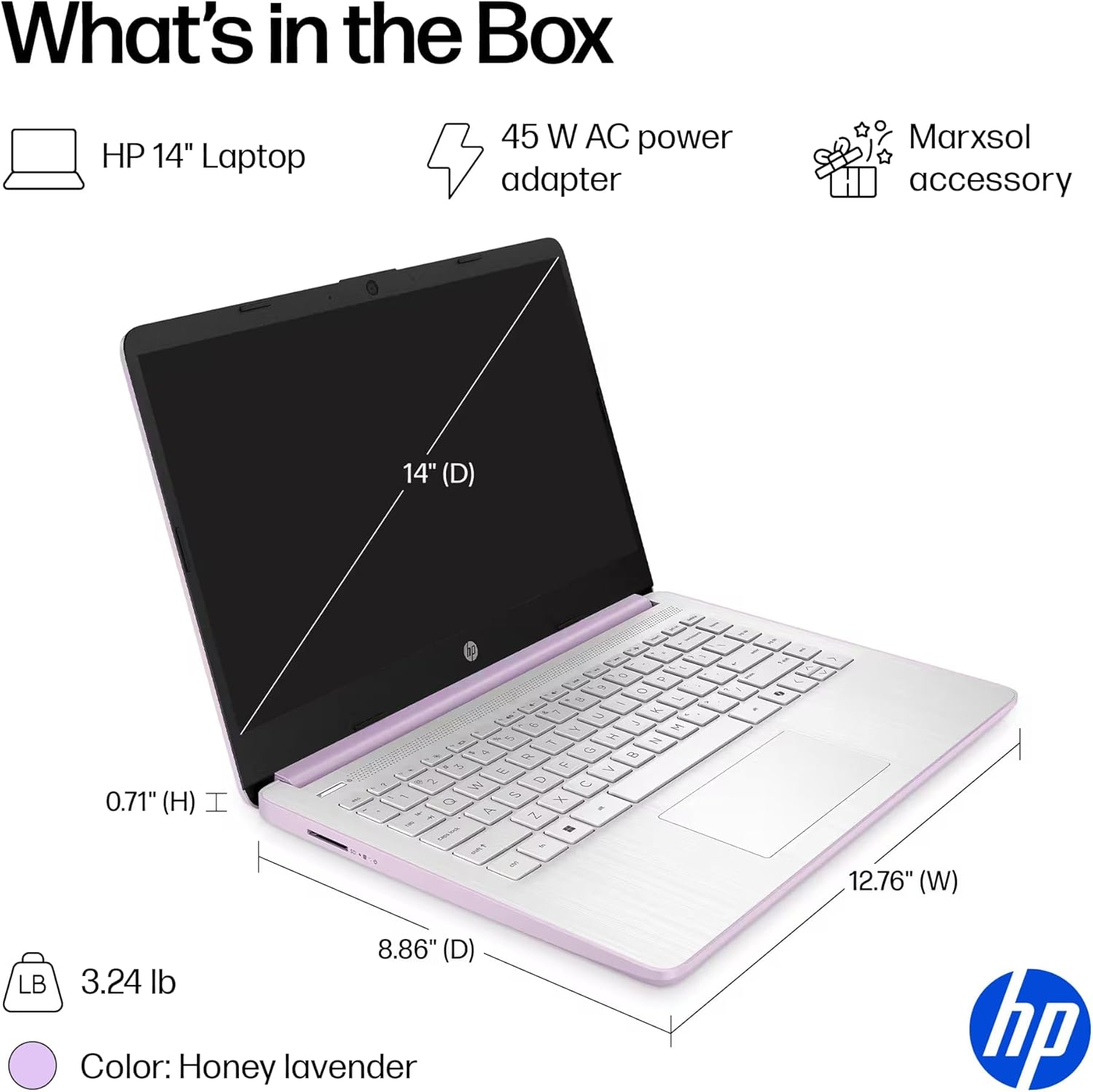
ຮູບທີ 2: The package includes the HP 14-inch Laptop, a 45W AC power adapter, and the Marxsol accessory bundle. The laptop dimensions are 12.76" (W) x 8.86" (D) x 0.71" (H) and it weighs 3.24 lbs.
ຊຸດຂອງທ່ານຄວນປະກອບດ້ວຍ:
- HP 14-inch Laptop
- ອະແດບເຕີໄຟຟ້າ AC 45W
- Marxsol Accessory Bundle:
- 6-in-1 USB-C Docking Station Hub
- ໄດຣຟ໌ພາຍນອກ 500GB
- USB Extension Cord
- ສາຍ HDMI
- ແຜ່ນຫນູ
- ເມົາສ໌ໄຮ້ສາຍ

ຮູບທີ 3: The Marxsol accessory bundle includes a 6-in-1 USB-C Docking Station, Wireless Mouse, Mouse Pad, USB Extension Cable, HDMI Cable, and a 500GB External Drive.
1.2 ການເຊື່ອມຕໍ່ພະລັງງານ
Connect the AC power adapter to the laptop's AC Smart pin port and then plug the adapter into a power outlet. The battery will begin charging automatically. It is recommended to fully charge the battery before first use.
1.3 ການບູດເຄື່ອງຄັ້ງທຳອິດ ແລະ ການຕັ້ງຄ່າ Windows 11 Pro
Press the power button to turn on the laptop. Follow the on-screen instructions to complete the initial setup of Windows 11 Pro. This process typically involves selecting your region, language, connecting to a Wi-Fi network, and creating a user account.

ຮູບທີ 4: The laptop comes pre-installed with Windows 11 Pro and includes Microsoft Office 2024.
2. ການປະຕິບັດ Laptop ຂອງທ່ານ
2.1 ເປີດ/ປິດ ແລະ ໂໝດນອນ
- ເປີດ: ກົດປຸ່ມເປີດປິດທີ່ຕັ້ງຢູ່ເທິງແປ້ນພິມ.
- ປິດພະລັງງານ: ກົດປຸ່ມເລີ່ມຕົ້ນ, ຈາກນັ້ນເປີດເຄື່ອງ, ແລະເລືອກ "ປິດ."
- ຮູບແບບການນອນ: ປິດຝາຫຼືກົດປຸ່ມເລີ່ມຕົ້ນ, ຈາກນັ້ນເປີດປິດ, ແລະເລືອກ "ນອນ."
2.2 ແປ້ນພິມ ແລະ ແຜ່ນສໍາຜັດ
The laptop features a full-size English keyboard and a multi-touch touchpad.
- ທ່າທາງສຳຜັດ: Refer to Windows 11 settings for customizable touchpad gestures (e.g., two-finger scroll, pinch-to-zoom).
- ປຸ່ມຟັງຊັນ: ໃຊ້ Fn key in combination with the function keys (F1-F12) for quick access to features like volume control, screen brightness, and Wi-Fi toggle.
2.3 ການເຊື່ອມຕໍ່ອຸປະກອນຕໍ່ພອດ
Your laptop is equipped with various ports for connecting external devices.
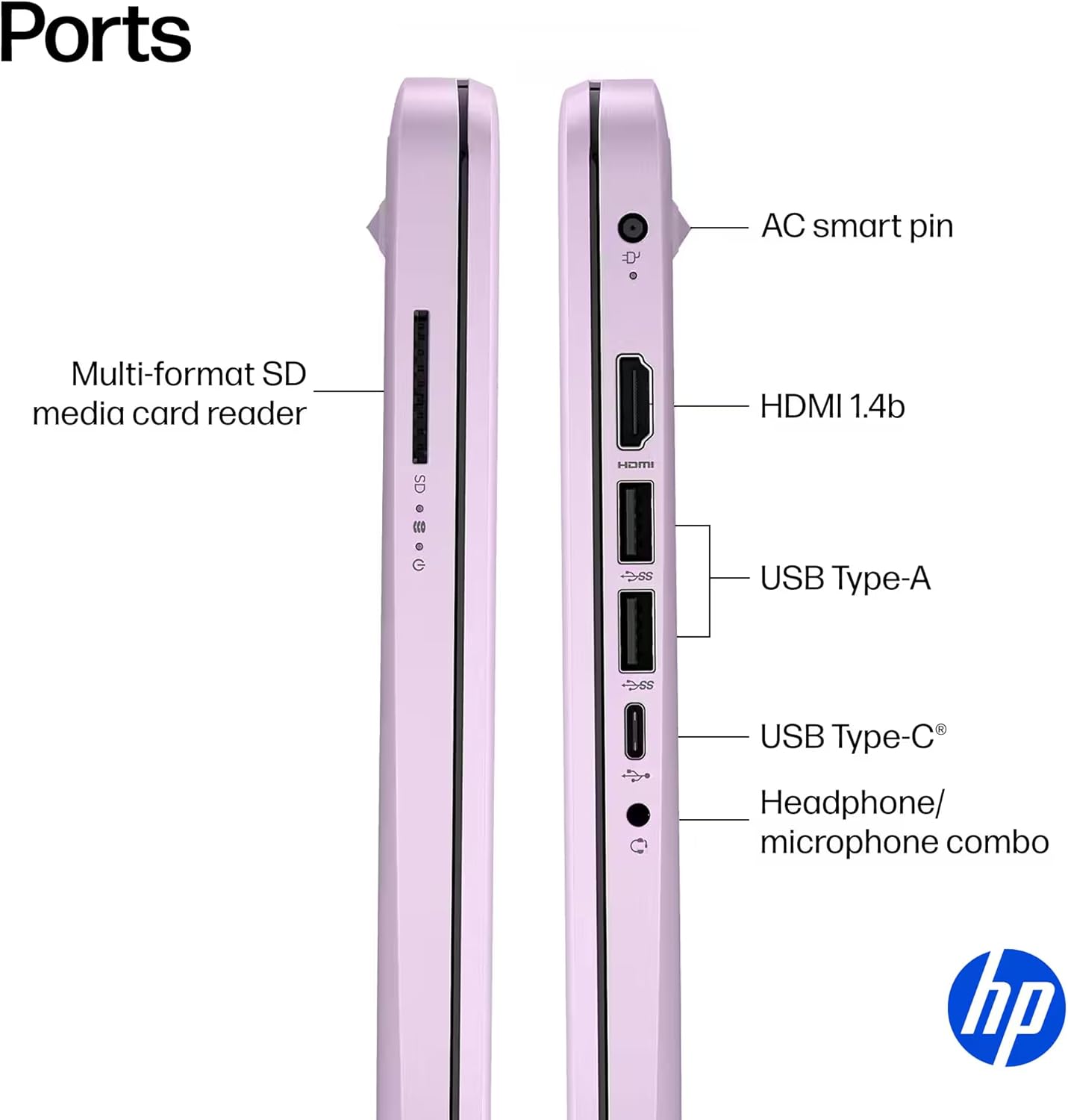
ຮູບທີ 5: ຂ້າງ view of the HP 14-inch laptop showing available ports.
- USB Type-C (ອັດຕາສັນຍານ 5Gbps): For data transfer only.
- USB Type-A (ອັດຕາສັນຍານ 5Gbps): For connecting USB devices like external drives, keyboards, and mice.
- HDMI 1.4b: ສໍາລັບການເຊື່ອມຕໍ່ກັບຈໍສະແດງຜົນພາຍນອກຫຼືໂປເຈັກເຕີ.
- ຫູຟັງ/ໄມໂຄຣໂຟນ Combo Jack: ສໍາລັບການເຊື່ອມຕໍ່ຫູຟັງຫຼືຫູຟັງທີ່ມີໄມໂຄໂຟນ.
- ຕົວອ່ານກາດ SD ຫຼາຍຮູບແບບ: ສໍາລັບການອ່ານບັດ SD.
- AC Smart Pin: ສໍາລັບການເຊື່ອມຕໍ່ອະແດບເຕີພະລັງງານ.
2.4 ການເຊື່ອມຕໍ່ໄຮ້ສາຍ
The laptop supports Wi-Fi 6 (802.11ax) and Bluetooth 5.4 for high-speed wireless connections.
- Wi-Fi: ເພື່ອເຊື່ອມຕໍ່ກັບເຄືອຂ່າຍໄຮ້ສາຍ, ຄລິກໄອຄອນ Wi-Fi ໃນແຖບໜ້າວຽກ, ເລືອກເຄືອຂ່າຍຂອງທ່ານ ແລະໃສ່ລະຫັດຜ່ານຖ້າຕ້ອງການ.
- Bluetooth: To pair Bluetooth devices, go to Windows Settings > Bluetooth & devices, and follow the pairing instructions.
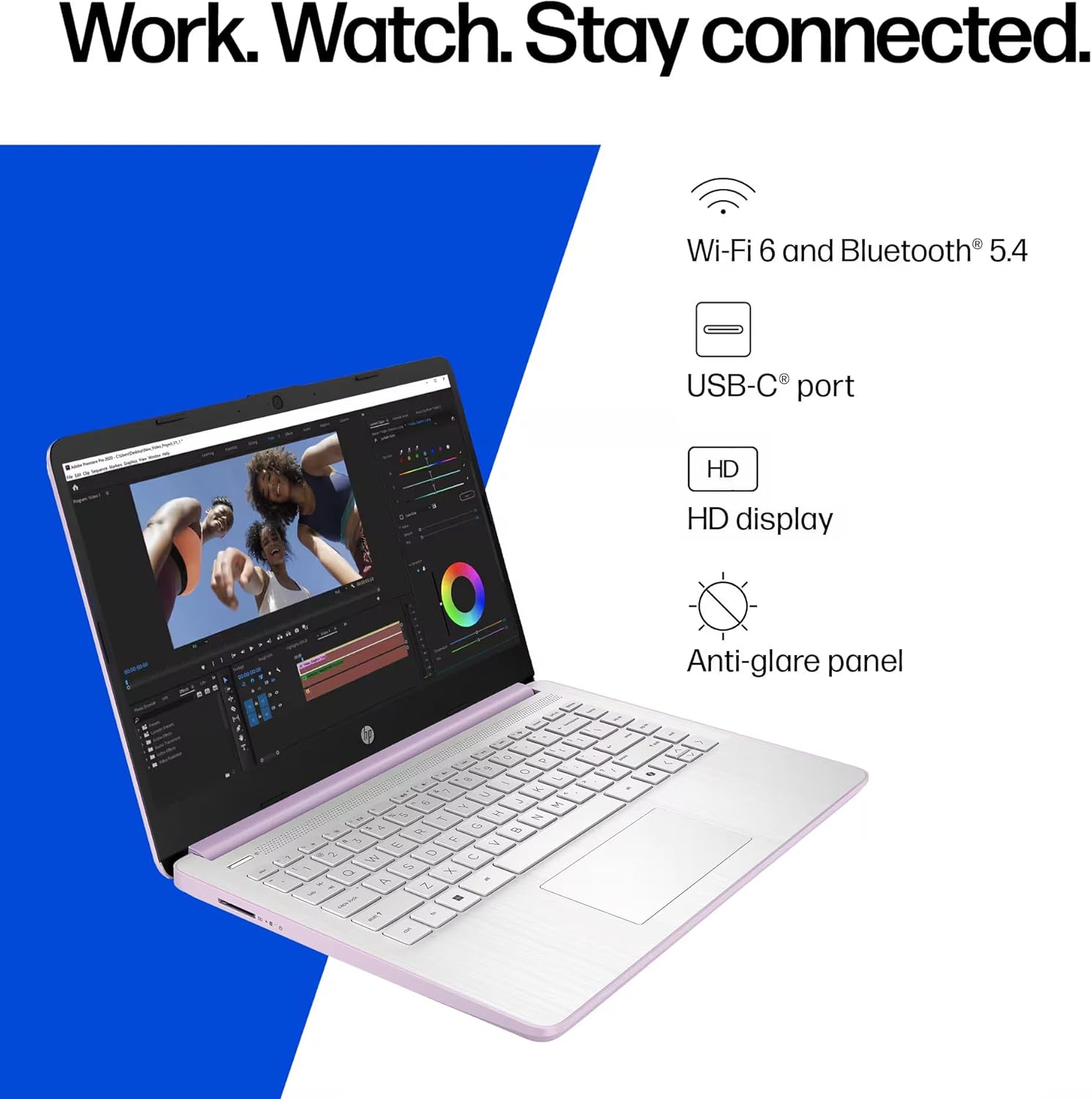
ຮູບທີ 6: The laptop offers Wi-Fi 6 and Bluetooth 5.4 for robust wireless connectivity, alongside a USB-C port, HD display, and anti-glare panel.
2.5 Microsoft Copilot Key
The dedicated Microsoft Copilot key provides instant access to AI assistance. Press this key to launch Copilot and interact with it for various tasks, information, and creative assistance.

ຮູບທີ 7: The Microsoft Copilot key on the keyboard provides quick access to AI features.
3. ບໍາລຸງຮັກສາ
3.1 ການດູແລຫມໍ້ໄຟ
- To maximize battery lifespan, avoid frequently discharging the battery completely.
- ເກັບຮັກສາແລັບທັອບໃນບ່ອນເຢັນ ແລະແຫ້ງ ຖ້າບໍ່ໄດ້ໃຊ້ເປັນເວລາດົນ.
- The laptop features a 3-cell, 41 Wh Li-ion battery, providing up to 9 hours of usage.
3.2 ການເຮັດຄວາມສະອາດແລັບທັອບຂອງເຈົ້າ
- ໜ້າຈໍ: ໃຊ້ຜ້າແພອ່ອນໆ ທີ່ບໍ່ມີເສັ້ນດ່າງ ງampສໍາເລັດດ້ວຍນ້ໍາຫຼືເຄື່ອງເຮັດຄວາມສະອາດຫນ້າຈໍ. ຢ່າສີດຂອງແຫຼວໂດຍກົງໃສ່ຫນ້າຈໍ.
- Keyboard ແລະ Chassis: ໃຊ້ຜ້າອ່ອນ, ແຫ້ງ. ສໍາລັບຝຸ່ນ stubborn, a ເລັກນ້ອຍ damp ຜ້າສາມາດນໍາໃຊ້ໄດ້, ຮັບປະກັນວ່າບໍ່ມີຂອງແຫຼວເຂົ້າໄປໃນຊ່ອງເປີດ.
- ພອດ: ຮັກສາທ່າເຮືອບໍ່ໃຫ້ມີຂີ້ຝຸ່ນ ແລະສິ່ງເສດເຫຼືອ. ຖ້າຈໍາເປັນ, ໃຊ້ອາກາດບີບອັດ, ຖືກະປ໋ອງຕັ້ງຊື່.
3.3 ການປັບປຸງຊອບແວ
Regularly update your Windows 11 Pro operating system and drivers to ensure optimal performance, security, and compatibility.
- ໄປທີ່ ການຕັ້ງຄ່າ > Windows Update ເພື່ອກວດສອບ ແລະຕິດຕັ້ງອັບເດດ.
- Ensure your antivirus software is up-to-date.
4. ການແກ້ໄຂບັນຫາ
This section addresses common issues you might encounter with your HP 14-inch Laptop.
4.1 ບັນຫາພະລັງງານ
- ແລັບທັອບບໍ່ເປີດ:
- ກວດໃຫ້ແນ່ໃຈວ່າອະແດັບເຕີ AC ເຊື່ອມຕໍ່ຢ່າງປອດໄພກັບທັງແລັບທັອບ ແລະປລັກສຽບໄຟທີ່ເຮັດວຽກໄດ້.
- ກວດສອບວ່າປລັກສຽບໄຟເຮັດວຽກໄດ້ໂດຍການສຽບໃສ່ອຸປະກອນອື່ນ.
- ຖ້າແບດເຕີລີ່ຫມົດແລ້ວ, ປ່ອຍໃຫ້ມັນສາກຢ່າງຫນ້ອຍ 30 ນາທີກ່ອນທີ່ຈະພະຍາຍາມເປີດ.
- ແບັດເຕີຣີບໍ່ສາກໄຟ:
- ກວດເບິ່ງອະແດບເຕີສາຍໄຟແລະສາຍໄຟສໍາລັບຄວາມເສຍຫາຍໃດໆ.
- Ensure the AC adapter is correctly seated in the laptop's charging port.
- ລອງຣີສະຕາດແລັບທັອບ.
4.2 ບັນຫາການສະແດງ
- ໜ້າຈໍຫວ່າງເປົ່າ ຫຼື ດຳ:
- Ensure the laptop is powered on and not in sleep mode.
- Connect an external monitor via HDMI to check if the issue is with the laptop's display or graphics output.
- ປັບຄວາມສະຫວ່າງໜ້າຈໍໂດຍໃຊ້ປຸ່ມຟັງຊັນ.
- ໜ້າຈໍກະພິບ:
- ອັບເດດໄດເວີກຣາຟິກຂອງທ່ານ.
- Check display settings in Windows for refresh rate compatibility.
4.3 ບັນຫາການເຊື່ອມຕໍ່ (Wi-Fi/Bluetooth)
- ບໍ່ສາມາດເຊື່ອມຕໍ່ກັບ Wi-Fi ໄດ້:
- ໃຫ້ແນ່ໃຈວ່າ Wi-Fi ຖືກເປີດໃຊ້ງານແລ້ວ (ກວດສອບປຸ່ມຟັງຊັນ ຫຼື ການຕັ້ງຄ່າ Windows).
- ຣີສະຕາດເຣົາເຕີ ແລະໂມເດັມຂອງທ່ານ.
- Forget the network in Windows settings and try reconnecting.
- ອັບເດດໄດຣເວີເຄືອຂ່າຍ.
- ອຸປະກອນ Bluetooth ບໍ່ໄດ້ຈັບຄູ່:
- ໃຫ້ແນ່ໃຈວ່າ Bluetooth ຖືກເປີດໃຊ້ງານຢູ່ໃນທັງແລັບທັອບ ແລະ ອຸປະກອນ.
- Place the Bluetooth device in pairing mode.
- ເອົາຕົວຢ່າງທີ່ຈັບຄູ່ຜ່ານມາຂອງອຸປະກອນອອກຈາກການຕັ້ງຄ່າ Windows ແລະລອງຈັບຄູ່ອີກຄັ້ງ.
ສຳລັບການຊ່ວຍເຫຼືອເພີ່ມເຕີມ, ໃຫ້ອ້າງອີງເຖິງຝ່າຍສະໜັບສະໜູນຂອງ HP webເວັບໄຊ ຫຼືຕິດຕໍ່ບໍລິການລູກຄ້າ.
5. ຂໍ້ມູນຈໍາເພາະ
Detailed technical specifications for the HP 14-inch Laptop (Model 2026 Essential).
| ຄຸນສົມບັດ | ລາຍລະອຽດ |
|---|---|
| ຊື່ຕົວແບບ | 2026 Essential HP 14 Laptop |
| ໂຮງງານຜະລິດ | Quad-Core Intel Processor N150 (Up to 3.6 GHz Max Turbo Frequency, 6 MB Intel Smart Cache, 4 cores, 4 threads) |
| ຮູບພາບ | ປະສົມປະສານ Intel Graphics |
| ລະບົບປະຕິບັດການ | Windows 11 Pro |
| ຊອບແວລວມ | Microsoft Office 2024 |
| ໜ່ວຍຄວາມຈຳ (RAM) | RAM 4GB LPDDR5 |
| ການເກັບຮັກສາ | 128GB UFS (Universal Flash Storage) + 500GB External Drive |
| ຈໍສະແດງຜົນ | 14-inch diagonal, HD (1366 x 768), micro-edge, anti-glare, 250 nits, LED |
| ການເຊື່ອມຕໍ່ | Wi-Fi 6 (802.11ax) ແລະ Bluetooth 5.4 ປະສົມປະສານກັນ |
| ສຽງ | ສຽງ HD ພ້ອມລຳໂພງສະເຕຣິໂອ |
| Webກ້ອງ | ກ້ອງ HP True Vision 720p HD ທີ່ມີການຫຼຸດຜ່ອນສຽງລົບກວນຊົ່ວຄາວ ແລະໄມໂຄຣໂຟນດິຈິຕອລອາເຣຄູ່ແບບປະສົມປະສານ |
| ທ່າເຮືອ |
|
| ແບັດເຕີຣີ | 3-cell, 41 Wh Li-ion battery, Up to 9 hours usage |
| ຂະໜາດ (ກວ້າງ x ສູງ) | 12.76 x 8.86 x 0.71 ນິ້ວ |
| ນ້ຳໜັກ | 3.24 lbs |
| ສີ | ນໍ້າເຜິ້ງລາເວນເດີ |

ຮູບທີ 8: Intel Processor N150 specifications, highlighting its 4 cores, 4 threads, 6 MB cache, and up to 3.6 GHz Turbo Boost frequency.
6. ການຮັບປະກັນແລະການສະຫນັບສະຫນູນ
ສຳລັບຂໍ້ມູນການຮັບປະກັນ, ກະລຸນາອ້າງອີງເອກະສານທີ່ມາພ້ອມກັບຜະລິດຕະພັນຂອງທ່ານ ຫຼື ເຂົ້າເບິ່ງຝ່າຍສະໜັບສະໜູນ HP ຢ່າງເປັນທາງການ webເວັບໄຊ. HP ສະຫນອງຊັບພະຍາກອນສະຫນັບສະຫນູນຕ່າງໆ, ລວມທັງໄດເວີ, ການປັບປຸງຊອບແວ, ແລະຄູ່ມືການແກ້ໄຂບັນຫາ.
If you encounter issues that cannot be resolved using the troubleshooting steps in this manual, please contact HP Customer Support for assistance. Have your product model number (2026 Essential HP 14 Laptop) and serial number ready when contacting support.
ສະຫນັບສະຫນູນອອນໄລນ໌: ຢ້ຽມຢາມ support.hp.com