
1. ບົດແນະນຳ
Thank you for choosing the THOMSON TDF-1001P Digital Photo Frame. This device allows you to display your favorite photos and videos, play music, and utilize features like a calendar, clock, and alarm. With Wi-Fi connectivity, you can easily share media and receive weather updates. Please read this manual thoroughly before operating the device to ensure proper use and maintenance.
2. ຂໍ້ມູນຄວາມປອດໄພ
- ຢ່າໃຫ້ອຸປະກອນຖືກຄວາມຊຸ່ມຊື່ນ, ຝົນ ຫຼື ອຸນຫະພູມສູງເກີນໄປ.
- ຫຼີກເວັ້ນການວາງອຸປະກອນຢູ່ໃກ້ກັບແຫຼ່ງຄວາມຮ້ອນ ຫຼືຢູ່ໃນແສງແດດໂດຍກົງ.
- Use only the provided power adapter. Using unauthorized adapters may damage the device and void the warranty.
- ຢ່າພະຍາຍາມຖອດປະກອບ ຫຼືສ້ອມແປງອຸປະກອນດ້ວຍຕົນເອງ. ອ້າງອີງການບໍລິການທັງໝົດໃຫ້ກັບບຸກຄະລາກອນທີ່ມີຄຸນວຸດທິ.
- ຮັກສາອຸປະກອນໃຫ້ຫ່າງຈາກສະຫນາມແມ່ເຫຼັກທີ່ເຂັ້ມແຂງ.
- Clean the screen with a soft, dry cloth. Do not use liquid cleaners or sprays directly on the screen.
3. ເນື້ອໃນຊຸດ
ກະລຸນາກວດເບິ່ງຊຸດສຳລັບລາຍການຕໍ່ໄປນີ້:
- THOMSON TDF-1001P Digital Photo Frame
- Power Adapter
- ຄູ່ມືຜູ້ໃຊ້ (ເອກະສານນີ້)
- ຢືນ (ຖ້າມີ)
4. ຜະລິດຕະພັນເກີນview
Familiarize yourself with the components of your digital photo frame.
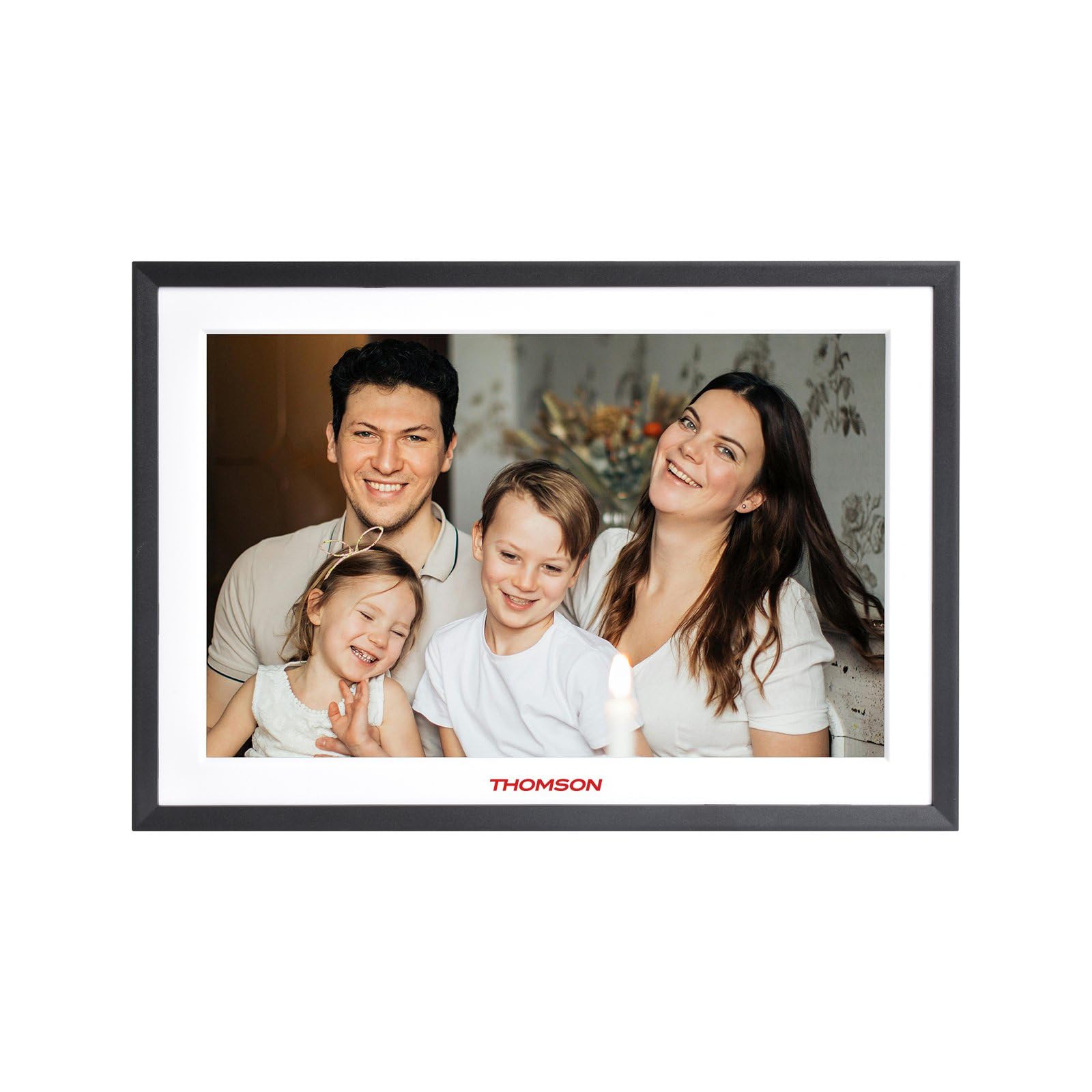
ຮູບທີ 4.1: ດ້ານໜ້າ view of the THOMSON TDF-1001P Digital Photo Frame. This image shows the 10.1-inch IPS display with a black frame, designed for clear photo and video playback.
4.1. ກະດານດ້ານຫນ້າ
- ໜ້າຈໍ IPS ຂະໜາດ 10.1 ນິ້ວ: The main display for viewing content and interacting with the device.
4.2. ແຜງດ້ານຫລັງ ແລະພອດ
The rear panel typically includes various ports for connectivity and power.
- ການປ້ອນຂໍ້ມູນພະລັງງານ: ເຊື່ອມຕໍ່ກັບອະແດບເຕີພະລັງງານທີ່ສະໜອງໃຫ້.
- ພອດ USB: ສຳລັບການເຊື່ອມຕໍ່ໄດຣຟ໌ USB ເພື່ອໂອນສື່.
- ຊ່ອງໃສ່ບັດ SD: For inserting SD cards to expand storage or transfer media.
- ປຸ່ມຣີເຊັດ: A small pinhole button to reset the device if necessary.
5. ຕັ້ງຄ່າ
5.1. ການເປີດເຄື່ອງເບື້ອງຕົ້ນ
- Unpack the digital photo frame and its accessories.
- Attach the stand to the back of the frame, ensuring it is securely fastened.
- Connect the power adapter to the power input port on the frame.
- ສຽບອະແດບເຕີໄຟເຂົ້າກັບປລັກສຽບຝາ. ກອບຈະເປີດໂດຍອັດຕະໂນມັດ.
- ປະຕິບັດຕາມຄໍາແນະນໍາໃນຫນ້າຈໍເພື່ອເລືອກພາສາແລະພາກພື້ນຂອງທ່ານ.
5.2. ການເຊື່ອມຕໍ່ Wi-Fi
Connecting to Wi-Fi enables online features like photo sharing and weather updates.
- From the main menu, tap on 'Settings'.
- ເລືອກ 'Wi-Fi' ຫຼື 'ການຕັ້ງຄ່າເຄືອຂ່າຍ'.
- Toggle Wi-Fi to 'On'. The frame will scan for available networks.
- ເລືອກເຄືອຂ່າຍ Wi-Fi ທີ່ທ່ານຕ້ອງການຈາກບັນຊີລາຍຊື່.
- Enter the Wi-Fi password using the on-screen keyboard and tap 'Connect'.
- Once connected, a Wi-Fi icon will appear on the status bar.
5.3. App Setup for Sharing
To share photos and videos via Wi-Fi, you will need to install the dedicated app on your smartphone.
- Locate the app name or QR code in the frame's settings under 'Cloud Services' or 'App Connection'.
- Download and install the app on your smartphone from your device's app store.
- ເປີດ app ແລະສ້າງບັນຊີຫຼືເຂົ້າສູ່ລະບົບ.
- Follow the app's instructions to pair your smartphone with the digital photo frame, typically by scanning a QR code displayed on the frame or entering a unique device ID.
- Once paired, you can send photos and videos directly from your smartphone to the frame.
6. ການໃຊ້ກອບຮູບດິຈິຕອລ
6.1. ການນໍາທາງໃນການໂຕ້ຕອບ
The frame features a touch screen for easy navigation. Tap icons to open applications and swipe to browse content or menus.
6.2. Photo and Video Playback
- From the main menu, tap the 'Photos' or 'Gallery' icon.
- Select the source of your media (Internal Storage, SD Card, USB Drive, or Cloud/App).
- Browse through your albums or individual files. Tap on a photo or video to view ມັນ.
- During playback, you can typically swipe left/right to navigate between files, or tap the screen to reveal playback controls (play/pause, next, previous, rotate, delete).
6.3. ການຫຼິ້ນເພງ
- Tap the 'Music' icon from the main menu.
- Select the source of your music files.
- Browse and tap on a song to begin playback.
- Use the on-screen controls for play/pause, skip, volume adjustment, and repeat modes.
6.4. Calendar, Clock, and Alarm
- ປະຕິທິນ: Tap the 'Calendar' icon to view the current date and month. Some models may allow adding events.
- ໂມງ: The current time is usually displayed on the home screen. Time settings can be adjusted in the 'Settings' menu.
- ໂມງປຸກ: Access the 'Alarm' function via the main menu or 'Settings'. You can set multiple alarms with custom times and sounds.
6.5. Weather Updates
If connected to Wi-Fi, the frame can display local weather information.
- ໃຫ້ແນ່ໃຈວ່າເຟຣມເຊື່ອມຕໍ່ກັບ Wi-Fi.
- Go to 'Settings' and find 'Weather' or 'Location Services'.
- Enable weather updates and set your location (either automatically or manually).
- The weather forecast will then be displayed on the home screen or a dedicated weather widget.
7. ບໍາລຸງຮັກສາ
7.1. ທຳ ຄວາມສະອາດອຸປະກອນ
- ປິດເຄື່ອງທຸກຄັ້ງ ແລະຖອດປລັກອຸປະກອນກ່ອນທຳຄວາມສະອາດ.
- ໃຊ້ຜ້າອ່ອນໆທີ່ບໍ່ມີຂົນເພື່ອເຊັດໜ້າຈໍ ແລະ ກອບຢ່າງເບົາໆ.
- For stubborn smudges on the screen, lightly dampen the cloth with water or a screen-safe cleaning solution, then wipe gently. Do not spray liquids directly onto the screen.
- ຫຼີກລ້ຽງການເຮັດຄວາມສະອາດຂັດຫຼືສານລະລາຍ.
7.2. ການເກັບຮັກສາ
When not in use for extended periods, store the digital photo frame in a cool, dry place, away from direct sunlight and extreme temperatures. It is recommended to keep the original packaging for storage.
8. ການແກ້ໄຂບັນຫາ
ພາກສ່ວນນີ້ແກ້ໄຂບັນຫາທົ່ວໄປທີ່ທ່ານອາດຈະພົບ.
| ບັນຫາ | ສາເຫດທີ່ເປັນໄປໄດ້ | ການແກ້ໄຂ |
|---|---|---|
| ເຟຣມບໍ່ເປີດ. | ອະແດັບເຕີໄຟບໍ່ໄດ້ເຊື່ອມຕໍ່ ຫຼື ມີບັນຫາ. | ໃຫ້ແນ່ໃຈວ່າອະແດບເຕີໄຟຟ້າໄດ້ເຊື່ອມຕໍ່ກັບກອບຢ່າງແໜ້ນໜາ ແລະ ປລັກສຽບໄຟຟ້າທີ່ໃຊ້ໄດ້. ລອງໃຊ້ປລັກສຽບອື່ນ. |
| ບໍ່ສາມາດເຊື່ອມຕໍ່ກັບ Wi-Fi ໄດ້. | ລະຫັດຜ່ານບໍ່ຖືກຕ້ອງ, ຢູ່ນອກຂອບເຂດ, ຫຼື ມີບັນຫາເຣົາເຕີ. | Verify the Wi-Fi password. Move the frame closer to the router. Restart your Wi-Fi router. |
| Photos/videos not displaying. | ບໍ່ຮອງຮັບ file ຮູບແບບ, ເສຍຫາຍ files, or incorrect source selected. | ຮັບປະກັນ files are in supported formats (e.g., JPEG for photos, MP4 for videos). Check if the files are corrupted. Select the correct storage source (SD card, USB, internal). |
| ໜ້າຈໍສໍາຜັດບໍ່ຕອບສະໜອງ. | ຄວາມຜິດພາດຂອງຊອບແວຊົ່ວຄາວ. | Restart the frame by unplugging and replugging the power adapter. If the issue persists, use a pin to press the reset button on the back. |
9. ຂໍ້ມູນຈໍາເພາະ
| ຄຸນສົມບັດ | ຂໍ້ມູນຈໍາເພາະ |
|---|---|
| ຕົວແບບ | TDF-1001P |
| ຂະຫນາດຈໍສະແດງຜົນ | 10.1 ນິ້ວ |
| ຄວາມລະອຽດ | 800 * 1280 IPS |
| ອັດຕາສ່ວນ | 16:10 |
| Internal Flash Storage | 32 GB |
| ໜ້າຈໍສຳຜັດ | G+P Type |
| ການເຊື່ອມຕໍ່ | Wi-Fi |
| ຟັງຊັນ | Photo, Music, Video, Calendar, Clock, Alarm, Weather, Wi-Fi Sharing |
| ວັດສະດຸ | Plastic black frame and white middle frame |
| ຂະໜາດລາຍການ (L x W) | 7.25"L x 10.44"ວ |
| ແຫຼ່ງພະລັງງານ | ໄຟຟ້າສາຍ |
10. ຂໍ້ມູນການຮັບປະກັນ
The THOMSON TDF-1001P Digital Photo Frame comes with a ຮັບປະກັນ 1 ປີຈໍາກັດ from the date of purchase. This warranty covers manufacturing defects in materials and workmanship under normal use. It does not cover damage caused by misuse, accidents, unauthorized modifications, or external causes such as power surges.
Please retain your proof of purchase for warranty claims. For detailed warranty terms and conditions, refer to the warranty card included in your package or contact customer support.
11. ການຊ່ວຍເຫຼືອລູກຄ້າ
If you have any questions, require technical assistance, or need to make a warranty claim, please contact THOMSON customer support. Refer to the contact information provided on the product packaging or the official THOMSON webເວັບໄຊ.
When contacting support, please have your product model number (TDF-1001P) and proof of purchase readily available.