
1. ບົດແນະນຳ
Welcome to the user manual for your new Apple iPad Air 13-inch (M4). This guide provides essential information to help you set up, operate, maintain, and troubleshoot your device. The iPad Air combines powerful performance with a sleek design, featuring the Apple M4 chip, a Liquid Retina display, and advanced camera capabilities.
For additional support and detailed information, please visit the official Apple Support webເວັບໄຊ.
2. ສິ່ງທີ່ຢູ່ໃນກ່ອງ
Your iPad Air package includes the following items:
- iPad Air
- ສາຍສາກ USB-C
- ເຄື່ອງສຽບໄຟຟ້າຂະ ໜາດ 20W USB-C

Image: The iPad Air, USB-C Charge Cable, and 20W USB-C Power Adapter as packaged in the box.
3. ຜະລິດຕະພັນເກີນview
3.1 ລັກສະນະທີ່ສໍາຄັນ
- Apple M4 Chip: Delivers advanced graphics and high performance for multitasking and AI tasks.
- Liquid Retina Display: Stunning 13-inch display with P3 wide color, True Tone, and ultralow reflectivity.
- Touch ID: Secure authentication for unlocking, app sign-ins, and Apple Pay.
- Advanced Cameras: 12MP Center Stage front camera and 12MP Wide back camera for photos and 4K videos.
- Wi-Fi 7 with Apple N1: Fast wireless connectivity for quick data transfers.
- iPadOS: Intuitive operating system with flexible windowing for enhanced productivity.
- ຂໍ້ມູນຂ່າວສານຂອງ Apple: Personal intelligence system for writing, expression, and task management with privacy protections.
- ອາຍຸແບັດເຕີຣີໝົດມື້: Designed to support extended use throughout the day.

Image: A user interacting with the iPad Air using an Apple Pencil, highlighting its portability and creative capabilities.
3.2 ລັກສະນະທາງກາຍະພາບ
The iPad Air features a slim design with accessible buttons and ports.

ຮູບພາບ: ດ້ານທີ່ໃກ້ຊິດ view of multiple iPad Air devices, showcasing the various color options and button placements.
3.3 ການສະແດງ ແລະປະສິດທິພາບ
The 13-inch Liquid Retina display offers a resolution of 2732-by-2048 pixels at 264 ppi, supporting P3 wide color and True Tone technology for accurate color representation. The Apple M4 chip provides exceptional processing power for demanding applications and graphics-intensive tasks.

Image: The iPad Air screen demonstrating multitasking capabilities with two applications open side-by-side, powered by the M4 chip and iPadOS.
3.4 Apple Intelligence
Apple Intelligence is integrated into iPadOS, offering features that enhance productivity and creativity while prioritizing user privacy.
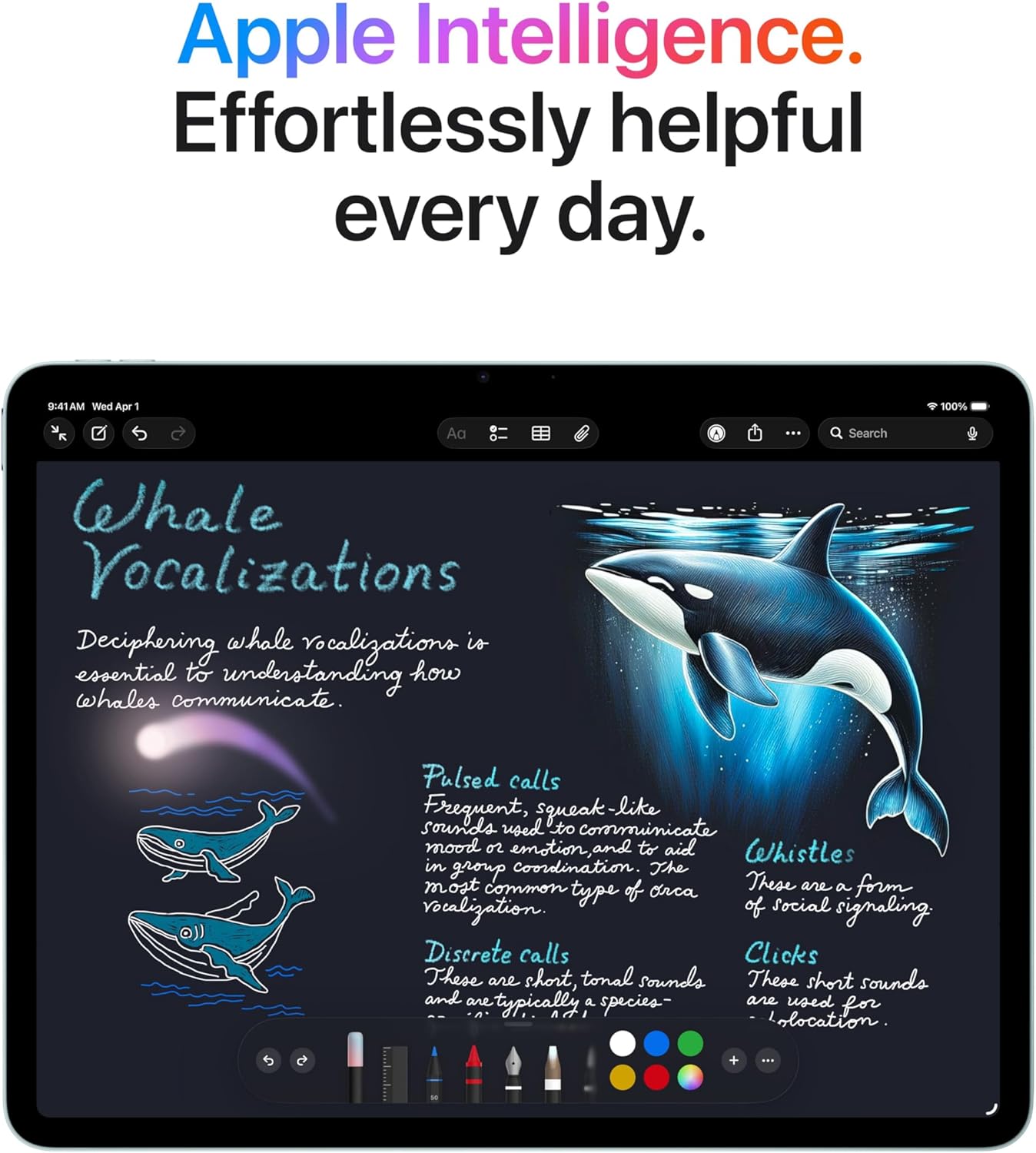
Image: The iPad Air screen showing a detailed note with drawings and text, illustrating how Apple Intelligence can assist with creative and organizational tasks.
3.5 ອຸປະກອນເສີມ
The iPad Air supports Apple Pencil Pro and Apple Pencil (USB-C) for precise input, and the Magic Keyboard for an enhanced typing and trackpad experience.

Image: The iPad Air connected to a Magic Keyboard, showcasing its use as a productivity tool with a full keyboard and trackpad.
3.6 ວິດີໂອຜະລິດຕະພັນຢ່າງເປັນທາງການ
ວິດີໂອ: ຫຼາຍກວ່າview of the Apple iPad Air, highlighting its design, M4 chip, display, and compatibility with accessories like Apple Pencil Pro and Magic Keyboard. It also showcases its use for work, learning, and entertainment.
4. ຕັ້ງຄ່າ
4.1 ການເປີດເຄື່ອງເບື້ອງຕົ້ນ
- ກົດປຸ່ມດ້ານເທິງຄ້າງໄວ້ຈົນກວ່າສັນຍາລັກຂອງ Apple ຈະປາກົດຂຶ້ນ.
- ປະຕິບັດຕາມຄໍາແນະນໍາໃນຫນ້າຈໍເພື່ອເລືອກພາສາແລະພາກພື້ນຂອງທ່ານ.
4.2 ການເຊື່ອມຕໍ່ Wi-Fi
- ເລືອກເຄືອຂ່າຍ Wi-Fi ຂອງທ່ານຈາກລາຍຊື່.
- ໃສ່ລະຫັດຜ່ານຖ້າຖືກຖາມ.
4.3 ການໂອນຂໍ້ມູນ ແລະ Apple ID
- Choose to restore from a backup (iCloud or computer) or set up as a new iPad.
- ເຂົ້າສູ່ລະບົບດ້ວຍ Apple ID ຂອງທ່ານ ຫຼືສ້າງອັນໃໝ່.
4.4 ຕັ້ງຄ່າ Touch ID
- Follow the on-screen prompts to register your fingerprint for Touch ID.
- This allows for secure unlocking and purchases.
5. ຄໍາແນະນໍາການດໍາເນີນງານ
5.1 ທ່າທາງພື້ນຖານ
- ແຕະ: ເລືອກລາຍການ ຫຼື ເປີດໃຊ້ປຸ່ມ.
- ປັດ: ນຳທາງຜ່ານໜ້າຈໍ ຫຼືເລື່ອນເນື້ອຫາ.
- ເມື່ອເຂົ້າຕາຈົນ: ຊູມເຂົ້າ ຫຼືອອກໃນຮູບ ແລະ web ໜ້າ.
- Multi-finger gestures: Use for multitasking, such as switching between apps or returning to the Home screen.
5.2 ສູນຄວບຄຸມ
Swipe down from the top-right corner of the screen to access Control Center for quick access to settings like Wi-Fi, Bluetooth, brightness, and volume.
5.3 Multitasking
- ແຍກ View: Drag an app from the Dock to the side of an open app to use two apps simultaneously.
- ເລື່ອນຜ່ານ: Drag an app from the Dock over an open app to use it in a floating window.
5.4 ການຈັດການແອັບ
- ດາວໂຫຼດແອັບ: Use the App Store to find and download applications.
- ຈັດຕັ້ງກິດ: Tap and hold an app icon to rearrange or delete apps.
6. ບໍາລຸງຮັກສາ
6.1 Cleaning Your iPad Air
- ໃຊ້ຜ້າແພທີ່ອ່ອນນຸ່ມ, ບໍ່ມີສານດ່າງເພື່ອເຮັດຄວາມສະອາດໜ້າຈໍ ແລະ ພາຍນອກ.
- ຫຼີກລ່ຽງວັດສະດຸທີ່ມີສີຂັດ, ນ້ຳຢາສີດ, ຕົວລະລາຍ ຫຼື ນ້ຳຢາທຳຄວາມສະອາດທີ່ມີສ່ວນປະກອບຂອງແອມໂມເນຍ.
- Do not spray cleaners directly onto the iPad.
6.2 ການດູແລຫມໍ້ໄຟ
- Charge your iPad Air using the provided USB-C cable and 20W USB-C power adapter.
- ຫຼີກເວັ້ນອຸນຫະພູມທີ່ຮຸນແຮງ, ຍ້ອນວ່າມັນສາມາດສົ່ງຜົນກະທົບຕໍ່ປະສິດທິພາບຂອງຫມໍ້ໄຟ.
- ເພື່ອສຸຂະພາບແບັດເຕີຣີທີ່ດີທີ່ສຸດ, ໃຫ້ເກັບຮັກສາແບັດເຕີຣີລະຫວ່າງ 20% ຫາ 80% ເມື່ອເປັນໄປໄດ້.
6.3 ການປັບປຸງຊອບແວ
Regularly update your iPadOS to ensure you have the latest features, security enhancements, and bug fixes. Go to ການຕັ້ງຄ່າ > ທົ່ວໄປ > ອັບເດດຊອບແວ.
7. ການແກ້ໄຂບັນຫາ
7.1 ອຸປະກອນບໍ່ຕອບສະໜອງ
If your iPad Air is unresponsive, try a force restart:
- ກົດ ແລະ ປ່ອຍປຸ່ມເພີ່ມສຽງຂຶ້ນຢ່າງໄວວາ.
- ກົດແລະໄວປ່ອຍປຸ່ມປະລິມານລົງ.
- ກົດປຸ່ມດ້ານເທິງຄ້າງໄວ້ຈົນກວ່າໂລໂກ້ Apple ຈະປາກົດ.
7.2 ບັນຫາການເຊື່ອມຕໍ່ Wi-Fi
- Ensure Wi-Fi is enabled in Control Center or Settings.
- ຣີສະຕາດເຣົາເຕີ Wi-Fi ຂອງທ່ານ.
- ໄປທີ່ ການຕັ້ງຄ່າ > Wi-Fi, tap the information icon (i) next to your network, and select "Forget This Network," then reconnect.
7.3 ແບັດເຕີຣີໝົດໄວ
- ກວດສອບ ການຕັ້ງຄ່າ > ແບັດເຕີຣີ ເພື່ອກໍານົດແອັບຯທີ່ບໍລິໂພກພະລັງງານຫຼາຍທີ່ສຸດ.
- ຫຼຸດຄວາມສະຫວ່າງໜ້າຈໍ.
- Disable background app refresh for non-essential apps (ການຕັ້ງຄ່າ > ທົ່ວໄປ > ການໂຫຼດແອັບຄືນໃໝ່ໃນພື້ນຫຼັງ).
8. ຂໍ້ມູນຈໍາເພາະ
| ຄຸນສົມບັດ | ລາຍລະອຽດ |
|---|---|
| ຂະໜາດສິນຄ້າ | 11.05 x 8.46 x 0.24 ນິ້ວ |
| ນ້ໍາຫນັກລາຍການ | 1.36 ປອນ |
| ໝາຍເລກຕົວແບບ | MH5T4LL/A |
| ຄວາມອາດສາມາດເກັບຮັກສາຫນ່ວຍຄວາມຈໍາ | 128 GB |
| ຂະໜາດໜ້າຈໍ | 13 ນິ້ວ |
| ການສະແດງຄວາມລະອຽດສູງສຸດ | ຄວາມລະອຽດ 2732-2048 ພິກເຊວທີ່ 264 ppi |
| ຊິບ | Apple M4 chip (8-core CPU, 9-core GPU, 16-core Neural Engine) |
| ກ້ອງຖ່າຍຮູບ | 12MP Wide camera (back), Landscape 12MP Center Stage camera (front) |
| ການບັນທຶກວິດີໂອ | Up to 4K at 60 fps (back), 1080p HD at 60 fps (front) |
| ມືຖື ແລະໄຮ້ສາຍ | Wi-Fi 7 (802.11be), Bluetooth 6, Thread networking technology |
| ເຊັນເຊີ | ໜ້າຈໍສຳຜັດ, ໄຈໂຣສາມແກນ, ມາຕຣິໂອເມເຕີເລັ່ງ, ມາຕຣິໂອເມເຕີ, ເຊັນເຊີແສງອ້ອມຂ້າງ |
| ການສາກໄຟແລະການຂະຫຍາຍ | USB-C port (supports Charging, DisplayPort, USB 3 up to 10Gb/s) |
9. ການຮັບປະກັນແລະການສະຫນັບສະຫນູນ
9.1 ການຮັບປະກັນຜະລິດຕະພັນ
Your Apple iPad Air is covered by a limited warranty. For details on warranty coverage, including terms and conditions, please refer to the warranty information provided with your purchase or visit the official Apple webເວັບໄຊ.
9.2 ສະຫນັບສະຫນູນດ້ານວິຊາການ
For technical assistance, troubleshooting, or service inquiries, please contact Apple Support:
- ສະຫນັບສະຫນູນອອນໄລນ໌: ຢ້ຽມຢາມ support.apple.com/ipad
- ສະຫນັບສະຫນູນໂທລະສັບ: Refer to Apple's regional support numbers available on their webເວັບໄຊ.
- Apple Store: Visit an authorized Apple Store or service provider for in-person assistance.
Before contacting support, please have your iPad Air's serial number ready. This can be found in ການຕັ້ງຄ່າ > ທົ່ວໄປ > ກ່ຽວກັບ.