
1. ບົດແນະນຳ
The GameSir Pocket Taco is a vertical mobile gaming controller designed to transform your Android smartphone into a retro handheld gaming device. It offers a compact, lightweight design with Bluetooth connectivity and a built-in rechargeable battery, providing an authentic arcade experience for mobile gaming.
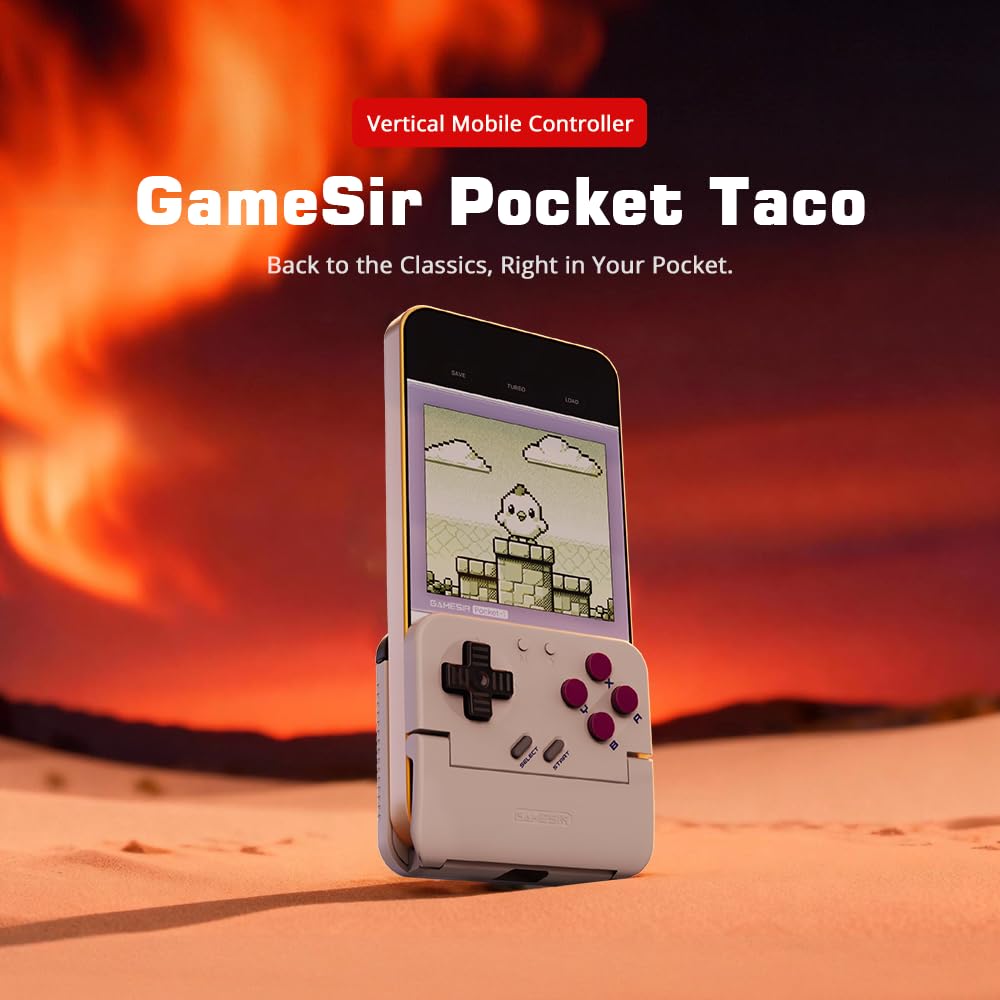
Figure 1: GameSir Pocket Taco attached to a smartphone, ready for vertical gaming.
ວິດີໂອ 1: ຫຼາຍກວ່າview of the GameSir Pocket Taco Vertical Mobile Gaming Controller, showcasing ການອອກແບບແລະຄຸນສົມບັດຂອງມັນ.
2. ຄຸນນະສົມບັດທີ່ສໍາຄັນ
- Vertical Retro Arcade Design: Transforms your phone into a classic vertical handheld gaming device, ideal for retro titles and vertical shoot 'em ups.
- Ultra-Portable & ນ້ໍາຫນັກເບົາ: Weighing only 62.2g, this compact Bluetooth controller is easy to carry and includes a durable PP storage box for protection.
- Smart Power & Seamless Bluetooth Connectivity: Automatically powers on when unfolded and off when closed. Offers low-latency wireless gaming on Android and other compatible devices.
- Long-Lasting 600 mAh Battery & Pass-Through Charging: Provides hours of gameplay on a single charge. The hollow-bottom design allows simultaneous phone charging while gaming.
- Customizable Controls via GameSir App: Remap buttons, enable D-pad diagonal lock, switch to keyboard mode, and access G-Touch/V-Touch support for precise inputs.
- Phone-Friendly Silicone Protection: Soft silicone pads in the clamp area protect your phone from scratches and ensure a secure fit during intense gaming sessions.

Figure 2: Experience vertical handheld gaming by attaching your smartphone to the GameSir Pocket Taco.
3. ການຕິດຕັ້ງແລະການເຊື່ອມຕໍ່
3.1 ການຕິດຕັ້ງເບື້ອງຕົ້ນ
- ແກະກ່ອງ: Carefully remove the GameSir Pocket Taco from its packaging.
- ກວດກາ: Check for any visible damage or missing components.
- ຄ່າບໍລິການ: Ensure the controller is sufficiently charged before first use. Connect the USB-C cable to the charging port on the controller.
- ໃສ່ໂທລະສັບ: Gently open the controller's clamp and insert your smartphone. The silicone pads will secure your device and prevent scratches.
3.2 ການເຊື່ອມຕໍ່ Bluetooth
The GameSir Pocket Taco supports multiple connection modes for various platforms. Follow the steps below for your specific device:

Figure 3: The GameSir Pocket Taco offers seamless Bluetooth connectivity across various compatible devices.
3.2.1 iOS Connection (DS4 Mode)
- ກົດຄ້າງໄວ້ ປຸ່ມຫນ້າທໍາອິດ ແລະຄ່າເລີ່ມຕົ້ນ ປຸ່ມ simultaneously for 2 seconds until the indicator light turns solid and flashes rapidly.
- On your iOS device, open ການຕັ້ງຄ່າ Bluetooth.
- Select "DUALSHOCK 4 Wireless Controller" from the available devices to connect.
- A solid indicator light on the controller confirms a successful connection.
3.2.2 Android Connection (Android Mode)
- ກົດຄ້າງໄວ້ ປຸ່ມຫນ້າທໍາອິດ ແລະຄ່າເລີ່ມຕົ້ນ ປຸ່ມ B simultaneously for 2 seconds until the indicator light turns solid and flashes rapidly.
- On your Android device, open ການຕັ້ງຄ່າ Bluetooth.
- Select "GameSir-Pocket 1" or "GameSir-Pocket 1_G" from the available devices to connect.
- A solid indicator light on the controller confirms a successful connection.
3.2.3 Switch Connection (Switch Mode)
- ກົດຄ້າງໄວ້ ປຸ່ມຫນ້າທໍາອິດ ແລະຄ່າເລີ່ມຕົ້ນ ປຸ່ມ X simultaneously for 2 seconds until the indicator light flashes up and down rapidly.
- On your Nintendo Switch, go to the ເມນູເຮືອນ, ຈາກນັ້ນເລືອກ "ຜູ້ຄວບຄຸມ", ແລະຫຼັງຈາກນັ້ນ "Change Grip/Order" ເພື່ອເຂົ້າຮູບແບບການຈັບຄູ່.
- Wait for the connection to be established. A solid indicator light on the controller confirms a successful connection.
3.2.4 G-Touch Mode Connection
- ກົດຄ້າງໄວ້ ປຸ່ມຫນ້າທໍາອິດ ແລະຄ່າເລີ່ມຕົ້ນ ປຸ່ມ Y simultaneously for 2 seconds until the indicator light turns solid and flashes rapidly.
- On your Android device, open ການຕັ້ງຄ່າ Bluetooth.
- Select "GameSir-Pocket 1_G" from the available devices to connect.
- A solid indicator light on the controller confirms a successful connection.
4. ຄໍາແນະນໍາການດໍາເນີນງານ
4.1 ເປີດ/ປິດ
- ເປີດ: Unfold the controller to automatically power it on.
- ປິດພະລັງງານ: Close the controller to automatically power it off.
4.2 ການສາກໄຟ
The GameSir Pocket Taco features a 600mAh battery. To charge, connect a USB-C cable to the charging port located on the top of the controller. The hollow-bottom design allows you to charge your phone simultaneously while playing.

Figure 4: Key features of the GameSir Pocket Taco, including pass-through charging and protective silicone pads.
4.3 Customizable Controls (GameSir App)
Download the official GameSir App to unlock advanced customization options:
- ປຸ່ມ Remapping: Assign functions to different buttons for personalized gameplay.
- D-pad Diagonal Lock: Enable or disable diagonal input for the D-pad.
- ໂໝດແປ້ນພິມ: Switch to keyboard mode for a more flexible control experience.
- G-Touch/V-Touch Support: Utilize advanced touch mapping features for specific games.
- ການອັບເດດເຟີມແວ: Keep your controller up-to-date with the latest software enhancements.

Figure 5: Customize your GameSir Pocket Taco settings and update firmware using the dedicated GameSir App.
5. ການດູແລແລະບໍາລຸງຮັກສາ
- ທໍາຄວາມສະອາດ: ໃຊ້ຜ້າອ່ອນໆແຫ້ງເພື່ອທຳຄວາມສະອາດຕົວຄວບຄຸມ. ຫຼີກລ່ຽງນ້ຳຢາທຳຄວາມສະອາດທີ່ມີສີຂັດ ຫຼື ຕົວລະລາຍ.
- ການເກັບຮັກສາ: When not in use, store the GameSir Pocket Taco in its durable PP storage box to protect it from dust, scratches, and impacts.
- ການຈັດການ: Do not apply excessive force when opening or closing the controller to prevent damage to the hinge mechanism.
- ອຸນຫະພູມ: ຫຼີກລ່ຽງການໃຫ້ຕົວຄວບຄຸມຖືກອຸນຫະພູມທີ່ຮຸນແຮງ ຫຼື ແສງແດດໂດຍກົງເປັນເວລາດົນ.
6. ການແກ້ໄຂບັນຫາ
6.1 ບັນຫາການເຊື່ອມຕໍ່
- ຕົວຄວບຄຸມບໍ່ໄດ້ເຊື່ອມຕໍ່: If the connection fails, press and hold the 'M' button and the 'Home' button on the controller for 2 seconds to re-enter pairing mode. Ensure Bluetooth is enabled on your device and the correct mode (iOS, Android, Switch, G-Touch) is selected.
- ການເຊື່ອມຕໍ່ແບບບໍ່ຢຸດຢັ້ງ: Ensure the controller is within range of your device and there are no significant obstructions. Fully charge the controller and your device.
6.2 Button Responsiveness
- ປຸ່ມບໍ່ຕອບສະໜອງ: Ensure the controller is properly connected. Check for firmware updates via the GameSir App.
- D-pad issues: Some users have reported issues with D-pad responsiveness. Ensure firmware is up-to-date. If issues persist, contact GameSir support.
6.3 ບັນຫາການສາກໄຟ
- ຄວບຄຸມບໍ່ໄດ້ສາກໄຟ: Use the provided USB-C cable or a compatible cable. Ensure the cable and power adapter are functioning correctly.
7. ຂໍ້ມູນຈໍາເພາະ
| ຄຸນສົມບັດ | ລາຍລະອຽດ |
|---|---|
| ຊື່ຕົວແບບ | GameSir Pocket Taco |
| ຍີ່ຫໍ້ | ເກມທ່ານ |
| ອຸປະກອນທີ່ເຂົ້າກັນໄດ້ | Android (also supports iOS, Switch, PC via specific modes) |
| ປະເພດການຄວບຄຸມ | ແຜ່ນເກມ |
| ການເຊື່ອມຕໍ່ | ໄຮ້ສາຍ (Bluetooth) |
| ຄວາມອາດສາມາດຫມໍ້ໄຟ | 600 mAh |
| ພອດສາກໄຟ | USB-C (Pass-Through Charging for phone) |
| ນ້ໍາຫນັກລາຍການ | 0.2 ກິໂລກຣາມ (ປະມານ 62.2 ກຣາມ) |
| ສີ | ສີຂາວ |
| ເວທີຮາດແວ | ໂທລະສັບສະຫຼາດ |
8. ການຮັບປະກັນແລະການສະຫນັບສະຫນູນ
For warranty information, technical support, or service inquiries, please refer to the documentation included with your product or visit the official GameSir webເວັບໄຊ. ຮັກສາໃບຮັບເງິນການຊື້ຂອງທ່ານໄວ້ເປັນຫຼັກຖານການຊື້ສໍາລັບການຮ້ອງຂໍການຮັບປະກັນ.