
1. ຕັ້ງຄ່າ
1.1 ເນື້ອໃນຊຸດ
Before assembly, please verify that all components are present in the package:
- KTC H24F7 24 Inch 240Hz Monitor
- ຖານຕິດຕາມກວດກາ
- ຕິດຕາມ Stand
- Power Adapter
- ສາຍ HDMI
- ຄູ່ມືເລີ່ມຕົ້ນດ່ວນ (QSG)
1.2 ຄຳ ແນະ ນຳ ໃນການປະຊຸມ
ປະຕິບັດຕາມຂັ້ນຕອນເຫຼົ່ານີ້ເພື່ອປະກອບຈໍພາບຂອງທ່ານ:
- ເອົາຈໍພາບແລະອົງປະກອບທັງຫມົດອອກຈາກການຫຸ້ມຫໍ່ຢ່າງລະມັດລະວັງ.
- Attach the monitor stand to the monitor base. Ensure it clicks securely into place.
- Connect the assembled stand and base to the back of the monitor. The stand is designed for easy snap-in installation.
- ວາງຈໍພາບຢູ່ເທິງພື້ນທີ່ຄົງທີ່, ຮາບພຽງ.

1.3 ການຕິດຕັ້ງ Mount VESA
The KTC H24F7 monitor supports VESA 100mm x 100mm mounting for alternative stand or wall mount solutions. Ensure you use M4-0.7 x 10mm screws (not included) for secure installation.

1.4 ການເຊື່ອມຕໍ່ກັບອຸປະກອນ
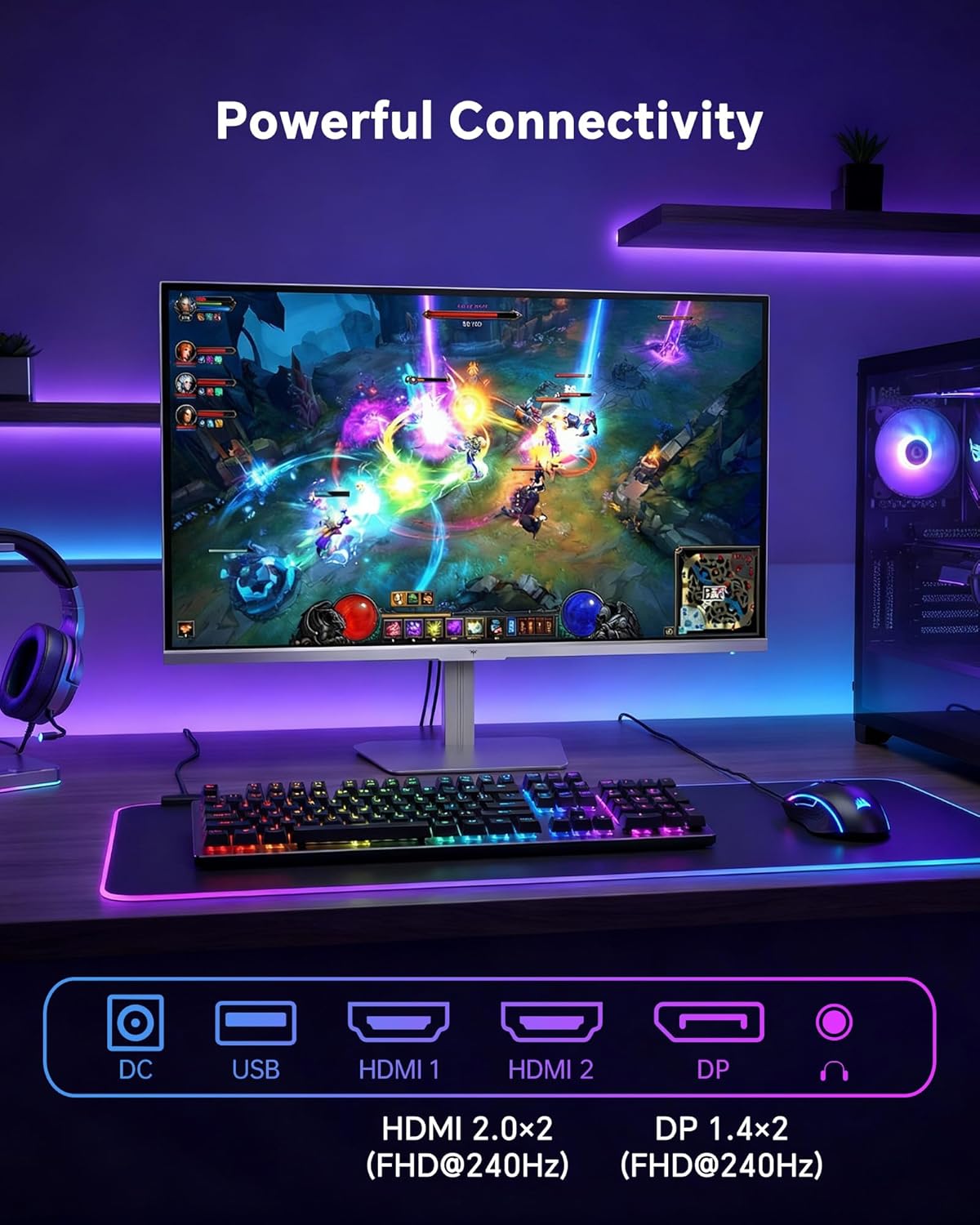
Connect your computer or other devices to the monitor using the appropriate cables.
- HDMI: Use an HDMI cable to connect to devices with HDMI output. The monitor has two HDMI 2.0 ports, supporting FHD at 240Hz.
- DisplayPort: Use a DisplayPort cable for devices with DisplayPort output. The monitor has one DisplayPort 1.4, supporting FHD at 240Hz.
- ພະລັງງານ: Connect the power adaptor to the DC input on the monitor and then to a power outlet.
- USB: A USB 2.0 port is available for connecting peripherals.
- ອອກສຽງ: A 3.5mm audio jack is available for connecting headphones or external speakers.
2. ຄໍາແນະນໍາການດໍາເນີນງານ
2.1 ເປີດ/ປິດ
ກົດປຸ່ມເປີດປິດຢູ່ໃນຈໍສະແດງຜົນເພື່ອເປີດຫຼືປິດມັນ. ໄຟຕົວຊີ້ວັດພະລັງງານຈະສະຫວ່າງເມື່ອຈໍສະແດງຜົນເຮັດວຽກ.
2.2 ເມນູການສະແດງເທິງໜ້າຈໍ (OSD).
The OSD menu allows you to adjust various monitor settings. Use the control buttons (typically located on the back or bottom of the monitor) to navigate the menu and select options. Refer to the Quick Start Guide for specific button functions.
2.3 ການຕັ້ງຄ່າການສະແດງ
ເພີ່ມປະສິດທິພາບຂອງທ່ານ viewປະສົບການໂດຍການປັບການຕັ້ງຄ່າຕໍ່ໄປນີ້:
- ອັດຕາການໂຫຼດຂໍ້ມູນຄືນໃໝ່: The monitor supports a 240Hz refresh rate for smooth motion. Ensure your graphics card settings are configured to utilize this rate.

- Adaptive Sync: This technology synchronizes the monitor's refresh rate with your graphics card's frame rate to eliminate screen tearing and stuttering. Enable Adaptive Sync in the OSD menu and ensure it is also enabled in your graphics card control panel (FreeSync/G-Sync compatible).

- HDR 400: High Dynamic Range 400 provides enhanced contrast and color accuracy, delivering brighter highlights and deeper shadows. Activate HDR in the OSD menu and your operating system display settings for compatible content.

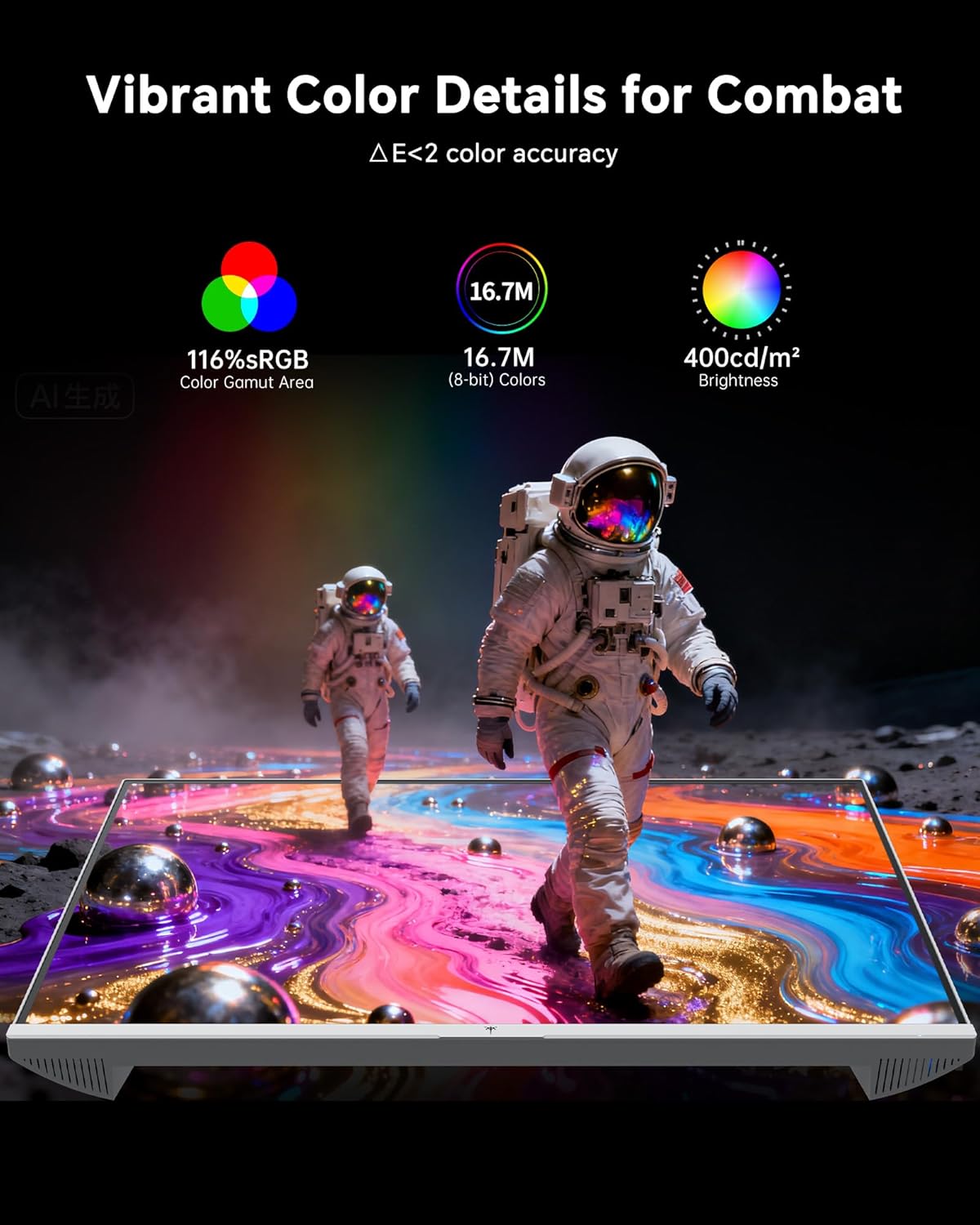
- ການຕັ້ງຄ່າສີ: The monitor offers 116% sRGB color gamut and 16.7 million colors. Adjust brightness (up to 400 cd/m²) and color temperature through the OSD menu to suit your preference.
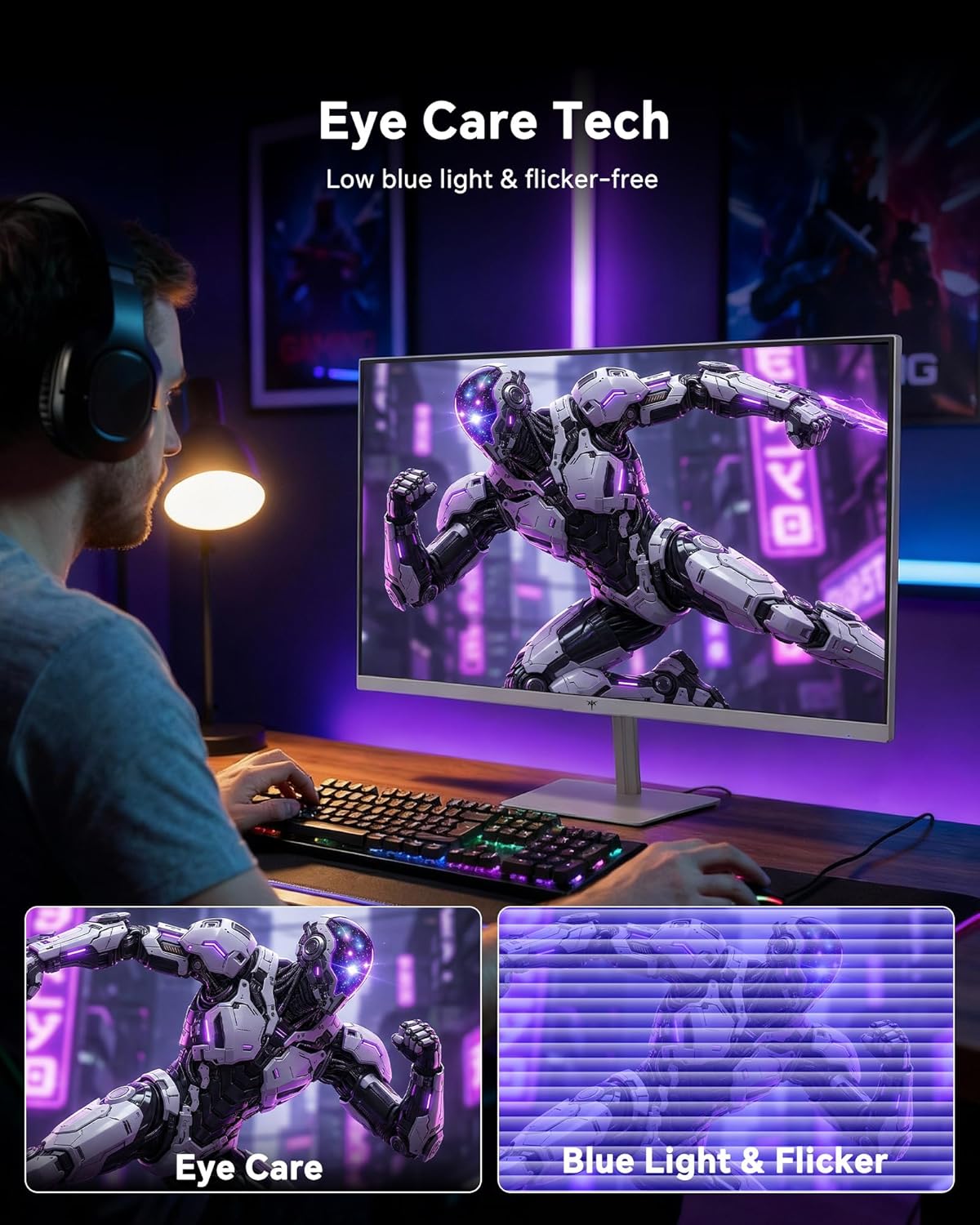
- ເຕັກໂນໂລຊີການດູແລຕາ: The monitor features low blue light and flicker-free technology to reduce eye strain during prolonged use. These settings can typically be adjusted or enabled within the OSD menu.
2.4 Monitor Tilt Adjustment
The monitor supports tilt adjustment from -5° to 15° (±3°). Gently adjust the monitor panel to your desired viewມຸມ ing.
3. ບໍາລຸງຮັກສາ
3.1 ການທໍາຄວາມສະອາດ Monitor
ເພື່ອອະນາໄມໜ້າຈໍຈໍສະແດງຜົນ ແລະ ຄasing:
- ປິດຈໍສະແດງຜົນສະເໝີ ແລະຖອດສາຍໄຟອອກກ່ອນທຳຄວາມສະອາດ.
- ໃຊ້ຜ້າແພທີ່ອ່ອນໆ ທີ່ບໍ່ມີເສັ້ນດ່າງ dampຜະສົມດ້ວຍນ້ໍາຫຼືເຄື່ອງເຮັດຄວາມສະອາດຫນ້າຈໍອ່ອນໆທີ່ບໍ່ມີການຂັດ.
- Wipe the screen gently to remove dust and smudges. Avoid applying excessive pressure.
- ສໍາລັບຄasing, use a dry, soft cloth. Do not use alcohol, ammonia, or abrasive cleaners, as these can damage the surface.
3.2 ການເບິ່ງແຍງທົ່ວໄປ
- ຫຼີກເວັ້ນການວາງວັດຖຸໜັກໃສ່ຈໍພາບ ຫຼືສາຍຂອງມັນ.
- ຫ້າມບໍ່ໃຫ້ຈໍສະແດງຜົນຖືກແສງແດດໂດຍກົງ, ຄວາມຮ້ອນເກີນໄປ, ຫຼືເຢັນທີ່ສຸດ.
- ຮັກສາຈໍພາບໃຫ້ຫ່າງຈາກຂອງແຫຼວ ແລະ ຄວາມຊຸ່ມຊື່ນສູງ.
- ຮັບປະກັນການລະບາຍອາກາດທີ່ເຫມາະສົມຮອບຈໍເພື່ອປ້ອງກັນຄວາມຮ້ອນເກີນ.
4. ການແກ້ໄຂບັນຫາ
If you encounter issues with your KTC H24F7 monitor, refer to the following common problems and solutions:
| ບັນຫາ | ສາເຫດທີ່ເປັນໄປໄດ້ | ການແກ້ໄຂ |
|---|---|---|
| ບໍ່ມີຮູບພາບໃນ ໜ້າ ຈໍ | ສາຍໄຟຖືກຕັດການເຊື່ອມຕໍ່; ສາຍວິດີໂອຖືກຕັດການເຊື່ອມຕໍ່ ຫຼື ວ່າງ; ເລືອກແຫຼ່ງປ້ອນຂໍ້ມູນບໍ່ຖືກຕ້ອງ; ຈໍພາບປິດຢູ່. | Ensure power cable is securely connected and monitor is on. Check video cable connections (HDMI/DisplayPort) at both the monitor and computer. Press the input source button on the monitor to cycle through inputs. |
| ຮູບພາບກະພິບ ຫຼື ຂາດ | Adaptive Sync not enabled; Graphics card driver issues; Faulty video cable. | Enable Adaptive Sync in the OSD menu and your graphics card control panel. Update graphics card drivers. Try a different video cable. If using DisplayPort 1, try DisplayPort 2 or HDMI if available, as some units may experience issues with specific ports. |
| ສີເບິ່ງຄືວ່າບໍ່ຖືກຕ້ອງຫຼືຖືກລ້າງອອກ | Color settings incorrect; HDR not properly configured; Faulty video cable. | Adjust color settings (brightness, contrast, color temperature) in the OSD menu. Ensure HDR is enabled in both the OSD and your operating system for HDR content. Try a different video cable. |
| Monitor not reaching 240Hz | Graphics card limitations; Incorrect display settings in OS; Cable bandwidth limitations. | Ensure your graphics card supports 240Hz at 1080p. Verify display settings in your operating system (e.g., Windows Display Settings or NVIDIA/AMD control panel) are set to 240Hz. Use the provided HDMI cable or a certified DisplayPort 1.4 cable. |
| Stuck or dead pixels | ຄວາມບົກຜ່ອງດ້ານການຜະລິດ. | A small number of stuck or dead pixels (typically 1-3) may be considered normal for LCD panels. If the issue is severe or persistent, contact customer support. |
5. ຂໍ້ມູນຈໍາເພາະ
| ຄຸນສົມບັດ | ລາຍລະອຽດ |
|---|---|
| ຍີ່ຫໍ້ | KTC |
| ໝາຍເລກຕົວແບບ | H24F7 |
| ຂະໜາດໜ້າຈໍ | 24 ນິ້ວ |
| ຄວາມລະອຽດ | FHD 1080p (1920 x 1080 ພິກເຊວ) |
| ປະເພດແຜງ | IPS ໄວ |
| ອັດຕາການໂຫຼດຂໍ້ມູນຄືນໃໝ່ | 240 Hz |
| ເວລາຕອບສະຫນອງ | 1 ມິນລິວິນາທີ (MPRT) |
| ອັດຕາສ່ວນ | 16:9 |
| ຄວາມສະຫວ່າງ | 400 Candela ຕໍ່ຕາແມັດ |
| ອັດຕາສ່ວນກົງກັນຂ້າມ | 1000:1 |
| ສີ Gamut | 116% sRGB |
| ຮອງຮັບ HDR | HDR 400 |
| Adaptive Sync | FreeSync, G-Sync Compatible |
| ການເຊື່ອມຕໍ່ | 2x HDMI 2.0, 1x DisplayPort 1.4, 1x USB 2.0, 1x Audio Out (3.5mm) |
| ຄຸນນະສົມບັດການດູແລຕາ | Low Blue Light, Flicker-Free, Anti-Glare Screen |
| ການປັບຕົວ | ອຽງ (-5° ຫາ 15°) |
| VESA ພູເຂົາ | 100mm x 100mm |
| ຂະ ໜາດ (D x W x H) | 5.39"D x 21.25"W x 15.74"H |
| ນ້ໍາຫນັກລາຍການ | 3.2 ກິໂລກຣາມ |
| ສີ | ສີຂາວ |
6. ການຮັບປະກັນແລະການສະ ໜັບ ສະ ໜູນ
6.1 ຂໍ້ມູນການຮັບປະກັນ
The KTC H24F7 monitor comes with a three-year manufacturer warranty. ການຮັບປະກັນນີ້ກວມເອົາຂໍ້ບົກພ່ອງຂອງວັດສະດຸແລະການເຮັດວຽກພາຍໃຕ້ການນໍາໃຊ້ປົກກະຕິ.
ກະລຸນາຮັກສາຫຼັກຖານການຊື້ຂອງທ່ານສໍາລັບການຮຽກຮ້ອງການຮັບປະກັນ.
6.2 ສະຫນັບສະຫນູນລູກຄ້າ
For technical assistance, warranty claims, or any questions regarding your KTC H24F7 monitor, please contact KTC customer support. KTC aims to provide responsive customer support and typically responds within 12 hours.
You can usually find contact information on the official KTC website or through the retailer where you purchased the product. When contacting support, please have your monitor model number (H24F7) and purchase details ready.