
1. ບົດແນະນຳ
Thank you for choosing the TOPTRO TP3 4K Google TV Portable Projector. This manual provides essential information for setting up, operating, and maintaining your projector. Please read it thoroughly before use to ensure optimal performance and safety.
The TOPTRO TP3 is designed to deliver a versatile and immersive viewing experience, featuring integrated Google TV, AI-powered image adjustments, and comprehensive connectivity options. Enjoy your content at home, outdoors, or on the go.
2. ຜະລິດຕະພັນເກີນview
2.1 ລັກສະນະທີ່ສໍາຄັນ
- Google TV ປະສົມປະສານ: Access over 10,000 official streaming applications, including Netflix, Prime Video, and YouTube, without additional devices.
- Google Voice Control: Use the remote control's voice assistant button to search for content, adjust settings, and control playback hands-free.
- AI-Powered Image Adjustment: Features automatic focus, automatic keystone correction, obstacle avoidance, and automatic screen adjustment for a perfectly aligned and clear image within seconds.
- Native 1080P Resolution with 4K Decoding: Delivers sharp, detailed images and natural colors, supporting 4K video decoding.
- Short Throw Ratio (0.8:1): Projects a 60-inch image from just one meter distance, ideal for small spaces.
- ຂາຕັ້ງໝຸນໄດ້ 90 ອົງສາ: Allows for flexible projection angles, including ceiling projection.
- ການເຊື່ອມຕໍ່ຂັ້ນສູງ: Equipped with dual-band WiFi 6, Bluetooth 5.3, HDMI ARC, USB, and a 3.5mm audio jack for wide device compatibility.
- ການອອກແບບແບບພົກພາ: Weighing only 1.2 kg (2.6 lbs) with a hidden carry handle, making it easy to transport.
2.2 ເນື້ອໃນຊຸດ
ໃຫ້ແນ່ໃຈວ່າທຸກລາຍການຢູ່ໃນຊຸດ:
- ໂປເຈັກເຕີ TOPTRO TP3
- ການຄວບຄຸມໄລຍະໄກ
- ສາຍ HDMI
- Power Adapter
- ຄູ່ມືຜູ້ໃຊ້
3. ຕັ້ງຄ່າ
3.1 ການຈັດວາງເບື້ອງຕົ້ນ
Place the projector on a stable, flat surface. The 90-degree rotating stand allows for various projection angles, including wall, ceiling, or tabletop. For optimal image quality, ensure the projection surface is smooth and light-colored.

Image: The TOPTRO TP3 projector can be used in diverse environments, from living rooms to outdoor camping, showcasing its adaptability.
3.2 ການເຊື່ອມຕໍ່ພະລັງງານ
- ເຊື່ອມຕໍ່ອະແດບເຕີໄຟຟ້າເຂົ້າກັບຊ່ອງສຽບພະລັງງານຂອງໂປເຈັກເຕີ.
- Plug the power adapter into a suitable electrical outlet (220V).
- ກົດປຸ່ມເປີດປິດຢູ່ໂປເຈັກເຕີ ຫຼືຣີໂໝດຄວບຄຸມເພື່ອເປີດມັນ.
3.3 ການເຊື່ອມຕໍ່ເຄືອຂ່າຍ
Upon first startup, follow the on-screen prompts to connect to your Wi-Fi network. The projector supports dual-band WiFi 6 for a fast and stable connection.
3.4 ການຕິດຕັ້ງ Google TV
After connecting to Wi-Fi, sign in with your Google account to access Google TV and download applications from the Google Play Store. This step is crucial for utilizing the integrated streaming services.

Image: The projector's interface showing integrated Google TV with direct access to popular streaming applications.
4. ຄໍາແນະນໍາການດໍາເນີນງານ
4.1 ການດໍາເນີນງານພື້ນຖານ
- ເປີດ/ປິດ: Press the power button on the remote or projector.
- ການນໍາທາງ: Use the directional buttons on the remote to navigate menus.
- ການຄັດເລືອກ: Press the 'OK' button to confirm selections.
- ການຄວບຄຸມລະດັບສຽງ: ໃຊ້ປຸ່ມລະດັບສຽງຢູ່ຣີໂໝດ.
4.2 ການປັບຮູບ
The TOPTRO TP3 features AI-powered automatic image adjustments:
- ຈຸດສຸມອັດຕະໂນມັດ: ໂປເຈັກເຕີຈະປັບຄວາມຊັດເຈນຂອງຮູບພາບໂດຍອັດຕະໂນມັດ.
- ການແກ້ໄຂ Keystone ອັດຕະໂນມັດ: Automatically corrects distorted images to a rectangular shape.
- ການຫຼີກລ້ຽງອຸປະສັກ: Detects and adjusts the image to avoid objects on the projection surface.
- Auto Screen Adjustment: Optimizes the image to fit the screen area.
These adjustments occur automatically within seconds of powering on or repositioning the projector. Manual digital zoom (80-100%) is also available for fine-tuning image size.

Image: Visual representation of the projector's AI-powered automatic image adjustment features, ensuring a clear and aligned picture.
4.3 Google Voice Control
Press the dedicated voice assistant button on your remote control and speak your command. For example, say "Open YouTube" or "Play music." The projector will respond to your voice commands for quick access to functions and content.
4.4 Screen Mirroring (Google Cast)
Utilize Google Cast technology to wirelessly mirror content from your smartphone or tablet to the projector. For iPhone users, download the "AirScreen" application from the Google Play Store on the projector for wireless screen mirroring.
4.5 Rotating Stand Usage
The integrated 90-degree rotating stand allows you to easily adjust the projection angle. Simply pivot the projector to direct the image onto a wall, screen, or ceiling. This feature is particularly useful for bedroom viewing or creative setups.
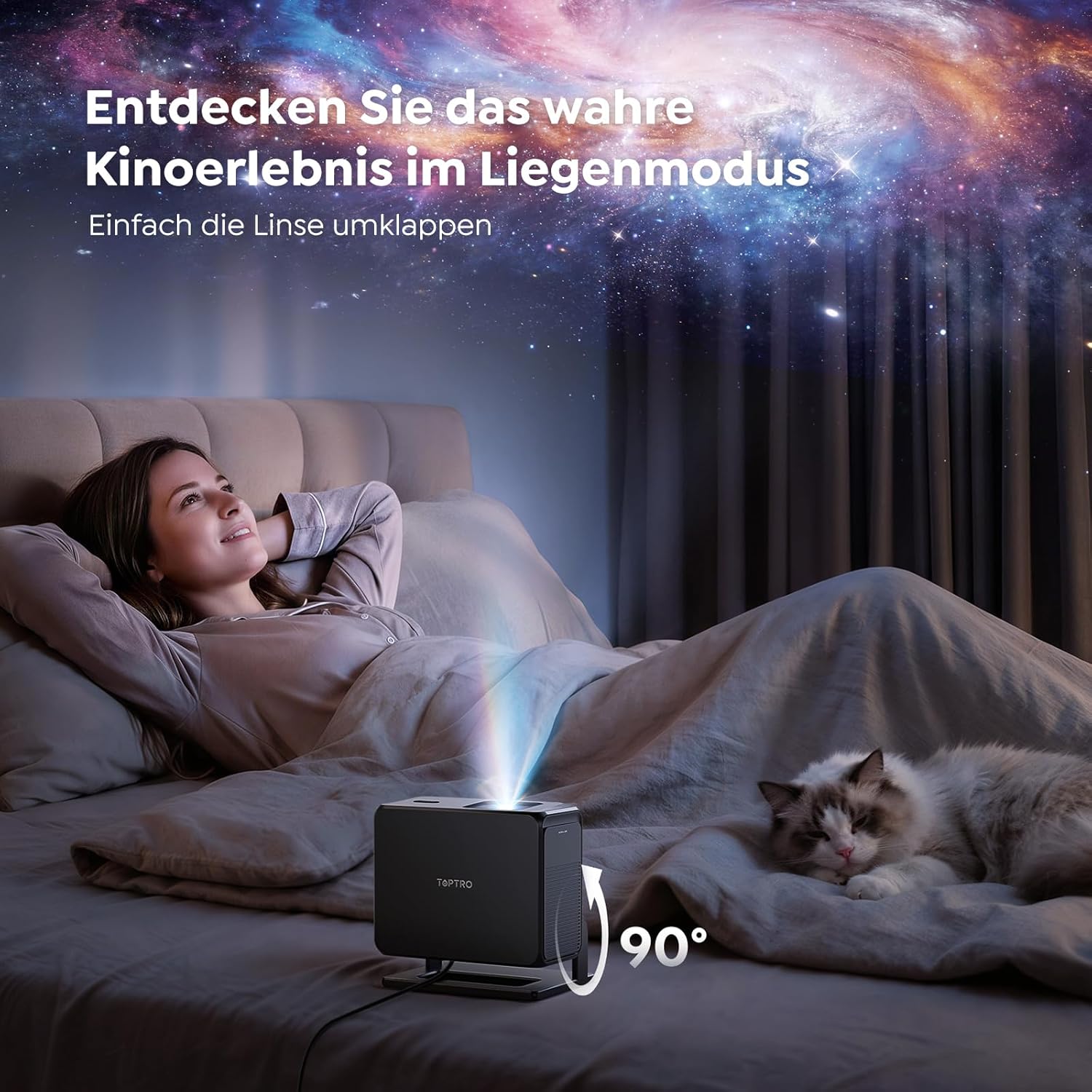
Image: The TOPTRO TP3 projector rotated 90 degrees to project content onto a bedroom ceiling, offering a unique viewປະສົບການ.
5. ການເຊື່ອມຕໍ່
5.1 ການເຊື່ອມຕໍ່ແບບມີສາຍ
- HDMI ARC/CEC: Connect external devices like laptops, gaming consoles (Xbox/PlayStation 5), or Blu-ray players. The ARC feature allows audio to be sent back to a compatible sound system.
- USB: ເຊື່ອມຕໍ່ USB drives ສໍາລັບການຫຼິ້ນມີເດຍ.
- Jack ສຽງ 3.5mm: ເຊື່ອມຕໍ່ລຳໂພງ ຫຼື ຫູຟັງແບບມີສາຍຈາກພາຍນອກ.
5.2 ການເຊື່ອມຕໍ່ໄຮ້ສາຍ
- Wi-Fi 6: Provides faster and more stable wireless connectivity for streaming and online content.
- Bluetooth 5.3: ເຊື່ອມຕໍ່ຫູຟັງ ຫຼື ລຳໂພງ Bluetooth ເພື່ອປະສົບການສຽງທີ່ດີຂຶ້ນ.
6. ບໍາລຸງຮັກສາ
6.1 ການເຮັດຄວາມສະອາດເລນ
Gently clean the projector lens with a soft, lint-free cloth designed for optical surfaces. Avoid using abrasive cleaners or excessive force, as this can scratch the lens.
6.2 ການທໍາຄວາມສະອາດທົ່ວໄປ
Wipe the exterior of the projector with a soft, dry cloth. Do not use liquid cleaners directly on the device.
6.3 ການເກັບຮັກສາ
ເມື່ອບໍ່ໄດ້ໃຊ້ງານ, ໃຫ້ເກັບຮັກສາໂປເຈັກເຕີໄວ້ໃນບ່ອນທີ່ເຢັນ, ແຫ້ງ, ຫ່າງຈາກແສງແດດໂດຍກົງ ແລະ ອຸນຫະພູມສູງເກີນໄປ. ໃຊ້ການຫຸ້ມຫໍ່ຕົ້ນສະບັບ ຫຼື ກ່ອງປ້ອງກັນເພື່ອປ້ອງກັນການສະສົມຂອງຝຸ່ນ ແລະ ຄວາມເສຍຫາຍ.
7. ການແກ້ໄຂບັນຫາ
7.1 ບໍ່ສະແດງຮູບພາບ
- ໃຫ້ແນ່ໃຈວ່າໂປເຈັກເຕີເປີດຢູ່ ແລະເຊື່ອມຕໍ່ກັບແຫຼ່ງພະລັງງານ.
- Check all cable connections (HDMI, USB) to external devices.
- Verify the input source selected on the projector matches the connected device.
- Confirm the lens cap is removed.
7.2 ຮູບມົວ
- Allow the auto-focus function to complete its adjustment.
- ໃຫ້ແນ່ໃຈວ່າພື້ນຜິວຂອງການຄາດຄະເນແມ່ນຮາບພຽງຢູ່ແລະໂປເຈັກເຕີມີຄວາມຫມັ້ນຄົງ.
- ເຮັດຄວາມສະອາດເລນໂປເຈັກເຕີຖ້າມີຮອຍເປື້ອນຫຼືຝຸ່ນ.
7.3 ບໍ່ມີສຽງ
- ກວດເບິ່ງລະດັບສຽງໃນທັງໂປເຈັກເຕີ ແລະອຸປະກອນແຫຼ່ງທີ່ເຊື່ອມຕໍ່.
- Ensure external speakers or headphones are properly connected (wired or Bluetooth).
- If using HDMI ARC, verify your sound system is compatible and correctly configured.
7.4 ການຄວບຄຸມໄລຍະໄກບໍ່ເຮັດວຽກ
- ປ່ຽນແບັດໃນຣີໂມດຄວບຄຸມ.
- ໃຫ້ແນ່ໃຈວ່າບໍ່ມີສິ່ງກີດຂວາງລະຫວ່າງທາງໄກ ແລະເຄື່ອງຮັບ IR ຂອງໂປເຈັກເຕີ.
For further assistance, refer to the detailed troubleshooting section in the full user manual or contact customer support.
8. ຂໍ້ມູນຈໍາເພາະ
| ຄຸນສົມບັດ | ຂໍ້ມູນຈໍາເພາະ |
|---|---|
| ຍີ່ຫໍ້ | TOPTRO |
| ຊື່ຕົວແບບ | TP3 |
| ຄວາມລະອຽດເດີມ | ຂະ ໜາດ 1920 x 1080 (1080P) |
| Video Decoding Support | 4K |
| ປະເພດການສະແດງ | LED |
| ຄຸນນະສົມບັດພິເສດ | Auto Focus, Auto Keystone Correction, Obstacle Avoidance, Auto Screen Adjustment, Google TV, Google Voice Control |
| ເຕັກໂນໂລຊີການເຊື່ອມຕໍ່ | HDMI, USB, Bluetooth 5.3, Wi-Fi 6 |
| ການໂຕ້ຕອບຮາດແວ | HDMI ARC/CEC, USB, 3.5mm Audio |
| ຂະໜາດສິນຄ້າ (LxWxH) | 19.4 x 15.8 x 14.1 cm |
| ນ້ໍາຫນັກລາຍການ | 1.2 ກິໂລ |
| ປັດໄຈແບບຟອມ | ແບບພົກພາ |
| ປະເພດການຕິດຕັ້ງ | Ceiling Mount, Tabletop, Wall |
| ຂະຫນາດຮູບພາບຕໍາ່ສຸດທີ່ | 40 ນິ້ວ |
| ຂະໜາດຮູບພາບສູງສຸດ | 120 ນິ້ວ |
| ໄລຍະການຖິ້ມສູງສຸດ | 2.13 ແມັດ |
| ສະບັບtage | 220 ໂວນ |
| ອົງປະກອບລວມ | ສາຍ HDMI |
| ສີ | ດຳ |
| ປະເພດການຄວບຄຸມ | ການຄວບຄຸມໄລຍະໄກ |
| ອຸປະກອນທີ່ເຂົ້າກັນໄດ້ | Xbox/PlayStation 5, Smartphone, Tablet, Laptop, Speaker, Notebook |
| ການນໍາໃຊ້ທີ່ແນະນໍາ | Gaming, Business, Home Cinema, Education |
9. ການຮັບປະກັນແລະການສະຫນັບສະຫນູນ
9.1 ຂໍ້ມູນການຮັບປະກັນ
Please refer to the warranty card included with your product for specific warranty terms and conditions. Keep your proof of purchase for warranty claims.
9.2 ສະຫນັບສະຫນູນລູກຄ້າ
If you encounter any issues or have questions regarding your TOPTRO TP3 projector, please contact our customer service team. We provide prompt, professional, and effective support to ensure a smooth user experience.
Contact details can typically be found on our official webສະຖານທີ່ຫຼືຢູ່ໃນບັດຮັບປະກັນ.