
1. ບົດແນະນຳ
Welcome to the user manual for your new ASUS TUF A18 Gaming Laptop. This document provides essential information to help you set up, operate, and maintain your device. Please read this manual thoroughly to ensure optimal performance and longevity of your laptop.
2. ເນື້ອໃນຊຸດ
Carefully unpack your ASUS TUF A18 Gaming Laptop and verify that all items listed below are present and in good condition. If any item is missing or damaged, please contact your retailer.
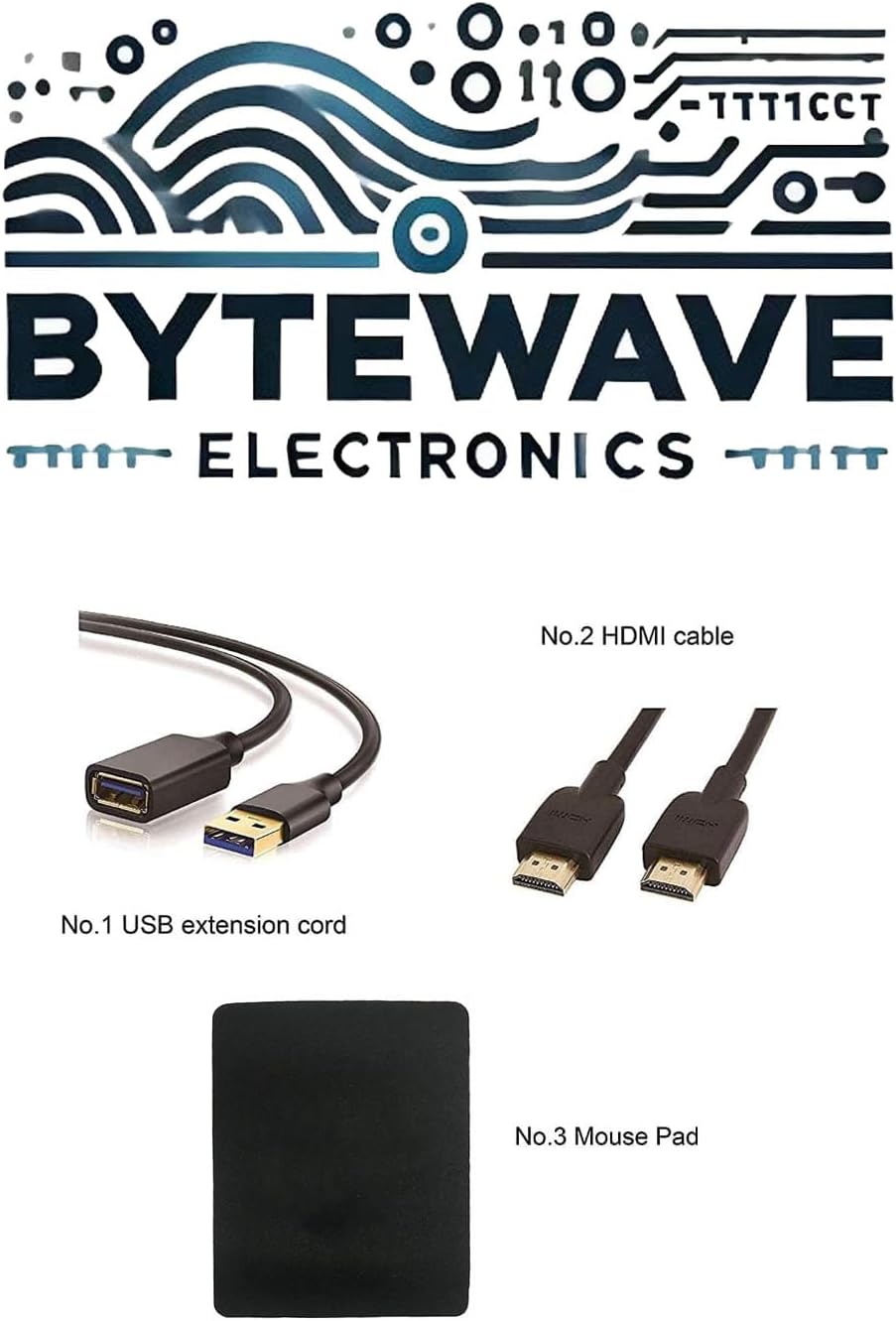
- ແລັບທັອບເກມ ASUS TUF A18
- ອະແດບເຕີສາຍໄຟ ແລະສາຍ
- USB Extension Cord
- ສາຍ HDMI
- ແຜ່ນຫນູ
3. ຜະລິດຕະພັນເກີນview
Familiarize yourself with the physical features and components of your ASUS TUF A18 Gaming Laptop.
3.1. Front and Keyboard View
3.2. ຂ້າງ Views ແລະພອດ
The laptop features various ports for connectivity. Refer to the image below for port locations.

- ຊ້າຍ: 1 x 3.5mm Combo Audio Jack, 1 x HDMI 2.1 FRL, 2 x USB 3.2 Gen 2 Type-A, 1 x USB 3.2 Gen 2 Type-C with DisplayPort / power delivery / G-SYNC, 1 x Type-C USB 4 with DisplayPort, 1 x RJ45 LAN port.
- ເບື້ອງຂວາ: 1 x USB 2.0 Type-A.
3.3. ຫລັງ View

4. ຕັ້ງຄ່າ
Follow these steps for the initial setup of your ASUS TUF A18 Gaming Laptop.
- ເຊື່ອມຕໍ່ພະລັງງານ: Plug the power adapter into the laptop's power input port and then into a wall outlet. Ensure the power indicator light illuminates.
- ເກີບທໍາອິດ: Open the laptop lid and press the power button. The laptop will automatically power on.
- ການຕິດຕັ້ງ Windows 11 Pro: Follow the on-screen instructions to complete the Windows 11 Pro operating system setup. This includes selecting your region, connecting to a Wi-Fi network, and creating a user account.
- Initial Updates: After setup, it is recommended to check for and install any available Windows updates and driver updates to ensure system stability and performance.
5. ຄໍາແນະນໍາການດໍາເນີນງານ
This section covers basic operation of your ASUS TUF A18 Gaming Laptop.
5.1. ແປ້ນພິມ ແລະ Touchpad
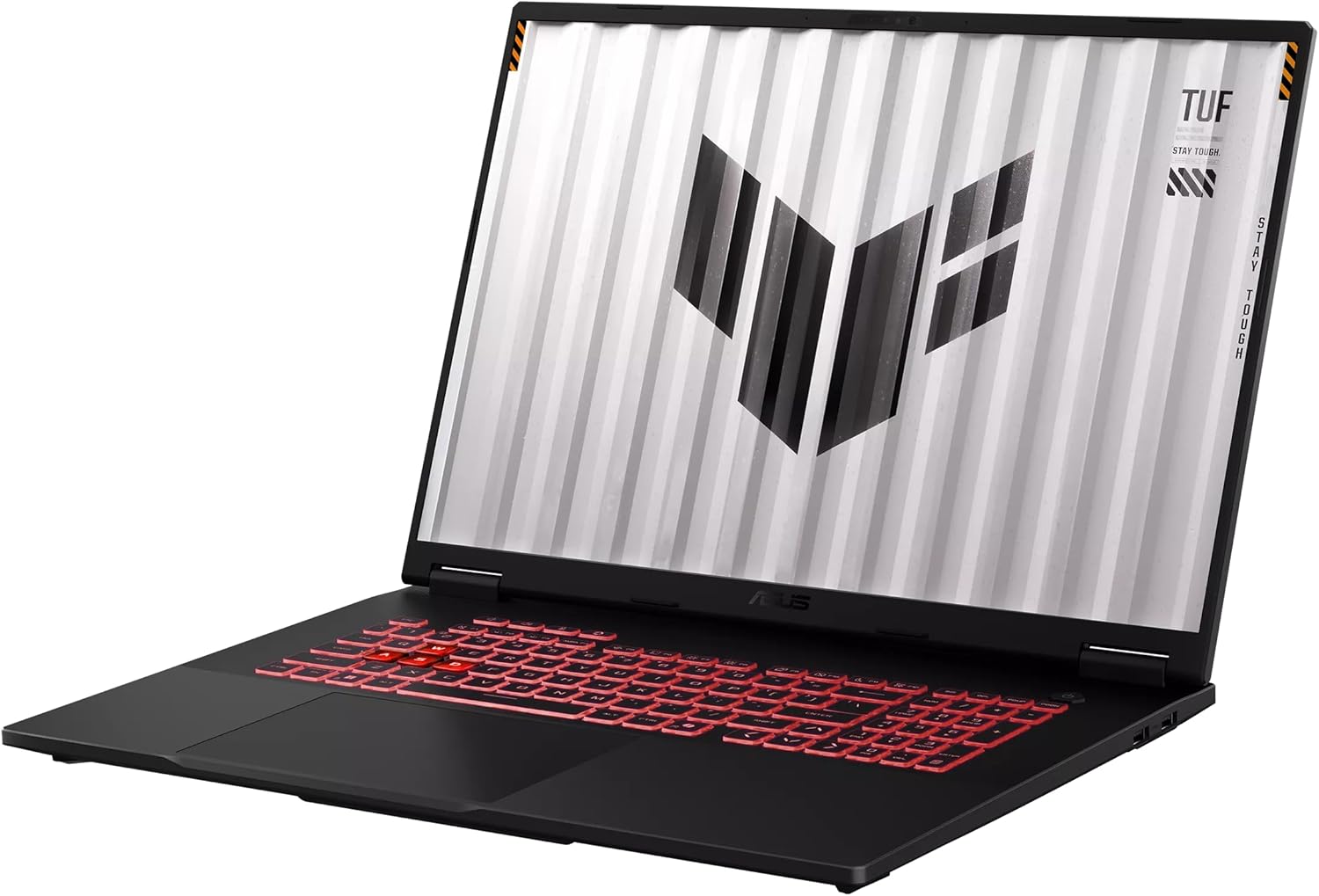
- ແປ້ນພິມ: The laptop features a backlit chiclet keyboard with 1-Zone RGB lighting. Use the function keys (Fn) in combination with other keys to control backlight brightness, volume, screen brightness, and other system functions.
- ແຜ່ນສໍາຜັດ: ແຜງສຳຜັດທີ່ປະສົມປະສານມາພ້ອມຮອງຮັບທ່າທາງຫຼາຍສຳຜັດສຳລັບການນຳທາງ. ໃຫ້ອ້າງອີງເຖິງການຕັ້ງຄ່າ Windows ສຳລັບການປັບແຕ່ງຄວາມອ່ອນໄຫວ ແລະ ທ່າທາງຂອງແຜງສຳຜັດ.
5.2. ການຕັ້ງຄ່າການສະແດງ
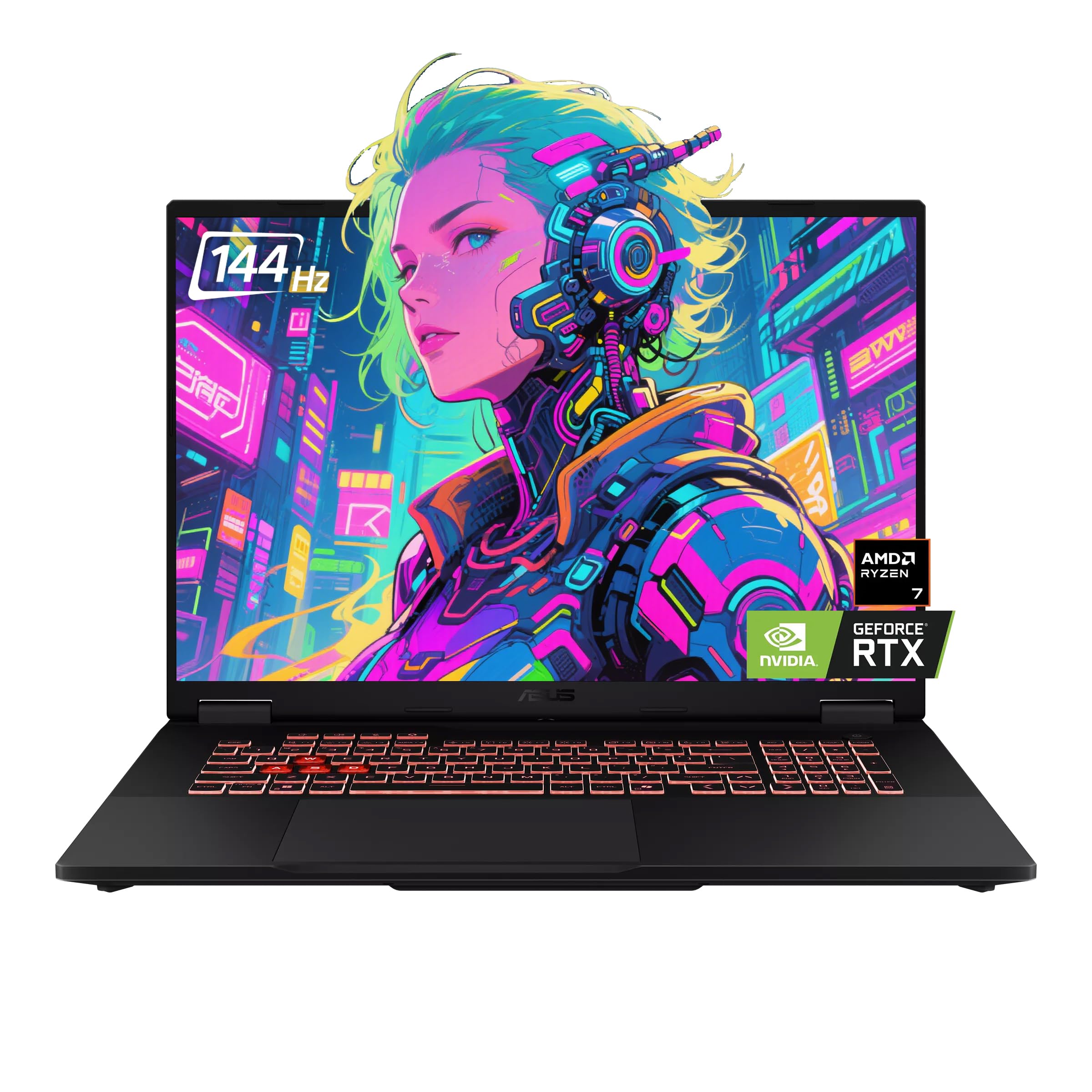
- Your 18-inch FHD+ (1920 x 1200) display has a 144Hz refresh rate and supports G-Sync. To adjust display settings, right-click on the desktop and select 'Display settings' or 'NVIDIA Control Panel'.
- Ensure the refresh rate is set to 144Hz for the smoothest visual experience, especially during gaming.
5.3. ການເຊື່ອມຕໍ່
- Wi-Fi: The laptop supports Wi-Fi 6E (802.11ax). Connect to your wireless network via the Windows network settings.
- Bluetooth: Bluetooth 5.3 is integrated for connecting wireless peripherals such as mice, keyboards, and headphones. Pair devices through Windows Bluetooth settings.
- ຈໍສະແດງຜົນພາຍນອກ: Use the HDMI 2.1 FRL port or the USB-C ports with DisplayPort support to connect external monitors.
6. ບໍາລຸງຮັກສາ
ການບຳລຸງຮັກສາທີ່ເໝາະສົມຮັບປະກັນຄວາມທົນທານ ແລະ ປະສິດທິພາບທີ່ດີທີ່ສຸດຂອງຄອມພິວເຕີໂນດບຸກຂອງທ່ານ.
- ທໍາຄວາມສະອາດ: Use a soft, lint-free cloth to clean the screen and chassis. For stubborn smudges, dampເຊັດຜ້ານັ້ນເບົາໆດ້ວຍນ້ຳ ຫຼື ນ້ຳຢາທຳຄວາມສະອາດທີ່ໃຊ້ກັບໜ້າຈໍໄດ້. ຫຼີກລ່ຽງສານເຄມີທີ່ຮຸນແຮງ.
- ການລະບາຍອາກາດ: Ensure the laptop's ventilation openings are clear and unobstructed to prevent overheating. Avoid using the laptop on soft surfaces like beds or couches that can block airflow.
- ການດູແລຫມໍ້ໄຟ: For optimal battery life, avoid frequently discharging the battery completely. If storing the laptop for an extended period, charge it to about 50-60% and store it in a cool, dry place.
- ອັບເດດຊອບແວ: Regularly update your operating system, drivers, and applications to benefit from performance improvements, security patches, and new features.
7. ການແກ້ໄຂບັນຫາ
This section addresses common issues you might encounter with your ASUS TUF A18 Gaming Laptop.
7.1. System Crashes or Unexpected Shutdowns
- ຄວາມຮ້ອນເກີນ: Ensure ventilation vents are clear. Consider using a cooling pad during intensive tasks.
- ບັນຫາຄົນຂັບ: Update graphics drivers (NVIDIA GeForce RTX 5060) and chipset drivers from the ASUS support website. Outdated or corrupted drivers can cause instability.
- ຂໍ້ຂັດແຍ່ງຊອບແວ: Identify recently installed software that might be causing conflicts. Try uninstalling recent applications or performing a system restore to an earlier point.
- Operating System Corruption: If issues persist, consider reinstalling Windows 11 Pro. Back up your data before proceeding.
7.2. ສະແດງບັນຫາ
- ບໍ່ມີການສະແດງຜົນ: Ensure the laptop is powered on. Try connecting an external monitor to check if the issue is with the laptop's internal display.
- ຄວາມລະອຽດ/ອັດຕາການໂຫຼດຂໍ້ມູນບໍ່ຖືກຕ້ອງ: Adjust display settings in Windows or NVIDIA Control Panel to the native 1920x1200 resolution and 144Hz refresh rate.
7.3. ບັນຫາການເຊື່ອມຕໍ່
- Wi-Fi/Bluetooth Not Working: Check if Wi-Fi and Bluetooth are enabled in Windows settings. Update wireless adapter drivers. Restart your router for Wi-Fi issues.
- ອຸປະກອນ USB ບໍ່ຮັບຮູ້: Try connecting the device to a different USB port. Update USB controller drivers.
8. ຂໍ້ມູນຈໍາເພາະ
Detailed technical specifications for the ASUS TUF A18 Gaming Laptop.
| ຄຸນສົມບັດ | ຂໍ້ມູນຈໍາເພາະ |
|---|---|
| ຍີ່ຫໍ້ | ASUS |
| ຊື່ຕົວແບບ | TUF A18 |
| ໂຮງງານຜະລິດ | AMD Ryzen 7 260 (8 Cores, 16 Threads, 3.8GHz base, up to 5.1 GHz boost) |
| ຮູບພາບ | NVIDIA GeForce RTX 5060 ແລໍບທັອບ GPU (8GB GDDR7) |
| ຈໍສະແດງຜົນ | 18-inch FHD+ (1920 x 1200) IPS-level, Anti-glare, 144Hz Refresh Rate, 3ms Response Time, G-Sync, MUX Switch + NVIDIA Advanced Optimus |
| RAM | RAM 32GB DDR5 |
| ການເກັບຮັກສາ | 2TB NVMe SSD (PCI-e x 4) |
| ລະບົບປະຕິບັດການ | Windows 11 Pro |
| ຜອດ I/O | 1x 3.5mm Combo Audio Jack, 1x HDMI 2.1 FRL, 2x USB 3.2 Gen 2 Type-A, 1x USB 3.2 Gen 2 Type-C (DP/PD/G-SYNC), 1x USB 2.0 Type-A, 1x Type-C USB 4 (DP), 1x RJ45 LAN port |
| ແປ້ນພິມ | ແປ້ນພິມ Backlit Chiclet 1-Zone RGB |
| ກ້ອງຖ່າຍຮູບ | 1080P FHD IR Camera ສໍາລັບ Windows Hello |
| Network & Communication | Wi-Fi 6E(802.11ax) (Triple band) 2*2, Bluetooth 5.3 |
| ຂະໜາດ (ກວ້າງ x ສູງ) | 15.71" x 11.14" x 0.74" ~ 1.05" |
| ນ້ຳໜັກ | 5.73 lbs |
| ສີ | Jaeger Grey |
9. ການຮັບປະກັນແລະການສະຫນັບສະຫນູນ
Your ASUS TUF A18 Gaming Laptop comes with a manufacturer's warranty. For specific warranty terms and conditions, please refer to the warranty card included with your product or visit the official ASUS support webເວັບໄຊ.
- ຜົນຕອບແທນ: This product typically has a 30-day return policy from the date of purchase. Please check with your retailer for their specific return guidelines.
- ສະຫນັບສະຫນູນດ້ານວິຊາການ: ສໍາລັບການຊ່ວຍເຫຼືອດ້ານວິຊາການ, ການດາວໂຫຼດໄດເວີ, ຫຼືການສອບຖາມການບໍລິການ, ກະລຸນາເຂົ້າໄປທີ່ສະຫນັບສະຫນູນ ASUS ຢ່າງເປັນທາງການ webເວັບໄຊ: www.asus.com/support/
- ຊັບພະຍາກອນອອນໄລນ໌: ການສະໜັບສະໜູນ ASUS website provides FAQs, troubleshooting guides, and contact information for customer service.