
1. ບົດແນະນຳ
Thank you for choosing the Gawfolk 32-inch 4K 144Hz Gaming Monitor. This monitor is designed to provide an immersive visual experience with its 4K UHD resolution, high refresh rate, and adaptive synchronization technology. This manual provides essential information for setting up, operating, maintaining, and troubleshooting your monitor to ensure optimal performance and longevity.
2. ຂໍ້ມູນຄວາມປອດໄພ
- ອ່ານຄໍາແນະນໍາທັງຫມົດຢ່າງລະອຽດກ່ອນທີ່ຈະໃຊ້ຈໍພາບ.
- ຮັກສາຈໍພາບໃຫ້ຫ່າງຈາກນ້ໍາ, ຄວາມຊຸ່ມຊື່ນ, ແລະອຸນຫະພູມທີ່ຮຸນແຮງ.
- ຫ້າມກີດຂວາງການເປີດລະບາຍອາກາດ.
- ໃຊ້ພຽງແຕ່ອະແດັບເຕີພະລັງງານທີ່ໃຫ້ມາກັບຈໍພາບເທົ່ານັ້ນ.
- ຫຼີກເວັ້ນການວາງວັດຖຸຫນັກໃສ່ສາຍໄຟ.
- ຖອດປລັກສຽບໄຟອອກຈາກປລັກສຽບໄຟ ຖ້າຈໍສະແດງຜົນຈະບໍ່ຖືກໃຊ້ເປັນໄລຍະເວລາທີ່ຍາວນານ.
- ອ້າງອີງການບໍລິການທັງໝົດໃຫ້ກັບພະນັກງານບໍລິການທີ່ມີຄຸນວຸດທິ.
3. ຕັ້ງຄ່າ
3.1 Unboxing ແລະ Package Contents
ເອົາສ່ວນປະກອບທັງຫມົດອອກຈາກການຫຸ້ມຫໍ່ຢ່າງລະມັດລະວັງ. ຮັບປະກັນວ່າລາຍການທັງໝົດມີຢູ່ລຸ່ມນີ້:
- Gawfolk 32-inch 4K 144Hz Monitor
- Monitor Stand (ຖານ ແລະ ຄໍ)
- Power Adapter
- ສາຍ HDMI
- ສາຍ DisplayPort
- ຄູ່ມືຜູ້ໃຊ້
3.2 ສະພາປະຈໍາ
- ວາງຈໍພາບໜ້າລົງເທິງພື້ນຜິວທີ່ສະອາດ ແລະ ອ່ອນນຸ້ມເພື່ອປ້ອງກັນຮອຍຂີດຂ່ວນ.
- Attach the stand neck to the back of the monitor using the provided screws. Ensure it is securely fastened.
- Attach the stand base to the stand neck, tightening the screw at the bottom of the base.
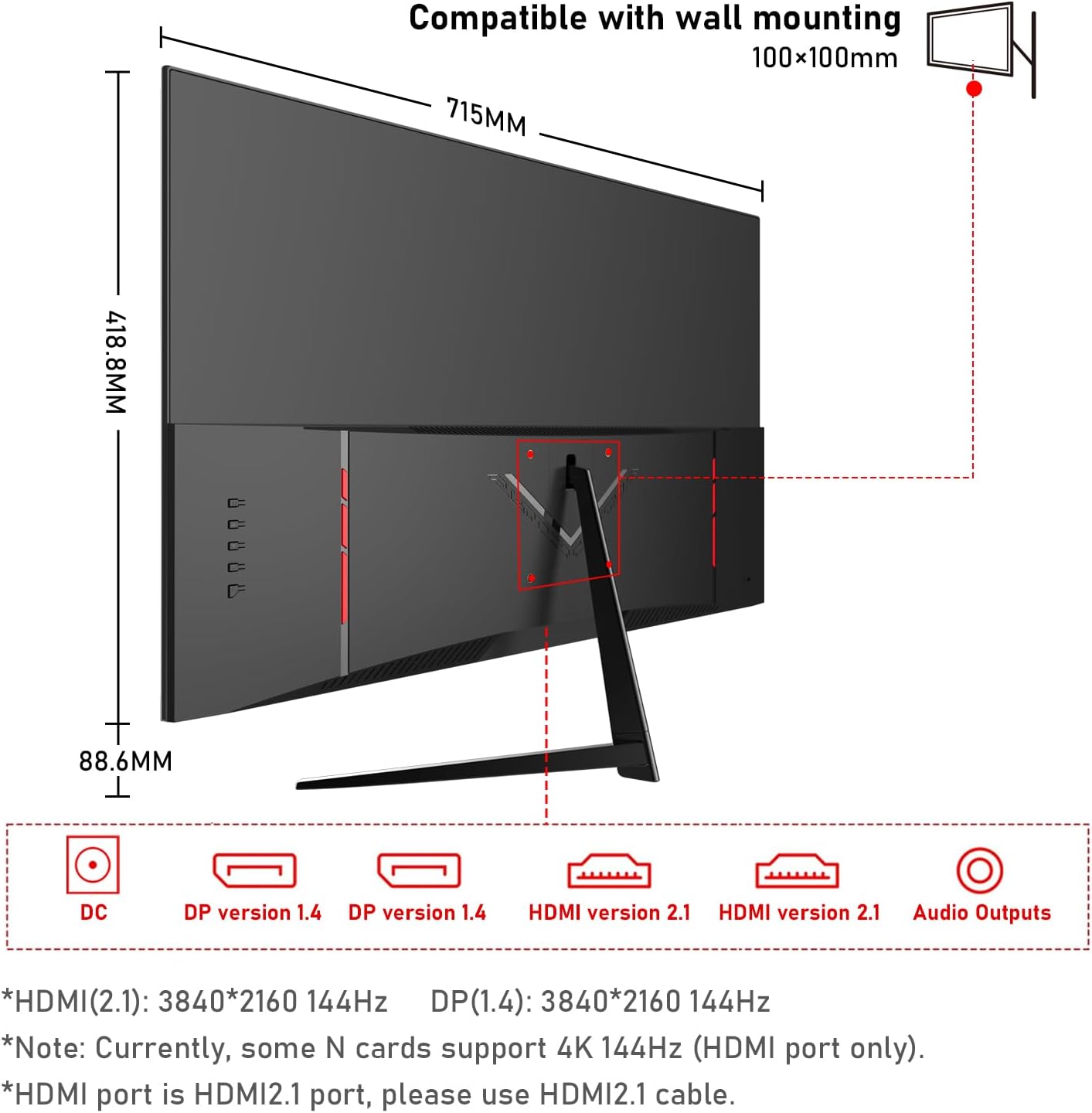
3.3 ການເຊື່ອມຕໍ່ Monitor
ເຊື່ອມຕໍ່ຈໍກັບຄອມພິວເຕີຫຼືອຸປະກອນອື່ນໆຂອງທ່ານໂດຍໃຊ້ສາຍທີ່ເຫມາະສົມ.
- ການເຊື່ອມຕໍ່ພະລັງງານ: Connect the power adapter to the monitor's DC input port, then plug the adapter into a power outlet.
- ການເຊື່ອມຕໍ່ວິດີໂອ:
- For 4K@144Hz, use an HDMI 2.1 cable (if your graphics card supports it) or a DisplayPort 1.4 cable.
- Connect one end of the HDMI or DisplayPort cable to the corresponding port on your monitor and the other end to your computer's graphics card.
- ການເຊື່ອມຕໍ່ສຽງ: If you wish to use external speakers or headphones, connect them to the 3.5mm audio output port on the monitor.
3.4 ການເປີດເຄື່ອງເບື້ອງຕົ້ນ
Press the power button on the monitor. The monitor should display the Gawfolk logo and then your computer's desktop. If no image appears, ensure all cables are securely connected and the correct input source is selected in the monitor's On-Screen Display (OSD) menu.
4. ການດໍາເນີນງານຂອງ Monitor
4.1 ເມນູການສະແດງເທິງໜ້າຈໍ (OSD).
The OSD menu allows you to adjust various monitor settings. Typically, buttons are located on the back or bottom edge of the monitor. Use these buttons to navigate the menu and select options.
4.2 ການຕັ້ງຄ່າການສະແດງ
- ຄວາມລະອຽດ: The monitor supports 4K UHD (3840 x 2160) resolution. Ensure your computer's display settings are configured to this resolution for the sharpest image.
- ອັດຕາການໂຫຼດຂໍ້ມູນຄືນໃໝ່: For smooth visuals, especially in gaming, set the refresh rate to 144Hz in your computer's display settings.
- ການຕັ້ງຄ່າສີ: This monitor offers 100% sRGB coverage and 16.7 million colors for vibrant and accurate color reproduction. Adjust brightness, contrast, and color temperature via the OSD menu to suit your preference.

4.3 ຄຸນສົມບັດການຫຼິ້ນເກມ
- ເວລາຕອບສະໜອງ 1ms: The monitor features a 1ms response time (GTG), minimizing motion blur and ghosting for a more responsive gaming experience.
- Adaptive Sync (FreeSync): This technology synchronizes the monitor's refresh rate with your GPU's frame rate, eliminating screen tearing and stuttering. Enable FreeSync in your graphics card settings and the monitor's OSD menu.

4.4 ເຕັກໂນໂລຊີການດູແລຕາ
The monitor incorporates low blue light and flicker-free technology to reduce eye strain during prolonged use. These features are designed to enhance viewສະດວກສະບາຍ.
4.5 Built-in Dual Speakers
The monitor includes built-in dual speakers, providing convenient audio without the need for external speakers. You can adjust the volume through your computer's audio settings or the monitor's OSD menu.

5. ບໍາລຸງຮັກສາ
- ທໍາຄວາມສະອາດຫນ້າຈໍ: ໃຊ້ຜ້າແພທີ່ອ່ອນໆ ທີ່ບໍ່ມີເສັ້ນດ່າງ dampened with water or a specialized screen cleaner. Do not spray cleaner directly onto the screen.
- ທໍາຄວາມສະອາດ Casing: ໃຊ້ຜ້າອ່ອນໆເຊັດຈໍສະແດງຜົນ casing. ຫຼີກເວັ້ນການນໍາໃຊ້ເຄື່ອງເຮັດຄວາມສະອາດຂັດຫຼືສານລະລາຍ.
- ການລະບາຍອາກາດ: Ensure the ventilation openings on the monitor are clear and not obstructed to prevent overheating.
6. ການແກ້ໄຂບັນຫາ
- ບໍ່ມີພະລັງງານ: Check if the power cable is securely connected to both the monitor and the power outlet. Ensure the power adapter is functioning.
- ບໍ່ມີຮູບພາບ: Verify that the video cable (HDMI/DisplayPort) is correctly connected to both the monitor and the computer. Ensure the correct input source is selected in the OSD menu.
- ໜ້າຈໍກະພິບ: Check the video cable connection. Ensure the refresh rate is set correctly in your computer's display settings. Enable Adaptive Sync if supported by your graphics card.
- ຄຸນນະພາບຮູບພາບທີ່ບໍ່ດີ: Adjust resolution, brightness, contrast, and color settings via the OSD menu. Ensure the video cable is not damaged.
- ບໍ່ມີສຽງ: Check the audio cable connection (if using external speakers/headphones). Adjust volume settings on both the monitor and your computer. Ensure the correct audio output device is selected on your computer.
7. ຂໍ້ມູນຈໍາເພາະ
| ຄຸນສົມບັດ | ຂໍ້ມູນຈໍາເພາະ |
|---|---|
| ຍີ່ຫໍ້ | ແກວຟອກ |
| ໝາຍເລກຕົວແບບ | GF320L |
| ຂະໜາດໜ້າຈໍ | 32 ນິ້ວ |
| ຄວາມລະອຽດ | 4K UHD 2160p (3840 x 2160 ພິກເຊວ) |
| ອັດຕາການໂຫຼດຂໍ້ມູນຄືນໃໝ່ | 144 Hz |
| ເວລາຕອບສະຫນອງ | 1 Millisecond (GTG) |
| ອັດຕາສ່ວນ | 16:9 |
| ປະເພດການສະແດງ | LED (VA Technology) |
| ລາຍລະອຽດຫນ້າຈໍ | ເຫຼື້ອມເປັນເງົາ |
| ຄຸນນະສົມບັດພິເສດ | ໂຄ້ງ |
| Viewໃນມຸມ | 178 ອົງສາ |
| ຄວາມສະຫວ່າງ | 320 cd/m² |
| ຄ່າ Gamut ສີ | 120% sRGB |
| ການປັບປຸງຄຸນນະພາບຮູບພາບ | Eye-Care + Adaptive Sync |
| ການເຊື່ອມຕໍ່ຮາດແວ | 2x HDMI, 2x DisplayPort, 3.5mm Audio |
| Adaptive Synchronization | FreeSync |
| ສີ | ດຳ |
| ນ້ໍາຫນັກລາຍການ | 6.34 ກິໂລກຣາມ |
| ຂະໜາດລາຍການ (D x W x H) | 50.7 x 71.5 x 19 ຊັງຕີແມັດ |
8. ການຮັບປະກັນແລະການສະຫນັບສະຫນູນ
Gawfolk provides a 12-month after-sales service for this monitor. If you encounter any issues during use, please do not hesitate to contact our customer support for assistance. Our team is dedicated to ensuring your satisfaction.