
1. ເກີນview
This manual provides detailed instructions for the setup, operation, and maintenance of your UPERFECT 16-inch 120Hz Portable Monitor. Please read this manual thoroughly before using the product to ensure proper functionality and to prevent damage.

Image 1.1: UPERFECT 16-inch 120Hz Portable Monitor, showcasing ການອອກແບບ sleek ຂອງຕົນ.
2. ຂໍ້ມູນຄວາມປອດໄພ
To ensure safe operation and prolong the life of your monitor, please observe the following precautions:
- ຢ່າເຮັດໃຫ້ຈໍສະແດງຜົນຖືກຝົນ, ຄວາມຊຸ່ມຊື່ນ, ຫຼືອຸນຫະພູມທີ່ຮຸນແຮງ.
- ຫຼີກເວັ້ນການວາງຈໍພາບຢູ່ໃກ້ກັບແຫຼ່ງຄວາມຮ້ອນ ຫຼືຢູ່ໃນແສງແດດໂດຍກົງ.
- ໃຊ້ສາຍໄຟ ແລະ ອະແດບເຕີໄຟຟ້າທີ່ໃຫ້ມາເທົ່ານັ້ນ.
- ຢ່າພະຍາຍາມຖອດ ຫຼືສ້ອມແປງຈໍສະແດງຜົນດ້ວຍຕົວເອງ. ອ້າງອີງການບໍລິການທັງໝົດໃຫ້ກັບບຸກຄະລາກອນທີ່ມີຄຸນວຸດທິ.
- ຮັກສາຈໍພາບຢູ່ຫ່າງຈາກສະຫນາມແມ່ເຫຼັກທີ່ເຂັ້ມແຂງ.
- ເຮັດຄວາມສະອາດຫນ້າຈໍດ້ວຍຜ້າອ່ອນໆ, ທີ່ບໍ່ມີເສັ້ນດ່າງ. ຫຼີກເວັ້ນການນໍາໃຊ້ສານເຄມີທີ່ຮຸນແຮງ.
3. ເນື້ອໃນຊຸດ
ກະລຸນາກວດເບິ່ງກ່ອງສໍາລັບລາຍການຕໍ່ໄປນີ້:
- 16-inch Portable Monitor x 1
- Type-C 3.1 Cable x 1
- ສາຍ USB 2.0 x 1
- Mini HDMI Cable x 1
- ຄູ່ມືການສອນ x 1
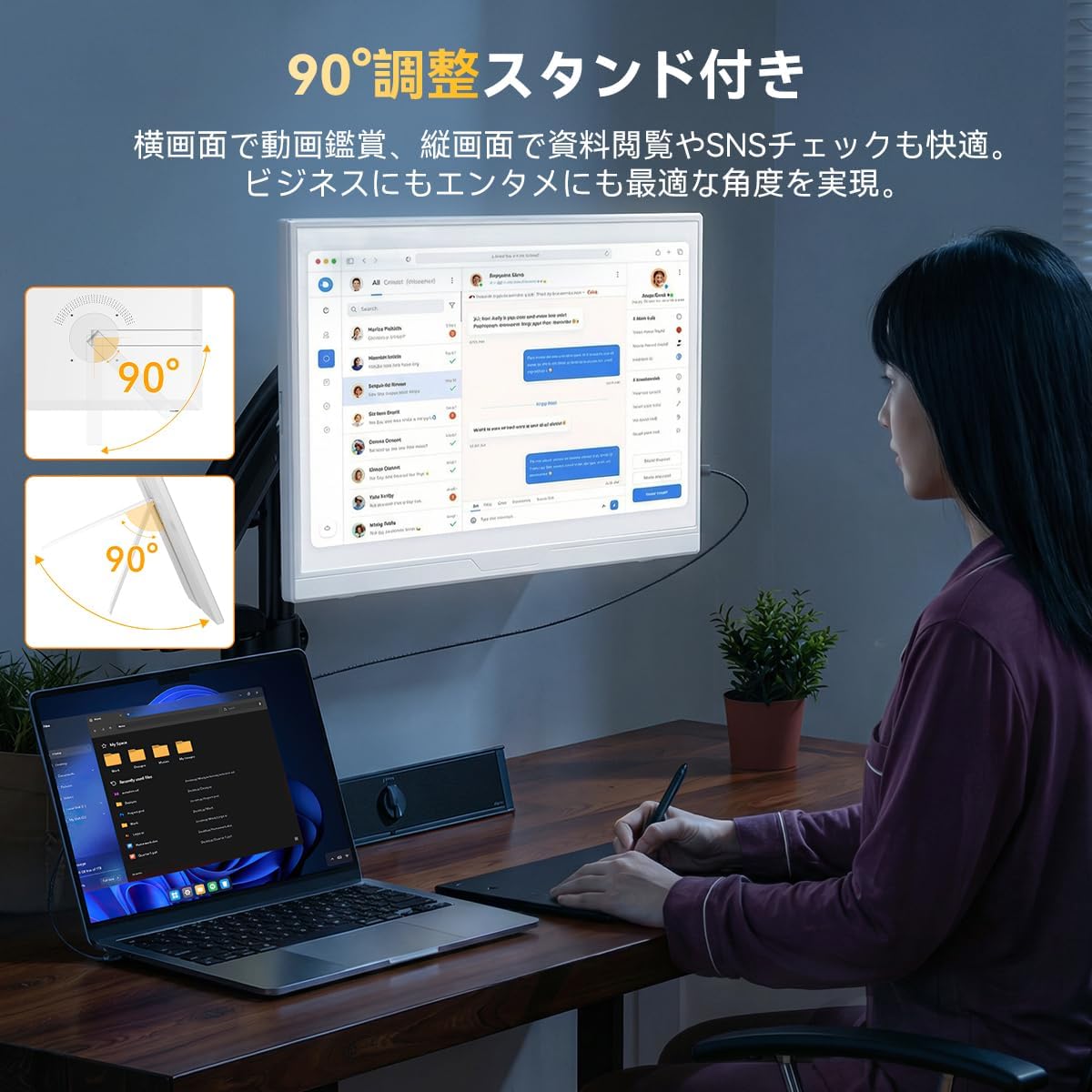
Image 3.1: All items included in the UPERFECT 16-inch Portable Monitor package.
4. ຄຸນລັກສະນະຂອງຜະລິດຕະພັນ
4.1. High Refresh Rate and Aspect Ratio
The UPERFECT 16-inch portable monitor features a 120Hz high refresh rate and a 16:10 aspect ratio. This provides a wider vertical display area compared to standard 16:9 monitors, enhancing productivity for tasks such as document viewing, coding, spreadsheet management, and video editing. The 120Hz refresh rate ensures smooth visuals, reducing motion blur in fast-paced content like FPS, action, and racing games.

Image 4.1: Visual comparison demonstrating the smoother display at 120Hz versus 60Hz.
4.2. IPS Non-Glare Panel with Blue Light Reduction
Equipped with a 178° wide viewing angle IPS panel, this monitor minimizes color distortion when viewed from different angles. The non-glare finish reduces reflections, which helps to alleviate eye strain during extended use. It delivers natural and stable display quality, suitable for various applications from photo and video viewing to professional business use, including online meetings and presentations.

Image 4.2: The IPS non-glare panel reduces reflections for comfortable viewing.
4.3. Integrated Stand and Rotation
The monitor features an integrated stand that allows for easy switching between horizontal and vertical display orientations. A smooth 90° rotation function ensures optimal viewing angles for different content. Vertical mode is ideal for documents, coding, and social media, while horizontal mode is best for gaming, video playback, and multi-window tasks. It is also VESA (75x75mm) compatible for mounting on a monitor arm, offering space-saving and flexible setup options.

Image 4.3: The integrated stand allows for versatile positioning, including 90-degree rotation.
4.4. High Contrast Ratio and HDR Support
With a 1000:1 contrast ratio, the monitor reproduces subtle details in dark areas and vibrant colors. It also supports HDR (High Dynamic Range) technology, enriching the gradation of light and dark for a more immersive visual experience.
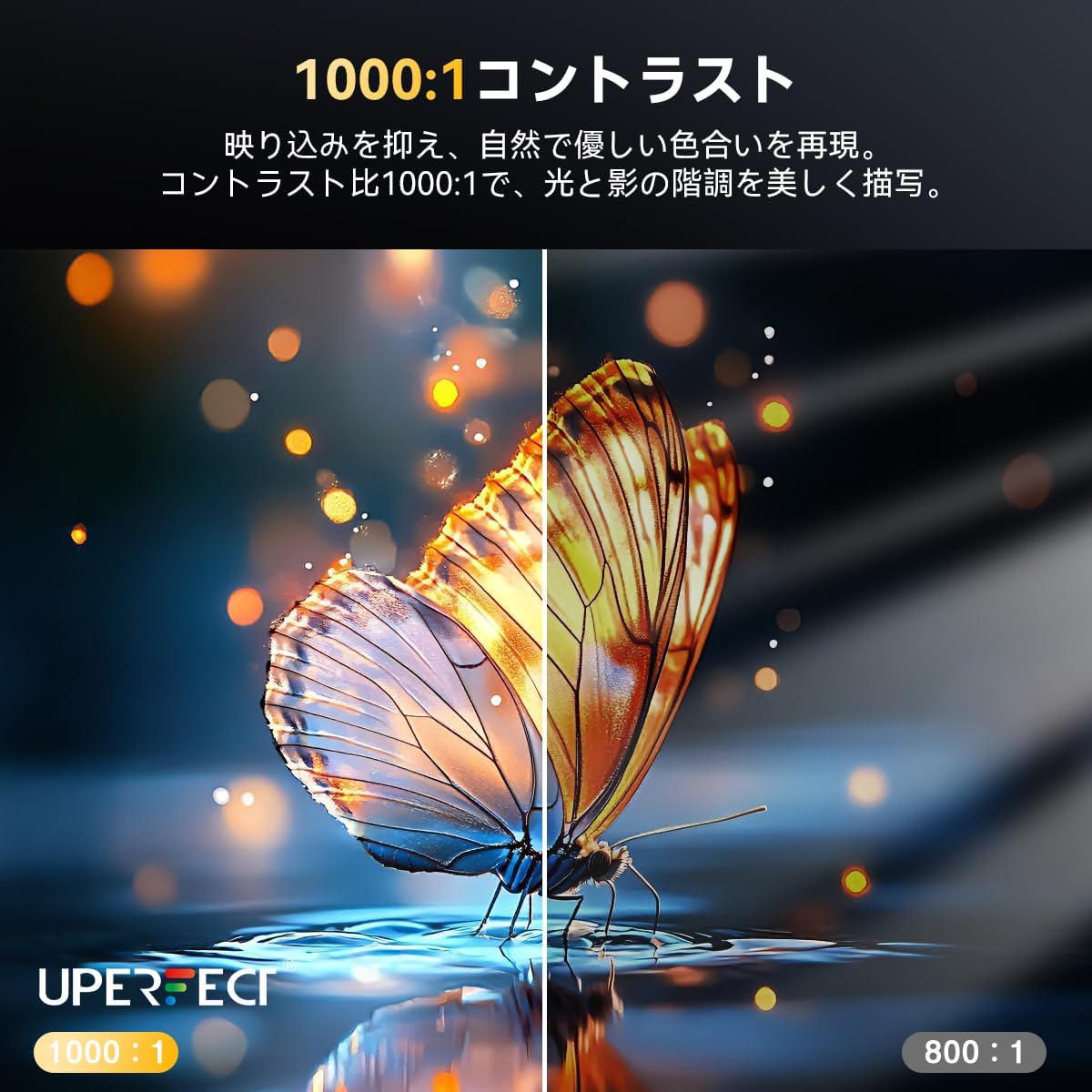
Image 4.4: The 1000:1 contrast ratio enhances visual depth and detail.
4.5. FreeSync Compatibility
The monitor is compatible with FreeSync technology, which eliminates screen tearing and reduces stuttering. This provides a smooth and uninterrupted visual experience, especially beneficial for action games, FPS, and racing simulations.
5. ຄູ່ມືການຕິດຕັ້ງ
5.1. ການເຊື່ອມຕໍ່ກັບອຸປະກອນ
The UPERFECT portable monitor supports connections via USB Type-C and Mini HDMI. Ensure your device is compatible with one of these connection types.
5.1.1. USB Type-C Connection (Single Cable Solution)
For devices that support full-featured USB Type-C (power and video signal over one cable), connect the monitor to your device using the provided Type-C to Type-C cable. If the monitor does not receive sufficient power, connect the included power adapter to the monitor.
5.1.2. Mini HDMI Connection
For devices that do not support full-featured USB Type-C, use the provided Mini HDMI cable to connect the monitor to your device. When using HDMI, it is always necessary to connect the power adapter to the monitor for power supply.

Image 5.1: Connection methods for the monitor using Type-C and HDMI.
5.2. Multi-Device Compatibility
The monitor is compatible with a wide range of devices, including Notebook PCs, PCs, Nintendo Switch, PS4/PS5, and smartphones (USB Type-C 3.1 full-featured models).

ຮູບພາບ 5.2: ຫຼາຍກວ່າview of monitor ports and various compatible devices.
5.2.1. ການເຊື່ອມຕໍ່ Nintendo Switch
For Nintendo Switch, connect the original Switch charger to the monitor for power, then connect the monitor to the Switch using a Type-C cable. For Nintendo Switch 2, an HDMI connection (1080p setting) is recommended for 120Hz display. Both the dock and monitor require external power.
5.2.2. PC Dual Display
Connect to your PC for an instant dual display setup. This eliminates complex wiring and significantly improves work efficiency and desktop usability.
5.2.3. Smartphone Mirroring
Mirror your smartphone screen directly to the monitor with a single Type-C connection (for USB Type-C 3.1 full-featured smartphones only). Enjoy videos, games, and social media on a larger screen.
