
1. ບົດແນະນຳ
This manual provides essential information for setting up, operating, and maintaining your HP OmniDesk Slim Desktop PC, Model S03-0006. This desktop PC is designed for daily tasks, offering an Intel Core i3-14100 processor, ample memory, and various connectivity options for productivity and entertainment.
2. ເນື້ອໃນຊຸດ
ກວດສອບວ່າລາຍການທັງຫມົດແມ່ນມີຢູ່ໃນຊຸດ:
- HP S03-000 OmniDesk Slim Desktop PC
- ການສະຫນອງພະລັງງານ
- USB Black Wired Keyboard (if included with specific bundle)
- USB Wired Mouse (if included with specific bundle)
ຫມາຍເຫດ: ອຸປະກອນເສີມເພີ່ມເຕີມອາດຈະຖືກຂາຍແຍກຕ່າງຫາກ.
3. ຜະລິດຕະພັນເກີນview
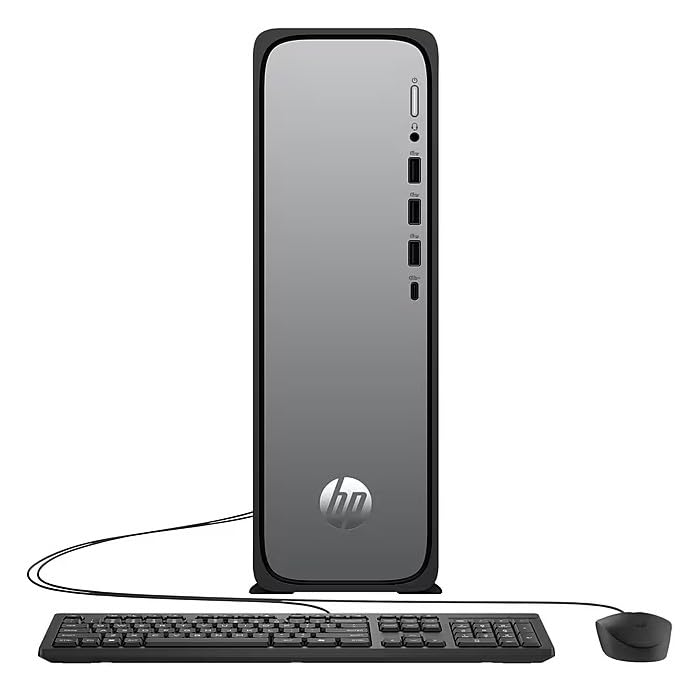
The HP OmniDesk Slim Desktop PC features a compact design with essential components for efficient computing.

ຮູບທີ 3.1: HP OmniDesk Slim Desktop PC showcasing ສົ່ງເສີມການກະທັດຮັດຂອງມັນfile, Intel Core i3-14100 processor, 8GB DDR5 RAM, 256GB SSD, Intel UHD Graphics 710, Wi-Fi 6, Bluetooth 5.4, Windows 11, and dual display support.
3.1. ພອດ ແລະຕົວເຊື່ອມຕໍ່
Familiarize yourself with the various ports on your desktop PC for connecting peripherals and displays.
ຮູບທີ 3.2: Front and rear port layout of the HP OmniDesk Slim Desktop PC. Front ports include a headphone/microphone combo jack, USB Type-A 5Gbps ports, and a USB Type-C 10Gbps port. Additional ports (typically rear) include 4 USB 2.0 Type-A, 1 RJ-45 (Ethernet), 1 HDMI Out, and 1 DisplayPort 1.4.
- ທ່າເຮືອທາງໜ້າ:
- ຊຸດຫູຟັງ/ໄມໂຄຣໂຟນ
- USB Type-A 5Gbps signaling rate (3 ports)
- USB Type-C 10Gbps signaling rate (1 port)
- ພອດຫລັງ:
- USB 2.0 Type-A (4 ports)
- RJ-45 (ອີເທີເນັດ)
- HDMI 1.4b (1 port)
- DisplayPort 1.4a (1 port)
4. ຄູ່ມືການຕິດຕັ້ງ
Follow these steps to set up your HP OmniDesk Slim Desktop PC:
- ຕິດຕາມກວດກາ: Connect your monitor to the PC using an HDMI or DisplayPort cable. Ensure the cable is securely plugged into both the PC and the monitor.
- ເຊື່ອມຕໍ່ອຸປະກອນຕໍ່ພ່ວງ: Plug in your USB keyboard and mouse into the available USB ports on the PC.
- ເຊື່ອມຕໍ່ພະລັງງານ: Connect the power supply cable to the PC's power input, then plug the other end into a wall outlet or surge protector.
- ເປີດ: Press the power button on the front of the PC. The system will boot up, and you will see the Windows 11 setup screen.
- ການຕິດຕັ້ງ Windows ເບື້ອງຕົ້ນ: ປະຕິບັດຕາມຄໍາແນະນໍາໃນໜ້າຈໍເພື່ອເຮັດສໍາເລັດການຕັ້ງຄ່າ Windows 11, ລວມທັງພາສາ, ພາກພື້ນ, ການເຊື່ອມຕໍ່ເຄືອຂ່າຍ ແລະ ການສ້າງບັນຊີຜູ້ໃຊ້.
5. ຄໍາແນະນໍາການດໍາເນີນງານ
5.1. ການດໍາເນີນງານພື້ນຖານ
- ເປີດ/ປິດ: Press the power button to turn on the PC. To shut down, click the Start button, then Power > Shut down.
- ຣີສະຕາດ: ຄລິກທີ່ປຸ່ມ Start, ຈາກນັ້ນ Power > Restart.
- ຮູບແບບການນອນ: ຄລິກປຸ່ມ Start, ຈາກນັ້ນກົດປຸ່ມ Power > Sleep.
5.2. ການເຊື່ອມຕໍ່ເຄືອຂ່າຍ
Your PC supports both wired (Ethernet) and wireless (Wi-Fi) network connections.
- ການເຊື່ອມຕໍ່ສາຍ: Connect an Ethernet cable from your router or modem to the RJ-45 port on the back of the PC.
- ການເຊື່ອມຕໍ່ໄຮ້ສາຍ (Wi-Fi 6):
- ຄລິກໄອຄອນ Wi-Fi ໃນແຖບໜ້າວຽກ.
- ເລືອກເຄືອຂ່າຍ Wi-Fi ທີ່ທ່ານຕ້ອງການຈາກບັນຊີລາຍຊື່.
- ໃສ່ລະຫັດຄວາມປອດໄພເຄືອຂ່າຍ (ລະຫັດຜ່ານ) ຖ້າຖືກຖາມ, ຈາກນັ້ນຄລິກ ເຊື່ອມຕໍ່.
5.3. Dual Display Support
To extend your desktop to a second monitor:
- Connect the second monitor to an available video output port (HDMI or DisplayPort) on your PC.
- Right-click on the desktop and select ການຕັ້ງຄ່າການສະແດງ.
- Under "Multiple displays," select how you want the displays to behave (e.g., Extend these displays, Duplicate these displays).
6. ບໍາລຸງຮັກສາ
- ອັບເດດຊອບແວ: ກວດສອບ ແລະຕິດຕັ້ງການອັບເດດ Windows ເປັນປະຈຳເພື່ອຮັບປະກັນຄວາມໝັ້ນຄົງ ແລະຄວາມປອດໄພຂອງລະບົບ. ໄປທີ່ ການຕັ້ງຄ່າ > Windows Update.
- ອັບເດດໄດເວີ: Keep your device drivers updated. HP Support Assistant (MyHP) can help manage these updates.
- ທໍາຄວາມສະອາດ: Use a soft, dry cloth to clean the exterior of the PC. Avoid liquid cleaners directly on components. Ensure ventilation openings are clear of dust.
- ຂໍ້ມູນສຳຮອງ: ເປັນປົກກະຕິສໍາຮອງຂໍ້ມູນທີ່ສໍາຄັນ files ໄປຍັງໄດຣຟ໌ພາຍນອກ ຫຼືບ່ອນເກັບຂໍ້ມູນຄລາວ ເພື່ອປ້ອງກັນການສູນເສຍຂໍ້ມູນ.
7. ການແກ້ໄຂບັນຫາ
| ບັນຫາ | ການແກ້ໄຂທີ່ເປັນໄປໄດ້ |
|---|---|
| PC ບໍ່ເປີດ. |
|
| ບໍ່ມີຈໍສະແດງຜົນ. |
|
| ບໍ່ມີການເຊື່ອມຕໍ່ອິນເຕີເນັດ. |
|
| ອຸປະກອນຕໍ່ພ່ວງ (ແປ້ນພິມ/ເມົາສ໌) ບໍ່ເຮັດວຽກ. |
|
8. ຂໍ້ມູນຈໍາເພາະ
| ຊື່ຕົວແບບ | HP OmniDesk Desktop HP S03-000 PC |
| ໝາຍເລກຕົວແບບ | OmniDesk Slim S03-0006 |
| ໂຮງງານຜະລິດ | Intel Core i3-14100 (3.5 GHz, 6 MB Cache) |
| ຮູບພາບ | Intel UHD Graphics 710 (ປະສົມປະສານ) |
| RAM | 8 GB DDR5 (4800 MT/s), Max 64 GB |
| ການເກັບຮັກສາ | SSD 256 GB (Solid State Drive) |
| ລະບົບປະຕິບັດການ | ໜ້າຫຼັກ Windows 11 |
| ການເຊື່ອມຕໍ່ | Realtek Wi-Fi 6 (2x2), Bluetooth 5.4, Gigabit Ethernet (RJ-45) |
| ທ່າເຮືອ |
|
| ຂະໜາດ (H x W x D) | 11.61 x 3.94 x 11.97 ນິ້ວ |
| ນ້ຳໜັກ | 8.38 ປອນ |
| ການຢັ້ງຢືນ | ENERGY STAR certified, EPEAT Gold with Climate+ |
9. ການຮັບປະກັນແລະການສະຫນັບສະຫນູນ
9.1. ຂໍ້ມູນການຮັບປະກັນ
This HP OmniDesk Slim Desktop PC comes with a ການຮັບປະກັນຈໍາກັດ 90 ວັນ. ກະລຸນາເບິ່ງເອກະສານການຮັບປະກັນທີ່ລວມຢູ່ໃນຜະລິດຕະພັນຂອງທ່ານສໍາລັບຂໍ້ກໍານົດແລະເງື່ອນໄຂສະເພາະ.
9.2. ສະຫນັບສະຫນູນດ້ານວິຊາການ
ສໍາລັບການຊ່ວຍເຫຼືອດ້ານວິຊາການ, ການດາວໂຫຼດຄົນຂັບ, ຫຼືຂໍ້ມູນເພີ່ມເຕີມ, ກະລຸນາເຂົ້າໄປທີ່ການຊ່ວຍເຫຼືອຂອງ HP ຢ່າງເປັນທາງການ website. You can also utilize the pre-installed MyHP application for device customization, optimization, and access to helpful messages and settings.
Always provide your product model number (S03-0006) and serial number when contacting support.