
ແນະນຳ
This manual provides comprehensive instructions for the setup, operation, and maintenance of your ASUS ROG Strix 27” 5K HDR Gaming Monitor (Model: XG27JCG). Please read this manual thoroughly before using the monitor to ensure proper functionality and to maximize your user experience.
The ROG Strix XG27JCG is a 27-inch 5K (5120 x 2880) Fast IPS display designed for high-performance gaming and detailed visual tasks. It features a 180Hz (overclocked) refresh rate, 0.3ms GTG response time, and a Dual Mode function allowing switching between 5K 180Hz and QHD 330Hz. Advanced features include G-SYNC Compatible technology, VESA DisplayHDR 600, and ROG Gaming A.I. Technology.
ວິດີໂອ: ເກີນview of the ASUS ROG Strix XG27JCG 27-inch 5K monitor, highlighting its key features and design.
ແມ່ນຫຍັງຢູ່ໃນກ່ອງ
Verify that all components are present in the packaging before proceeding with the setup.
- ASUS ROG Strix XG27JCG Monitor
- ສາຍ DisplayPort
- ຄູ່ມືເລີ່ມຕົ້ນໄວ
- ກະເປົ໋າ ROG
- ສະຕິກເກີ ROG
- ROG tripod stand
- ບັດຮັບປະກັນ
- ສາຍໄຟ
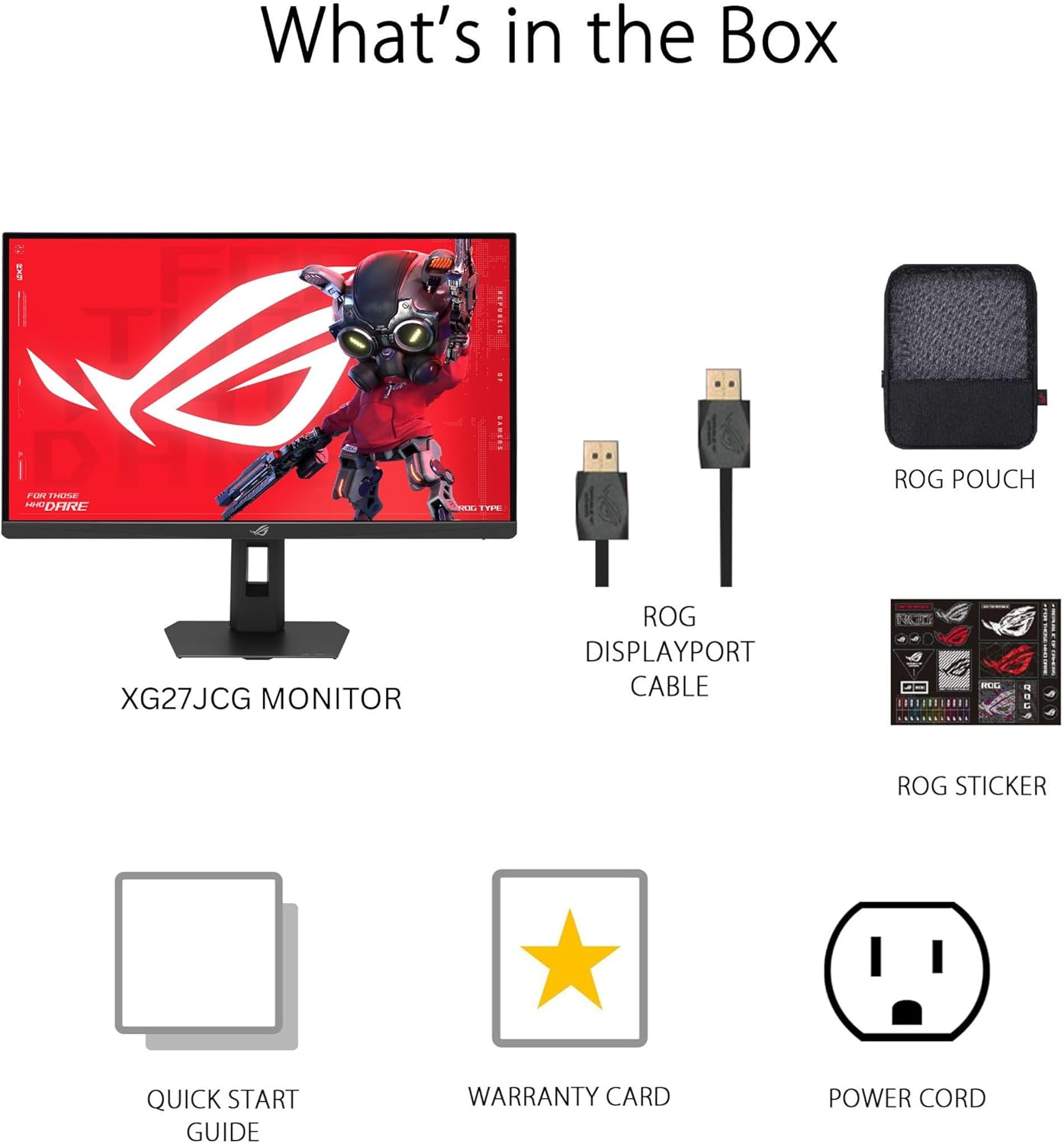
ຮູບພາບ: Contents of the monitor packaging, showing the monitor, DisplayPort cable, ROG pouch, ROG sticker, Quick Start Guide, Warranty Card, and Power Cord.
ຄໍາແນະນໍາການຕິດຕັ້ງ
1. ການປະກອບຂາຕັ້ງ
Carefully remove the monitor from its packaging. Attach the stand base to the stand neck, securing it with the provided screw. Then, attach the assembled stand to the back of the monitor until it clicks into place. Ensure all connections are firm.
2. ການເຊື່ອມຕໍ່ກັບຄອມພິວເຕີ
The monitor supports DisplayPort 1.4 (DSC), HDMI 2.1, and USB-C connectivity. Choose the appropriate cable for your system.
- DisplayPort: ເຊື່ອມຕໍ່ປາຍດ້ານໜຶ່ງຂອງສາຍ DisplayPort ເຂົ້າກັບອິນພຸດ DisplayPort ຂອງຈໍພາບ ແລະ ປາຍອີກດ້ານໜຶ່ງເຂົ້າກັບອິນພຸດ DisplayPort ຂອງຄອມພິວເຕີຂອງທ່ານ.
- HDMI: Connect one end of an HDMI 2.1 cable to the monitor's HDMI input and the other end to your computer's HDMI output.
- USB-C: Connect a USB-C cable to the monitor's USB-C port and to a compatible USB-C port on your computer. This connection also supports 15W power delivery.

ຮູບພາບ: ຫລັງ view of the monitor's connectivity ports, including HDMI 2.1, DisplayPort 1.4, USB Type-C, and a Headphone Jack.
3. ການເຊື່ອມຕໍ່ພະລັງງານ
ເຊື່ອມຕໍ່ສາຍໄຟກັບອິນພຸດໄຟຂອງຈໍສະແດງຜົນ, ຈາກນັ້ນສຽບສົ້ນອື່ນເຂົ້າໄປໃນປລັກສຽບໄຟ.
4. ການເປີດເຄື່ອງເບື້ອງຕົ້ນ
Press the power button located on the monitor to turn it on. The monitor will automatically detect the input source. If no image appears, ensure all cables are securely connected and the computer is powered on.
ຄໍາແນະນໍາການດໍາເນີນງານ
ເມນູການສະແດງຢູ່ໜ້າຈໍ (OSD).
Use the joystick and buttons on the back of the monitor to navigate the OSD menu. The OSD allows you to adjust various settings such as brightness, contrast, color, input source, and gaming features.
Display Modes and Refresh Rate
The monitor features a Dual Mode function, allowing you to switch between two primary display configurations:
- 5K (5120 x 2880) at 180Hz (OC): Provides ultra-sharp, immersive visuals suitable for cinematic content and detailed work.
- QHD (2560 x 1440) at 330Hz: Offers extremely high frame rates and responsive gaming action, ideal for competitive esports.
Switching between modes can be done via the OSD menu or a dedicated hotkey, if configured.

ຮູບພາບ: Visual representation of the monitor's Dual Mode, allowing users to switch between 5K 180Hz and QHD 330Hz for different gaming experiences.
ROG Gaming A.I. Technology
This monitor includes AI-powered features designed to enhance your gaming experience:
- ການເພີ່ມເງົາແບບໄດນາມິກ: Automatically brightens dark areas of the game world without overexposing bright areas, improving visibility of hidden enemies or details.
- ຜົມກາສຜົມແບບໄດນາມິກ: Provides an on-screen crosshair that can adapt to the game environment, ensuring it remains visible against various backgrounds.
- AI Visual: Optimizes visual settings based on the game content for improved clarity and detail.

ຮູບພາບ: Examples of Dynamic Crosshair and Dynamic Shadow Boost in action, showing how these features enhance visibility in games.
ສູນ DisplayWidget
The DisplayWidget Center software provides seamless control over monitor settings directly from your Windows or macOS operating system. This utility allows for easy adjustment of GameVisual modes, MultiScreen configurations, and system settings without using the OSD buttons.

ຮູບພາບ: Screenshot of the DisplayWidget Center software, demonstrating its user interface for adjusting monitor settings.
Ergonomics and Adjustments
The monitor stand offers multiple adjustment options to optimize your viewຄວາມສະດວກສະບາຍ:
- ອຽງ: +20° ເຖິງ -5°
- ໝູນ: +40° ເຖິງ -40°
- pivot: +90° to -90° (for portrait mode)
- ການປັບຄວາມສູງ: 0 ຫາ 110 ມມ
Adjust the monitor to an ergonomic position that reduces strain on your neck and eyes. Ensure the top of the screen is at or slightly below eye level.

ຮູບພາບ: Diagram illustrating the monitor's ergonomic adjustments, including tilt, swivel, pivot, and height.
ບໍາລຸງຮັກສາ
ອະນາໄມຈໍສະແດງຜົນ
- ປິດຈໍສະແດງຜົນສະເໝີ ແລະຖອດສາຍໄຟອອກກ່ອນທຳຄວາມສະອາດ.
- ໃຊ້ຜ້າແພທີ່ອ່ອນໆ ທີ່ບໍ່ມີເສັ້ນດ່າງ dampຜະສົມດ້ວຍນ້ໍາຫຼືເຄື່ອງເຮັດຄວາມສະອາດຫນ້າຈໍອ່ອນໆທີ່ບໍ່ມີການຂັດ.
- ຢ່າສີດນໍ້າສະອາດໃສ່ໜ້າຈໍໂດຍກົງ. ທາໃສ່ຜ້າກ່ອນ.
- ຫຼີກລ່ຽງການໃຊ້ນໍ້າຢາເຮັດຄວາມສະອາດທີ່ມີສ່ວນປະກອບຂອງເຫຼົ້າ, ແອມໂມເນຍ ຫຼື ວັດສະດຸຂັດ ເພາະສິ່ງເຫຼົ່ານີ້ສາມາດທຳລາຍໜ້າໜ້າຈໍໄດ້.
ການດູແລທົ່ວໄປ
- ຮັກສາຈໍພາບໃຫ້ຫ່າງຈາກແສງແດດໂດຍກົງ, ຄວາມຮ້ອນທີ່ເກີນ, ແລະ ຄວາມຊຸ່ມຊື່ນ.
- ຮັບປະກັນການລະບາຍອາກາດຢ່າງພຽງພໍຮອບຈໍເພື່ອປ້ອງກັນຄວາມຮ້ອນເກີນ.
- ຫຼີກເວັ້ນການວາງວັດຖຸໜັກໃສ່ຈໍພາບ ຫຼືສາຍຂອງມັນ.
ການແກ້ໄຂບັນຫາ
| ບັນຫາ | ການແກ້ໄຂທີ່ເປັນໄປໄດ້ |
|---|---|
| ບໍ່ມີຮູບພາບໃນ ໜ້າ ຈໍ |
|
| ຮູບພາບມົວຫຼືບິດເບືອນ |
|
| Screen flickers or shows artifacts |
|
| No sound from headphones (if connected to monitor) |
|
ຂໍ້ມູນຈໍາເພາະ
| ຄຸນສົມບັດ | ລາຍລະອຽດ |
|---|---|
| ຍີ່ຫໍ້ | ASUS |
| ໝາຍເລກຕົວແບບ | XG27JCG |
| ຂະໜາດໜ້າຈໍ | 27 ນິ້ວ |
| ຄວາມລະອຽດ | 5120 x 2880 (5K UHD) |
| ປະເພດແຜງ | IPS ໄວ |
| ອັດຕາການໂຫຼດຂໍ້ມູນຄືນໃໝ່ | 180 Hz (OC) / QHD 330Hz (Dual Mode) |
| ເວລາຕອບສະຫນອງ | 0.3 ms (GTG) |
| ອັດຕາສ່ວນ | 16:9 |
| ອັດຕາສ່ວນກົງກັນຂ້າມ | 600:1 |
| Viewໃນມຸມ | 178 Degrees (H/V) |
| ຮອງຮັບ HDR | VESA DisplayHDR 600 |
| ສີ Gamut | 97% DCI-P3 |
| Adaptive Sync | AMD FreeSync Premium Pro, G-SYNC Compatible |
| ການເຊື່ອມຕໍ່ | 1x DisplayPort 1.4 (DSC), 2x HDMI 2.1, 1x USB-C (with 15W PD), Headphone Jack |
| ການບໍລິໂພກພະລັງງານ | 40 ວັດ |
| ຂະໜາດລາຍການ (D x W x H) | 8.59"D x 24.2"W x 20.1"H |
| ນ້ໍາຫນັກລາຍການ | 6.9 ປອນ |
| ການປັບຕົວ Ergonomic | Tilt (+20° ~ -5°), Swivel (+40° ~ -40°), Pivot (+90° ~ -90°), Height (0~110mm) |
ການຮັບປະກັນແລະການສະຫນັບສະຫນູນ
This ASUS ROG Strix XG27JCG monitor comes with a ຮັບປະກັນ 3 ປີ. For warranty claims, technical support, or service inquiries, please contact ASUS customer support. Refer to the included Warranty Card for detailed terms and conditions.
You can find additional support resources, drivers, and FAQs on the official ASUS support webເວັບໄຊ: www.asus.com/support/


