
ຂໍ້ມູນຄວາມປອດໄພທີ່ສໍາຄັນ
Please read all instructions carefully before using this monitor. Keep this manual for future reference.
- Do not place the monitor near water or in humid environments.
- ຮັບປະກັນການລະບາຍອາກາດທີ່ເຫມາະສົມຮອບຈໍເພື່ອປ້ອງກັນຄວາມຮ້ອນເກີນ.
- ໃຊ້ພຽງແຕ່ອະແດັບເຕີພະລັງງານທີ່ໃຫ້ມາກັບຈໍພາບເທົ່ານັ້ນ.
- ຫຼີກລ່ຽງການໃຫ້ຈໍພາບຖືກແສງແດດໂດຍກົງ ຫຼື ອຸນຫະພູມທີ່ຮຸນແຮງ.
- ຢ່າພະຍາຍາມສ້ອມແປງຈໍພາບດ້ວຍຕົວເອງ. ອ້າງອີງການບໍລິການທັງໝົດໃຫ້ກັບບຸກຄະລາກອນທີ່ມີຄຸນວຸດທິ.
- ເຮັດຄວາມສະອາດຫນ້າຈໍດ້ວຍຜ້າອ່ອນໆ, ທີ່ບໍ່ມີເສັ້ນດ່າງ. ຫຼີກເວັ້ນການນໍາໃຊ້ສານເຄມີທີ່ຮຸນແຮງ.
ເນື້ອໃນຊຸດ
ກະລຸນາກວດສອບວ່າລາຍການທັງໝົດຕໍ່ໄປນີ້ແມ່ນລວມຢູ່ໃນຊຸດຂອງທ່ານ:
- 31.5-inch 2K 120Hz Monitor (x1)
- ຈໍສະແດງຜົນ (x1)
- ຄູ່ມືເລີ່ມຕົ້ນດ່ວນ (QSG) (x1)
- ສາຍ HDMI (x1)
- ຜູ້ດັດແປງພະລັງງານ (x1)
- ສາຍໄຟ (x1)

An image showing the monitor's dimensions and a list of included accessories: monitor, QSG, HDMI cable, adapter, power cord, and monitor stand.
ຕັ້ງຄ່າ
ຕິດຕາມກວດກາສະພາ
ປະຕິບັດຕາມຂັ້ນຕອນເຫຼົ່ານີ້ເພື່ອປະກອບຂາຕັ້ງຈໍພາບແລະຕິດມັນກັບຄະນະກໍາມະການ:
- ລະມັດລະວັງຖອດຈໍແລະອົງປະກອບຢືນອອກຈາກການຫຸ້ມຫໍ່.
- Attach the base to the stand column, securing it with the provided screw.
- Align the assembled stand with the mounting points on the back of the monitor panel.
- ຄ່ອຍໆຍູ້ຂາຕັ້ງໃຫ້ເຂົ້າທີ່ຈົນກວ່າມັນຈະຄລິກຢ່າງແໜ້ນໜາ.
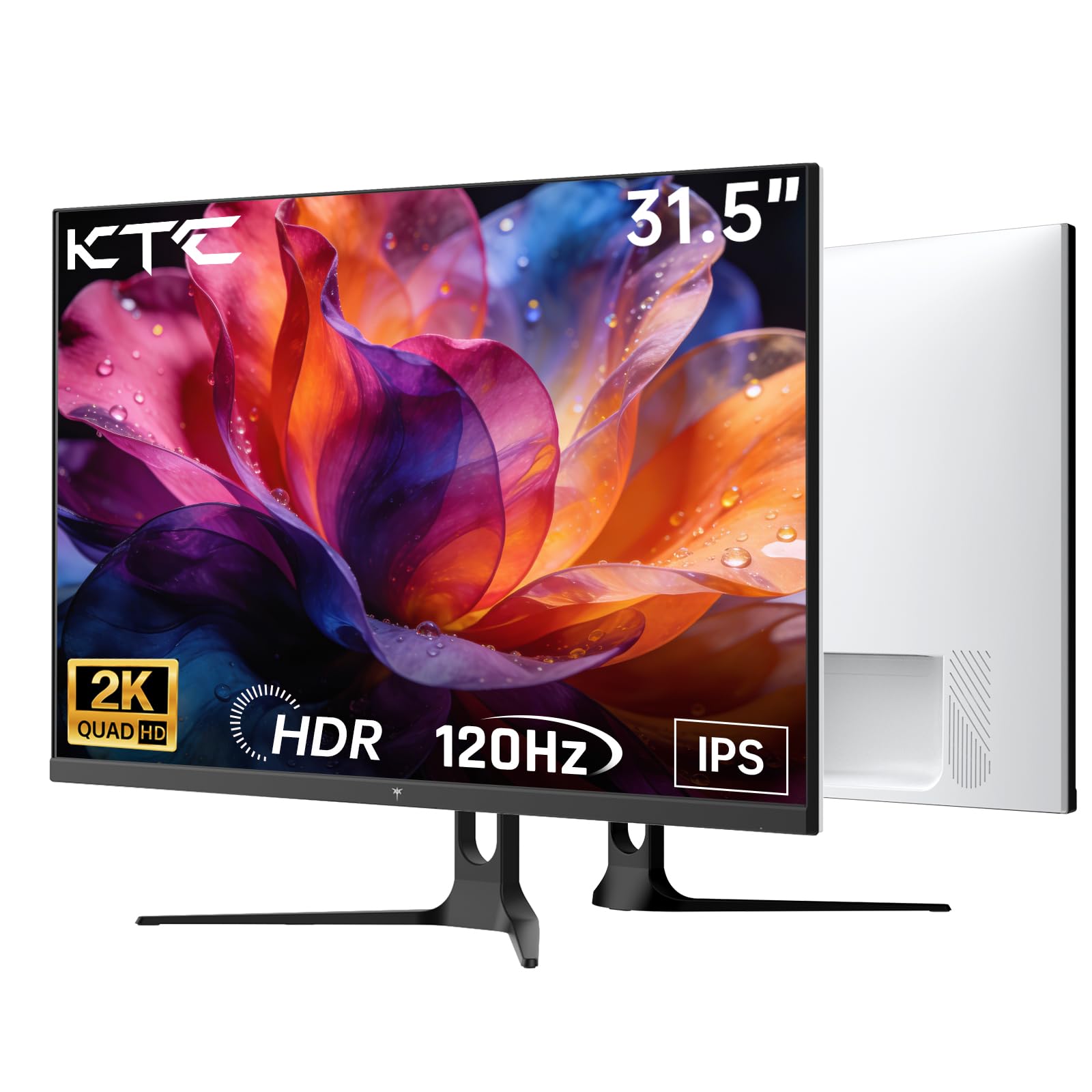
ດ້ານໜ້າ view of the KTC H32D6 31.5-inch monitor on its stand.
ການເຊື່ອມຕໍ່
Connect your monitor to a power source and your computer using the appropriate cables:
- Connect the power adapter to the monitor's DC input port, then plug the power cord into an electrical outlet.
- For video input, connect one end of the HDMI or DisplayPort cable to your computer's graphics card and the other end to the corresponding port on the monitor.
- ຖ້າຕ້ອງການ, ໃຫ້ເຊື່ອມຕໍ່ຫູຟັງ ຫຼື ລຳໂພງພາຍນອກເຂົ້າກັບຊ່ອງສຽບຫູຟັງ.

Close-up of the monitor's rear panel, highlighting the HDMI 2.0 ports (x2), DisplayPort 1.4 (x1), and earphone jack.
ວິດີໂອນີ້ໃຫ້ຫຼາຍກວ່າview of the KTC 32 Inch 2K 120Hz Computer Monitor, showcasing its features and benefits in a dynamic presentation.
ຄໍາແນະນໍາການດໍາເນີນງານ
ເປີດ/ປິດ
ກົດປຸ່ມເປີດ/ປິດ (ໂດຍປົກກະຕິແລ້ວຈະຕັ້ງຢູ່ດ້ານຫຼັງ ຫຼື ລຸ່ມຂວາຂອງຈໍພາບ) ເພື່ອເປີດ ຫຼື ປິດຈໍພາບ. ໄຟສະແດງພະລັງງານຈະສະຫວ່າງຂຶ້ນເມື່ອຈໍພາບເປີດຢູ່.
ການນຳທາງເມນູການສະແດງເທິງໜ້າຈໍ (OSD).
The monitor features an intuitive OSD menu for adjusting various settings. Use the joystick or buttons (depending on your model) on the back of the monitor to navigate the menu:
- ກົດປຸ່ມ joystick / ເພື່ອເປີດເມນູ OSD.
- Move the joystick up/down or left/right to select menu options.
- Press the joystick/button again to confirm a selection or enter a sub-menu.
- To exit the OSD menu, navigate to the 'Exit' option or hold the joystick/button for a few seconds.
ປັບການຕັ້ງຄ່າການສະແດງຜົນ
ພາຍໃນເມນູ OSD, ທ່ານສາມາດປັບການຕັ້ງຄ່າເຊັ່ນ:
- ຄວາມລະອຽດ: Set to QHD (2560x1440) for optimal clarity.
- ອັດຕາການໂຫຼດຂໍ້ມູນຄືນໃໝ່: Adjust to 120Hz for ultra-smooth visuals.
- ຄວາມສະຫວ່າງ & ກົງກັນຂ້າມ: Fine-tune for your preferred viewປະສົບການ.
- ການຕັ້ງຄ່າສີ: Adjust color temperature, gamma, and other color parameters.

An image demonstrating the superior clarity of QHD (2560x1440) resolution compared to FHD (1920x1080) on the monitor screen.

A visual representation of smooth motion on the monitor, illustrating the benefit of a 120Hz refresh rate for seamless visuals.
Adaptive Sync
This monitor supports Adaptive Sync technology (FreeSync, G-Sync Compatible) to eliminate screen tearing and stuttering during gaming or fast-paced video. Ensure Adaptive Sync is enabled in both your monitor's OSD settings and your graphics card control panel for optimal performance.

A side-by-side comparison showing the visual difference with Adaptive Sync ON (smooth image) and OFF (screen tearing) during fast-paced action.
ຮອງຮັບ HDR10
The monitor supports HDR10, providing a wider range of colors and contrast for a more immersive viewing experience. To utilize HDR10, ensure your content and graphics card support HDR, and enable it in your operating system display settings.

An image highlighting the enhanced color and contrast provided by HDR10 technology.
ຄຸນນະສົມບັດການດູແລຕາ
The KTC H32D6 monitor includes Low Blue Light and Flicker-Free technologies to reduce eye fatigue during prolonged use. These features are designed to provide a more comfortable viewປະສົບການ.

An image illustrating the eye care features, including low blue light and flicker-free technology, designed to reduce eye strain.
ການປັບຕົວອຽງ
The monitor stand allows for tilt adjustment from -5° to 20°. Gently adjust the monitor panel to your desired viewing ມຸມສໍາລັບການສະດວກສະບາຍ ergonomic.

An image demonstrating the wide 178-degree viewing angle provided by the IPS panel, ensuring consistent image quality from various positions.
ບໍາລຸງຮັກສາ
ການບໍາລຸງຮັກສາທີ່ເຫມາະສົມຮັບປະກັນອາຍຸຍືນແລະການປະຕິບັດທີ່ດີທີ່ສຸດຂອງຈໍພາບຂອງທ່ານ.
- ທໍາຄວາມສະອາດຫນ້າຈໍ: ເຊັດໜ້າຈໍຄ່ອຍໆດ້ວຍຜ້າອ່ອນ, ແຫ້ງ, ບໍ່ມີສານຂັດ. ສໍາລັບຮອຍແຂງ, ເບົາບາງ dampen the cloth with water or a screen-cleaning solution specifically designed for monitors. Never spray liquid directly onto the screen.
- ທໍາຄວາມສະອາດ Casing: ໃຊ້ຜ້າປຽກອ່ອນໆເພື່ອເຮັດຄວາມສະອາດຈໍສະແດງຜົນ casing. ຫຼີກລ້ຽງການເຮັດຄວາມສະອາດຂັດຫຼືສານລະລາຍ.
- ປິດເຄື່ອງເມື່ອບໍ່ໄດ້ໃຊ້: ປິດຈໍພາບເມື່ອບໍ່ໄດ້ໃຊ້ງານເພື່ອປະຫຍັດພະລັງງານ ແລະ ຍືດອາຍຸການໃຊ້ງານຂອງມັນ.
- ຫຼີກລ້ຽງການຂັດຂວາງ: Ensure that the ventilation openings on the monitor are not blocked to prevent overheating.
ການແກ້ໄຂບັນຫາ
ຖ້າເຈົ້າພົບບັນຫາກັບຈໍພາບຂອງເຈົ້າ, ໃຫ້ອ້າງອີງເຖິງບັນຫາ ແລະວິທີແກ້ໄຂບັນຫາທົ່ວໄປຕໍ່ໄປນີ້:
| ບັນຫາ | ການແກ້ໄຂທີ່ເປັນໄປໄດ້ |
|---|---|
| ບໍ່ມີຮູບພາບໃນ ໜ້າ ຈໍ | Ensure the power cable is securely connected and the monitor is turned on. Check that the video cable (HDMI/DP) is firmly connected to both the monitor and your computer. Select the correct input source via the OSD menu. |
| ຮູບພາບກະພິບ ຫຼື ບໍ່ໝັ້ນຄົງ | Check the video cable connection. Ensure your graphics card drivers are up to date. Verify that the refresh rate is set correctly in your computer's display settings. Enable Adaptive Sync if supported by your graphics card. |
| ສີປາກົດບໍ່ຖືກຕ້ອງ | Adjust color settings (brightness, contrast, color temperature) in the OSD menu. Ensure HDR is correctly configured in your operating system if you are using HDR content. |
| Monitor not recognized by computer | ປິດເປີດຄອມພິວເຕີຂອງທ່ານຄືນໃໝ່. ລອງໃຊ້ພອດ ຫຼືສາຍວິດີໂອອື່ນ. ອັບເດດໄດເວີບັດກາຟິກຂອງທ່ານ. |
ຂໍ້ມູນຈໍາເພາະ
Key technical specifications for the KTC H32D6 monitor:
| ຄຸນສົມບັດ | ຂໍ້ມູນຈໍາເພາະ |
|---|---|
| ຍີ່ຫໍ້ | KTC |
| ໝາຍເລກຕົວແບບ | H32D6 |
| ຂະໜາດໜ້າຈໍ | 31.5 ນິ້ວ |
| ຄວາມລະອຽດ | ຄວາມລະອຽດ QHD 1440p (2560 x 1440 ພິກເຊວ) |
| ອັດຕາການໂຫຼດຂໍ້ມູນຄືນໃໝ່ | 100 Hz (up to 120Hz overclocked) |
| ປະເພດການສະແດງ | IPS |
| ເວລາຕອບສະຫນອງ | 7 ມິນລິວິນາທີ |
| ອັດຕາສ່ວນ | 16:9 |
| ຄວາມສະຫວ່າງ | 350 Candela (cd/m²) |
| ອັດຕາສ່ວນກົງກັນຂ້າມ | 1000:1 |
| Viewໃນມຸມ | 178 ອົງສາ |
| ສີ Gamut | 109% sRGB |
| Picture Quality Enhancement | HDR10 |
| ການເຊື່ອມຕໍ່ | 2 x HDMI 2.0, 1 x DisplayPort 1.4, Earphone Jack |
| Adaptive Sync | FreeSync, G-Sync Compatible |
| ຄຸນສົມບັດເພີ່ມເຕີມ | Eye Care, Flicker-Free, Tilt Adjustment, VESA 100x100mm Compatible |
| ການບໍລິໂພກພະລັງງານ | 48 ວັດ |
| ຂະໜາດລາຍການ (D x W x H) | 7.09"D x 28.23"W x 20.08"H |
ການຮັບປະກັນແລະການສະຫນັບສະຫນູນ
ຂໍ້ມູນການຮັບປະກັນ
This KTC H32D6 monitor comes with a ການຮັບປະກັນຜູ້ຜະລິດ 3 ປີ. ການຮັບປະກັນນີ້ກວມເອົາຂໍ້ບົກພ່ອງຂອງວັດສະດຸແລະການເຮັດວຽກພາຍໃຕ້ການນໍາໃຊ້ປົກກະຕິ. ກະລຸນາຮັກສາຫຼັກຖານການຊື້ຂອງທ່ານສໍາລັບການຮຽກຮ້ອງການຮັບປະກັນ.
ການຮັບປະກັນບໍ່ໄດ້ກວມເອົາຄວາມເສຍຫາຍທີ່ເກີດຈາກການໃຊ້ໃນທາງທີ່ຜິດ, ອຸປະຕິເຫດ, ການປ່ຽນແປງທີ່ບໍ່ໄດ້ຮັບອະນຸຍາດ, ຫຼືປັດໃຈພາຍນອກເຊັ່ນ: ໄຟກະດ້າງ.
ການຊ່ວຍເຫຼືອລູກຄ້າ
For technical assistance, warranty claims, or any other inquiries, please contact KTC customer support through the official website or the contact information provided with your purchase. You may also refer to the Quick Start Guide for additional support resources.