
1. ບົດແນະນຳ
This manual provides detailed instructions for the installation, operation, and maintenance of your ZSUS X99-8D4 Motherboard Set Kit. This kit includes the ZSUS X99-8D4 motherboard, an Intel Xeon E5 2650 V4 CPU, and 16GB (1x16GB) of DDR4 2133MHz memory. Please read this manual thoroughly before proceeding with installation to ensure proper setup and optimal performance.
2. ຜະລິດຕະພັນເກີນview
The ZSUS X99-8D4 motherboard is designed for high-performance computing, supporting Intel LGA2011-3 processors and DDR4 memory. It features an NVMe M.2 slot for high-speed storage and Gigabit Ethernet for reliable network connectivity.
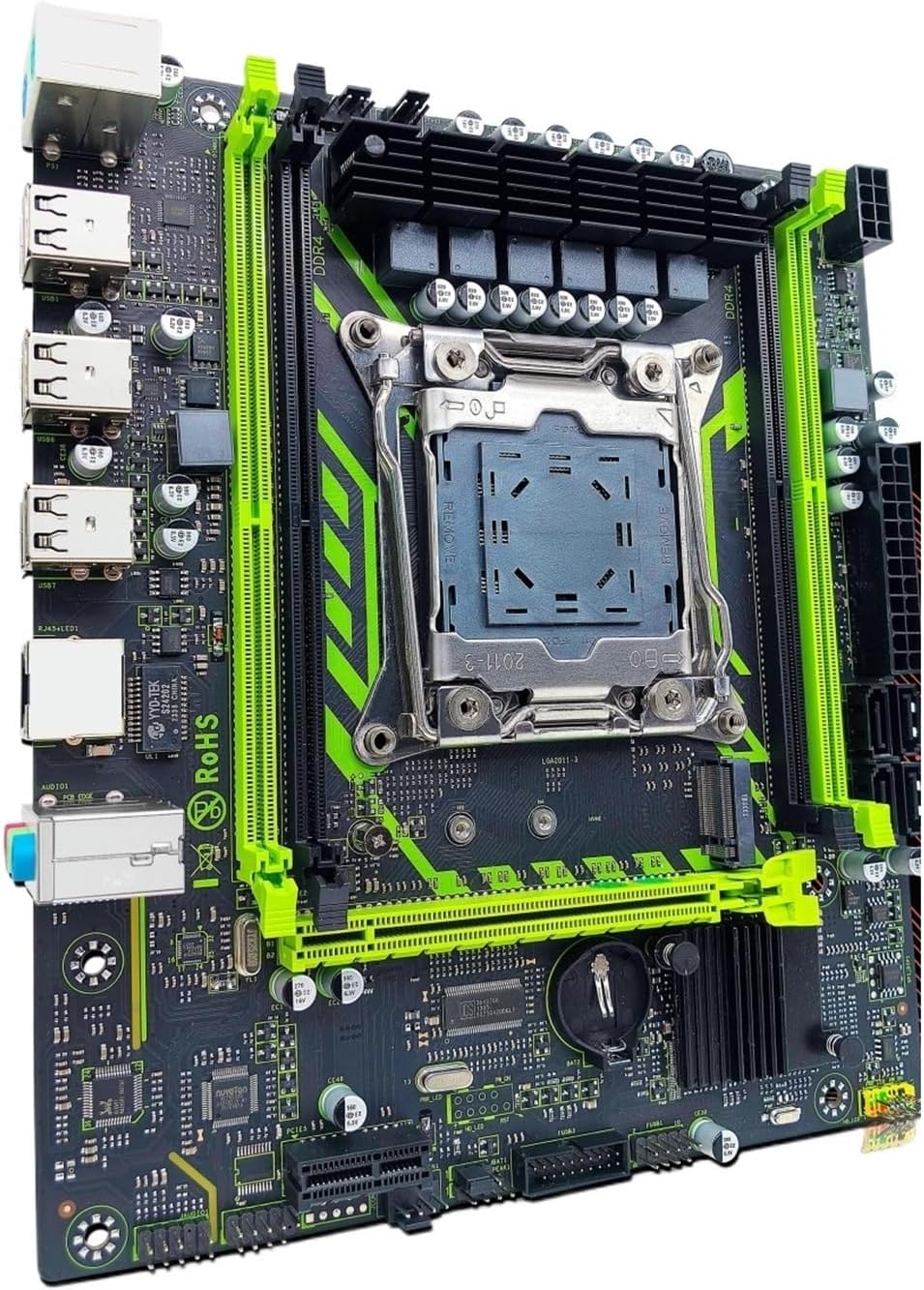
ຮູບທີ 2.1: ZSUS X99-8D4 Motherboard Set Kit. This image displays the complete motherboard kit, including the motherboard, CPU, and RAM, ready for installation.
ຄຸນນະສົມບັດທີ່ສໍາຄັນ:
- ຮອງຮັບ CPU: LGA2011-3 socket for Intel Xeon E5 V3/V4 series processors.
- ໜ່ວຍຄວາມຈຳ: 4x DDR4 memory slots, supporting up to 128GB of RAM.
- ການເກັບຮັກສາ: NVMe M.2 slot (2280 form factor) for high-speed SSDs, and multiple SATA 2.0 ports.
- ການຂະຫຍາຍຕົວ: 1x PCIe x16 slot (PCI-E 3.0) for graphics cards, 1x PCIe x1 slot.
- ເຄືອຂ່າຍ: Integrated Gigabit Ethernet (1000Mbps).
- USB: Multiple USB 2.0 ports.
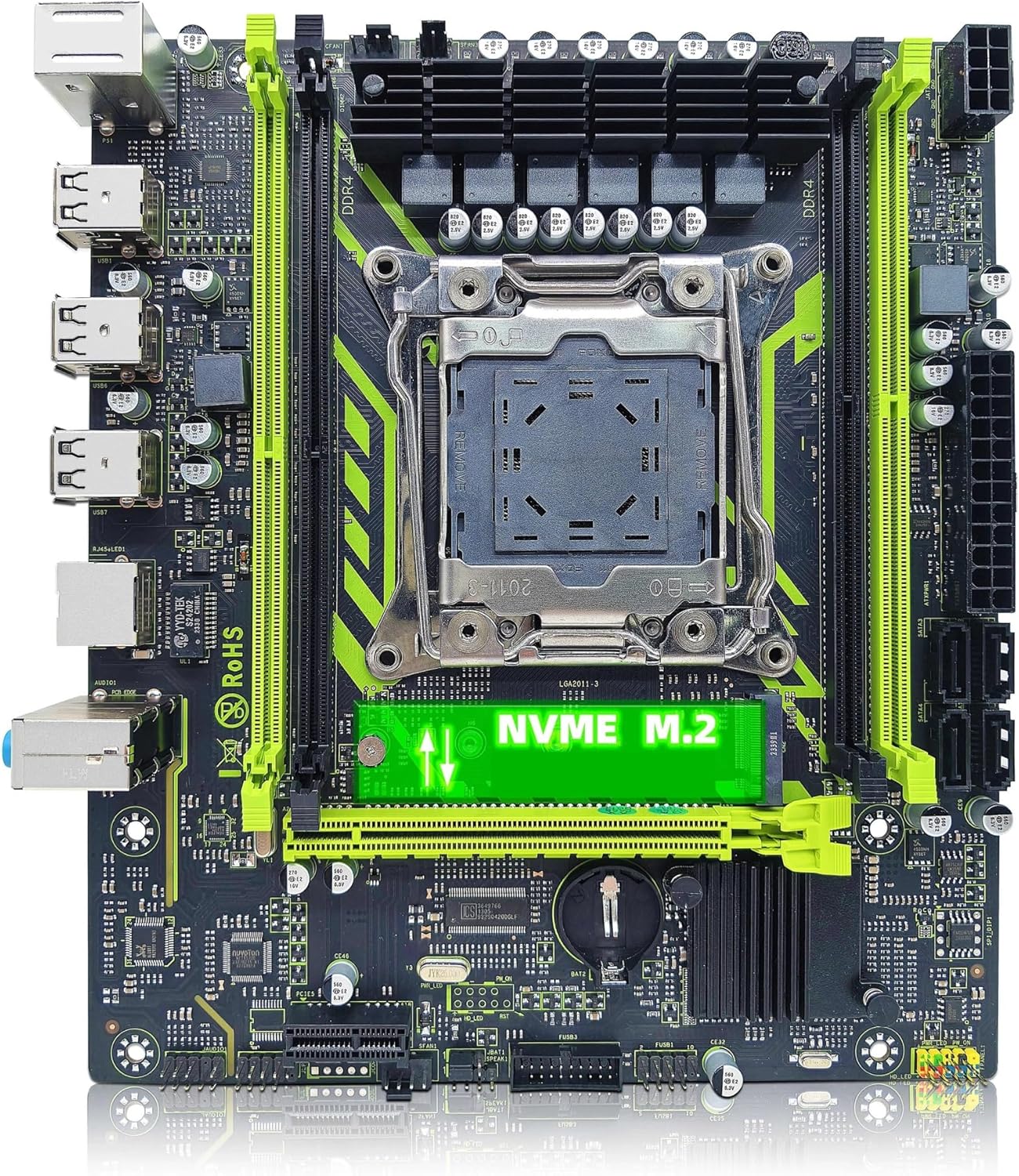
ຮູບທີ 2.2: ZSUS X99-8D4 Motherboard highlighting the NVMe M.2 slot. This image shows the motherboard with the NVMe M.2 slot clearly visible, indicating its location for SSD installation.
3. ການຕິດຕັ້ງແລະການຕິດຕັ້ງ
Before beginning installation, ensure your system is powered off and unplugged. Wear an anti-static wrist strap to prevent electrostatic discharge (ESD) damage to components.
3.1 ການຫຸ້ມຫໍ່ແລະການກວດກາ
Carefully remove all components from their packaging. Verify that all items listed in your kit are present and undamaged. The kit typically includes the motherboard, CPU, RAM, I/O shield, and SATA cable.
3.2 ການຕິດຕັ້ງເມນບອດ
- ຕິດຕັ້ງ I/O ໄສ້ເຂົ້າໄປໃນການເປີດດ້ານຫລັງຂອງກໍລະນີຄອມພິວເຕີຂອງທ່ານ.
- Align the motherboard with the standoffs inside your computer case.
- Secure the motherboard with screws, ensuring it is firmly seated and not touching any metal parts of the case directly.

ຮູບທີ 3.1: ZSUS X99-8D4 Motherboard with dimensions. This image illustrates the physical dimensions of the motherboard, showing a width of 215mm and a length of 190mm, which is useful for case compatibility.
3.3 ການຕິດຕັ້ງ CPU (Intel Xeon E5 2650 V4)
- ຊອກຫາຊັອກເກັດ CPU LGA2011-3 ຢູ່ໃນເມນບອດ.
- ເປີດກົນໄກການເກັບຮັກສາເຕົ້າຮັບ CPU ໂດຍການຍູ້ລົງແລະອອກກ່ຽວກັບການ lever(s) ໄດ້.
- Carefully place the Intel Xeon E5 2650 V4 CPU into the socket, aligning the gold triangle on the CPU with the corresponding mark on the socket. Do not force the CPU into place.
- ປິດກົນໄກການເກັບຮັກສາໄວ້ເພື່ອຮັບປະກັນ CPU.
- ທາຊັ້ນບາງໆ, ແມ້ແຕ່ການວາງຄວາມຮ້ອນໃສ່ເທິງສຸດຂອງ CPU.
- ຕິດຕັ້ງເຄື່ອງເຢັນ CPU ຂອງທ່ານຕາມຄໍາແນະນໍາຂອງຜູ້ຜະລິດຂອງມັນ.
3.4 ການຕິດຕັ້ງ RAM (DDR4)
- ຊອກຫາຊ່ອງໃສ່ໜ່ວຍຄວາມຈຳ DDR4 ສີ່ຊ່ອງຢູ່ເທິງເມນບອດ.
- ເປີດຄລິບຢູ່ທັງສອງສົ້ນຂອງຊ່ອງຄວາມຈຳ.
- Align the notch on the 16GB DDR4 memory module with the key in the memory slot.
- ກົດລົງໃຫ້ແໜ້ນທັງສອງສົ້ນຂອງໂມດູນໜ່ວຍຄວາມຈຳຈົນກວ່າຄລິບຈະເຂົ້າໃສ່.
3.5 NVMe M.2 SSD Installation
- Locate the NVMe M.2 slot on the motherboard.
- ເອົາ screw standoff M.2 ອອກ.
- ສຽບ M.2 SSD ເຂົ້າໄປໃນຊ່ອງສຽບໃນມຸມ 30 ອົງສາ.
- ຍູ້ SSD ລົງແລະຍຶດມັນດ້ວຍສະກູຍຶດ.
3.6 Graphics Card and Other PCIe Devices
- Locate the PCIe x16 slot for your graphics card.
- ເປີດ clip retention ຢູ່ໃນຕອນທ້າຍຂອງຊ່ອງໄດ້.
- ວາງແຜ່ນກຣາບຟິກຂອງທ່ານກັບຊ່ອງສຽບ ແລະກົດລົງຢ່າງແໜ້ນໜາຈົນກວ່າມັນຈະກົດເຂົ້າໃສ່.
- ຍຶດກາດກຣາບຟິກເຂົ້າກັບເຄສດ້ວຍສະກູ.
- Install any other PCIe x1 expansion cards as needed.
3.7 ການເຊື່ອມຕໍ່ການສະຫນອງພະລັງງານ
- ເຊື່ອມຕໍ່ຕົວເຊື່ອມຕໍ່ໄຟ ATX 24-pin ຈາກແຫຼ່ງສະໜອງໄຟຂອງທ່ານໃສ່ກັບເມນບອດ.
- Connect the 8-pin CPU power connector (and 4-pin if available/needed) to the corresponding sockets near the CPU.
- Connect SATA power cables to your storage devices.
3.8 ແຜງດ້ານຫນ້າແລະການເຊື່ອມຕໍ່ອຸປະກອນຂ້າງຄຽງ
- Connect the front panel headers (Power SW, Reset SW, HDD LED, Power LED) to the designated pins on the motherboard. Refer to the motherboard diagram for correct pin assignments.
- Connect USB 2.0 headers from your case to the motherboard.
- ເຊື່ອມຕໍ່ສ່ວນຫົວສຽງຂອງແຜງດ້ານໜ້າ.
- Connect SATA data cables from your storage devices to the SATA 2.0 ports on the motherboard.

ຮູບທີ 3.2: ZSUS X99-8D4 Motherboard with labeled ports and connectors. This image provides a detailed layout of the motherboard, indicating the locations of the CPU socket, DDR4 slots, PCIe slots, SATA ports, USB headers, and power connectors.

ຮູບທີ 3.3: ZSUS X99-8D4 Motherboard I/O Shield and SATA Cable. This image shows the included I/O shield for the rear panel and a SATA data cable, essential accessories for system assembly.
4. ຄໍາແນະນໍາການດໍາເນີນງານ
4.1 First Boot
- After all connections are made, connect your monitor, keyboard, and mouse.
- Plug in the power cord and turn on your power supply.
- ກົດປຸ່ມເປີດປິດໃນກໍລະນີຄອມພິວເຕີຂອງທ່ານ.
- ລະບົບຄວນເປີດເຄື່ອງ ແລະ ສະແດງໜ້າຈໍເລີ່ມຕົ້ນຂອງ BIOS/UEFI.
4.2 ການຕັ້ງຄ່າ BIOS/UEFI
During the initial boot, press the designated key (usually DEL or F2) to enter the BIOS/UEFI setup utility. Here you can configure boot order, system time, and other hardware settings. Ensure your storage device with the operating system is set as the primary boot device.
4.3 ການຕິດຕັ້ງໄດເວີ
After installing your operating system, install the necessary drivers for the motherboard chipset, LAN, and audio. These drivers are typically provided on a CD/DVD or can be downloaded from the manufacturer's website. Installing the correct drivers ensures optimal performance and stability.
5. ບໍາລຸງຮັກສາ
5.1 ການທໍາຄວາມສະອາດ
ທຳຄວາມສະອາດພາຍໃນຄອມພິວເຕີຂອງທ່ານເປັນປະຈຳເພື່ອປ້ອງກັນການສະສົມຂອງຝຸ່ນເຊິ່ງສາມາດນຳໄປສູ່ການຮ້ອນເກີນໄປ. ໃຊ້ລົມອັດເພື່ອກຳຈັດຝຸ່ນອອກຈາກພັດລົມ, ທໍ່ລະບາຍຄວາມຮ້ອນ ແລະ ອົງປະກອບຂອງແຜງວົງຈອນຫຼັກ. ໃຫ້ແນ່ໃຈວ່າລະບົບໄດ້ປິດ ແລະ ຖອດປລັກອອກກ່ອນທຳຄວາມສະອາດ.
5.2 ການປັບປຸງ BIOS
ກວດສອບຜູ້ຜະລິດເປັນໄລຍະ webເວັບໄຊທ໌ສຳລັບການອັບເດດ BIOS/UEFI. ການອັບເດດສາມາດປັບປຸງຄວາມໝັ້ນຄົງຂອງລະບົບ, ເພີ່ມການຮອງຮັບຮາດແວໃໝ່, ຫຼືແກ້ໄຂຂໍ້ຜິດພາດຕ່າງໆ. ປະຕິບັດຕາມຄຳແນະນຳການອັບເດດຢ່າງລະມັດລະວັງເພື່ອຫຼີກເວັ້ນການທຳລາຍເມນບອດ.
6. ການແກ້ໄຂບັນຫາ
ພາກສ່ວນນີ້ແກ້ໄຂບັນຫາທົ່ວໄປທີ່ທ່ານອາດຈະພົບ.
6.1 ບໍ່ມີພະລັງງານ / ບໍ່ມີ Boot
- Check all power connections: 24-pin ATX, 8-pin CPU, and power button header.
- ໃຫ້ແນ່ໃຈວ່າສະວິດການສະຫນອງພະລັງງານຢູ່ໃນຕໍາແຫນ່ງ 'ON'.
- ທົດສອບແຫຼ່ງຈ່າຍໄຟດ້ວຍລະບົບອື່ນ ຫຼື ເຄື່ອງທົດສອບແຫຼ່ງຈ່າຍໄຟ ຖ້າເປັນໄປໄດ້.
6.2 ບໍ່ມີຈໍສະແດງຜົນ
- Ensure your monitor is connected to the graphics card (not the motherboard's I/O if no integrated graphics are present).
- ຣີເຊັດບັດກາຟິກ ແລະໂມດູນໜ່ວຍຄວາມຈຳຄືນໃໝ່.
- ລອງສາຍ ຫຼື ຈໍສະແດງຜົນອື່ນ.
6.3 Memory Errors
- Ensure memory modules are fully seated in their slots.
- Try booting with one memory module at a time to identify a faulty stick or slot.
- Verify memory compatibility with the motherboard.
6.4 ຄວາມບໍ່ໝັ້ນຄົງຂອງລະບົບ / ການຂັດຂ້ອງ
- ກວດເບິ່ງອຸນຫະພູມ CPU ແລະ GPU ເພື່ອຮັບປະກັນວ່າພວກມັນຢູ່ໃນຂອບເຂດຈໍາກັດການເຮັດວຽກທີ່ປອດໄພ.
- ຮັບປະກັນວ່າໄດເວີທັງໝົດແມ່ນອັບເດດແລ້ວ.
- ເປີດໃຊ້ເຄື່ອງມືການວິນິດໄສຄວາມຈຳເພື່ອກວດເບິ່ງຄວາມຜິດພາດຂອງ RAM.
7. ຂໍ້ມູນຈໍາເພາະ
| ຄຸນສົມບັດ | ຂໍ້ມູນຈໍາເພາະ |
|---|---|
| ຕົວແບບ | ZSUS X99-8D4 |
| ເຕົ້າສຽບ CPU | LGA 2011-3 |
| Supported CPU | Intel Xeon E5 V3/V4 series (e.g., E5 2650 V4 included) |
| ປະເພດຄວາມຈໍາ | DDR4 |
| Memory Slots | 4 |
| ຄວາມອາດສາມາດຫນ່ວຍຄວາມຈໍາສູງສຸດ | 128 GB |
| ການໂຕ້ຕອບການເກັບຮັກສາ | M.2 (NVMe 2280), SATA 2.0 |
| ຊ່ອງ PCIe x16 | 1 (PCI-E 3.0) |
| ຊ່ອງ PCIe x1 | 1 |
| ຄວາມໄວ LAN | 1000Mbps (Gigabit Ethernet) |
| ພອດ USB | 6 x USB 2.0 (rear I/O) |
| ພອດສຽງ | 3 x Jacks |
| ປັດໄຈແບບຟອມ | ATX (approx. 215mm x 190mm) |
| ການຢັ້ງຢືນ | RoHS, CE |
8. ການຮັບປະກັນແລະການສະຫນັບສະຫນູນ
ສຳລັບຂໍ້ມູນການຮັບປະກັນ ແລະ ການຊ່ວຍເຫຼືອດ້ານເຕັກນິກ, ກະລຸນາອ້າງອີງເອກະສານທີ່ສະໜອງໃຫ້ພ້ອມກັບການຊື້ຂອງທ່ານ ຫຼື ຕິດຕໍ່ຜູ້ຂາຍໂດຍກົງ. ເກັບຫຼັກຖານການຊື້ຂອງທ່ານໄວ້ເພື່ອການຮຽກຮ້ອງການຮັບປະກັນ.