
1. ບົດແນະນຳ
This manual provides essential information for the safe and efficient use of your Haier H55C95EUX 55-inch OLED 4K HDR Smart TV. Please read these instructions thoroughly before operating your television and retain them for future reference.
The Haier H55C95EUX features a 55-inch OLED display for deep blacks and vibrant colors, 4K HDR resolution, a 144Hz refresh rate for smooth motion, integrated Harman Kardon sound, and the Google TV operating system for smart functionality and voice control.

ຮູບພາບ 1.1: ຫຼາຍກວ່າview of Haier C95 Series OLED TV features, highlighting Harman Kardon audio, 144Hz gaming, Dolby Vision IQ, Dolby Atmos, HDR10+, Google TV, and 3GB RAM with 32GB storage.
2. ຂໍ້ມູນຄວາມປອດໄພ
ປະຕິບັດຕາມຄວາມລະມັດລະວັງດ້ານຄວາມປອດໄພຂັ້ນພື້ນຖານສະເໝີເມື່ອໃຊ້ໂທລະທັດເຄື່ອງນີ້ເພື່ອຫຼຸດຜ່ອນຄວາມສ່ຽງຕໍ່ການເກີດອັກຄີໄພ, ໄຟຟ້າຊອດ ແລະ ການບາດເຈັບ.
- ແຫຼ່ງພະລັງງານ: ເຊື່ອມຕໍ່ໂທລະພາບພຽງແຕ່ກັບແຫຼ່ງສະຫນອງພະລັງງານ AC 220-240V, 50/60Hz.
- ການລະບາຍອາກາດ: ຮັບປະກັນການລະບາຍອາກາດທີ່ພຽງພໍຮອບໂທລະທັດ. ຫ້າມປິດຊ່ອງລະບາຍອາກາດ.
- ນ້ໍາແລະຄວາມຊຸ່ມ: ຢ່າເຮັດໃຫ້ໂທລະທັດຖືກຝົນຫຼືຄວາມຊຸ່ມຊື່ນ. ຫ້າມວາງສິ່ງຂອງທີ່ເຕັມໄປດ້ວຍຂອງແຫຼວເຊັ່ນ: ກະເປົ໋າ, ໃສ່ໂທລະພາບ.
- ທໍາຄວາມສະອາດ: ຖອດປລັກໂທລະທັດອອກຈາກຝາຜະໜັງກ່ອນທີ່ຈະເຮັດຄວາມສະອາດ. ໃຊ້ຜ້າອ່ອນ, ແຫ້ງ. ຢ່າໃຊ້ເຄື່ອງເຮັດຄວາມສະອາດຂອງແຫຼວຫຼືເຄື່ອງເຮັດຄວາມສະອາດ aerosol.
- ການຕິດຕັ້ງ: If wall-mounting, ensure the wall mount is compatible with the VESA standard (100 x 100 mm) and can support the TV's weight.
- ເດັກນ້ອຍ: Supervise children to ensure they do not play with the television.
3. ສິ່ງທີ່ຢູ່ໃນກ່ອງ
ຖອດກ່ອງຢ່າງລະມັດລະວັງ ແລະຮັບປະກັນວ່າສິນຄ້າທັງໝົດມີຢູ່ ແລະບໍ່ມີຄວາມເສຍຫາຍ.
- Haier H55C95EUX 55-inch OLED 4K HDR Smart TV
- ການຄວບຄຸມໄລຍະໄກ
- ຄູ່ມືຜູ້ໃຊ້ (ເອກະສານນີ້)
- ສາຍໄຟ
- ອົງປະກອບຂາຕັ້ງໂທລະທັດ (ຖ້າມີ)
4. ຕັ້ງຄ່າ
4.1 ການຕິດຕັ້ງທາງດ້ານຮ່າງກາຍ
Before installation, consider the TV's dimensions to ensure proper placement.

ຮູບພາບ 4.1: ດ້ານຫນ້າ view dimensions of the 55-inch Haier TV, indicating a width of 1225mm and a height of 749mm.

Image 4.2: Detailed dimensions of the Haier 55-inch TV, showing measurements with and without the stand.
ການຕິດຕັ້ງຂາຕັ້ງ
- ວາງໂທລະທັດໜ້າລົງເທິງພື້ນຜິວທີ່ຮາບພຽງເພື່ອປ້ອງກັນຄວາມເສຍຫາຍຂອງໜ້າຈໍ.
- Attach the stand components to the designated slots on the bottom of the TV using the provided screws.
- ກວດໃຫ້ແນ່ໃຈວ່າໄດ້ຍຶດຂາຕັ້ງໄວ້ຢ່າງປອດໄພກ່ອນທີ່ຈະວາງໂທລະທັດຕັ້ງຊື່.
ຕິດຝາ
If wall-mounting, use a VESA-compatible mount (100 x 100 mm) and follow the mount manufacturer's instructions. Ensure the wall can support the TV's weight.
4.2 ອຸປະກອນເຊື່ອມຕໍ່
Your TV is equipped with multiple ports for connecting external devices.
- HDMI: Connect Blu-ray players, game consoles, or set-top boxes to the HDMI 2.1 ports for high-quality audio and video.
- USB: ເຊື່ອມຕໍ່ອຸປະກອນບ່ອນຈັດເກັບຂໍ້ມູນ USB ສຳລັບການຫຼິ້ນສື່.
- ອີເທີເນັດ: ສໍາລັບການເຊື່ອມຕໍ່ອິນເຕີເນັດແບບມີສາຍທີ່ຫມັ້ນຄົງ.
- Bluetooth: ເຊື່ອມຕໍ່ຫູຟັງໄຮ້ສາຍ ຫຼື ອຸປະກອນ Bluetooth ອື່ນໆ.
4.3 ການເປີດ ແລະ ຕັ້ງຄ່າເບື້ອງຕົ້ນ
- ເຊື່ອມຕໍ່ສາຍໄຟກັບໂທລະພາບ ແລະປລັກສຽບໃສ່ຝາ.
- ກົດປຸ່ມເປີດປິດໃນການຄວບຄຸມໄລຍະໄກຫຼືໂທລະພາບ.
- Follow the on-screen instructions to complete the initial setup, including language selection, network connection (Wi-Fi or Ethernet), and Google TV account login.
5. ການປະຕິບັດໂທລະພາບຂອງທ່ານ
5.1 ການຄວບຄຸມໄລຍະໄກ
The included remote control allows you to navigate the TV's features. It may feature a solar cell for eco-friendly charging and USB-C for backup charging.

Image 5.1: The Haier TV remote control, featuring navigation, volume, and app access buttons.
5.2 ການໂຕ້ຕອບ Google TV
Your TV runs on Google TV, providing access to a wide range of streaming services, apps, and personalized content.

Image 5.2: The Google TV home screen, showcasinແອັບພລິເຄຊັນສະຕຣີມມິງຕ່າງໆ ແລະ ຄຳແນະນຳເນື້ອຫາຕ່າງໆ.
ການຄວບຄຸມສຽງ
Use the built-in voice control feature to search for content, launch apps, and control your TV hands-free. Simply say "Hey Google" or press the voice assistant button on your remote.

Image 5.3: Demonstrating voice control functionality with the Haier TV and Google TV.
5.3 ການຕັ້ງຄ່າຮູບພາບ ແລະສຽງ
ເຕັກໂນໂລຊີ OLED
The OLED display provides absolute blacks and infinite contrast for a lifelike viewປະສົບການ.

Image 5.4: Visual representation of OLED technology, showcasing ສີດໍາເລິກແລະສີສັນສົດໃສ.
Harman Kardon Sound
Experience immersive audio with clear dialogues and cinematic depth, delivered by the integrated Harman Kardon sound system.

Image 5.5: Depiction of the Harman Kardon sound system, emphasizing clear and powerful audio.
Dolby Atmos
Enjoy three-dimensional, immersive sound that moves around you, enhancing your audio experience.
ອັດຕາ Refresh 144Hz
The 144Hz refresh rate ensures smooth and fluid motion, ideal for fast-paced content like gaming and sports.

Image 5.6: Visual comparison illustrating the fluidity of 144Hz motion compared to 60Hz, particularly beneficial for gaming.
6. ບໍາລຸງຮັກສາ
6.1 ການທໍາຄວາມສະອາດໂທລະພາບຂອງທ່ານ
- ຖອດປລັກໂທລະທັດທຸກຄັ້ງກ່ອນທຳຄວາມສະອາດ.
- ໃຊ້ຜ້າແພທີ່ອ່ອນ, ແຫ້ງ, ບໍ່ມີເສັ້ນດ່າງເພື່ອເຊັດຫນ້າຈໍແລະຕູ້.
- ສໍາລັບຮອຍແຂງ, ເບົາບາງ dampໃສ່ຜ້າດ້ວຍນ້ໍາຫຼືເຄື່ອງເຮັດຄວາມສະອາດຫນ້າຈໍພິເສດ. ຢ່າສີດນ້ຳສະອາດໃສ່ໜ້າຈໍໂດຍກົງ.
- ຫຼີກເວັ້ນການໃຊ້ເຄື່ອງເຮັດຄວາມສະອາດຂັດ, ຂີ້ເຜີ້ງ, ຫຼືສານລະລາຍ.
6.2 ການປັບປຸງຊອບແວ
Your Haier TV may receive software updates to improve performance and add new features. Ensure your TV is connected to the internet to receive these updates automatically or check for them manually through the settings menu.
7. ການແກ້ໄຂບັນຫາ
ຖ້າຫາກທ່ານພົບບັນຫາກັບໂທລະພາບຂອງທ່ານ, ເບິ່ງວິທີແກ້ໄຂທົ່ວໄປດັ່ງຕໍ່ໄປນີ້:
| ບັນຫາ | ການແກ້ໄຂທີ່ເປັນໄປໄດ້ |
|---|---|
| ບໍ່ມີພະລັງງານ | Check if the power cable is securely connected to the TV and the wall outlet. Ensure the outlet is functioning. Try pressing the power button on the TV itself. |
| ບໍ່ມີຮູບພາບ, ແຕ່ສຽງແມ່ນປະຈຸບັນ | ກວດເບິ່ງແຫຼ່ງປ້ອນຂໍ້ມູນ. ໃຫ້ແນ່ໃຈວ່າອຸປະກອນທີ່ເຊື່ອມຕໍ່ນັ້ນເປີດຢູ່ ແລະເຮັດວຽກຢ່າງຖືກຕ້ອງ. ລອງໃຊ້ສາຍ HDMI ຫຼືພອດອື່ນ. |
| ບໍ່ມີສຽງ, ແຕ່ຮູບພາບແມ່ນປະຈຸບັນ | Check the volume level. Ensure the TV is not muted. Verify audio output settings (e.g., internal speakers, external sound system). Check audio cables if using external speakers. |
| ການຄວບຄຸມໄລຍະໄກບໍ່ເຮັດວຽກ | Check the remote control's battery level. Ensure there are no obstructions between the remote and the TV's IR sensor. If it's a solar remote, ensure it has sufficient light exposure. |
| ບັນຫາການເຊື່ອມຕໍ່ເຄືອຂ່າຍ | Restart your router and modem. Check Wi-Fi password. If using Ethernet, ensure the cable is connected properly. Try connecting to a different network if available. |
8. ຂໍ້ມູນຈໍາເພາະ
| ຄຸນສົມບັດ | ລາຍລະອຽດ |
|---|---|
| ຊື່ຕົວແບບ | H55C95EUX |
| ຂະໜາດໜ້າຈໍ | 55 ນິ້ວ |
| ເຕັກໂນໂລຊີການສະແດງ | OLED |
| ຄວາມລະອຽດ | 4K (3840 x 2160) |
| ອັດຕາການໂຫຼດຂໍ້ມູນຄືນໃໝ່ | 120 Hz (Motion Enhancement: 144Hz) |
| ຮູບແບບ HDR ຮອງຮັບ | Dolby Vision |
| ລະບົບປະຕິບັດການ | Google TV |
| ການເກັບຮັກສາພາຍໃນ | 32 GB |
| ລະບົບສຽງ | Harman Kardon 2.1 Sound System |
| Surround Sound Format | Dolby Atmos |
| ການເຊື່ອມຕໍ່ | Bluetooth, Ethernet, HDMI (x4), USB (x1) |
| ເຕັກໂນໂລຊີໄຮ້ສາຍ | Bluetooth, WiFi |
| ວິທີການຄວບຄຸມ | Remote Control, Voice |
| ຂະໜາດຜະລິດຕະພັນ (DxWxH) | 29.5P x 122.5l x 76.8H cm (with stand) |
| ມາດຕະຖານການຕິດຕັ້ງ VESA | 100 x 100 ມມ |
| ຫ້ອງຮຽນປະສິດທິພາບພະລັງງານ (SDR) | F (77 ກິໂລວັດໂມງ/1000 ຊົ່ວໂມງ) |
| ຫ້ອງຮຽນປະສິດທິພາບພະລັງງານ (HDR) | G (70 kWh/1000h) |
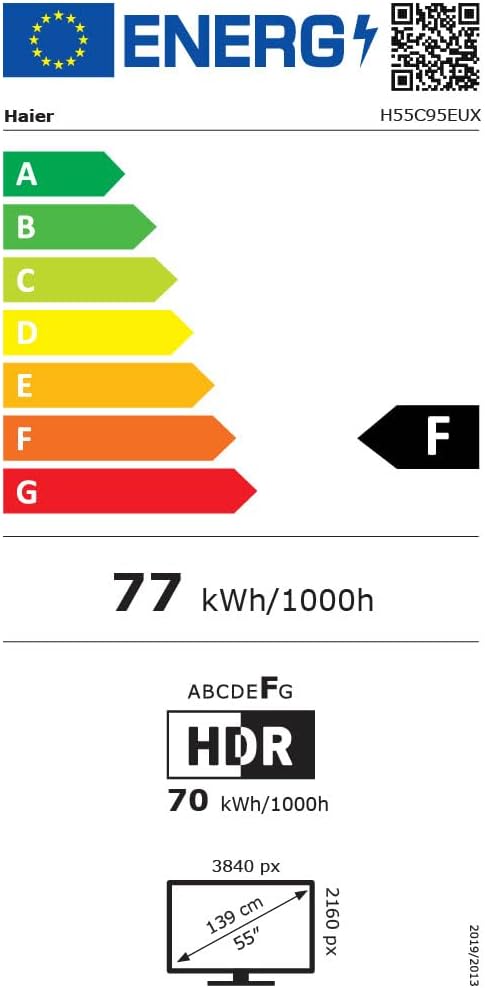
Image 8.1: EU Energy Label for the Haier H55C95EUX TV. For more details, visit the ຖານຂໍ້ມູນ EPREL.
9. ການຮັບປະກັນແລະການສະ ໜັບ ສະ ໜູນ
Your Haier H55C95EUX television comes with a ການຮັບປະກັນຂອງຜູ້ຜະລິດ 2 ປີ. ກະລຸນາຮັກສາຫຼັກຖານການຊື້ຂອງທ່ານສໍາລັບການຮຽກຮ້ອງການຮັບປະກັນ.
For technical support, service, or further inquiries, please refer to the contact information provided on the official Haier website or your local authorized service center.


