
1. ບົດແນະນຳ
This manual provides detailed instructions for the safe and effective use of your Portkeys LH5C 5.4-inch Camera Monitor. Please read this manual thoroughly before operating the device and retain it for future reference. The Portkeys LH5C is a professional field monitor designed to enhance your filmmaking workflow with advanced monitoring tools and wired camera control capabilities.
2. ສິ່ງທີ່ຢູ່ໃນກ່ອງ
Verify that all items listed below are included in your package. If any items are missing or damaged, please contact Portkeys customer support.
- Portkeys LH5C Camera Monitor
- Protective Rubber Covers (2)
- ຜ້າກັນແດດ
- ພູ MH-2
- Mini Flash Drive
- A to D (Micro) HDMI Cable
- A ຫາ A ສາຍ HDMI
- USB-C Control Cable
- LANC Control Cable

Figure 2.1: Included Accessories for the LH5C Monitor.
3. ຜະລິດຕະພັນເກີນview
The Portkeys LH5C is a compact and powerful 5.4-inch field monitor designed for professional videographers and filmmakers. It features a high-brightness IPS touchscreen and extensive camera control capabilities.
3.1 ລັກສະນະທີ່ສໍາຄັນ
- 5.4-inch HD IPS Touchscreen: Offers a 1920x1152 resolution, 800 nits brightness, 1000:1 contrast ratio, and 10-bit color depth for accurate and clear monitoring.
- Wired Camera Control: Direct control over various camera settings (aperture, shutter, ISO, white balance) for compatible Sony, Canon, Panasonic, Blackmagic, and Z Cam cameras.
- ເຄື່ອງມືຕິດຕາມກວດກາແບບມືອາຊີບ: Includes waveform, histogram, audio meters, customizable focus peaking, zebra patterns, ARRI False Color, 3D LUT support, anamorphic de-squeeze, rectangle cropping, crosshair, and framing grids.
- Freeze Frame with Overlay: Capture and overlay reference frames for precise shot matching and continuity.
- ຕົວເລືອກພະລັງງານແບບຍືດຫຍຸ່ນ: Supports Sony NP-F batteries (7-24V) and USB-C 5V power input.
- 4K30p Input & 1080p60 Output: Supports lossless 4K30p input with 1080p60 output, including 3D LUT pass-through.
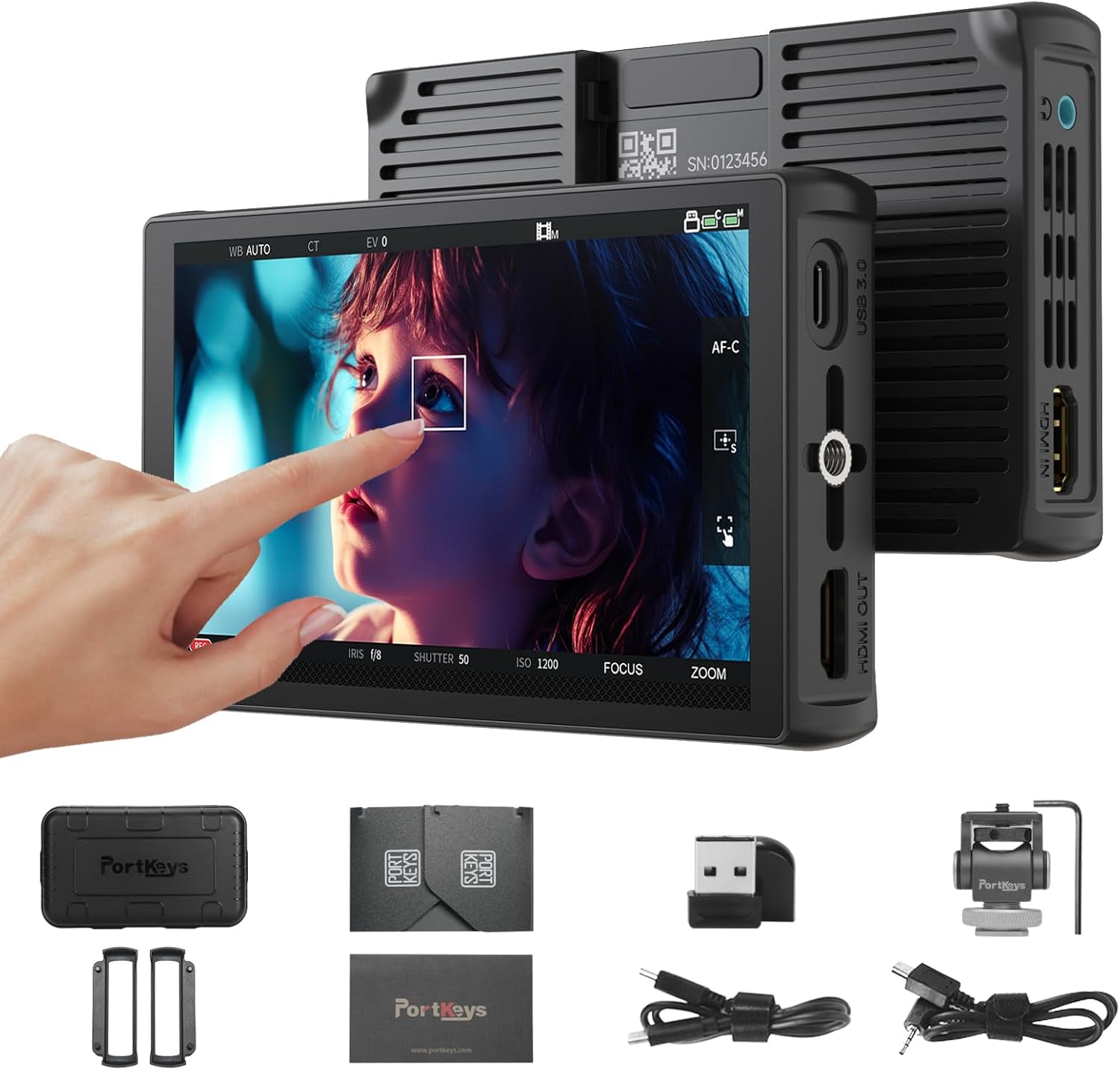
ຮູບ 3.1: ດ້ານຫນ້າ view of the Portkeys LH5C Camera Monitor.

Figure 3.2: High-brightness display of the LH5C monitor.
3.2 ຜະລິດຕະພັນເກີນview ວິດີໂອ
ວິດີໂອທີ 3.1: ສະຫຼຸບຜະລິດຕະພັນໂດຍຫຍໍ້view of the Portkeys LH5C Camera Monitor, highlighting its main features and design.
4. ຕັ້ງຄ່າ
4.1 ການເປີດເຄື່ອງຕິດຕາມ
The LH5C monitor can be powered using either a Sony NP-F series battery or via a USB-C 5V power input.
- ແບັດເຕີຣີ NP-F: Align the NP-F battery with the battery plate on the back of the monitor and slide it into place until it clicks. Ensure the battery is securely locked.
- ພະລັງງານ USB-C: Connect a USB-C cable from a 5V power source (e.g., power bank, wall adapter) to the USB-C port on the side of the monitor.
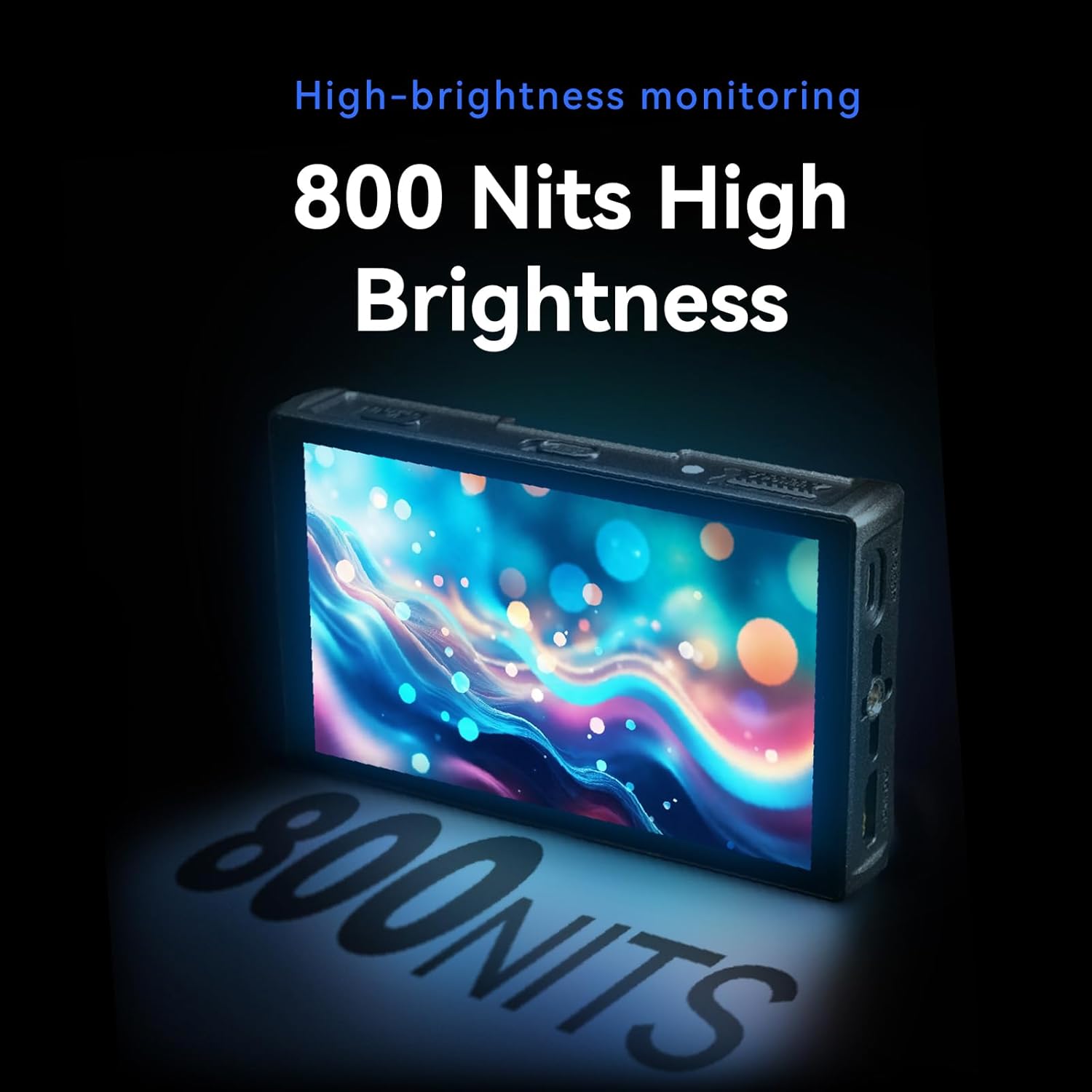
Figure 4.1: USB-C power input and HDMI output ports.
4.2 Connecting to a Camera (HDMI)
ເຖິງ view your camera's feed on the LH5C monitor:
- Connect one end of the provided HDMI cable (A to D Micro or A to A) to your camera's HDMI output port.
- Connect the other end of the HDMI cable to the HDMI IN port on the left side of the LH5C monitor.
- Power on both your camera and the monitor. The camera's video feed should appear on the monitor screen.
ໝາຍເຫດ: If the monitor display does not fill the entire screen or the camera screen appears black, you may need to disable the camera's HDMI display settings (e.g., HDMI Info. Display) to restore normal display. Refer to your camera's manual for specific settings.

Figure 4.2: HDMI connection for 4K 30P input.
4.3 Connecting for Wired Camera Control
The LH5C supports wired camera control for various camera models. Ensure your camera's USB mode is set to 'Remote Shooting' or equivalent before connecting.
- Connect the appropriate control cable (USB-C or LANC) to your camera's USB port.
- Connect the other end of the control cable to the 'CAMERA REMOTE' port on the LH5C monitor.
- On the monitor, tap the screen to bring up the menu, select 'Camera', and then choose 'USB' or the relevant camera type (e.g., 'Sony Multi'). A control panel will appear, indicating a successful connection.

Figure 4.3: Wired camera control setup.
4.4 Setup and Connection Video Tutorial
Video 4.1: Unboxing and initial setup guide for the Portkeys LH5C Monitor, including power and basic connections.
Video 4.2: Detailed instructions on how to connect and use the Portkeys LH5C camera monitor with various camera models.
Video 4.3: Guide on connecting the LH5C monitor to a Sony A7M5 camera via wired connection and controlling its functions.
5. ຄໍາແນະນໍາການດໍາເນີນງານ
5.1 Touchscreen Interface & Menu Navigation
The LH5C features an intuitive touchscreen interface. Tap the screen to bring up the main menu bar at the bottom. Swipe gestures allow for quick access to various settings and functions.
- ປຸ່ມຟັງຊັນ (F1-F4): Customize these buttons for quick access to frequently used tools.
- ການຕັ້ງຄ່າ: Access general monitor settings such as backlight, contrast, sharpness, saturation, and tint.

Figure 5.1: Main menu and feature collection on the LH5C monitor.
5.2 ເຄື່ອງມືຕິດຕາມກວດກາ
The LH5C offers a comprehensive suite of professional monitoring tools:
- ການຊ່ວຍເຫຼືອໃນການໂຟກັສ (ຈຸດສູງສຸດ): Highlights in-focus areas with a selectable color.
- ຮູບແບບ Zebra: ຊີ້ບອກເຖິງພື້ນທີ່ທີ່ມີແສງຫຼາຍເກີນໄປ.
- ສີທີ່ບໍ່ຖືກຕ້ອງ: Displays exposure levels using a color-coded map, including ARRI False Color.
- Waveform & Histogram: Visualizes luminance and color distribution for precise exposure control.
- ເຄື່ອງວັດແທກສຽງ: ຕິດຕາມກວດກາລະດັບການປ້ອນຂໍ້ມູນສຽງ.
- 3D LUT: Import up to 20 custom 3D LUTs via the included USB flash drive for real-time color grading preview and HDMI output.
- Anamorphic De-Squeeze: Supports 10 presets (1.00X to 2.00X) and custom ratios (0.25X-4.00X) for viewing anamorphic footage ຢ່າງຖືກຕ້ອງ.
- Freeze Frame with Overlay: Capture a frame and overlay it semi-transparently with live video for shot matching.
- 360° Color Grader: Allows manual selection and adjustment of hue, saturation, and brightness for specific colors on the screen.

Figure 5.2: Color accuracy and gamut representation on the LH5C.

Figure 5.3: Real-time 3D LUT preview.

Figure 5.4: 360° Color Grader interface.
ການຄວບຄຸມກ້ອງຖ່າຍຮູບ 5.3
Once connected via the appropriate control cable, the LH5C allows you to control key camera parameters directly from the monitor's touchscreen:
- Record Start/Stop: Initiate and stop recording.
- ການຕັ້ງຄ່າການຮັບແສງ: Adjust aperture (IRIS), shutter speed, and ISO.
- White Balance: Change white balance settings.
- ການຄວບຄຸມຈຸດສຸມ: Utilize touch-to-focus and intelligent focus tracking frame (currently for Sony cameras, other brands via firmware updates).
- ຊູມ: Control camera zoom function (requires power zoom lens or digital zoom enabled on camera).

Figure 5.5: Touch Focus Frame in action.

Figure 5.6: Sony and Z Cam Camera Control List.

Figure 5.7: Canon Camera Control List.

Figure 5.8: Panasonic and Blackmagic Design Camera Control List.
6. ບໍາລຸງຮັກສາ
- ທໍາຄວາມສະອາດ: Use a soft, dry cloth to clean the monitor's exterior. For the screen, use a microfiber cloth specifically designed for electronics and a gentle screen cleaning solution. Avoid harsh chemicals or abrasive materials.
- ການເກັບຮັກສາ: When not in use, store the monitor in its protective safety box or a padded case to prevent damage. Avoid extreme temperatures and high humidity.
- ການດູແລຫມໍ້ໄຟ: If using NP-F batteries, ensure they are charged and stored properly. Remove batteries if the monitor will not be used for an extended period.
7. ການແກ້ໄຂບັນຫາ
If you encounter issues with your Portkeys LH5C monitor, refer to the following common problems and solutions:
- ບໍ່ມີສັນຍານ/ໜ້າຈໍດຳ:
- Ensure HDMI cables are securely connected to both the camera and the monitor.
- Check your camera's HDMI output settings. Disable any 'HDMI Info. Display' or similar overlays that might prevent a clean signal.
- Verify the monitor is powered on and has sufficient battery charge or external power.
- ຖ້າເປັນໄປໄດ້ໃຫ້ທົດສອບດ້ວຍສາຍ HDMI ອື່ນ.
- Camera Control Not Working:
- Confirm that the correct control cable (USB-C or LANC) is used and securely connected to both the camera and the monitor.
- Check your camera's USB connection mode and ensure it is set to 'Remote Shooting' or a compatible mode.
- On the monitor, select the correct camera type in the 'Camera' menu.
- Ensure your camera model is listed as compatible for wired control. Refer to the compatibility charts in Section 5.3.
- Check for available firmware updates for both your camera and the monitor, as compatibility may improve with newer versions.
- Display Not Filling Entire Screen:
- Adjust the aspect ratio settings on both your camera and the monitor to match.
- Check your camera's HDMI output resolution settings.
- ໜ້າຈໍສໍາຜັດບໍ່ຕອບສະໜອງ:
- ຣີສະຕາດຈໍ.
- ໃຫ້ແນ່ໃຈວ່າຫນ້າຈໍສະອາດແລະບໍ່ມີສິ່ງເສດເຫຼືອຫຼືຄວາມຊຸ່ມຊື່ນ.
8. ຂໍ້ມູນຈໍາເພາະ
| ຄຸນສົມບັດ | ລາຍລະອຽດ |
|---|---|
| ຂະໜາດສິນຄ້າ | 5.31 x 0.87 x 3.27 ນິ້ວ |
| ນ້ໍາຫນັກລາຍການ | 12.3 ອອນ |
| ໝາຍເລກຕົວແບບ | LH5C |
| ຂະຫນາດຈໍສະແດງຜົນຢືນ | 5.4 ນິ້ວ |
| ອັດຕາສ່ວນ | 16:9 |
| ຄວາມລະອຽດ | 1920 x 1152 ພິກເຊລ (FHD 1080p) |
| ຄວາມສະຫວ່າງຂອງຮູບພາບ | 800 ແຄນເດລາຕໍ່ຕາແມັດ (nits) |
| ອັດຕາສ່ວນກົງກັນຂ້າມ | 1000:1 |
| ຄວາມເລິກຂອງສີ | 10-ບິດ (8+2 FRC) |
| ສີ Gamut | 85% DCI-P3, Full Rec.709 |
| Viewໃນມຸມ | 178° Ultra-wide |
| ປ້ອນຂໍ້ມູນ | 4K30p Lossless HDMI |
| ຜົນຜະລິດ | 1080p60 HDMI (with 3D LUT pass-through) |
| ຕົວເລືອກພະລັງງານ | USB-C 5V, Sony NP-F Battery (7-24V) |
| ຜູ້ຜະລິດ | ພອດຄີ |
9. ການຮັບປະກັນແລະການສະຫນັບສະຫນູນ
For warranty information and technical support, please refer to the official Portkeys webເວັບໄຊ ຫຼືຕິດຕໍ່ບໍລິການລູກຄ້າຂອງເຂົາເຈົ້າໂດຍກົງ. ຮັກສາໃບຮັບເງິນການຊື້ຂອງທ່ານໄວ້ເປັນຫຼັກຖານການຊື້ສໍາລັບການຮ້ອງຂໍການຮັບປະກັນ.
ຜູ້ຜະລິດ: ພອດຄີ
ທາງການ Webເວັບໄຊ: www.portkeys.com