
1. ບົດແນະນຳ
This manual provides detailed instructions for the setup, operation, maintenance, and troubleshooting of your Gawfolk 24.5 Inch 300Hz Gaming Monitor, Model GF245C. This monitor features a 24.5-inch FHD 1080p VA panel, a 300Hz refresh rate, 1ms response time, Adaptive Sync technology, 98% sRGB color gamut, and low blue light/flicker-free technology for an enhanced viewປະສົບການ.
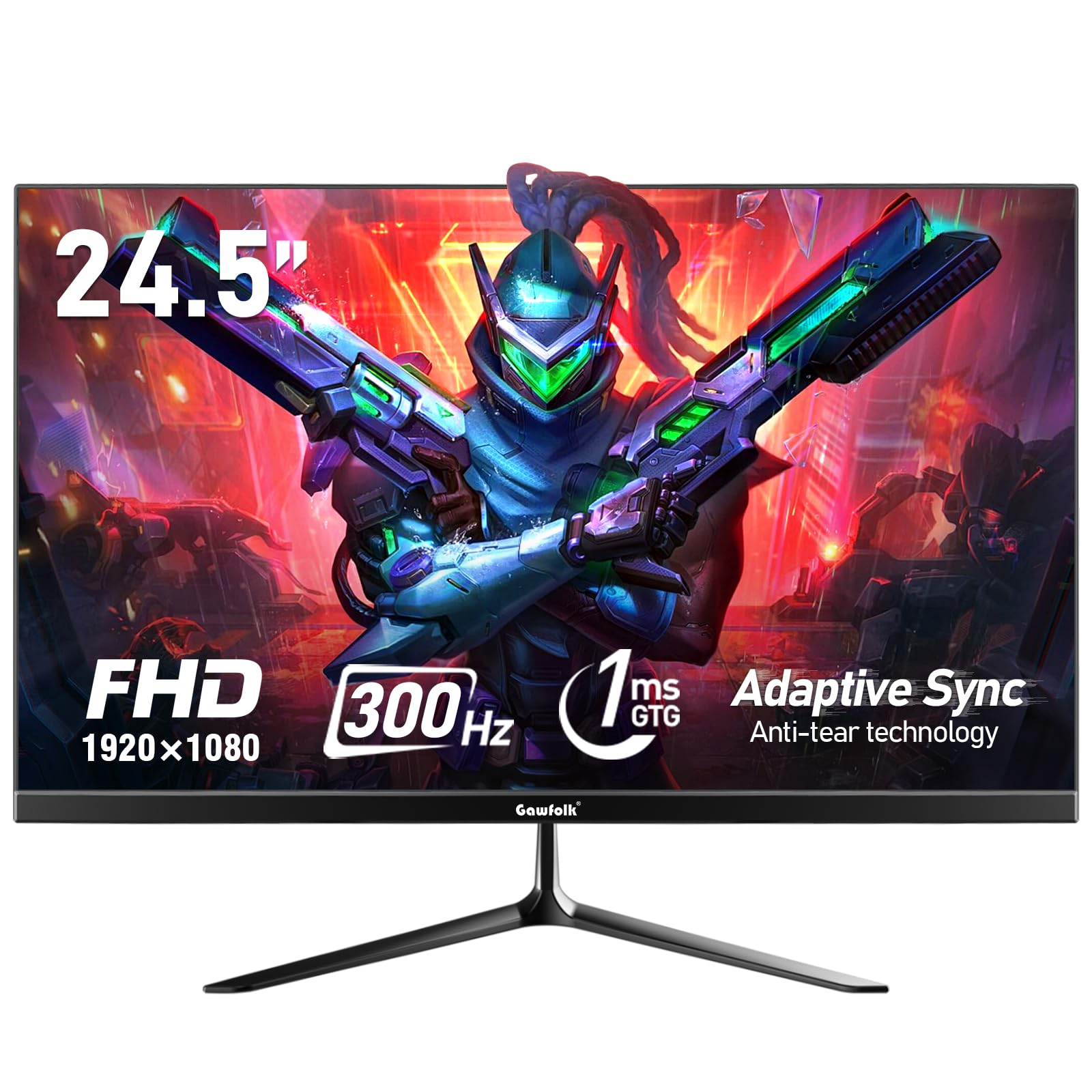
ຮູບ 1: ດ້ານຫນ້າ view of the Gawfolk 24.5 Inch 300Hz Gaming Monitor.
2. ຄໍາແນະນໍາການຕິດຕັ້ງ
2.1 ເນື້ອໃນຊຸດ
- Gawfolk 24.5 Inch Gaming Monitor
- Monitor Stand (ຖານ ແລະ ຄໍ)
- Power Adapter
- ສາຍ DisplayPort (DP).
- ຄູ່ມືຜູ້ໃຊ້
2.2 ການປະກອບຂາຕັ້ງ
- ລະມັດລະວັງຖອດຈໍແລະອົງປະກອບຢືນອອກຈາກການຫຸ້ມຫໍ່.
- ແນບຄໍຂາຕັ້ງໃສ່ກັບແຜງຈໍພາບໂດຍໃຊ້ສະກູທີ່ໃຫ້ໄວ້.
- ຕິດຖານຂາຕັ້ງເຂົ້າກັບຄໍຂາຕັ້ງ, ໂດຍໃຫ້ສະກູຍຶດມັນໄວ້ໃຫ້ແໜ້ນ.
- ວາງຈໍສະແດງຜົນທີ່ປະກອບໃສ່ໃນພື້ນທີ່ຮາບພຽງທີ່ຫມັ້ນຄົງ.
2.3 ສາຍເຊື່ອມຕໍ່
ກວດໃຫ້ແນ່ໃຈວ່າຈໍພາບ ແລະຄອມພິວເຕີຂອງທ່ານປິດເຄື່ອງກ່ອນທີ່ຈະເຊື່ອມຕໍ່.
- ການເຊື່ອມຕໍ່ພະລັງງານ: Connect the power adapter to the monitor's DC input port, then plug the adapter into a power outlet.
- ການເຊື່ອມຕໍ່ວິດີໂອ: Connect one end of the provided DisplayPort (DP) cable to the DP port on your computer's graphics card and the other end to the DP input on the monitor. Alternatively, use an HDMI cable to connect to an HDMI port.
- ສຽງອອກ: If desired, connect external speakers or headphones to the 3.5mm audio output port on the monitor.
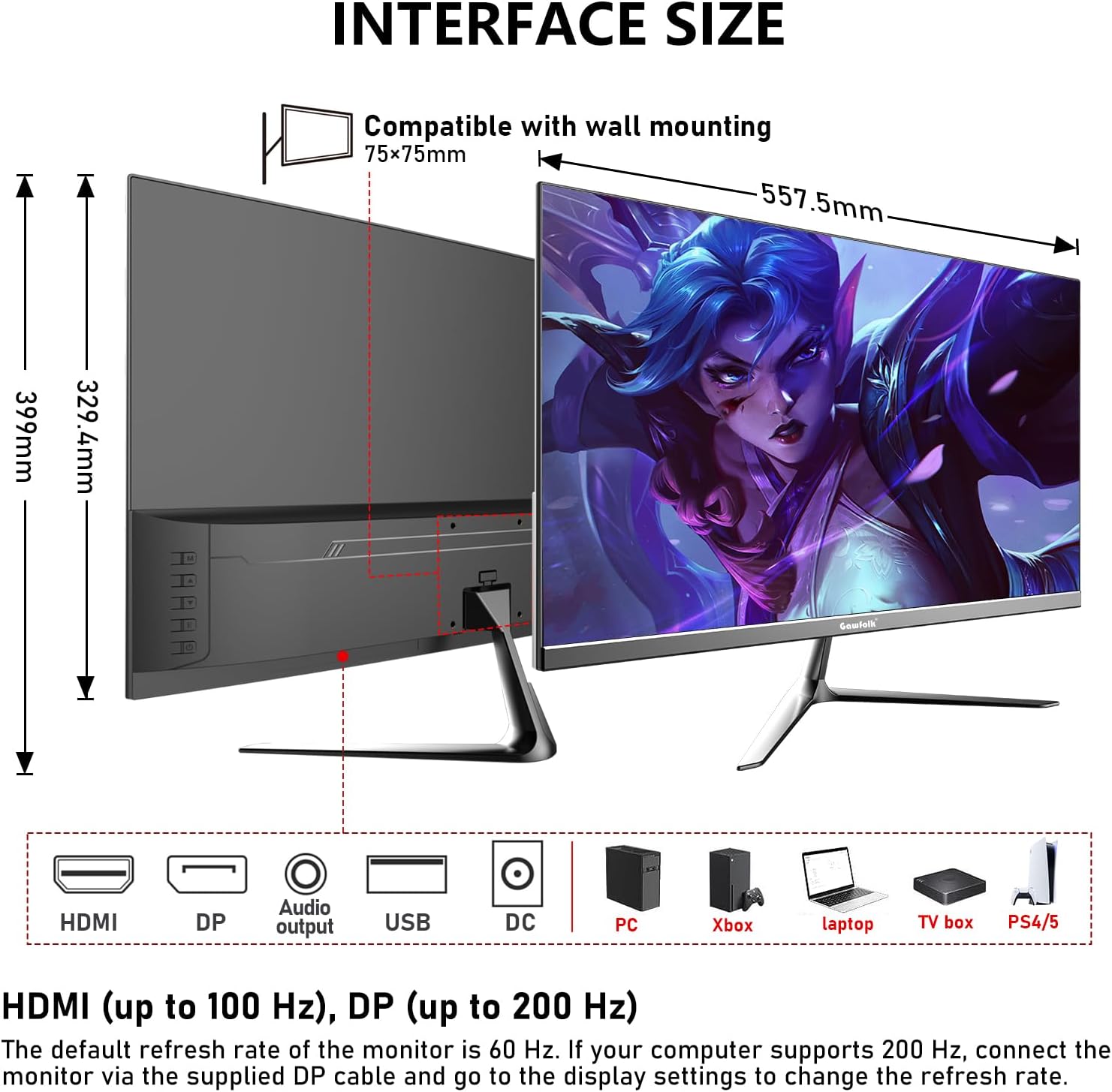
Figure 2: Monitor dimensions and port layout.
2.4 ການຕິດຝາ (ທາງເລືອກ)
The monitor supports VESA wall mounting with a 75x75mm pattern. A wall mounting bracket is not included and must be purchased separately. Follow the instructions provided with your VESA mount for proper installation.

Figure 3: Monitor compatible with 75x75mm VESA wall mounting.
3. ຄໍາແນະນໍາການດໍາເນີນງານ
3.1 ເປີດ/ປິດ
- To power on the monitor, press the power button located on the back or bottom of the monitor.
- To power off, press and hold the power button until the screen turns off.
3.2 OSD Menu Navigation
The On-Screen Display (OSD) menu allows you to adjust various monitor settings. Use the joystick or buttons (location may vary slightly) on the back or bottom of the monitor to navigate the menu.
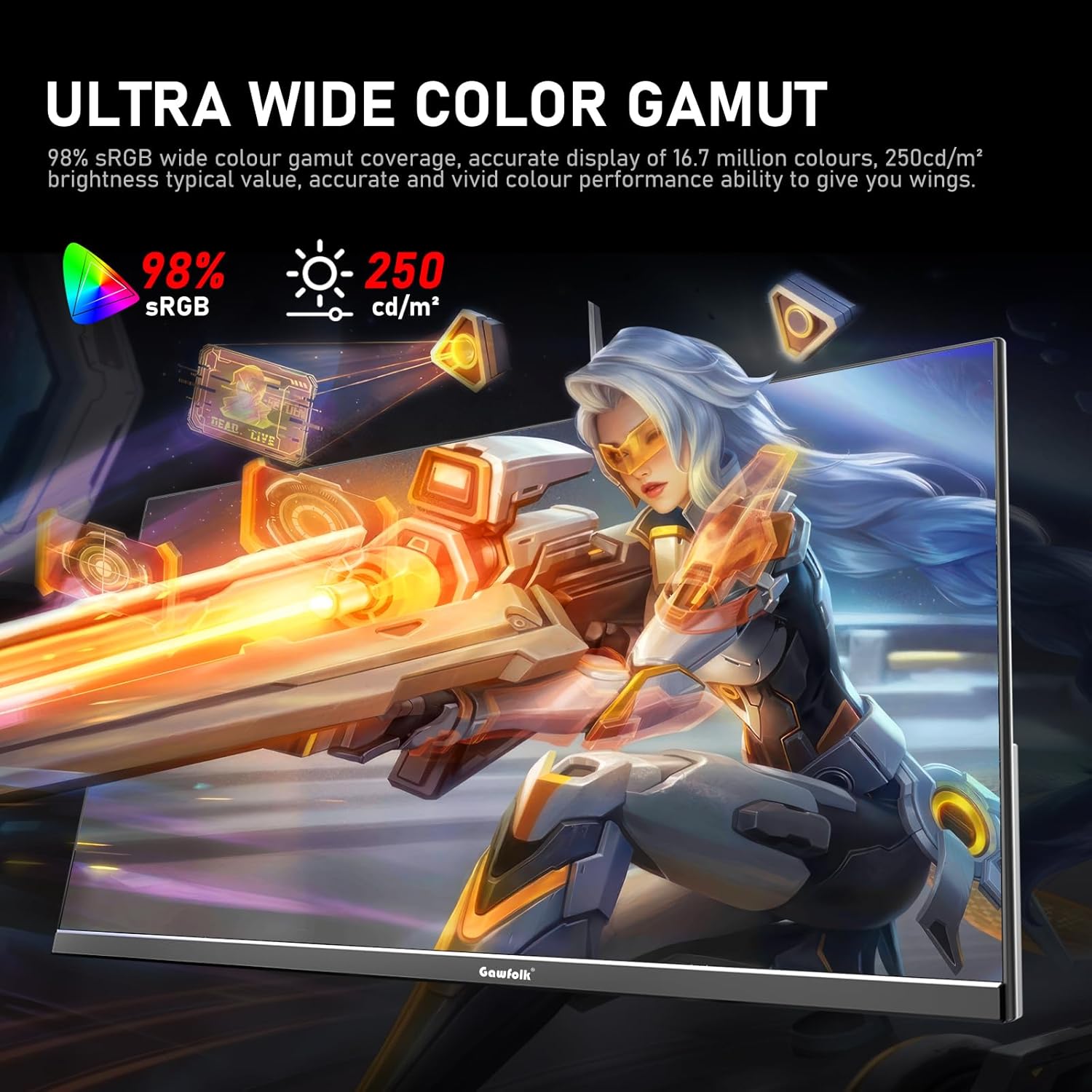
Figure 4: On-Screen Display (OSD) menu for monitor settings.
3.3 ການຄັດເລືອກການປ້ອນຂໍ້ມູນ
Access the OSD menu and navigate to the 'Input' or 'Source' section to select between HDMI and DisplayPort inputs.
3.4 ການປັບການຕັ້ງຄ່າການສະແດງຜົນ
- ຄວາມສະຫວ່າງ/ຄວາມຄົມຊັດ: ປັບການຕັ້ງຄ່າເຫຼົ່ານີ້ຢູ່ໃນເມນູ OSD ໃຫ້ເຫມາະສົມກັບຂອງທ່ານ viewສະພາບແວດລ້ອມ.
- ການຕັ້ງຄ່າສີ: Fine-tune color temperature, gamma, and other color parameters for optimal visual quality. The monitor supports 98% sRGB for rich colors.
- ອັດຕາການໂຫຼດຂໍ້ມູນຄືນໃໝ່: The monitor supports up to 300Hz via DisplayPort and up to 120Hz via HDMI. To change the refresh rate, connect the monitor via the appropriate cable and adjust the display settings within your computer's operating system.

Figure 5: Connectivity options and refresh rate capabilities.
3.5 ເທັກໂນໂລຍີການຊິງຄ໌ແບບປັບຕົວ
This monitor supports Adaptive Sync (FreeSync/G-Sync compatible) to minimize input latency and reduce screen tearing and stuttering during gaming and video playback. Ensure Adaptive Sync is enabled in both the monitor's OSD menu and your graphics card settings.

Figure 6: Visual demonstration of Adaptive Sync technology reducing screen tearing.
3.6 Low Blue Light and Flicker-Free
The monitor incorporates DC global dimming technology for a flicker-free display and a low blue light mode. Activate the low blue light mode in the OSD menu to reduce eye strain during prolonged use.

Figure 7: Illustration of Flicker-Free Technology for eye comfort.
4. ບໍາລຸງຮັກສາ
4.1 ການທໍາຄວາມສະອາດ Monitor
- ປິດເຄື່ອງທຸກຄັ້ງ ແລະຖອດສາຍຈໍອອກກ່ອນທຳຄວາມສະອາດ.
- ໃຊ້ຜ້າແພອ່ອນໆ ທີ່ບໍ່ມີເສັ້ນດ່າງ ງampຜະສົມດ້ວຍນ້ໍາຫຼືເຄື່ອງເຮັດຄວາມສະອາດຫນ້າຈໍອ່ອນໆທີ່ບໍ່ມີການຂັດ.
- ຢ່າສີດນໍ້າສະອາດໃສ່ໜ້າຈໍໂດຍກົງ.
- ຫຼີກເວັ້ນການໃຊ້ເຫຼົ້າ, ແອມໂມເນຍ, ຫຼືເຄື່ອງເຮັດຄວາມສະອາດຂັດ, ເພາະວ່າສິ່ງເຫຼົ່ານີ້ສາມາດທໍາລາຍຫນ້າຈໍໄດ້.
4.2 ການເບິ່ງແຍງທົ່ວໄປ
- ຮັກສາຈໍພາບໃຫ້ຫ່າງຈາກແສງແດດໂດຍກົງ, ຄວາມຮ້ອນທີ່ເກີນ, ແລະ ຄວາມຊຸ່ມຊື່ນ.
- ຮັບປະກັນການລະບາຍອາກາດຢ່າງພຽງພໍຮອບຈໍເພື່ອປ້ອງກັນຄວາມຮ້ອນເກີນ.
- ຫຼີກເວັ້ນການວາງວັດຖຸໜັກໃສ່ຈໍພາບ ຫຼືສາຍຂອງມັນ.
5. ການແກ້ໄຂບັນຫາ
ຖ້າທ່ານພົບບັນຫາກັບຈໍພາບຂອງທ່ານ, ກະລຸນາເບິ່ງວິທີການແກ້ໄຂທົ່ວໄປຕໍ່ໄປນີ້:
5.1 ບໍ່ມີຈໍສະແດງຜົນ / ສີດໍາ
- ກວດໃຫ້ແນ່ໃຈວ່າສາຍໄຟຖືກເຊື່ອມຕໍ່ຢ່າງປອດໄພກັບທັງຈໍພາບ ແລະປລັກສຽບໄຟ.
- Verify that the video cable (DP or HDMI) is firmly connected to both the monitor and your computer.
- ກວດເບິ່ງວ່າແຫຼ່ງປ້ອນຂໍ້ມູນທີ່ຖືກຕ້ອງຖືກເລືອກຢູ່ໃນເມນູ OSD ຂອງຈໍພາບຫຼືບໍ່.
- ປິດເປີດຄອມພິວເຕີຂອງທ່ານຄືນໃໝ່.
- Test the monitor with another device or cable if possible to isolate the issue.
5.2 ໜ້າຈໍກະພິບ
- Ensure the video cable is securely connected. A loose connection can cause flickering.
- ກວດສອບໄດຣເວີກາດກຣາບຟິກຂອງທ່ານ ແລະ ອັບເດດພວກມັນຖ້າຈຳເປັນ.
- Disable Adaptive Sync in your graphics card settings and the monitor's OSD menu to see if the issue persists.
- Verify that the refresh rate is set correctly in your computer's display settings.
5.3 ບັນຫາຄຸນນະພາບຂອງຮູບພາບ (ມົວ, ບິດເບືອນ)
- ໃຫ້ແນ່ໃຈວ່າຄວາມລະອຽດຈໍສະແດງຜົນຢູ່ໃນຄອມພິວເຕີຂອງທ່ານຖືກຕັ້ງເປັນຄວາມລະອຽດເດີມຂອງຈໍສະແດງຜົນ (1920x1080).
- Adjust the brightness, contrast, and color settings in the OSD menu.
- If using an analog connection (not applicable for this monitor's inputs but general advice), ensure auto-adjustment is performed.
5.4 No Audio from Monitor Speakers/Audio Out
- Ensure the audio output is selected correctly in your computer's sound settings.
- Check the volume level on both the monitor (via OSD) and your computer.
- If using external speakers/headphones, ensure they are properly connected to the monitor's audio output.
6. ຂໍ້ມູນຈໍາເພາະ
| ຄຸນສົມບັດ | ຂໍ້ມູນຈໍາເພາະ |
|---|---|
| ຍີ່ຫໍ້ | ແກວຟອກ |
| ໝາຍເລກຕົວແບບ | GF245C |
| ຂະໜາດໜ້າຈໍ | 24.5 ນິ້ວ |
| ຄວາມລະອຽດ | FHD 1080p (1920 x 1080 ພິກເຊວ) |
| ອັດຕາສ່ວນ | 16:9 |
| ອັດຕາການໂຫຼດຂໍ້ມູນຄືນໃໝ່ | 300 Hz (DP), 120 Hz (HDMI) |
| ເວລາຕອບສະຫນອງ | 1 Millisecond (GTG) |
| ເຕັກໂນໂລຊີການສະແດງ | ກະດານ VA |
| Viewໃນມຸມ | 178 ອົງສາ |
| ຄວາມສະຫວ່າງ | ປີ 250 Candela |
| ສີ Gamut | 98% sRGB |
| ອັດຕາສ່ວນກົງກັນຂ້າມ | 3500:1 |
| ການເຊື່ອມຕໍ່ | DisplayPort, HDMI, 3.5mm Audio Out |
| Adaptive Sync | FreeSync, G-Sync Compatible |
| ຄຸນສົມບັດເພີ່ມເຕີມ | Flicker-Free, Low Blue Light, Frameless Design |
| ປະເພດການຕິດຕັ້ງ | Desk Mount, VESA Wall Mount (75x75MM) |
| ຂະໜາດລາຍການ (D x W x H) | 6.42"D x 21.93"W x 15.75"H |
| ນ້ໍາຫນັກລາຍການ | 3.48 ກິໂລກຣາມ |
7. ການຮັບປະກັນແລະການສະຫນັບສະຫນູນ
7.1 ຂໍ້ມູນການຮັບປະກັນ
The Gawfolk 24.5 Inch 300Hz Gaming Monitor (Model GF245C) comes with a ການຮັບປະກັນຫນຶ່ງປີ covering quality problems from the date of purchase.
7.2 ບໍລິການຫຼັງການຂາຍ
ພວກເຮົາສະຫນອງ a ບໍລິການຫລັງການຂາຍ 12 ເດືອນ. If you encounter any problems when using the monitor, please communicate with us in a timely manner for assistance. For support, please refer to the contact information provided with your purchase or visit the official Gawfolk webເວັບໄຊ.