
ແນະນຳ
This manual provides detailed instructions for the installation, operation, and maintenance of your Gawfolk GF490D 49-inch Ultra-Wide Curved Gaming Monitor. Please read this manual thoroughly before using the product to ensure proper setup and optimal performance. Keep this manual for future reference.
ຂໍ້ມູນຄວາມປອດໄພ
Always follow these basic safety precautions when using your monitor:
- ຫ້າມວາງຈໍພາບໃສ່ລົດເຂັນ, ຂາຕັ້ງ, ຫຼືໂຕະທີ່ບໍ່ໝັ້ນຄົງ.
- ຫ້າມກີດຂວາງການເປີດລະບາຍອາກາດ.
- Do not use near water or sources of heat.
- ໃຊ້ພຽງແຕ່ສາຍໄຟ ແລະອະແດັບເຕີທີ່ສະໜອງໃຫ້ໂດຍຜູ້ຜະລິດ.
- ອ້າງອີງການບໍລິການທັງໝົດໃຫ້ກັບພະນັກງານບໍລິການທີ່ມີຄຸນວຸດທິ.
- ຖອດສາຍຈໍສະແດງຜົນໃນເວລາມີພາຍຸຟ້າຜ່າ ຫຼືເມື່ອບໍ່ໄດ້ໃຊ້ເປັນເວລາດົນນານ.
ເນື້ອໃນຊຸດ
ກວດສອບວ່າອົງປະກອບທັງໝົດມີຢູ່ໃນຊຸດ:
- Gawfolk GF490D Monitor
- Monitor Stand Components (Base, Neck)
- ອະແດບເຕີສາຍໄຟ ແລະສາຍ
- ສາຍ HDMI
- ສາຍ DisplayPort
- ຄູ່ມືຜູ້ໃຊ້
ຕັ້ງຄ່າ
1. ການປະກອບຂາຕັ້ງ
- ເອົາຈໍພາບອອກຈາກເຄື່ອງຫຸ້ມຫໍ່ຂອງມັນຢ່າງລະມັດລະວັງ, ຮັກສາມັນໄວ້ເທິງພື້ນຜິວທີ່ອ່ອນໆ.
- ແນບຄໍຂາຕັ້ງໃສ່ກັບແຜງຈໍພາບ.
- ຍຶດຖານຂາຕັ້ງໃສ່ຄໍໂດຍໃຊ້ສະກູທີ່ໃຫ້ໄວ້.

ຮູບທີ 1: Illustration of monitor ergonomic adjustments, including height adjustment (0-160mm), wall bracket compatibility (75x75mm), and tilt adjustment (-5° to 15°).
2. ການເຊື່ອມຕໍ່ກັບອຸປະກອນ
The monitor is equipped with multiple input ports for various devices:
- Power Connector (DC): ເຊື່ອມຕໍ່ອະແດບເຕີໄຟເຂົ້າກັບພອດນີ້ ແລະ ຈາກນັ້ນເຂົ້າກັບປລັກໄຟ.
- ພອດ HDMI 2.1 (x2): Connect to devices such as PCs, game consoles (PS5/Xbox Series X), or laptops using an HDMI cable.
- DisplayPort 1.4 Ports (x2): Connect to PCs or other compatible devices using a DisplayPort cable for high-resolution and high-refresh-rate signals.
- ການໂຕ້ຕອບຜົນອອກສຽງ: ເຊື່ອມຕໍ່ລຳໂພງ ຫຼືຫູຟັງພາຍນອກ.

ຮູບທີ 2: ຫລັງ view of the monitor showing the available input ports: DC power connector, two DisplayPort 1.4 interfaces, two HDMI 2.1 interfaces, and an audio output interface.
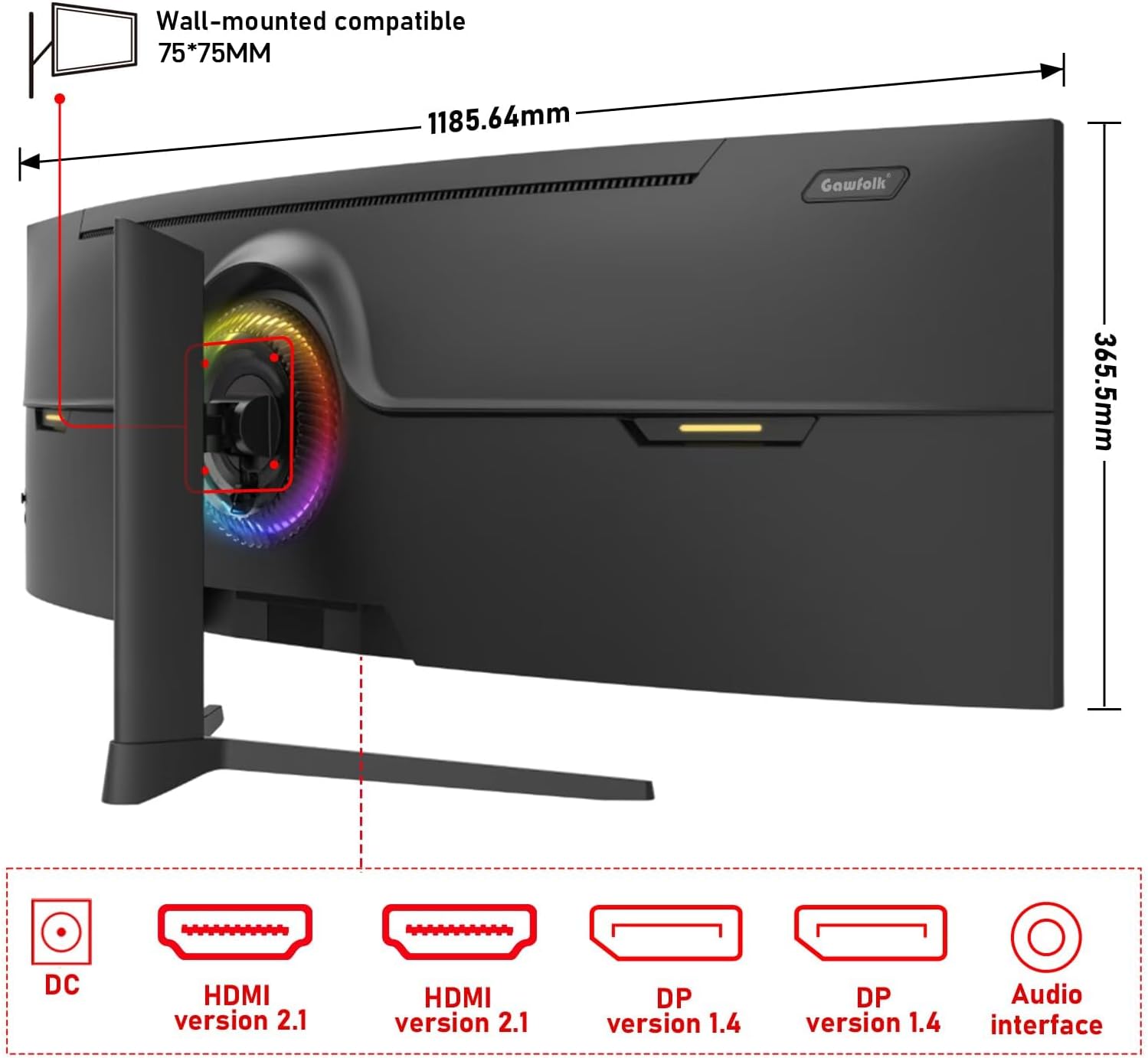
ຮູບທີ 3: ຫລັງ view of the monitor illustrating its approximate dimensions (1185.64mm width, 365.5mm height without stand) and indicating 75x75mm VESA wall-mount compatibility.
3. ການຕິດຝາ (ທາງເລືອກ)
The monitor supports a 75x75mm VESA wall mount. Ensure the wall mount can support the monitor's weight (7.9 kg) and follow the wall mount manufacturer's instructions for installation.
ຄໍາແນະນໍາການດໍາເນີນງານ
1. ເປີດ / ປິດພະລັງງານ
- Connect the power adapter to the monitor and a power outlet.
- Press the power button (location typically on the rear or bottom-right of the monitor) to turn the monitor on or off.
2. ປັບການຕັ້ງຄ່າການສະແດງຜົນ
The monitor features an On-Screen Display (OSD) menu for adjusting various settings. Use the joystick or buttons (refer to the physical monitor for exact controls) to navigate the OSD menu.
- ແຫຼ່ງປ້ອນຂໍ້ມູນ: Select between HDMI 1, HDMI 2, DP 1, or DP 2.
- ຄວາມສະຫວ່າງ/ຄວາມຄົມຊັດ: ປັບຄວາມສະຫວ່າງຂອງຮູບພາບ.
- ການຕັ້ງຄ່າສີ: Modify color temperature, gamma, and color gamut (120% sRGB).
- ອັດຕາການໂຫຼດຂໍ້ມູນຄືນໃໝ່: ຈໍພາບຮອງຮັບໄດ້ເຖິງ 240Hz. ໃຫ້ແນ່ໃຈວ່າອຸປະກອນ ແລະ ສາຍທີ່ເຊື່ອມຕໍ່ຂອງທ່ານຮອງຮັບອັດຕາການໂຫຼດໜ້າຈໍຄືນໃໝ່ນີ້ເພື່ອປະສິດທິພາບສູງສຸດ.
- Adaptive Sync (FreeSync): ເປີດໃຊ້ຄຸນສົມບັດນີ້ໃນ OSD ແລະການຕັ້ງຄ່າກາດກຣາຟິກຂອງທ່ານເພື່ອປະສານອັດຕາການໂຫຼດໜ້າຈໍຄືນໃໝ່ຂອງຈໍພາບກັບອັດຕາເຟຣມຂອງ GPU ຂອງທ່ານ, ຫຼຸດຜ່ອນການຈີກຂາດຂອງໜ້າຈໍ ແລະ ການຕິດຂັດ.
- ໂໝດແສງສີຟ້າຕ່ຳ: Activate to reduce eye strain during prolonged use.

ຮູບທີ 4: The 49-inch 32:9 ultra-wide display with DQHD (5120x1440) resolution, offering an expansive field of view compared to traditional 16:9 QHD (2560x1440) monitors.

ຮູບທີ 5: Visual comparison demonstrating the smoothness of a 240Hz refresh rate versus lower refresh rates (100Hz and 60Hz), highlighting reduced motion blur and stuttering.

ຮູບທີ 6: Illustration of Adaptive Sync (FreeSync) technology, showing how it eliminates screen tearing and input lag for a smoother gaming experience compared to when it is disabled.

ຮູບທີ 7: The 1500R curvature of the screen, designed to provide an immersive viewing experience by conforming to the human eye's natural field of vision.

ຮູບທີ 8: Display characteristics including 120% sRGB color gamut, 8-bit color depth (16.7 million colors), 3000:1 contrast ratio, and 330 cd/m² brightness, ensuring rich and accurate color reproduction.

ຮູບທີ 9: A visual comparison demonstrating the difference between a 1000:1 contrast ratio and the monitor's 3000:1 contrast ratio, showing enhanced detail in dark and bright areas.
3. ການປັບຕົວ
ຂາຕັ້ງຈໍພາບອະນຸຍາດໃຫ້ມີການປັບຕົວ ergonomic:
- ການປັບຄວາມສູງ: ປັບຄວາມສູງຂອງຫນ້າຈໍໄດ້ເຖິງ 160mm.
- ໝູນ: Rotate the monitor left or right by 15 degrees.
- ອຽງ: Adjust the screen tilt from -5 degrees to 20 degrees.
4. RGB Ambient Lighting
The monitor features customizable RGB ambient lighting on its rear. This can be configured through the OSD menu to match your preferences or gaming setup.
ບໍາລຸງຮັກສາ
ອະນາໄມຈໍສະແດງຜົນ
- ຖອດສາຍຈໍສະແດງຜົນກ່ອນທຳຄວາມສະອາດທຸກຄັ້ງ.
- ໃຊ້ຜ້າແພອ່ອນໆ ທີ່ບໍ່ມີເສັ້ນດ່າງ ງampຜະສົມດ້ວຍນ້ໍາຫຼືເຄື່ອງເຮັດຄວາມສະອາດຫນ້າຈໍອ່ອນໆທີ່ບໍ່ມີການຂັດ.
- ຢ່າສີດນໍ້າສະອາດໃສ່ໜ້າຈໍໂດຍກົງ.
- Avoid using benzene, thinner, or any volatile solvents, as they may damage the monitor's surface.
ການແກ້ໄຂບັນຫາ
| ບັນຫາ | ສາເຫດທີ່ເປັນໄປໄດ້ | ການແກ້ໄຂ |
|---|---|---|
| ບໍ່ມີຮູບພາບໃນ ໜ້າ ຈໍ | Power cable disconnected, video cable disconnected, incorrect input source selected. | Check power and video cable connections. Select the correct input source via the OSD menu. Ensure the computer is powered on. |
| ຮູບພາບມົວຫຼືບິດເບືອນ | Incorrect resolution or refresh rate settings, faulty video cable. | Set the display resolution to 5120x1440 and refresh rate to 240Hz (or compatible with your GPU). Try a different video cable. |
| ໜ້າຈໍຈີກຂາດ ຫຼືສຽງສະດຸດ | Adaptive Sync (FreeSync) is not enabled or not supported by GPU/game. | Enable FreeSync in the monitor's OSD menu and your graphics card control panel. Ensure your GPU supports FreeSync. |
| Dead pixel(s) | ຄວາມບົກຜ່ອງດ້ານການຜະລິດ. | Refer to warranty policy. A small number of dead pixels may be considered within acceptable manufacturing tolerances. |
| ບໍ່ມີສຽງ | Audio cable disconnected, incorrect audio output selected on PC, monitor volume too low. | Check audio cable connection. Ensure the correct audio output device is selected in your computer's sound settings. Adjust monitor volume. |
ຂໍ້ມູນຈໍາເພາະ
| ຄຸນສົມບັດ | ລາຍລະອຽດ |
|---|---|
| ໝາຍເລກຕົວແບບ | GF490D |
| ຂະໜາດໜ້າຈໍ | 49 ນິ້ວ |
| ຄວາມລະອຽດ | DQHD (5120x1440 Pixels) |
| ອັດຕາສ່ວນ | 32:9 |
| ເສັ້ນໂຄ້ງ | 1500R |
| ອັດຕາການໂຫຼດຂໍ້ມູນຄືນໃໝ່ | 240 Hz |
| ເວລາຕອບສະຫນອງ | 1 ມິນລິວິນາທີ |
| ປະເພດແຜງ | VA (LCD Display Technology) |
| ຄວາມສະຫວ່າງ | 350 Candela (cd/m²) |
| ອັດຕາສ່ວນກົງກັນຂ້າມ | 3000:1 |
| ສີ Gamut | 120% sRGB |
| Viewໃນມຸມ | 178 ອົງສາ |
| Adaptive Sync | FreeSync |
| ວິດີໂອປ້ອນຂໍ້ມູນ | 2x HDMI 2.1, 2x DisplayPort 1.4 |
| ສຽງອອກ | ສຽງ Jack 3.5 ມມ |
| ປະເພດການຕິດຕັ້ງ | Wall Mount (75x75mm VESA compatible) |
| ຂະໜາດສິນຄ້າ (ກວ້າງ x ຍາວ x ສູງ) | 5 x 118.5 x 43 cm (ມີຂາຕັ້ງ) |
| ນ້ໍາຫນັກລາຍການ | 7.9 ກິໂລກຣາມ |
| ຄຸນສົມບັດເພີ່ມເຕີມ | Blue Light Filter, Curved, Frameless, RGB Ambient Lighting |
ການຮັບປະກັນແລະການສະຫນັບສະຫນູນ
The Gawfolk GF490D monitor comes with a ບໍລິການຫລັງການຂາຍ 12 ເດືອນ (1 year manufacturer warranty). If you encounter any issues or have questions regarding your monitor, please contact Gawfolk customer support for assistance.
Manufacturer: Shenzhen Qinghong Zhuoyue Technology Co., Ltd.