
ແນະນຳ
The ShanWan Wireless Controller is a versatile gaming peripheral designed for use across multiple platforms, including PC, iPhone, Android, Nintendo Switch, and Steam. It offers tri-mode connectivity (Bluetooth, 2.4G wireless, and USB-C wired) to ensure a seamless gaming experience. This manual provides detailed instructions for setup, operation, maintenance, and troubleshooting to help you maximize your controller's performance.
Note: This controller is not compatible with Xbox or PlayStation 4/5 consoles.
ເນື້ອໃນຊຸດ
- ShanWan Wireless Controller
- ສາຍສາກ USB-C
- 2.4G Wireless Dongle
- ຄູ່ມືຜູ້ໃຊ້ (ເອກະສານນີ້)
ຄວບຄຸມເກີນview
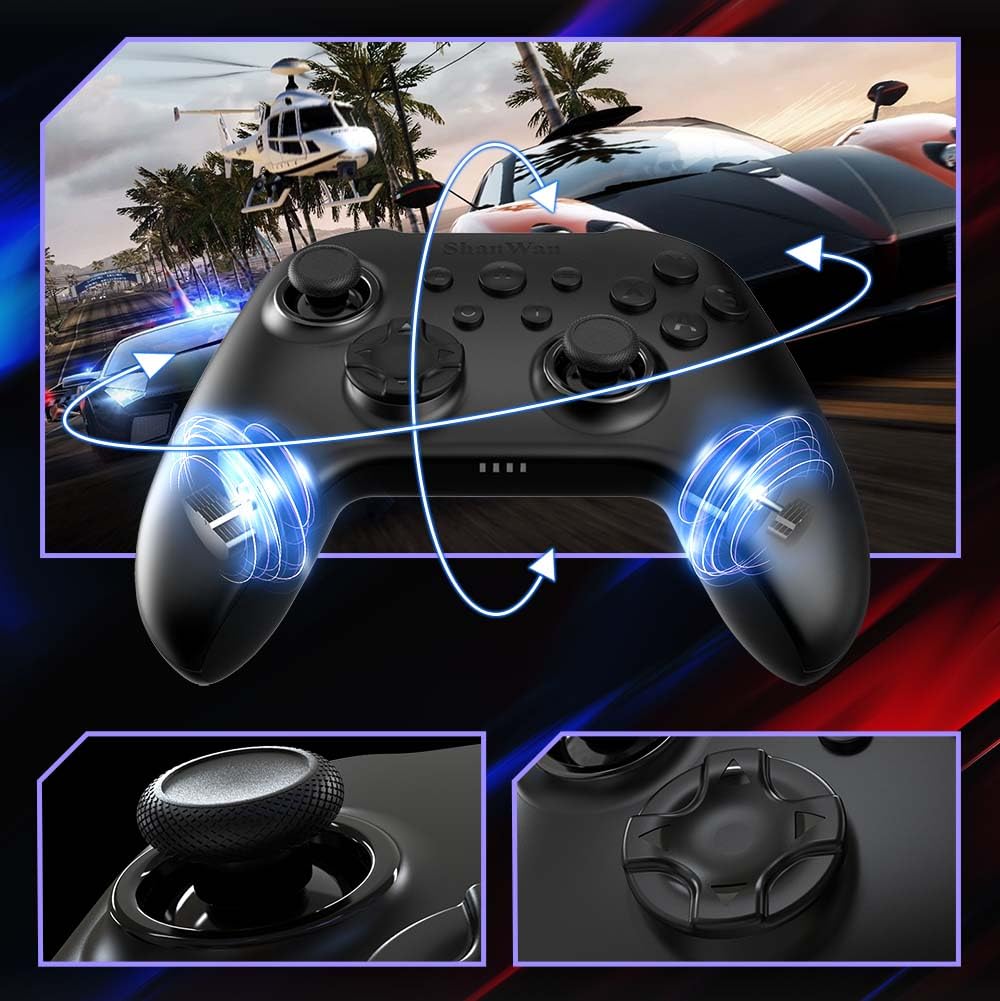
ຮູບພາບ: ດ້ານໜ້າ view of the ShanWan Wireless Controller, showcasing its ergonomic design, dual joysticks, D-pad, and face buttons (A, B, X, Y).
ຮູບພາບ: ກັບຄືນໄປບ່ອນ view of the ShanWan Wireless Controller, highlighting the mode switch for different platforms (X, D, S).
ຄຸນນະສົມບັດທີ່ສໍາຄັນ:
- Hall Effect Joysticks: Designed for precision with no dead zones and anti-drift capabilities.
- Durable Gel Buttons: Conductive gel buttons tested for 1 million clicks for long-lasting performance.
- 6-Axis Gyroscope: Provides precise motion sensing for immersive gameplay.
- ມໍເຕີ vibration ສອງ: Delivers strong and subtle haptic feedback for an enhanced gaming experience.
- ຟັງຊັນ Turbo: Allows for rapid, repeated button presses.
ຕັ້ງຄ່າ
1. ການສາກໄຟ Controller
Before initial use, fully charge the controller using the provided USB-C cable. Connect the USB-C end to the controller and the USB-A end to a power source (e.g., computer USB port, USB wall adapter). The charging indicator lights will show charging status and turn off when fully charged.
2. ການເຊື່ອມຕໍ່ກັບອຸປະກອນ
The ShanWan Wireless Controller supports three connection modes: Bluetooth, 2.4G Wireless, and USB-C Wired. Ensure the mode switch on the back of the controller is set to the appropriate platform before attempting to connect.

ຮູບພາບ: Visual representation of the controller's tri-mode connectivity, illustrating Bluetooth, 2.4G wireless, and USB-C wired options.
Mode Switch Settings:
- 'S' Mode: For Nintendo Switch.
- 'X' Mode: For PC (X-input), Android.
- 'D' Mode: For PC (D-input), iOS.
ການເຊື່ອມຕໍ່ບູທູດ:
- Set the mode switch on the back of the controller to the desired platform ('S', 'X', or 'D').
- Press and hold the pairing button (usually a small button on the top or back) until the indicator lights flash rapidly.
- On your device (PC, iPhone, Android, Switch), go to Bluetooth settings and search for new devices.
- Select "ShanWan Controller" or a similar name from the list to pair.
- ເມື່ອຈັບຄູ່ແລ້ວ, ໄຟສັນຍານຢູ່ເທິງຕົວຄວບຄຸມຈະສະຫວ່າງຂຶ້ນ.
2.4G Wireless Connection (for PC/Switch):
- Set the mode switch on the back of the controller to 'X' (for PC) or 'S' (for Switch).
- Insert the 2.4G wireless dongle into a USB port on your PC or Switch dock.
- Press the Home button on the controller to power it on. It should automatically connect to the dongle.
- The indicator lights will become solid once connected.
ການເຊື່ອມຕໍ່ແບບມີສາຍ USB-C:
- Connect the USB-C cable to the controller and the other end to your PC or Switch dock.
- The controller will automatically be recognized as a wired device.
- No specific mode switch setting is required for wired connection, but setting it to the correct platform mode ('X' for PC, 'S' for Switch) is recommended for optimal compatibility.
ຄໍາແນະນໍາການດໍາເນີນງານ
ເປີດ/ປິດ:
- ເປີດ: Press the Home button once.
- ປິດພະລັງງານ: Press and hold the Home button for 3-5 seconds, or the controller will automatically power off after a period of inactivity.
ການຄວບຄຸມ Motion:
The built-in 6-axis gyroscope provides motion control capabilities, particularly useful for games on Nintendo Switch or other compatible platforms. Ensure the game supports motion controls for this feature to function.
ການສັ່ນເຕືອນ:
The dual vibration motors provide haptic feedback during gameplay. The intensity of the vibration can often be adjusted through game settings or the Gamepad Space app.
ຟັງຊັນ Turbo:
To activate the Turbo function for a specific button:
- Press and hold the button you wish to set to Turbo.
- While holding the button, press the Turbo button (refer to controller layout for location).
- The button will now repeatedly register presses as long as it is held down.
To deactivate Turbo for a button, repeat the process.
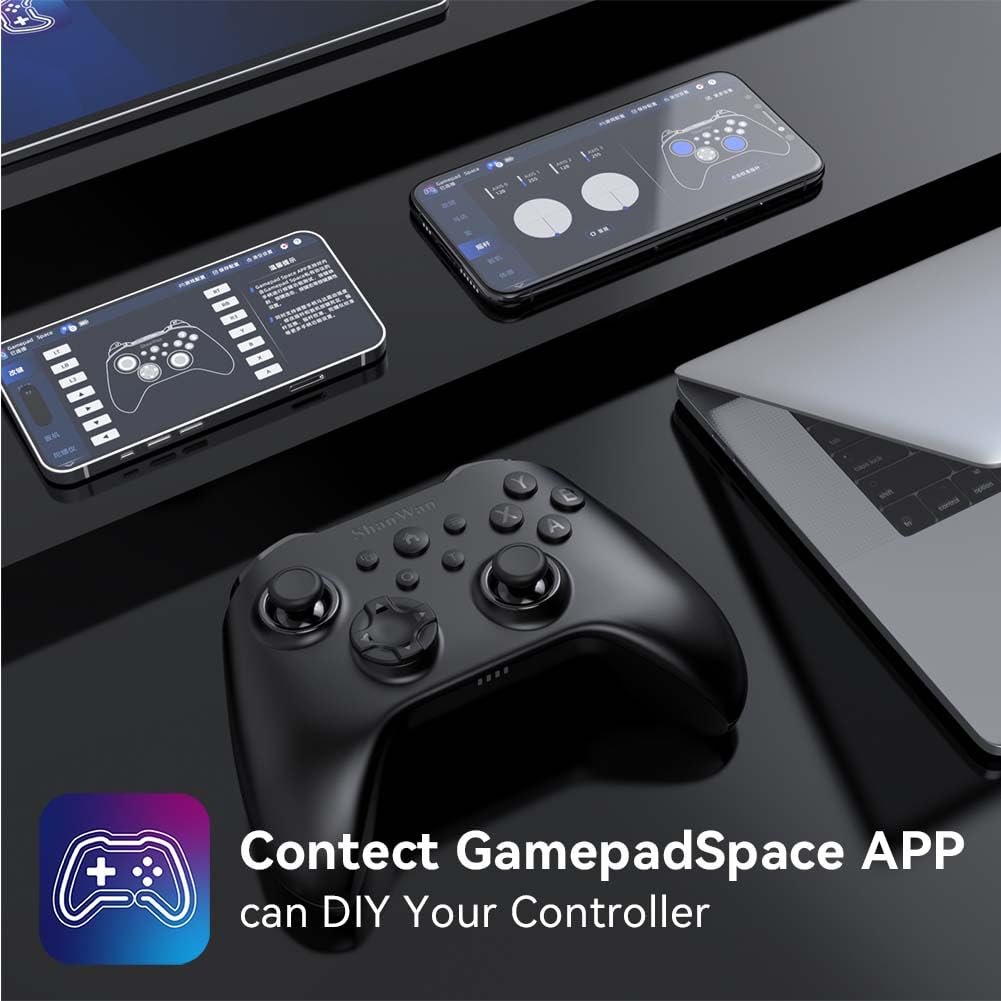
Software Customization (Gamepad Space App):
Enhance your gaming experience by customizing controller settings using the Gamepad Space mobile application.

ຮູບພາບ: A ShanWan controller alongside smartphones displaying the Gamepad Space app, illustrating options for calibration and on-the-fly adjustments.
- Download the "Gamepad Space" app from your mobile device's app store.
- Connect your controller to your mobile device via Bluetooth.
- ພາຍໃນ app, ທ່ານສາມາດ:
- ອັບເກຣດເຟີມແວ.
- ປັບໄມ້ແລະກະຕຸ້ນເຂດຕາຍ.
- ປັບແຕ່ງຄວາມເຂັ້ມຂອງການສັ່ນສະເທືອນ.
- Test buttons.
ບໍາລຸງຮັກສາ
- ທໍາຄວາມສະອາດ: ໃຊ້ຜ້າອ່ອນໆ, ແຫ້ງເພື່ອເຮັດຄວາມສະອາດເຄື່ອງຄວບຄຸມ. ຫຼີກເວັ້ນການນໍາໃຊ້ສານເຄມີທີ່ຮຸນແຮງຫຼືວັດສະດຸຂັດ.
- ການເກັບຮັກສາ: ເກັບຮັກສາເຄື່ອງຄວບຄຸມໄວ້ໃນບ່ອນທີ່ເຢັນ, ແຫ້ງ, ຫ່າງຈາກແສງແດດໂດຍກົງແລະອຸນຫະພູມທີ່ສຸດ.
- ການດູແລຫມໍ້ໄຟ: ເພື່ອຍືດອາຍຸແບັດເຕີລີ, ຫຼີກເວັ້ນການປ່ອຍຕົວຄວບຄຸມຢ່າງເຕັມທີ່ເລື້ອຍໆ. ໄລ່ມັນເປັນປົກກະຕິ, ເຖິງແມ່ນວ່າບໍ່ໄດ້ຢູ່ໃນການນໍາໃຊ້ຢ່າງຕໍ່ເນື່ອງ.
ການແກ້ໄຂບັນຫາ
ຕົວຄວບຄຸມບໍ່ໄດ້ເຊື່ອມຕໍ່:
- ກວດໃຫ້ແນ່ໃຈວ່າໄດ້ສາກໄຟແລ້ວ.
- Verify the mode switch on the back of the controller is set correctly for your platform (S, X, or D).
- For Bluetooth, ensure your device's Bluetooth is on and the controller is in pairing mode.
- For 2.4G wireless, ensure the dongle is properly inserted and the controller is in the correct mode.
- ລອງຣີສະຕາດທັງຕົວຄວບຄຸມ ແລະ ອຸປະກອນຂອງທ່ານເບິ່ງ.
ຄວາມຊັກຊ້າຂອງອິນພຸດ ຫຼື ການຕັດການເຊື່ອມຕໍ່:
- ໃຫ້ແນ່ໃຈວ່າບໍ່ມີການລົບກວນແມ່ເຫຼັກໄຟຟ້າທີ່ເຂັ້ມແຂງຢູ່ໃກ້ໆ.
- Move closer to your device for a stronger wireless signal.
- Ensure the controller's battery is not low.
- Consider using a wired USB-C connection for the most stable experience.
Joystick Drift or Unresponsive Buttons:
- Calibrate the joysticks and test buttons using the Gamepad Space app.
- Ensure the controller's firmware is up to date via the Gamepad Space app.
- ເຮັດຄວາມສະອາດອ້ອມຮອບປຸ່ມ ແລະ ຈອຍສະຕິກເພື່ອກຳຈັດສິ່ງເສດເຫຼືອຕ່າງໆ.
ຂໍ້ມູນຈໍາເພາະ
| ຕົວແບບ | B0FS13DT2B |
| ເຕັກໂນໂລຊີການເຊື່ອມຕໍ່ | Bluetooth, 2.4G Wireless, ມີສາຍ USB-C |
| ອຸປະກອນທີ່ເຂົ້າກັນໄດ້ | Android, iOS, Nintendo Switch, Nintendo Switch 2, PC |
| ປະເພດການຄວບຄຸມ | ແຜ່ນເກມ |
| ປະລິມານປຸ່ມ | 12 |
| ຄຸນນະສົມບັດພິເສດ | Hall Effect Joysticks, 6-Axis Gyroscope, Dual Vibration, Turbo Function, Software Customization |
| ແຫຼ່ງພະລັງງານ | ພະລັງງານຫມໍ້ໄຟ |
| ນ້ໍາຫນັກລາຍການ | 300 ກຣາມ |
| ຂະໜາດລາຍການ (D x W x H) | 2.5" x 4" x 6" |
ການຮັບປະກັນແລະການສະຫນັບສະຫນູນ
ShanWan products are designed for reliability and performance. For specific warranty information, please refer to the documentation included with your purchase or visit the official ShanWan support website. If you encounter any issues not covered in this manual, please contact ShanWan customer support for assistance.
ສະຫນັບສະຫນູນອອນໄລນ໌: Visit the ShanWan Store on Amazon