
ແນະນຳ
This manual provides essential information for the safe and efficient use of your Getac B300 G7 Fully Rugged Notebook. Please read this manual thoroughly before operating the device and retain it for future reference.
The Getac B300 G7 is designed for demanding environments, featuring MIL-STD-810G and IP65 certifications for resistance against shock, vibration, dust, and water.
ຕັ້ງຄ່າ
1. ການຫຸ້ມຫໍ່ແລະການກວດກາເບື້ອງຕົ້ນ
Carefully remove the notebook and all accessories from the packaging. Inspect the device for any signs of damage. If any damage is found, contact your vendor immediately.
2. ການເຊື່ອມຕໍ່ພະລັງງານ
Before initial use, ensure the battery is fully charged. Connect the AC adapter to the notebook's DC-in jack and then to a power outlet.
- ຜູ້ດັດແປງ AC: 90W
- ແບັດເຕີຣີ: Li-on 10.8V

Figure 1: Left side of the Getac B300 G7, showing various ports including the power input.
3. First Boot-up
Press the power button to turn on the notebook. The device will boot into Windows 11 Pro. Follow the on-screen instructions to complete the initial setup of the operating system.
4. ເຊື່ອມຕໍ່ອຸປະກອນເສີມ
The Getac B300 G7 offers multiple ports for connecting external devices:
- USB 3.0: 3 ports for connecting USB devices like external drives, keyboards, or mice.
- LAN (RJ45): ສໍາລັບການເຊື່ອມຕໍ່ເຄືອຂ່າຍມີສາຍ.
- HDMI: ສໍາລັບການເຊື່ອມຕໍ່ກັບຈໍສະແດງຜົນພາຍນອກ.
- External VGA: ສຳລັບການເຊື່ອມຕໍ່ກັບຈໍສະແດງຜົນພາຍນອກລຸ້ນເກົ່າ.
- Port Serial: 2 ports for legacy device connectivity.
- Microphone (Mini-jack): For external microphone input.
- Audio Output (Mini-jack): ສໍາລັບຫູຟັງຫຼືລໍາໂພງພາຍນອກ.
- ຕົວເຊື່ອມຕໍ່ດັອກ: ສຳລັບການເຊື່ອມຕໍ່ກັບສະຖານີເຊື່ອມຕໍ່ທີ່ເຂົ້າກັນໄດ້.
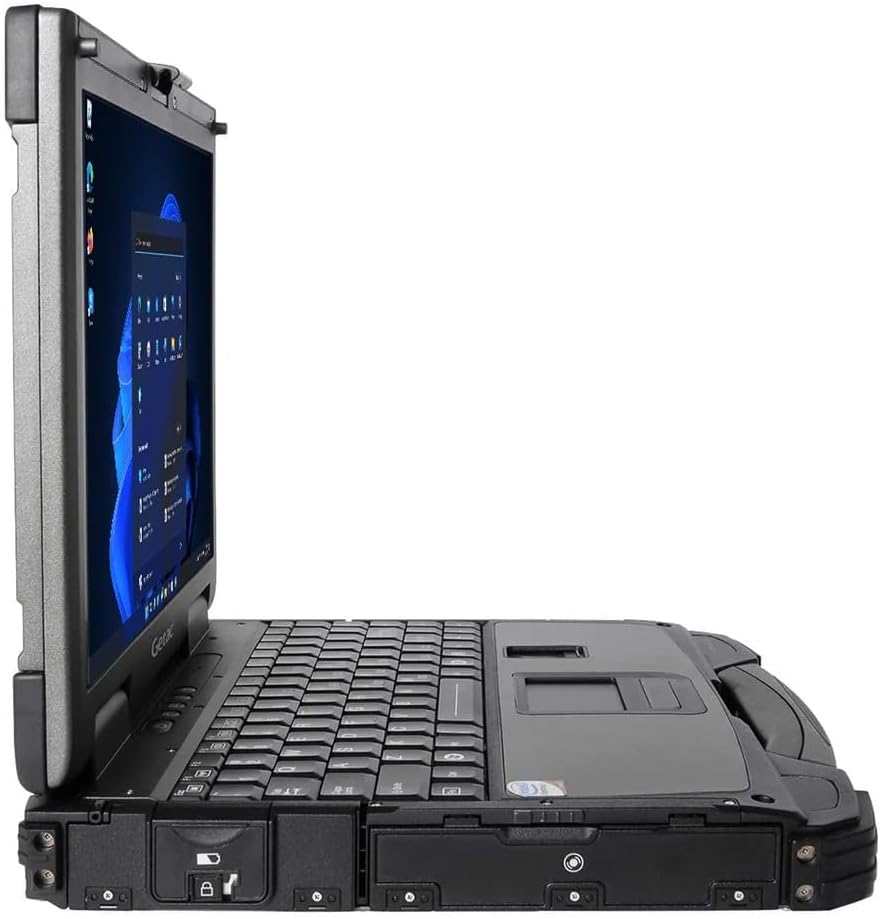
Figure 2: Right side of the Getac B300 G7, showing additional ports.
Operating the Notebook
1. ເປີດ/ປິດ
- ເພື່ອເປີດເຄື່ອງ: ກົດປຸ່ມເປີດປິດຢູ່ໃນອຸປະກອນ.
- ປິດເຄື່ອງ: Use the Windows Start menu to select 'Shut down'. Avoid forced shutdowns unless necessary to prevent data loss.
2. ຈໍສະແດງຜົນ ແລະ Touchscreen
The notebook features a 13.3-inch TFT LCD XGA (1024 x 768) touchscreen display with 700 nits brightness. You can interact with the display using your finger or a compatible stylus (not included).
- ທ່າທາງສໍາຜັດ: Standard Windows 11 touch gestures are supported.
- ການປັບຄວາມສະຫວ່າງ: Adjust display brightness through Windows settings or dedicated function keys (if available).
3. ຄີບອດ ແລະ ອຸປະກອນປ້ອນຂໍ້ມູນ
The Getac B300 G7 includes a backlit keyboard for use in low-light conditions. The integrated touchpad can be used for cursor control. An Insertable Smartcard Reader is also available for secure access applications.
- ການຄວບຄຸມໄຟຫຼັງ: Use the appropriate function key combination to toggle or adjust keyboard backlight.
- Smartcard Reader: Insert your smartcard into the designated slot for authentication or data access.
4. Optical Drive
The notebook is equipped with a DVD Super Multi Drive. This allows you to read and write various CD and DVD formats.
- ການໃສ່ແຜ່ນ: Gently push the disc into the drive until it clicks into place.
- ການຖອດແຜ່ນດິດ: Use the eject button on the drive or the eject option in Windows File ນັກສຳຫຼວດ.
5. ລະບົບປະຕິບັດການ
Your Getac B300 G7 comes with Windows 11 Pro pre-installed. Refer to Microsoft's documentation for detailed information on using Windows 11 Pro features and functionalities.
ບໍາລຸງຮັກສາ
1. Cleaning the Notebook
- ພາຍນອກ: ໃຊ້ອ່ອນ, ງamp cloth with a mild cleaning solution. Avoid harsh chemicals or abrasive materials.
- ຈໍສະແດງຜົນ: Use a microfiber cloth specifically designed for screens. Do not spray cleaners directly onto the screen.
- ພອດ: Ensure ports are free of dust and debris. Use compressed air if necessary, holding the can upright.
2. ການດູແລຫມໍ້ໄຟ
ເພື່ອເພີ່ມອາຍຸແບັດເຕີຣີ ແລະປະສິດທິພາບສູງສຸດ:
- ຫຼີກເວັ້ນອຸນຫະພູມທີ່ຮຸນແຮງ.
- ຢ່າປະຖິ້ມຫມໍ້ໄຟເຕັມທີ່ເລື້ອຍໆ.
- If storing the notebook for an extended period, charge the battery to approximately 50-60% before storage.
3. ຄຸນນະສົມບັດ Rugged
While the B300 G7 is designed to be rugged, proper care is still essential:
- Ensure all port covers are securely closed to maintain IP65 dust and water resistance.
- Avoid unnecessary drops or impacts, even though the device is MIL-STD-810G certified.
- Clean any mud or dirt from the casing promptly.

ຮູບທີ 3: ທາງເທິງ view of the Getac B300 G7, showcasing ການອອກແບບທີ່ເຂັ້ມແຂງຂອງມັນ.
ການແກ້ໄຂບັນຫາ
This section addresses common issues you might encounter with your Getac B300 G7 notebook.
1. Notebook Does Not Power On
- Ensure the AC adapter is securely connected to both the notebook and a working power outlet.
- Verify the battery is charged. If the battery is completely drained, it may take a few minutes of charging before the notebook can power on.
- Try removing and reinserting the battery (if user-removable) to reset it.
2. ສະແດງບັນຫາ
- ບໍ່ມີການສະແດງຜົນ: Connect an external monitor to the HDMI or VGA port to check if the issue is with the internal display.
- ຈໍສະແດງຜົນ: Adjust the brightness settings in Windows or using the keyboard function keys.
- ໜ້າຈໍສໍາຜັດບໍ່ຕອບສະໜອງ: Restart the notebook. If the issue persists, check for driver updates in Windows Device Manager.
3. Peripheral Devices Not Working
- ໃຫ້ແນ່ໃຈວ່າອຸປະກອນໄດ້ເຊື່ອມຕໍ່ກັບພອດທີ່ຖືກຕ້ອງຢ່າງຖືກຕ້ອງ.
- Try connecting the device to a different port or another computer to rule out device malfunction.
- Check Windows Device Manager for any driver issues related to the peripheral.
4. ບັນຫາປະສິດທິພາບຂອງລະບົບ
- ປິດແອັບພລິເຄຊັນທີ່ບໍ່ຈໍາເປັນທີ່ເຮັດວຽກຢູ່ໃນພື້ນຫຼັງ.
- ໃຫ້ແນ່ໃຈວ່າ Windows ແລະໄດເວີແມ່ນອັບເດດແລ້ວ.
- ດໍາເນີນການເຮັດຄວາມສະອາດແຜ່ນດິດ ແລະ ການຈັດລຽງຂໍ້ມູນ (ສໍາລັບ HDD, ບໍ່ຈໍາເປັນສໍາລັບ SSD).
- ກວດເບິ່ງ malware ຫຼືໄວຣັສ.
ຂໍ້ມູນຈໍາເພາະ
| ຄຸນສົມບັດ | ລາຍລະອຽດ |
|---|---|
| ຊື່ຕົວແບບ | B300 G7 |
| ໂຮງງານຜະລິດ | Intel Core i5-8350U (1.7 GHz, up to 3.6 GHz with Turbo Boost, 6MB Cache) |
| RAM | 16GB DDR4 (2400 MHz), ສູງສຸດ 32GB |
| ການເກັບຮັກສາ | SSD 512GB |
| ຈໍສະແດງຜົນ | 13.3-inch TFT LCD XGA (1024 x 768), 700 nits, Touchscreen |
| ຮູບພາບ | ປະສົມປະສານ Intel UHD Graphics 620 |
| ລະບົບປະຕິບັດການ | Windows 11 Pro |
| Optical Drive | DVD Super Multi Drive |
| ທ່າເຮືອ | USB 3.0 x 3, LAN (RJ45), HDMI, External VGA, Serial Port x 2, Microphone (Mini-jack), Audio Output (Mini-jack), DC-in Jack, Docking Connector |
| ຄຸນນະສົມບັດພິເສດ | Backlit Keyboard, Insertable Smartcard Reader |
| Rugged Certification | MIL-STD-810G, IP65 |
| ຂະໜາດ (L x W x H) | 11.9" x 10.35" x 2.36" |
| ນ້ຳໜັກ | 7.7 lbs |
| ການເຊື່ອມຕໍ່ | Ethernet (No Wi-Fi, No Bluetooth) |
| ລາຍການລວມ | Li-on battery 10.8V, AC Adapter 90W |

ຮູບທີ 4: ທາງເທິງ view of the Getac B300 G7, highlighting its robust casing and integrated handle for portability.
ຂໍ້ມູນການຮັບປະກັນ
This Getac B300 G7 notebook comes with a ການຮັບປະກັນຈໍາກັດ 90 ວັນການຮັບປະກັນນີ້ກວມເອົາຂໍ້ບົກຜ່ອງດ້ານວັດສະດຸ ແລະ ຝີມືການຜະລິດພາຍໃຕ້ການນຳໃຊ້ປົກກະຕິໃນໄລຍະເວລາຮັບປະກັນ.
ການຮັບປະກັນບໍ່ໄດ້ກວມເອົາ:
- ຄວາມເສຍຫາຍທີ່ເກີດຈາກອຸປະຕິເຫດ, ການລ່ວງລະເມີດ, ການນໍາໃຊ້ທີ່ບໍ່ຖືກຕ້ອງ, ນໍ້າຖ້ວມ, ໄຟໄຫມ້, ແຜ່ນດິນໄຫວ, ຫຼືສາເຫດພາຍນອກອື່ນໆ.
- Damage caused by operating the product outside the permitted or intended uses described by Getac.
- Damage caused by service performed by anyone who is not an authorized service provider.
- Products or parts that have been modified to alter functionality or capability without the written permission of Getac.
For specific terms and conditions, please refer to the warranty documentation provided with your purchase or contact your vendor.
ສະຫນັບສະຫນູນ
If you encounter issues that cannot be resolved using the troubleshooting guide in this manual, please contact your vendor or an authorized service center for assistance. When contacting support, please have your model number (B300 G7) and serial number ready.
For the latest drivers, software updates, and additional support resources, please visit the official Getac support webເວັບໄຊ.