
1. ບົດແນະນຳ
This manual provides essential information for setting up, operating, and maintaining your ASUS ROG Strix XG34WCDMTG 34-inch OLED Curved Ultrawide Gaming Monitor. The ROG Strix OLED XG34WCDMTG is a 34-inch, 240Hz ultra-wide QD-OLED gaming monitor designed for immersive gaming and entertainment. It features a Neo Proximity Sensor within the ROG OLED Care Pro suite to prevent burn-in by transitioning to a black screen when no user is detected. Additionally, the monitor integrates Google TV, offering direct access to a wide range of streaming applications, movies, and shows without requiring external devices.
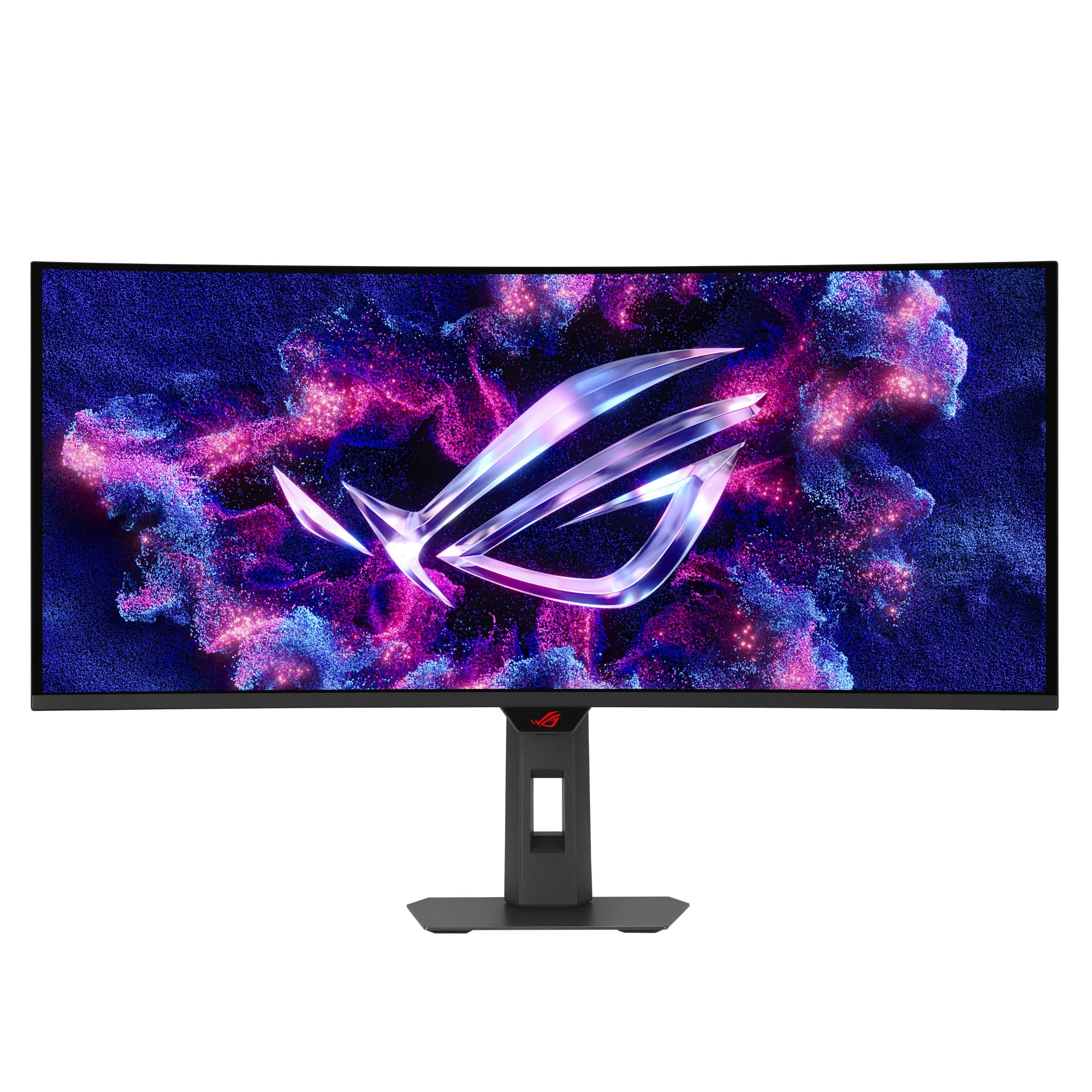
Figure 1.1: ASUS ROG Strix XG34WCDMTG Monitor Front View
2. ສິ່ງທີ່ຢູ່ໃນກ່ອງ
ແກະກ່ອງອອກຢ່າງລະມັດລະວັງ ແລະ ຮັບປະກັນວ່າສິນຄ້າທຸກຢ່າງຢູ່ໃນສະພາບດີ. ຖ້າມີສິນຄ້າໃດຂາດຫາຍໄປ ຫຼື ເສຍຫາຍ, ໃຫ້ຕິດຕໍ່ຫາຮ້ານຄ້າປີກຂອງທ່ານທັນທີ.
- XG34WCDMTG Monitor
- Remote Controller (with 2x AAA Batteries)
- ສາຍ DisplayPort
- ສາຍ HDMI
- ສາຍໄຟ
- ສາຍ USB-C
- ຜ້າໄມໂຄໄຟເບີ
- ຊຸດ VESA Mount
- ກະເປົ໋າ ROG
- ຄູ່ມືເລີ່ມຕົ້ນດ່ວນ
- ບັດຮັບປະກັນ

ຮູບທີ 2.1: ອຸປະກອນເສີມ
3. ຕັ້ງຄ່າ
3.1 ການປະກອບຂາຕັ້ງ
- ວາງແຜງຈໍສະແດງຜົນໃຫ້ໜ້າລົງເທິງພື້ນຜິວທີ່ສະອາດ, ອ່ອນນຸ້ມເພື່ອປ້ອງກັນຮອຍຂີດຂ່ວນ.
- ແນບຖານຂາຕັ້ງໃສ່ຄໍຂາຕັ້ງ, ຍຶດມັນດ້ວຍສະກູທີ່ໃຫ້ໄວ້.
- Attach the assembled stand to the back of the monitor panel until it clicks into place.
3.2 ສາຍເຊື່ອມຕໍ່
Connect the necessary cables to the monitor's rear ports. Ensure all connections are secure.
- ສາຍໄຟ: ເຊື່ອມຕໍ່ສາຍໄຟກັບອິນພຸດໄຟຂອງຈໍພາບ ແລະຈາກນັ້ນໄປຫາປລັກສຽບໄຟ.
- Video Input: Connect either the DisplayPort cable to a DisplayPort 1.4 port on your computer or an HDMI cable to one of the two HDMI 2.1 ports on your computer/device.
- USB-C: For compatible devices, connect the USB-C cable for video, data, and 90W power delivery.
- Hub USB: Connect the USB upstream cable (if applicable) to enable the monitor's USB hub for peripherals.

Figure 3.1: Monitor Connectivity Ports
3.3 ການເປີດເຄື່ອງເບື້ອງຕົ້ນ
Press the power button on the monitor or use the remote control to turn on the display. Follow any on-screen prompts for initial setup, including network connection for Google TV features.
4. ຄໍາແນະນໍາການດໍາເນີນງານ
4.1 ເມນູການສະແດງເທິງໜ້າຈໍ (OSD).
The OSD menu allows you to adjust various monitor settings. Use the joystick or buttons on the monitor's rear/bottom edge, or the included remote control, to navigate the menu.
- ເກມ: Adjust refresh rate, response time, FreeSync/G-SYNC compatibility, and gaming-specific enhancements like GamePlus (crosshair, timer, FPS counter).
- ຮູບພາບ: Control brightness, contrast, color temperature, and HDR settings.
- ເລືອກການປ້ອນຂໍ້ມູນ: Switch between DisplayPort, HDMI 1, HDMI 2, and USB-C inputs.
- ຕັ້ງຄ່າລະບົບ: General settings including language, OSD timeout, and power-saving options.
4.2 Google TV Functionality
The integrated Google TV provides a smart TV experience. Use the remote control to navigate the Google TV interface.
- ໜ້າຈໍຫຼັກ: ເຂົ້າເຖິງເນື້ອຫາທີ່ແນະນໍາ, ແອັບຯທີ່ຕິດຕັ້ງ ແລະການຕັ້ງຄ່າ.
- ແອັບຖ່າຍທອດ: Download and use popular streaming services like Netflix, Disney+, HBO Max, and YouTube.
- ການຄວບຄຸມດ້ວຍສຽງ: Utilize Google Assistant via the remote control for hands-free operation and content search.
- NVIDIA GeForce NOW: Access cloud gaming directly through the pre-installed NVIDIA GeForce NOW app.

ຮູບ 4.1: ການໂຕ້ຕອບ Google TV
4.3 MultiScreen Feature
The MultiScreen feature allows seamless cross-platform entertainment and control of multiple devices using a single keyboard and mouse. Refer to the monitor's OSD menu for specific MultiScreen configuration options.

Figure 4.2: MultiScreen Functionality
5. ຄຸນນະສົມບັດທີ່ສໍາຄັນ
The ASUS ROG Strix XG34WCDMTG monitor incorporates several advanced technologies for an enhanced user experience.

Figure 5.1: Monitor Highlighted Features
5.1 QD-OLED Display Technology
Experience vibrant colors, true blacks, and exceptional contrast with the 34-inch WQHD (3440x1440) QD-OLED curved screen. The 1800R curvature provides an immersive viewປະສົບການ, ແຕ້ມທ່ານເຂົ້າໄປໃນເນື້ອໃນ.

Figure 5.2: 1800R Curved Display
5.2 ອັດຕາການໂຫຼດຫນ້າຈໍຄືນສູງແລະເວລາຕອບສະຫນອງ
With a 240Hz refresh rate and an ultra-fast 0.03ms response time, the monitor delivers smooth, tear-free visuals, crucial for fast-paced gaming. It supports both AMD FreeSync Premium Pro and G-SYNC Compatible technologies for adaptive synchronization.
5.3 OLED Care Pro with Neo Proximity Sensor
The ROG OLED Care Pro suite includes features designed to protect the OLED panel from burn-in. The Neo Proximity Sensor automatically detects user presence and can transition the screen to black when no user is detected, extending the panel's lifespan. Other features include Pixel Cleaning, Pixel Move, Screen Save, Boundary Detection, Taskbar Detection, Outer Dimming Detection, and Global Dimming Detection.

Figure 5.3: OLED Care Pro Features
5.4 Advanced Cooling Solution
The monitor features an advanced custom heatsink and graphene film to efficiently dissipate heat, ensuring stable performance and contributing to the longevity of the OLED panel.

Figure 5.4: Custom Heatsink Design
5.5 Uniform Brightness
The Uniform Brightness setting helps maintain consistent brightness levels across the entire screen, improving viewing comfort and accuracy, especially for tasks requiring precise color and luminance.

Figure 5.5: Uniform Brightness Comparison
5.6 Audio and HDR
Enjoy stunning HDR visuals with VESA DisplayHDR 400 True Black certification and 99% DCI-P3 color gamut. The monitor also features built-in 5W x2 speakers with Dolby Vision and Dolby Atmos support for immersive cinematic sound.
5.7 ຄຸນສົມບັດການດູແລຕາ
The monitor incorporates eye care technologies to reduce eye strain during prolonged use. These include a Blue Light Filter, Flicker-Free technology, and an Anti-glare Screen. The ergonomic design allows for tilt, swivel, and height adjustments to find the most comfortable viewຕໍາແຫນ່ງ.
Video 5.1: ASUS Eye Care Monitor Features. This video demonstrates general eye care features such as anti-glare screens, blue light filters, flicker-free technology, and ergonomic design, which are also present in the XG34WCDMTG monitor.
6. ບໍາລຸງຮັກສາ
6.1 ການທໍາຄວາມສະອາດ Monitor
- ປິດຈໍສະແດງຜົນສະເໝີ ແລະຖອດສາຍໄຟອອກກ່ອນທຳຄວາມສະອາດ.
- Use a soft, lint-free cloth (like the included microfiber cloth) to gently wipe the screen and exterior surfaces.
- ສໍາລັບຮອຍແຂງ, ເບົາບາງ dampໃສ່ຜ້າດ້ວຍນ້ໍາຫຼືເຄື່ອງເຮັດຄວາມສະອາດຫນ້າຈໍອ່ອນໆ, ທີ່ບໍ່ມີຮອຍຂີດຂ່ວນ. ຢ່າສີດຂອງແຫຼວໂດຍກົງໃສ່ຫນ້າຈໍ.
- Avoid using alcohol, ammonia, or abrasive cleaners, as these can damage the screen coating.
6.2 OLED Care Pro Maintenance
The OLED Care Pro features are designed to automatically maintain the panel. Ensure the monitor is powered off or in standby mode regularly to allow features like Pixel Cleaning to run. The Neo Proximity Sensor will help prevent burn-in by turning off the display when you step away.
7. ການແກ້ໄຂບັນຫາ
| ບັນຫາ | ສາເຫດທີ່ເປັນໄປໄດ້ | ການແກ້ໄຂ |
|---|---|---|
| ບໍ່ມີຮູບພາບໃນ ໜ້າ ຈໍ | ສາຍໄຟຖືກຕັດ, ສາຍວິດີໂອວ່າງ, ເລືອກອິນພຸດບໍ່ຖືກຕ້ອງ. | Check power and video cable connections. Ensure the correct input source is selected via the OSD menu or remote. |
| ຮູບພາບມົວຫຼືບິດເບືອນ | ຄວາມລະອຽດບໍ່ຖືກຕ້ອງ, ສາຍວິດີໂອມີບັນຫາ. | ຕັ້ງຄວາມລະອຽດຈໍສະແດງຜົນເປັນ 3440x1440. ລອງສາຍວິດີໂອອື່ນ. |
| ບໍ່ມີສຽງຈາກ ລຳ ໂພງ | Volume too low, audio output not set to monitor, faulty audio cable (if external). | Increase monitor volume. Ensure the audio output on your device is set to the monitor. |
| Google TV not connecting to Wi-Fi | Incorrect Wi-Fi password, router issues, signal interference. | Verify Wi-Fi password. Restart your router. Move the monitor closer to the router or reduce interference. |
| Burn-in concerns | Static images displayed for extended periods. | Utilize OLED Care Pro features (Pixel Cleaning, Screen Save, Neo Proximity Sensor). Avoid displaying static images for very long durations. |
8. ຂໍ້ມູນຈໍາເພາະ
| ຄຸນສົມບັດ | ລາຍລະອຽດ |
|---|---|
| ຍີ່ຫໍ້ | ASUS |
| ໝາຍເລກຕົວແບບ | XG34WCDMTG |
| ຂະໜາດໜ້າຈໍ | 34 ນິ້ວ |
| ປະເພດການສະແດງ | QD-OLED |
| ຄວາມລະອຽດ | 3440 x 1440 (WQHD Ultrawide) |
| ອັດຕາສ່ວນ | 21:9 |
| ເສັ້ນໂຄ້ງ | 1800R |
| ອັດຕາການໂຫຼດຂໍ້ມູນຄືນໃໝ່ | 240 Hz |
| ເວລາຕອບສະຫນອງ | 0.03 Milliseconds (GtG) |
| ຄວາມສະຫວ່າງ | 1000 Candela per Square Meter (Peak) |
| ອັດຕາສ່ວນກົງກັນຂ້າມ | 1,500,000:1 |
| ສີ Gamut | 99% DCI-P3 |
| ຮອງຮັບ HDR | VESA DisplayHDR 400 ສີດຳແທ້, Dolby Vision |
| Adaptive Sync | AMD FreeSync Premium Pro, G-Sync Compatible |
| ການເຊື່ອມຕໍ່ | DisplayPort 1.4, HDMI 2.1 x2, USB-C (90W PD), USB Hub |
| ສຽງ | 5W x2 Speakers (Dolby Atmos), Earphone Jack |
| ຄຸນສົມບັດອັດສະລິຍະ | Google TV (Android 14), WiFi 6, NVIDIA GeForce NOW |
| ການ Ergonomics | Tilt (+20° ~ -5°), Swivel (+25° ~ -25°), Height Adjustment (0~110mm) |
| ຂະ ໜາດ (D x W x H) | 4.6"D x 31.9"W x 21.5"H |
| ນ້ຳໜັກ | 19.4 ປອນ |
| ການບໍລິໂພກພະລັງງານ | 41.5 ວັດ |
9. ການຮັບປະກັນແລະການສະຫນັບສະຫນູນ
9.1 ການຮັບປະກັນຜະລິດຕະພັນ
This ASUS ROG Strix XG34WCDMTG monitor comes with a ການຮັບປະກັນ 3 ປີຈໍາກັດ. Please refer to the included Warranty Card for detailed terms and conditions, including coverage specifics and limitations.
9.2 ສະຫນັບສະຫນູນລູກຄ້າ
For technical assistance, troubleshooting, or warranty claims, please visit the official ASUS support website or contact ASUS customer service in your region. Keep your purchase receipt and product serial number handy when contacting support.
ສະຫນັບສະຫນູນອອນໄລນ໌: www.asus.com/support/