
1. ບົດແນະນຳ
Thank you for choosing the Antec VCX300 ARGB ATX/M-ATX PC Case. This manual provides detailed instructions for the installation, operation, and maintenance of your new computer chassis. Please read this manual thoroughly before installation to ensure proper setup and optimal performance.
2. ຂໍ້ມູນຄວາມປອດໄພ
- ສະເຫມີຕັດການເຊື່ອມຕໍ່ການສະຫນອງພະລັງງານກ່ອນທີ່ຈະຕິດຕັ້ງຫຼືເອົາອົງປະກອບໃດໆ.
- Handle components with care to avoid damage from electrostatic discharge. Use an anti-static wrist strap if available.
- Keep the case away from water, moisture, and direct heat sources.
- ຮັບປະກັນການລະບາຍອາກາດທີ່ເໝາະສົມອ້ອມຮອບກ່ອງເພື່ອປ້ອງກັນຄວາມຮ້ອນເກີນໄປ.
- Do not attempt to open or repair the power supply unit inside the case. Refer to qualified service personnel.
3. ເນື້ອໃນຊຸດ
ກະລຸນາກວດສອບວ່າລາຍການທັງໝົດມີຢູ່ໃນຊຸດຂອງທ່ານ:
- Antec VCX300 ARGB ATX/M-ATX PC Case
- Accessory Box (Screws, standoffs, cable ties)
- ຄູ່ມືຜູ້ໃຊ້ (ເອກະສານນີ້)
4. ຜະລິດຕະພັນເກີນview
Familiarize yourself with the various parts of your Antec VCX300 ARGB PC Case.
4.1 ແຜງໜ້າ I/O
- ປຸ່ມເປີດປິດ
- ປຸ່ມຣີເຊັດ
- ພອດ USB 3.0
- ພອດ USB 2.0
- ຊ່ອງສຽບສຽງ (ຫູຟັງ/ໄມໂຄຣໂຟນ)
- LED Control Button (for ARGB lighting)
4.2 Internal Layout
The VCX300ARGB case supports ATX and Micro-ATX motherboards. It features multiple drive bays for storage and ample space for cooling solutions.
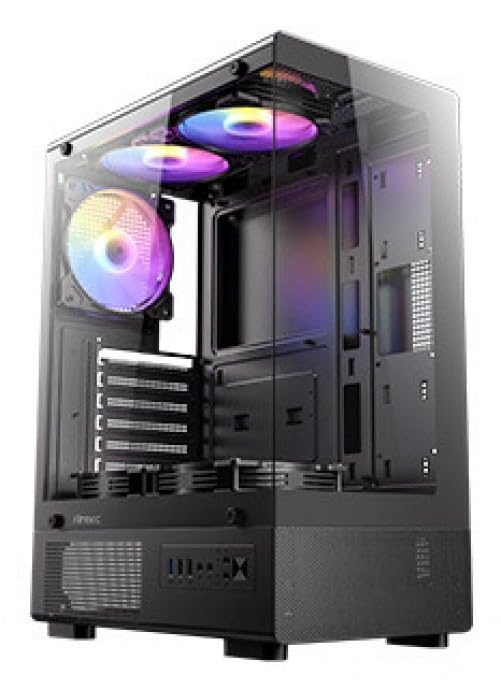
ຮູບ 1: ດ້ານຫນ້າ view of the Antec VCX300 ARGB PC Case, showcasing the ARGB lighting elements and front panel I/O ports.
5. ການຕິດຕັ້ງແລະການຕິດຕັ້ງ
Follow these steps to install your components into the Antec VCX300 ARGB PC Case.
5.1 ການກະກຽມກໍລະນີ
- ວາງກະເປົ໋າໄວ້ເທິງພື້ນຜິວທີ່ຮາບພຽງ ແລະ ໝັ້ນຄົງ.
- ເອົາແຜງດ້ານຂ້າງອອກໂດຍການໝຸນສະກູທີ່ຢູ່ດ້ານຫຼັງຂອງເຄສ ແລະ ເລື່ອນແຜງໄປທາງຫຼັງ.
5.2 ການຕິດຕັ້ງເມນບອດ
- ຕິດຕັ້ງ I/O ໄສ້ເຂົ້າໄປໃນຊ່ອງເປີດດ້ານຫລັງຂອງກໍລະນີ.
- Align the motherboard with the pre-installed standoffs. Ensure the screw holes on the motherboard match the standoffs.
- Secure the motherboard with the provided screws from the accessory box.
5.3 ການຕິດຕັ້ງແຫຼ່ງຈ່າຍໄຟ
- Position the power supply unit (PSU) in the designated compartment at the bottom rear of the case.
- Secure the PSU with screws from the outside rear of the case.
5.4 ການຕິດຕັ້ງໄດຣຟ໌ເກັບຂໍ້ມູນ (HDD/SSD)
- Locate the drive bays. The VCX300ARGB typically features dedicated bays for 3.5" HDDs and 2.5" SSDs.
- For 3.5" HDDs, slide the drive into the bay and secure it with screws or tool-less clips if available.
- For 2.5" SSDs, mount the drive onto the designated brackets or trays and secure with screws.
5.5 Expansion Card Installation (GPU, etc.)
- ເອົາຝາປິດຊ່ອງຂະຫຍາຍທີ່ຈຳເປັນອອກຈາກດ້ານຫຼັງຂອງເຄສ.
- Insert the expansion card (e.g., graphics card) into the appropriate PCIe slot on the motherboard.
- ຮັດບັດໃຫ້ແໜ້ນດ້ວຍສະກູ.
5.6 ການຈັດການສາຍ
ນຳໃຊ້ແຜ່ນຕັດເສັ້ນທາງສາຍເຄເບິນ ແລະຈຸດຜູກລົງທາງຫຼັງຖາດເມນບອດເພື່ອຈັດການສາຍ. ນີ້ປັບປຸງການໄຫຼຂອງອາກາດແລະຄວາມງາມ.
- Connect all power cables from the PSU to the motherboard and components.
- Connect front panel I/O cables (USB, audio, power/reset switches, LED) to the corresponding headers on the motherboard.
- Connect ARGB cables from the case fans/strips to the motherboard's ARGB header or the integrated ARGB controller.
6. ການດໍາເນີນງານ
6.1 ການເປີດເຄື່ອງ
- Ensure all components are correctly installed and cables are connected.
- Close and secure the side panels.
- ເຊື່ອມຕໍ່ສາຍໄຟເຂົ້າກັບ PSU ແລະປລັກສຽບຝາ.
- ເລື່ອນສະວິດເປີດເຄື່ອງ PSU ໄປທີ່ຕຳແໜ່ງ "ON".
- Press the Power Button on the front panel of the case.
6.2 ການຄວບຄຸມແສງ ARGB
The Antec VCX300 ARGB case features customizable ARGB lighting. You can control the lighting effects in two ways:
- ປຸ່ມຄວບຄຸມ LED: Press the dedicated LED control button on the front panel to cycle through various pre-set ARGB lighting modes and colors. Hold the button for a few seconds to turn off/on the lighting.
- ຊອບແວເມນບອດ: If the ARGB cables are connected to a compatible motherboard ARGB header, you can synchronize and customize lighting effects using your motherboard's proprietary software (e.g., ASUS Aura Sync, MSI Mystic Light Sync, Gigabyte RGB Fusion, ASRock Polychrome Sync). Refer to your motherboard manual for specific instructions.
7. ບໍາລຸງຮັກສາ
ການບໍາລຸງຮັກສາເປັນປົກກະຕິຈະຊ່ວຍຮັບປະກັນການປະຕິບັດທີ່ດີທີ່ສຸດແລະອາຍຸຍືນຂອງອົງປະກອບ PC ຂອງທ່ານ.
- ການກັ່ນຕອງຂີ້ຝຸ່ນ: The VCX300ARGB includes dust filters. Regularly remove and clean these filters to prevent dust buildup inside the case, which can impede airflow and cooling performance. Use compressed air or a soft brush.
- ທໍາຄວາມສະອາດພາຍໃນ: Periodically open the case and use compressed air to remove dust from fans, heatsinks, and other components. Ensure the system is powered off and unplugged before cleaning.
- ການອະນາໄມພາຍນອກ: ເຊັດດ້ານນອກຂອງກໍລະນີດ້ວຍຄວາມອ່ອນ, ງamp ຜ້າ. ຫຼີກເວັ້ນການສານເຄມີທີ່ຮຸນແຮງຫຼືວັດສະດຸຂັດ.
8. ການແກ້ໄຂບັນຫາ
| ບັນຫາ | ສາເຫດທີ່ເປັນໄປໄດ້ | ການແກ້ໄຂ |
|---|---|---|
| PC ບໍ່ເປີດ. | Power cable disconnected, PSU switch off, front panel power button not connected, faulty PSU. | Check power cable connections. Ensure PSU switch is ON. Verify front panel power button cable is correctly connected to motherboard. Test PSU if possible. |
| ARGB lighting not working. | ARGB cables disconnected, incompatible motherboard header, LED control button issue. | Ensure ARGB cables are securely connected to the motherboard or controller. Try cycling modes with the LED control button. Verify motherboard ARGB header compatibility. |
| Poor airflow/overheating. | Dust buildup, incorrect fan orientation, obstructed vents. | Clean dust filters and internal components. Ensure fans are oriented correctly for optimal airflow (intake/exhaust). Check for any obstructions. |
9. ຂໍ້ມູນຈໍາເພາະ
| ຄຸນສົມບັດ | ລາຍລະອຽດ |
|---|---|
| ຊື່ຕົວແບບ | VCX300ARGB |
| ປະເພດກໍລະນີ | ຫໍກາງ |
| ຮອງຮັບເມນບອດ | ATX, ໄມໂຄຣ-ATX |
| ຂະ ໜາດ (D x W x H) | 14.57"ເລິກ x 8.07"ກວ້າງ x 17.72"ສູງ (370ມມ x 205ມມ x 450ມມ ປະມານ) |
| ນ້ໍາຫນັກລາຍການ | 3.6 ກິໂລກຣາມ |
| Internal Drive Bays | 5 (combination of 3.5" HDD and 2.5" SSD) |
| ທ່າເຮືອທາງ ໜ້າ I / O | USB 3.0, USB 2.0, Audio In/Out, Power, Reset, LED Control Button |
| ຄຸນນະສົມບັດພິເສດ | Built-In Fan, Dust Filter, LED Control Button, Noise Reduction Technology, Partition Plate Cooling Technology, ARGB Lighting |
| ສີ | ດຳ |
10. ການຮັບປະກັນແລະການສະຫນັບສະຫນູນ
Antec products come with a limited warranty. Please refer to the official Antec website or your regional distributor for specific warranty terms and conditions applicable to your product.
For technical support, product registration, or further inquiries, please visit the official Antec support page: www.antec.com/support
Importer Contact Information: Ariisto House, 5th Floor, Junction of N.S.Phadke Road, Telli Gali, Andheri (E), Mumbai- 400 069 Maharashtra, India