
1. Unboxing Your SIXWIN A7218 Car Radio
This section details the contents of your SIXWIN A7218 package. Please ensure all items are present before proceeding with installation.

Image 1.1: Package Included. This image displays all components included in the SIXWIN A7218 car radio package. Key items are labeled: Power Cable, RCA Input/Output, Reversing Camera Input, USB Cable, GPS Antenna, and Radio Antenna. Additional accessories like the rear camera, microphone, and installation tools are also shown.
Video 1.1: Package List of Android Car Stereo for Hyundai Elantra 11-13. ວິດີໂອນີ້ສະຫນອງການເບິ່ງview of all items included in the package for the Android car stereo compatible with Hyundai Elantra models from 2011-2013. It helps users verify that all components are present upon unboxing.
2. ການຕິດຕັ້ງແລະການຕິດຕັ້ງ
Proper installation is crucial for optimal performance. This section guides you through the physical and electrical setup of your SIXWIN A7218 car radio.
2.1 ການກວດສອບການຕິດຕັ້ງກ່ອນ
- Verify car compatibility: This unit is designed for Hyundai Elantra 2011, 2012, and 2013 models.
- ກວດເບິ່ງ amplifier control cable: If your car has an amplifier control cable, it must be connected separately to the power line ACC of the new unit to ensure sound functionality.
- Inspect OEM car radio CD back: If your OEM car radio CD back matches the image provided in the unboxing section, additional wiring harnesses and protocol boxes may be required.
2.2 ການຕິດຕັ້ງທາງດ້ານຮ່າງກາຍ
Video 2.1: Hyundai Elantra Headunit 2011 - 2015 - Installation. This video demonstrates the step-by-step physical installation process of a head unit in a Hyundai Elantra (2011-2015 models). It covers removing the old unit and fitting the new one into the dashboard.

Image 2.1: Installation Effect. This image illustrates the appearance of the SIXWIN A7218 car radio after successful installation in a Hyundai Elantra dashboard. The 9-inch touch screen is seamlessly integrated, displaying various application icons.
2.3 ການເຊື່ອມຕໍ່ສາຍໄຟ
Video 2.2: Car Radio Installation. This video provides a general guide on connecting the various cables and harnesses for car radio installation. It covers power, audio, USB, GPS, and camera connections.
Video 2.3: Central Control Wiring Demonstration-A7218. This video offers a detailed demonstration of the wiring connections for the A7218 car stereo, focusing on the central control unit. It shows how to connect the power cable, RCA cables, microphone, USB cables, 4G antenna, GPS antenna, rear camera signal wire, and CANBUS module.
3. ຄໍາແນະນໍາການດໍາເນີນງານ
Familiarize yourself with the various features and functions of your SIXWIN A7218 car radio to enhance your driving experience.
Video 3.1: New Elantra Car Radio Stereo CarPlay Android Auto Navigation. This video demonstrates the user interface and key functionalities of the car radio, including CarPlay, Android Auto, FM radio, music playback, equalizer, split screen display, Bluetooth hands-free calling, map navigation, and app installation.
3.1 Wireless CarPlay & Android Auto
Connect your iPhone or Android phone wirelessly via Bluetooth to access smart features safely while driving.
- ການເຊື່ອມຕໍ່: Simply connect your iPhone/Android phone to the Android car radio via Bluetooth.
- ຜູ້ຊ່ວຍສຽງ: Use Siri's intelligent voice assistant or the touch screen for directions, phone calls, messages, and music.
- Focus & Entertainment: Designed for a smarter, safer, and more enjoyable in-car phone experience, keeping you focused, connected, and entertained.

Image 3.1: Wireless CarPlay Android Auto. This image shows the car radio screen displaying the Wireless CarPlay and Android Auto interface, with various phone applications accessible.
Video 3.2: How to connect carplay android auto. This video demonstrates the process of connecting your smartphone to the car radio for CarPlay and Android Auto functionality.
3.2 Bluetooth & FM Radio
Enjoy hands-free communication and access to your favorite radio stations.
- Bluetooth: Answer/make calls hands-free. The built-in microphone picks up your voice, and car speakers transmit the audio. Play and control music and apps wirelessly.
- ວິທະຍຸ FM: Tune into FM radio stations for news, music, and entertainment.
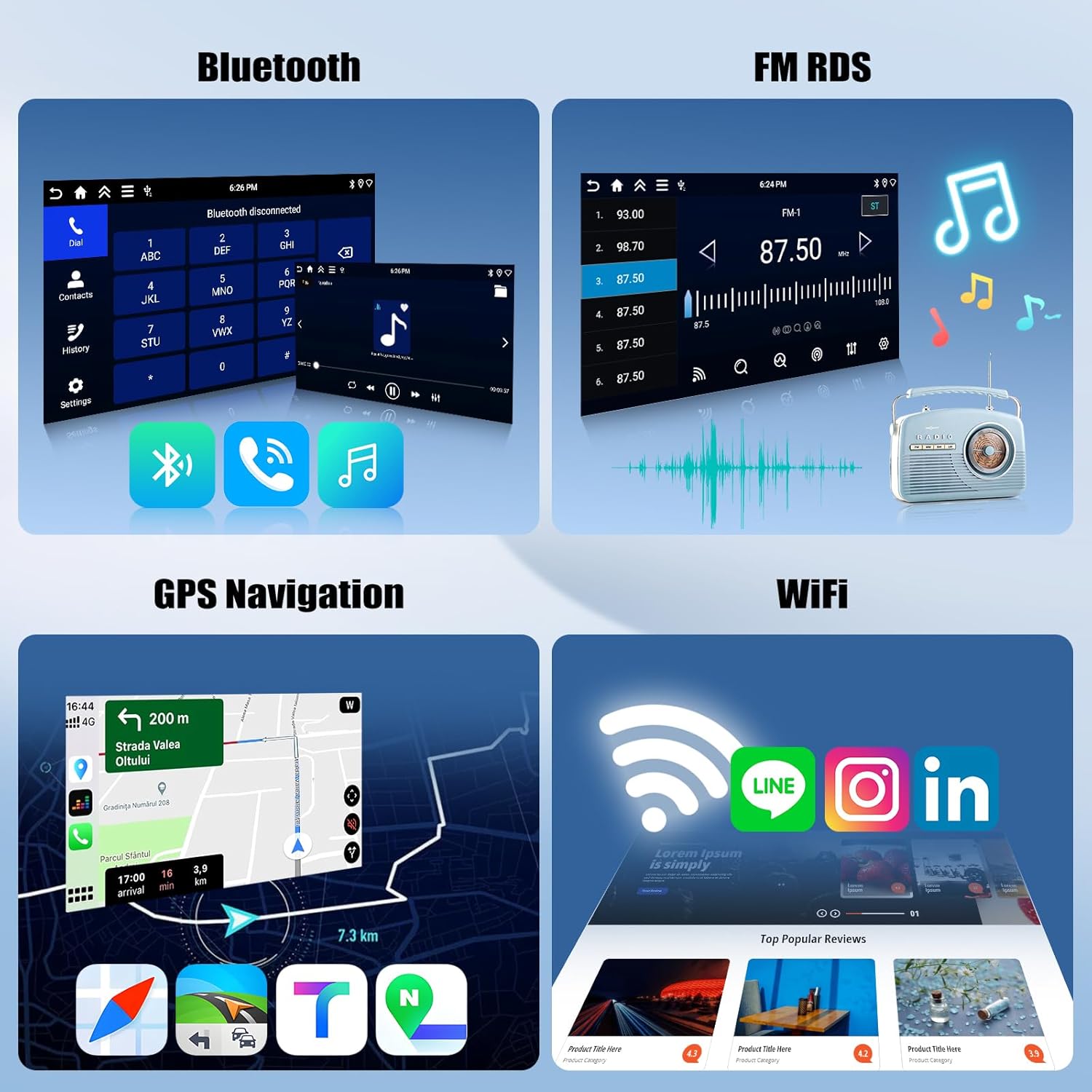
Image 3.2: Bluetooth, FM RDS, GPS Navigation, WiFi. This image displays the car radio's interface for Bluetooth calls, FM RDS radio, GPS navigation, and WiFi connectivity.
3.3 GPS Navigation & WiFi Connect
Navigate with ease and stay connected on the go.
- GPS ນຳ ທາງ: Features a built-in offline map of North America. Online maps are also supported; connect to WiFi to use GPS Navigation anywhere.
- ເຊື່ອມຕໍ່ WiFi: Allows installation or deletion of Android apps from the Application Store, similar to a smartphone.
3.4 ການຄວບຄຸມພວງມາໄລ
Maintain control of your stereo without taking your hands off the wheel.
- ການທໍາງານ: The Steering Wheel Control feature allows you to adjust volume, change tracks, and manage calls effortlessly.
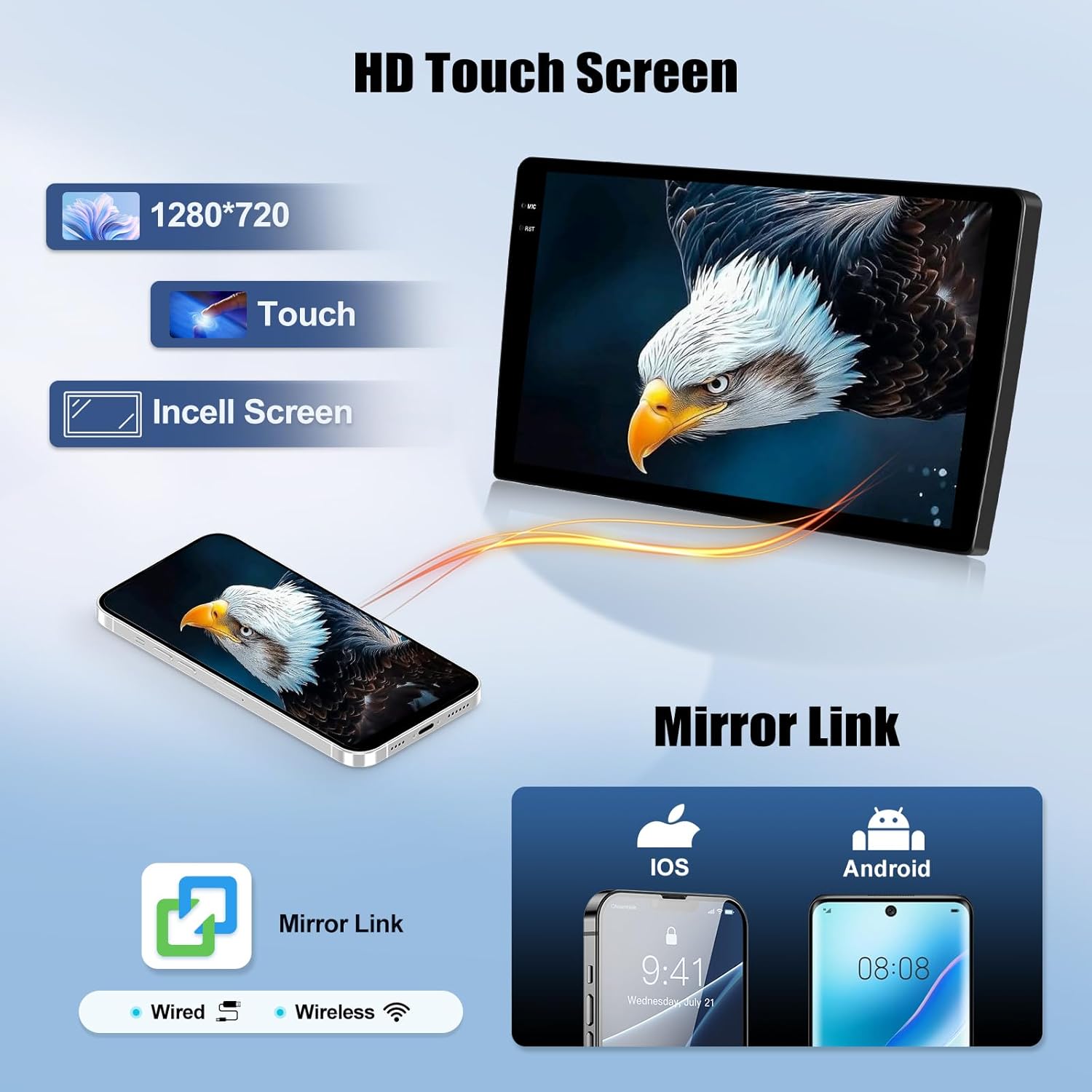
Image 3.3: Steering Wheel Control. This image shows the car radio's interface for customizing steering wheel controls, alongside a view of a steering wheel with integrated buttons.
3.5 ກ້ອງຖ່າຍຮູບສໍາຮອງ
Enhance safety and ease of parking with the included backup camera.
- ຄຸນສົມບັດ: The backup camera helps you drive safer and easier.

Image 3.4: Backup Camera. This image illustrates the backup camera's view on the car radio screen, complete with parking guidelines, and a separate image of the camera itself.
3.6 HD Touch Screen & Mirror Link
Experience clear visuals and seamless phone integration.
- ໜ້າຈໍສຳຜັດ HD: Enjoy a clear and responsive display.
- ການເຊື່ອມຕໍ່ກັບກະຈົກ: Connect your smartphone to mirror its screen content onto the car radio display, supporting both wired and wireless connections.

Image 3.5: HD Touch Screen & Mirror Link. This image highlights the HD touch screen capabilities and the Mirror Link feature, showing a smartphone's display mirrored on the car radio.
4. ບໍາລຸງຮັກສາ
To ensure the longevity and optimal performance of your SIXWIN A7218 car radio, follow these maintenance guidelines:
- ທໍາຄວາມສະອາດຫນ້າຈໍ: ໃຊ້ຜ້າແພທີ່ອ່ອນນຸ້ມ, ບໍ່ມີສານດ່າງເພື່ອເຊັດຫນ້າຈໍສໍາຜັດຄ່ອຍໆ. ສໍາລັບ smudges stubborn, ເລັກນ້ອຍ dampໃສ່ຜ້າດ້ວຍນ້ໍາຫຼືເຄື່ອງເຮັດຄວາມສະອາດຫນ້າຈໍທີ່ປອດໄພ. ຫຼີກເວັ້ນການສານເຄມີທີ່ຮຸນແຮງຫຼືວັດສະດຸຂັດ.
- ອັບເດດຊອບແວ: Periodically check for software updates through the device's settings menu (if available) to ensure you have the latest features and bug fixes.
- ການເຊື່ອມຕໍ່ສາຍ: Occasionally check all cable connections behind the unit to ensure they are secure and free from damage. Loose connections can lead to intermittent functionality.
- ການດູແລສິ່ງແວດລ້ອມ: ຫຼີກລ້ຽງການເປີດເຄື່ອງໃຫ້ຢູ່ໃນອຸນຫະພູມທີ່ຮ້າຍແຮງ, ແສງແດດໂດຍກົງເປັນເວລາດົນນານ, ຫຼືຄວາມຊຸ່ມເກີນໄປ.
5. ການແກ້ໄຂບັນຫາ
If you encounter any issues with your SIXWIN A7218 car radio, refer to the following common troubleshooting steps:
- ບໍ່ມີສຽງ: Ensure all speaker wires are correctly connected. If your car has an amplifier control cable, confirm it is pulled out separately and connected to the power line ACC.
- ໜ່ວຍບໍ່ເປີດ: Check the power cable connections and ensure the car's ignition is on. Verify the fuse is intact.
- ບັນຫາການເຊື່ອມຕໍ່ Bluetooth: Ensure Bluetooth is enabled on both the car radio and your smartphone. Try unpairing and re-pairing the devices.
- ການສູນເສຍສັນຍານ GPS: Ensure the GPS antenna is properly installed and has a clear line of sight to the sky. Check for any obstructions.
- ໜ້າຈໍສໍາຜັດບໍ່ຕອບສະໜອງ: Perform a touch screen calibration (refer to the Factory Setup settings). If the issue persists, a factory reset might be necessary.
- ການຄວບຄຸມພວງມາໄລບໍ່ເຮັດວຽກ: Access the Steering Wheel Control learning function in the settings and re-program the buttons.
ສໍາລັບບັນຫາທີ່ຍັງຄົງຄ້າງ, ກະລຸນາຕິດຕໍ່ຝ່າຍຊ່ວຍເຫຼືອລູກຄ້າ.
6. ຂໍ້ມູນຈໍາເພາະ
| ຄຸນສົມບັດ | ລາຍລະອຽດ |
|---|---|
| ຍີ່ຫໍ້ | SIXWIN |
| ຊື່ຕົວແບບ | A7218 |
| ລະບົບປະຕິບັດການ | Android |
| ຂະໜາດໜ້າຈໍ | 9 ນິ້ວ |
| ຄວາມອາດສາມາດເກັບຮັກສາຫນ່ວຍຄວາມຈໍາ | 64 GB |
| ຄຸນນະສົມບັດພິເສດ | 4G+64G |
| ເຕັກໂນໂລຊີການເຊື່ອມຕໍ່ | Wi-Fi |
| ປະເພດແຜນທີ່ | ທົ່ວໂລກ |
| ຮອງຮັບລະບົບນຳທາງດາວທຽມ | GPS |
| ປະເພດຫນ້າຈໍສໍາຜັດ | Capacitive |
| ອິນເຕີເຟດມະນຸດ | ໜ້າຈໍສຳຜັດ |
| ວິທີການຄວບຄຸມ | ກົດປຸ່ມ, ແຕະ |
| ອຸປະກອນທີ່ເຂົ້າກັນໄດ້ | ໂທລະສັບສະຫຼາດ |
| ຂະໜາດສິນຄ້າ | 1"L x 1"W x 1"H |
| ນ້ໍາຫນັກລາຍການ | 1 ກຣາມ |
7. ຂໍ້ມູນການຮັບປະກັນ
Your SIXWIN A7218 Car Radio comes with a manufacturer's warranty to ensure your peace of mind.
- ໄລຍະເວລາຮັບປະກັນ: This product is covered by a 2-YEAR warranty.
- ແຜນການປົກປ້ອງ: Additional protection plans are available for purchase, including 2-Year and 3-Year options, as well as a Complete Protect monthly plan.
ກະລຸນາຮັກສາຫຼັກຖານການຊື້ຂອງທ່ານສໍາລັບການຮຽກຮ້ອງການຮັບປະກັນໃດໆ.
8. ການຊ່ວຍເຫຼືອລູກຄ້າ
For further assistance, technical support, or warranty inquiries, please contact SIXWIN customer service.
- ວິທີການຕິດຕໍ່: Refer to the contact information provided in your product packaging or on the official SIXWIN webເວັບໄຊ.
- Before Contacting: Please have your product model (A7218) and proof of purchase ready.