
1. ບົດແນະນຳ
ຂອບໃຈສໍາລັບການຊື້asing the Z-Edge 27-inch 4K UHD IPS Monitor, Model S274K. This monitor is designed to provide a high-quality visual experience for both professional and gaming applications, featuring a 3840x2160 resolution, 120Hz refresh rate, and 1ms response time. This manual provides essential information for setting up, operating, and maintaining your monitor to ensure optimal performance and longevity.

Image: Visual comparison demonstrating the clarity of 4K UHD (3840x2160) resolution compared to QHD (2560x1440) and FHD (1920x1080) on the Z-Edge monitor.
2. ຂໍ້ມູນຄວາມປອດໄພ
ກະລຸນາອ່ານຄໍາແນະນໍາທັງຫມົດຢ່າງລະອຽດກ່ອນທີ່ຈະນໍາໃຊ້ຜະລິດຕະພັນນີ້. ຮັກສາຄູ່ມືນີ້ໄວ້ສໍາລັບການອ້າງອີງໃນອະນາຄົດ.
- ຢ່າເຮັດໃຫ້ຈໍສະແດງຜົນຖືກຝົນ, ຄວາມຊຸ່ມຊື່ນ, ຫຼືອຸນຫະພູມທີ່ຮຸນແຮງ.
- ຮັບປະກັນການລະບາຍອາກາດທີ່ເຫມາະສົມຮອບຈໍ. ຫ້າມປິດຊ່ອງລະບາຍອາກາດ.
- ໃຊ້ພຽງແຕ່ອະແດັບເຕີພະລັງງານທີ່ສະໜອງໃຫ້ກັບຈໍພາບເທົ່ານັ້ນ.
- ຫຼີກເວັ້ນການວາງວັດຖຸຫນັກໃສ່ສາຍໄຟ.
- ຖອດປລັກສຽບໄຟອອກຈາກປລັກສຽບໄຟ ຖ້າຈໍສະແດງຜົນຈະບໍ່ຖືກໃຊ້ເປັນໄລຍະເວລາທີ່ຍາວນານ.
- ຢ່າພະຍາຍາມໃຫ້ບໍລິການຕິດຕາມກວດກາຕົວທ່ານເອງ. ອ້າງອີງການບໍລິການທັງໝົດໃຫ້ກັບບຸກຄະລາກອນທີ່ມີຄຸນວຸດທິ.
3. ເນື້ອໃນຊຸດ
ກວດສອບວ່າລາຍການທັງຫມົດແມ່ນມີຢູ່ໃນຊຸດຂອງທ່ານ:
- Z-Edge 27-inch 4K UHD Monitor
- Monitor Stand (ຖານ ແລະ ຄໍ)
- Power Adapter
- ສາຍ HDMI
- ຄູ່ມືຜູ້ໃຊ້ (ເອກະສານນີ້)
- screws ສໍາລັບສະພາແຫ່ງປະຈໍາ
4. ຕິດຕາມview
4.1 ແນວ ໜ້າ View
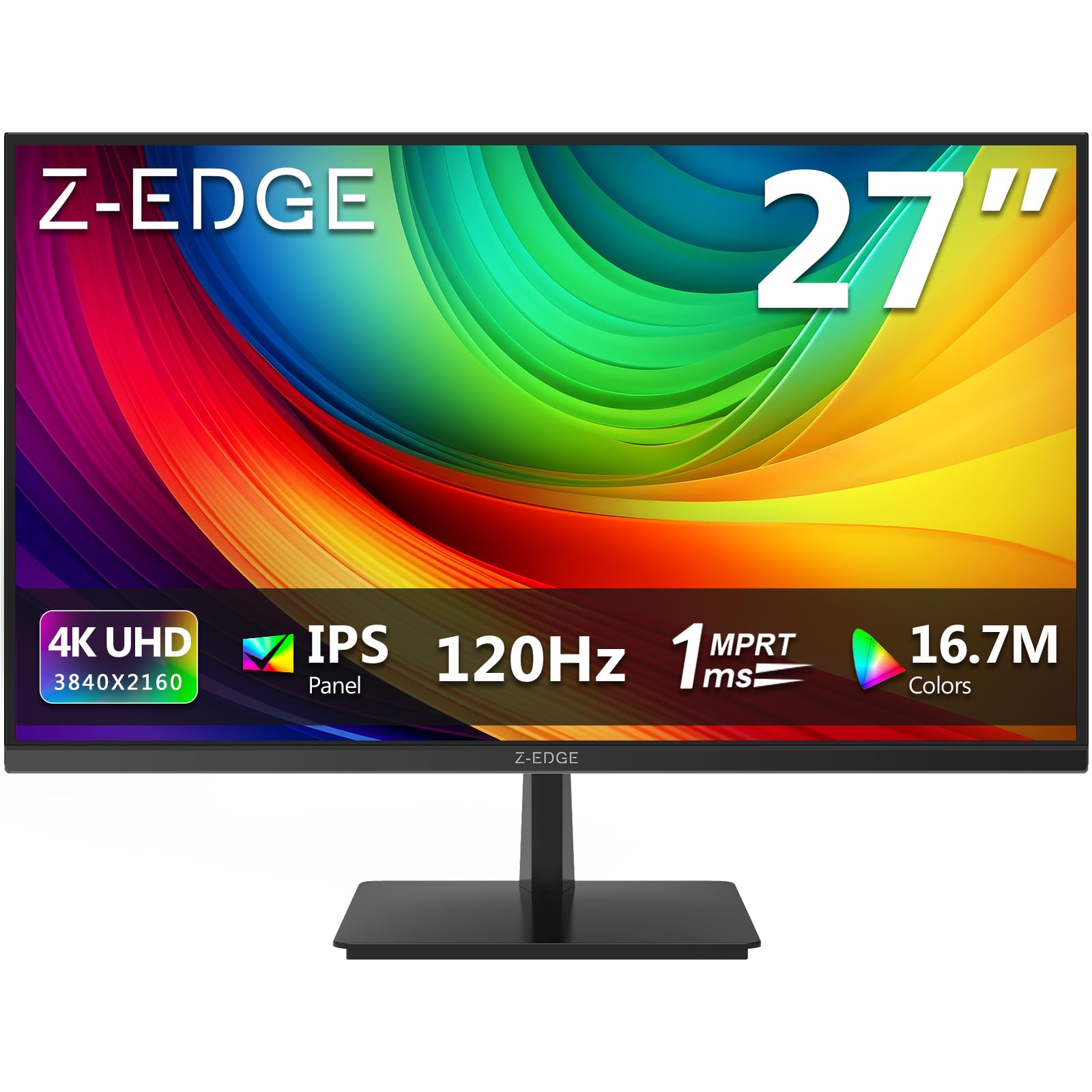
ຮູບພາບ: ທາງຫນ້າ view of the Z-Edge 27-inch 4K UHD monitor. This image shows the monitor displaying a vibrant scene, highlighting its slim bezels and overall design.
4.2 ດ້ານຫຼັງ View ແລະພອດ

ຮູບພາບ: ດ້ານຫລັງ view of the Z-Edge 27-inch 4K UHD monitor. This image illustrates the monitor's connectivity options, including HDMI and DisplayPort inputs, and the VESA mounting pattern.
ພອດທີ່ສາມາດໃຊ້ໄດ້:
- ຊິງຕັນດີຊີ 12V: ພອດປ້ອນພະລັງງານ.
- HDMI 1/2 (2.0): Two HDMI input ports for connecting various devices.
- DP 1/2 (1.4): Two DisplayPort input ports for high-resolution connections.
- ອອກສຽງ: 3.5mm audio jack for connecting external speakers or headphones.

ຮູບພາບ: ລາຍລະອຽດ view of the monitor's input ports. This diagram clearly labels each port, including DC 12V power, two HDMI 2.0, two DisplayPort 1.4, and an audio output.
5. ຕັ້ງຄ່າ
5.1 ສະພາປະຈໍາ
- ເອົາຈໍພາບອອກຈາກເຄື່ອງຫຸ້ມຫໍ່ຂອງມັນຢ່າງລະມັດລະວັງ, ຮັກສາຫນ້າຈໍປ້ອງກັນ.
- ແນບຄໍຂາຕັ້ງໃສ່ກັບແຜງຈໍພາບໂດຍໃຊ້ສະກູທີ່ໃຫ້ໄວ້.
- Connect the stand base to the stand neck, securing it with the remaining screws.
- ວາງຈໍສະແດງຜົນທີ່ປະກອບໃສ່ໃນພື້ນທີ່ຮາບພຽງທີ່ຫມັ້ນຄົງ.
ອີກທາງເລືອກໜຶ່ງ, ຈໍພາບຮອງຮັບການຕິດຕັ້ງ VESA 100x100 ມມ ສຳລັບຕົວຍຶດຝາ ຫຼື ແຂນຈໍພາບ. ໃຫ້ແນ່ໃຈວ່າຕົວຍຶດ VESA ໄດ້ຮັບການຈັດອັນດັບສຳລັບນ້ຳໜັກຂອງຈໍພາບ.
5.2 ການເຊື່ອມຕໍ່ກັບອຸປະກອນ
Connect your computer, game console, or other compatible device to the monitor using either an HDMI or DisplayPort cable.
- For 4K resolution at 120Hz, use a DisplayPort 1.4 cable or an HDMI 2.0 cable.
- Insert one end of the cable into the corresponding port on your device and the other end into an available HDMI or DP port on the monitor.
5.3 ການເຊື່ອມຕໍ່ພະລັງງານ
- Connect the power adapter to the DC 12V port on the monitor.
- ສຽບອະແດບເຕີໄຟເຂົ້າໄປໃນປລັກສຽບໄຟ.
6. ຄໍາແນະນໍາການດໍາເນີນງານ
6.1 ການເປີດ/ປິດ
ກົດປຸ່ມເປີດປິດຢູ່ໃນຈໍສະແດງຜົນເພື່ອເປີດຫຼືປິດມັນ. ໄຟຕົວຊີ້ວັດພະລັງງານຈະສະຫວ່າງເມື່ອຈໍພາບເປີດຢູ່.
6.2 OSD Menu Navigation
The On-Screen Display (OSD) menu allows you to adjust various monitor settings. Use the control buttons (usually located on the back or bottom of the monitor) to navigate the menu.
- ກົດປຸ່ມເພື່ອເປີດເມນູ OSD.
- Use the directional buttons to move between options.
- ກົດປຸ່ມເລືອກເພື່ອຢືນຢັນການເລືອກ ຫຼື ເຂົ້າສູ່ເມນູຍ່ອຍ.
- ກົດປຸ່ມອອກເພື່ອປິດເມນູ OSD.
6.3 ການຕັ້ງຄ່າຮູບ
Adjust display characteristics to your preference:
- ຄວາມສະຫວ່າງ: ປັບຄວາມສະຫວ່າງໂດຍລວມຂອງໜ້າຈໍ.
- ກົງກັນຂ້າມ: ດັດແປງຄວາມແຕກຕ່າງລະຫວ່າງພື້ນທີ່ສະຫວ່າງ ແລະ ພື້ນທີ່ມືດ.
- ອຸນຫະພູມສີ: ເລືອກຈາກໂໝດທີ່ຕັ້ງໄວ້ລ່ວງໜ້າ (ເຊັ່ນ: ອຸ່ນ, ເຢັນ, ຜູ້ໃຊ້) ຫຼື ປັບຄ່າ RGB ດ້ວຍຕົນເອງ.
- ອັດຕາສ່ວນ: Choose between Full, 4:3, or 16:9.
6.4 ຄຸນສົມບັດການຫຼິ້ນເກມ

Image: Visual representation of the difference between 120Hz and 60Hz refresh rates, illustrating how 120Hz provides a smoother and more fluid visual experience, especially for fast-paced content.
- FreeSync / Adaptive Sync: Enable this feature in the OSD menu and on your graphics card settings to synchronize the monitor's refresh rate with your GPU's frame rate, reducing screen tearing and stuttering.
- ເວລາຕອບສະໜອງ (MPRT): Adjust for faster pixel response, beneficial for fast-paced gaming.

Image: Visual demonstration of FreeSync technology. The left side shows screen tearing and stuttering when FreeSync is off, while the right side displays smooth, fluid motion with FreeSync enabled.
6.5 ການຄັດເລືອກການປ້ອນຂໍ້ມູນ
If you have multiple devices connected, use the OSD menu or a dedicated input select button to switch between HDMI 1, HDMI 2, DP 1, and DP 2 inputs.
7. ບໍາລຸງຮັກສາ
7.1 ການທໍາຄວາມສະອາດ Monitor
- ຖອດສາຍຈໍຈາກປລັກສຽບໄຟອອກກ່ອນທຳຄວາມສະອາດທຸກຄັ້ງ.
- ໃຊ້ຜ້າແພທີ່ອ່ອນໆ ທີ່ບໍ່ມີເສັ້ນດ່າງ dampຜະສົມດ້ວຍນ້ໍາຫຼືເຄື່ອງເຮັດຄວາມສະອາດຫນ້າຈໍອ່ອນໆທີ່ບໍ່ມີການຂັດ.
- ຢ່າສີດນໍ້າສະອາດໃສ່ໜ້າຈໍໂດຍກົງ.
- ຫຼີກລ່ຽງການໃຊ້ນໍ້າຢາເຮັດຄວາມສະອາດທີ່ມີສ່ວນປະກອບຂອງເຫຼົ້າ, ແອມໂມເນຍ ຫຼື ວັດສະດຸທີ່ມີສານຂັດ.
7.2 ການເບິ່ງແຍງທົ່ວໄປ
- ຮັກສາຈໍພາບໃຫ້ຫ່າງຈາກແສງແດດໂດຍກົງ ແລະແຫຼ່ງຄວາມຮ້ອນ.
- ຢ່າວາງວັດຖຸໜັກໃສ່ຈໍພາບ ຫຼືສາຍຂອງມັນ.
- ຫຼີກເວັ້ນການສໍາຜັດກັບຫນ້າຈໍຂອງແຫຼມ.
8. ການແກ້ໄຂບັນຫາ
| ບັນຫາ | ສາເຫດທີ່ເປັນໄປໄດ້ | ການແກ້ໄຂ |
|---|---|---|
| ບໍ່ມີຮູບພາບໃນ ໜ້າ ຈໍ |
|
|
| ຮູບພາບມົວຫຼືບິດເບືອນ |
|
|
| ໜ້າຈໍຈີກ ຫຼືສຽງສະດຸດ (ການຫຼິ້ນເກມ) |
|
|
| ບໍ່ມີສຽງຈາກຫູຟັງ/ລຳໂພງ |
|
|
9. ຂໍ້ມູນຈໍາເພາະ
| ຄຸນສົມບັດ | ລາຍລະອຽດ |
|---|---|
| ຍີ່ຫໍ້ | Z-Edge |
| ໝາຍເລກຕົວແບບ | S274K |
| ຂະໜາດໜ້າຈໍ | 27 ນິ້ວ |
| ປະເພດແຜງ | IPS |
| ຄວາມລະອຽດ | 4K UHD (3840 x 2160 ພິກເຊລ) |
| ອັດຕາການໂຫຼດຂໍ້ມູນຄືນໃໝ່ | 120 Hz |
| ເວລາຕອບສະຫນອງ | 1ms MPRT |
| ອັດຕາສ່ວນ | 16:9 |
| ຄວາມສະຫວ່າງ | 250 cd/m² |
| ອັດຕາສ່ວນກົງກັນຂ້າມ | 1000:1 |
| ສະຫນັບສະຫນູນສີ | 1.07 Billion Colors (99% sRGB) |
| Viewໃນມຸມ | 178° (H/V) |
| ການເຊື່ອມຕໍ່ | 2x HDMI 2.0, 2x DisplayPort 1.4, ສຽງອອກ |
| ຄຸນນະສົມບັດພິເສດ | Adjustable Tilt (-5°~15°), FreeSync, Flicker-Free, Ultra Slim Bezel |
| ຄວາມເຂົ້າກັນໄດ້ຂອງ VESA | 100x100ມມ |
| ການບໍລິໂພກພະລັງງານ | 32 ວັດ |
| ຫ້ອງຮຽນປະສິດທິພາບພະລັງງານ | F (EPREL Link) |

Image: Key display specifications including IPS Panel technology, 250 nits brightness, support for 16.7 million colors, and a 1000:1 contrast ratio.
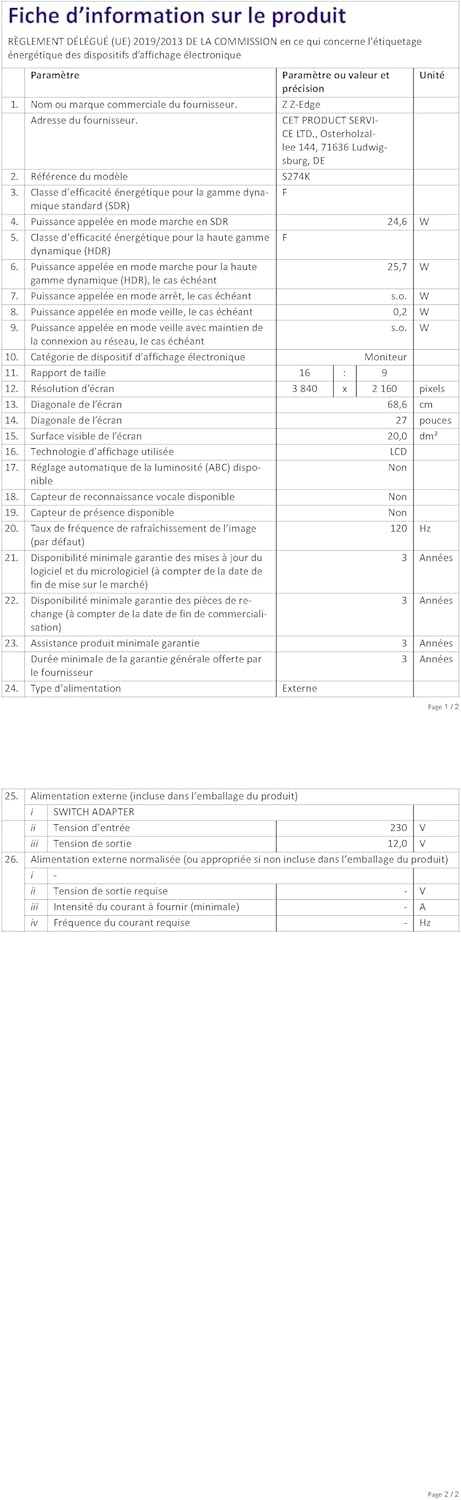
Image: EU Energy Label for the Z-Edge S274K monitor, indicating an energy efficiency class of F and energy consumption of 25 kWh per 1000 hours.
10. ການຮັບປະກັນແລະການສະຫນັບສະຫນູນ
10.1 ການຮັບປະກັນຂອງຜູ້ຜະລິດ
This Z-Edge monitor comes with a ການຮັບປະກັນຂອງຜູ້ຜະລິດ 1 ປີ ນັບຈາກວັນທີ່ຊື້. ການຮັບປະກັນນີ້ກວມເອົາຂໍ້ບົກຜ່ອງດ້ານວັດສະດຸ ແລະ ຝີມືການຜະລິດພາຍໃຕ້ການນໍາໃຊ້ປົກກະຕິ. ມັນບໍ່ກວມເອົາຄວາມເສຍຫາຍທີ່ເກີດຈາກການໃຊ້ຜິດ, ອຸບັດຕິເຫດ, ການດັດແປງທີ່ບໍ່ໄດ້ຮັບອະນຸຍາດ, ຫຼື ສາເຫດພາຍນອກ.
ສຳລັບການຮຽກຮ້ອງການຮັບປະກັນ, ກະລຸນາເກັບຫຼັກຖານການຊື້ຂອງທ່ານໄວ້.
10.2 ສະຫນັບສະຫນູນລູກຄ້າ
If you encounter any issues not covered in the troubleshooting section or require further assistance, please contact Z-Edge customer support. Refer to the official Z-Edge webເວັບໄຊສໍາລັບຂໍ້ມູນຕິດຕໍ່ທີ່ທັນສະໄຫມທີ່ສຸດແລະຊັບພະຍາກອນການຊ່ວຍເຫຼືອ.